
How to Fix VALORANT Error Code VAN 79 [8 Working Ways]
If you encounter VALORANT error code VAN 79, it typically means the game has lost connection to Riot’s servers due to unstable network conditions, system conflicts, or issues related to Riot Vanguard. Many players encounter this error during startup, matchmaking, or after sudden disconnects in-game. Luckily, this guide will tell you what Van 79 VALORANT error is, why it happens, and effective ways to help you get back into VALORANT quickly and reduce future connection issues.
What Is the VALORANT Error Code Van 79?
VALORANT error code Van 79 is a connection-related issue that occurs when the game client loses communication with Riot servers or the Riot Vanguard anti-cheat service. This error, also known as “VALORANT connection error Van 79”, indicates that VALORANT is unable to establish or maintain a stable connection to the servers. When the Van-79 VALORANT error occurs, players may experience disconnections, failed logins, or sudden game crashes that return them to the launcher interface.
Common situations where the Van 79 VALORANT error occurs include:
- Login failures when signing into your VALORANT account
- Game launch problems during startup
- Matchmaking interruptions before entering a match
- Sudden disconnects during gameplay
- Patch or update issues after a new VALORANT version
Understanding when and why VALORANT VAN 79 appears can help you troubleshoot the issue more quickly.
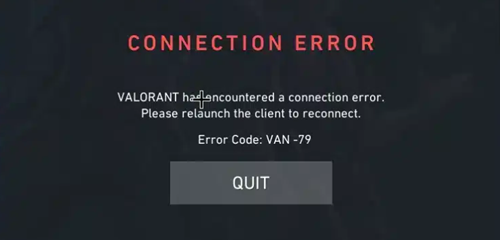
Why Does the VAN 79 VALORANT Error Happen?
The VALORANT connection error Van 79 is usually caused by connection or system-related issues that stop the game from communicating properly with Riot’s servers. Several common factors can trigger this error:
- Riot Vanguard Conflicts: Problems with Riot Vanguard, VALORANT’s anti-cheat service, may block the game from connecting correctly.
- DNS or Network Issues: Incorrect DNS settings or unstable routing can lead to connection failures.
- Firewall or Antivirus Interference: Security software may mistakenly restrict VALORANT or Riot Vanguard access.
- Server Communication Problems: Temporary Riot server outages or connection interruptions may also cause the error to appear.
- Unstable Internet Connection: High latency, packet loss, or sudden network interruptions can trigger VAN 79 during startup or gameplay.
Also Read: Is Fortnite Down? How to Check Server Status and Fix Issues >>
How to Fix VALORANT VAN 79 Error - 8 Easy Ways
If the VALORANT error code van-79 appears, follow the simple ways below one by one to repair Vanguard, refresh your network, and restore a stable connection.
Way 1. Run VALORANT as Administrator
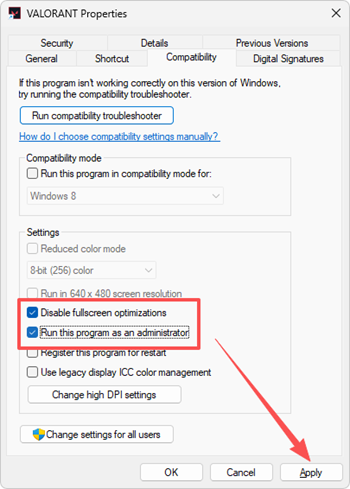
Running VALORANT with administrator permissions can help Riot Client and Riot Vanguard access the required system resources. This is useful when VAN 79 is caused by permission issues or when Vanguard fails to start correctly.
Step 1. Right-click the VALORANT shortcut and select Properties.
Step 2. Open the Compatibility tab, then enable Run this program as administrator and Disable fullscreen optimizations.
Step 3. Click Apply > OK, then restart the game to check if the error is resolved.
Way 2. Check Riot Vanguard Services
Riot Vanguard is required for VALORANT to run properly. If the Vanguard service is disabled, stopped, or not starting automatically, VALORANT may show error code VAN 79 during startup or login.
Step 1. Press Win + R, type services.msc, and press Enter.
Step 2. Locate vgc (Riot Vanguard) in the list, open its properties, and set the Startup type to Automatic.
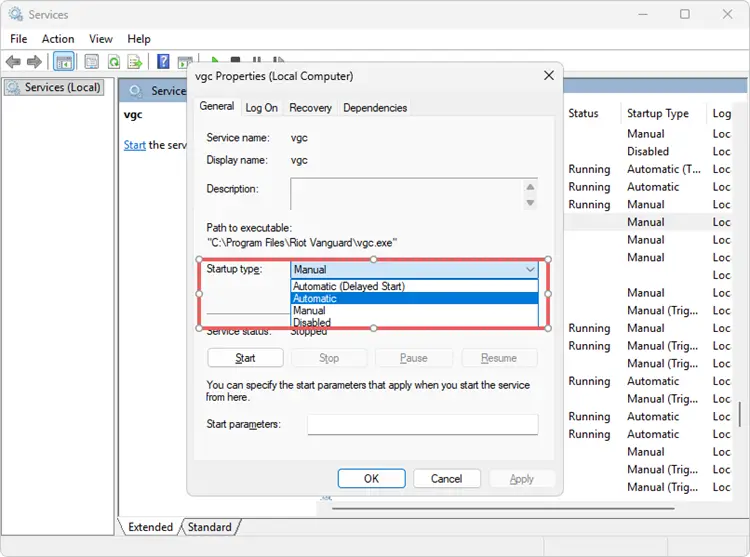
Step 3. If the service is stopped, click Start, then save the changes and restart your PC.
Way 3. Reset Winsock and Flush DNS
Corrupted DNS cache or network socket conflicts can prevent VALORANT from connecting to Riot servers. Resetting Winsock and flushing DNS can refresh your network configuration and help fix VALORANT connection error VAN 79.
Step 1. Press the Windows key, type cmd, right-click Command Prompt, select Run as administrator, and click Yes if Windows asks for permission.
Step 2. Run the following commands one at a time:
netsh winsock reset
ipconfig /flushdns
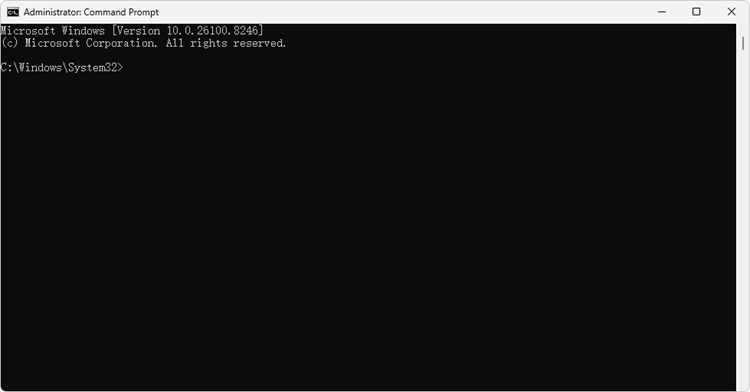
Step 3. After running the commands, restart your computer to refresh your network configuration.
Way 4. Reset Network Settings
If your network configuration is incorrect or unstable, resetting network settings can help rebuild your connection from scratch. This way may fix the Van-79 VALORANT error code when caused by adapter conflicts, broken settings, or unstable internet configuration.
Step 1. Press Windows + I on your keyboard to open Windows Settings.
Step 2. Go to Network & internet > Advanced network settings > Network reset, then click Reset now.
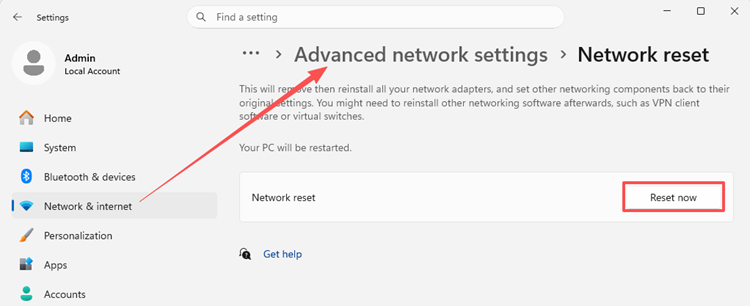
Step 3. Restart your computer after the reset is complete so Windows can rebuild your network settings.
Way 5. Update Windows and Network Drivers
Outdated Windows files or network drivers can cause compatibility issues with Riot Vanguard and VALORANT. Keeping your system and drivers updated may help prevent VAN 79, lag spikes, disconnects, and other connection-related problems.
Step 1. Open Settings > Windows Update, then click Check for updates and install any available updates.
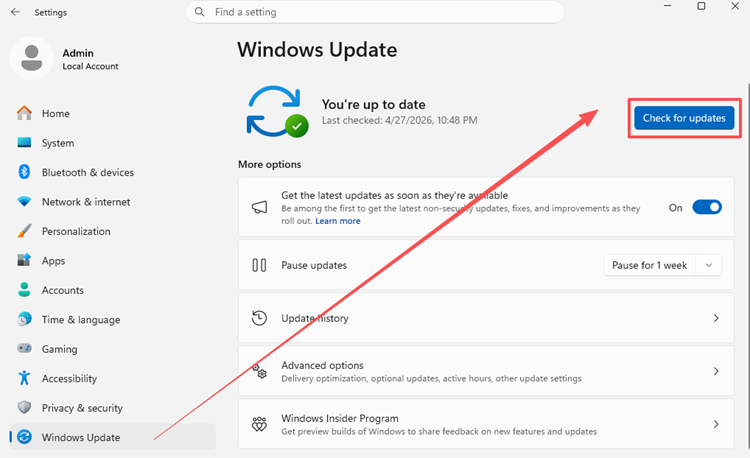
Step 2. Right-click the Windows icon to open Device Manager, expand Network adapters, then right-click your active network adapter and select Update driver.
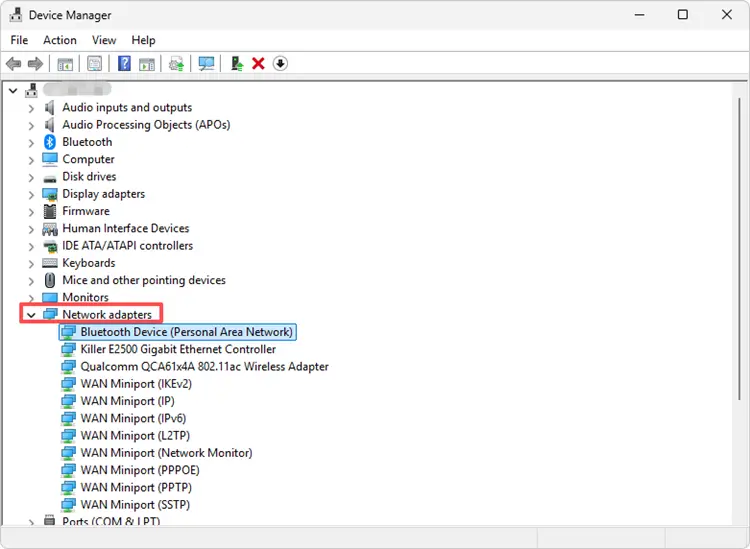
Step 3. Choose Search automatically for drivers, install any available updates, then restart your PC.
Way 6. Check Firewall and Antivirus Settings
Windows Firewall or third-party antivirus software may block VALORANT, Riot Client, or Riot Vanguard from connecting to Riot servers. Allowing these programs through the firewall can help fix VALORANT error code VAN 79.
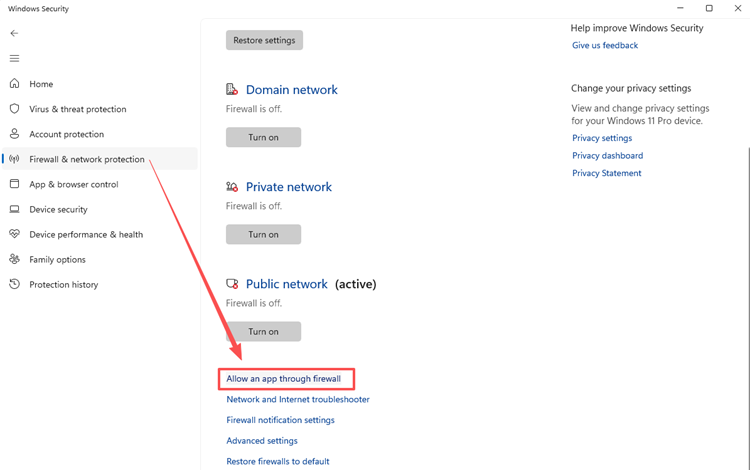
Step 1. Press Windows + I to open Settings, then go to Privacy & security > Windows Security > Firewall & network protection.
Step 2. Choose Allow an app through firewall, then make sure both VALORANT and Riot Vanguard are allowed through the firewall.
Way 7. Reinstall Riot Vanguard and VALORANT
If Riot Vanguard or VALORANT files are corrupted, reinstalling can replace damaged components and restore normal game functionality. This is especially useful if VAN 79 keeps returning after updates or system changes.
Step 1. Press the Windows key, type Control Panel, and open it. Then go to Programs and Features, find VALORANT and Riot Vanguard, and uninstall both programs.
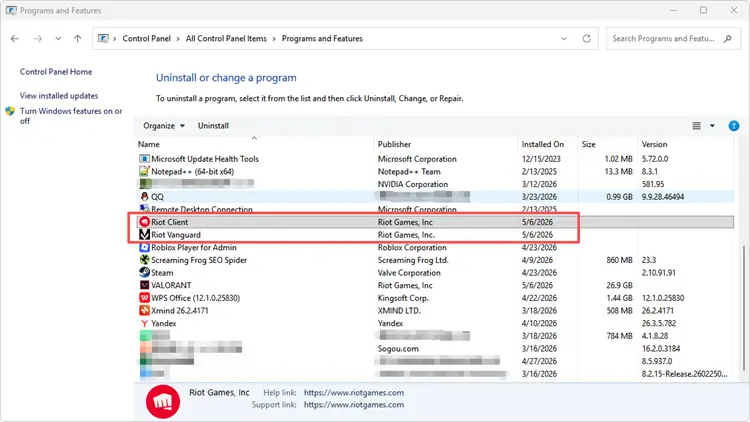
Step 2. Download the latest version of VALORANT from Riot Games and reinstall the game.
Riot Vanguard will automatically reinstall during the setup process. After installation is complete, restart your PC before launching VALORANT again.
Way 8. Contact Riot Support
If none of the ways above fix the VAN 79 error, the issue may be related to your account, Riot services, or deeper system conflicts. Contact Riot Games Support and explain when the error appears, what fixes you have already tried, and whether the issue happens during startup, login, matchmaking, or gameplay.
[Bonus] Using LagZapper to Reduce VALORANT Connection Issues
If VALORANT has encountered a connection error VAN-79, it may be caused by high latency, packet loss, unstable routing, or sudden network interruptions. This issue can appear when launching the game, logging in, entering matchmaking, or playing a match.
One effective way to fix the VALORANT VAN-79 connection error and prevent future network issues is to use a network optimization tool like LagZapper. With the LagZapper game booster, you can optimize your route to VALORANT servers, lower ping, reduce packet loss, and improve connection stability for smoother gameplay.
Highlights of Using LagZapper Game Booster
- Lower Ping for VALORANT: LagZapper helps you lower high ping and reduce network delay by optimizing your route to VALORANT servers, giving you faster response times during matches.
- Packet Loss Reduction: LagZapper minimizes packet loss, lag spikes, rubber-banding, delayed actions, and sudden disconnects while playing VALORANT.
- Smart Route Optimization: LagZapper automatically detects faster and more stable routes to Riot game servers, helping avoid congested network paths and improve overall connection quality.
- Stable Match Connection: LagZapper helps stabilize your internet connection during login, matchmaking, and live matches, reducing the chance of connection errors or mid-game interruptions.
How to Use LagZapper to Avoid VALORANT Error Code VAN 79
Before launching VALORANT, you can use LagZapper to optimize your network route and reduce connection instability. This may help lower the chance of VAN 79 caused by high ping, packet loss, unstable routing, or sudden network drops.
Step 1. Download and Install LagZapper
Click the Download button to get the latest version of LagZapper and install it on your Windows PC.
Step 2. Launch LagZapper and Sign In
Open LagZapper, sign in to your account, and make sure your internet connection is working properly.
Step 3. Search for VALORANT
Type VALORANT in the game search bar and select it from the supported games list.
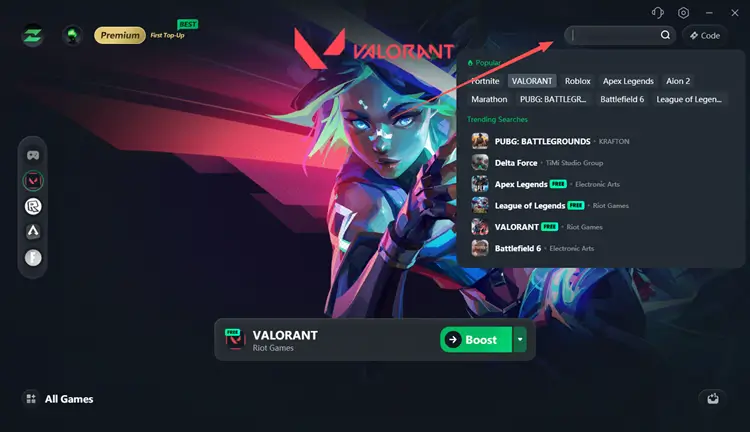
Step 4. Choose a Server or Node
Click the down-arrow icon next to the Boost button, then select the recommended server or a nearby optimized node to improve routing and reduce latency.
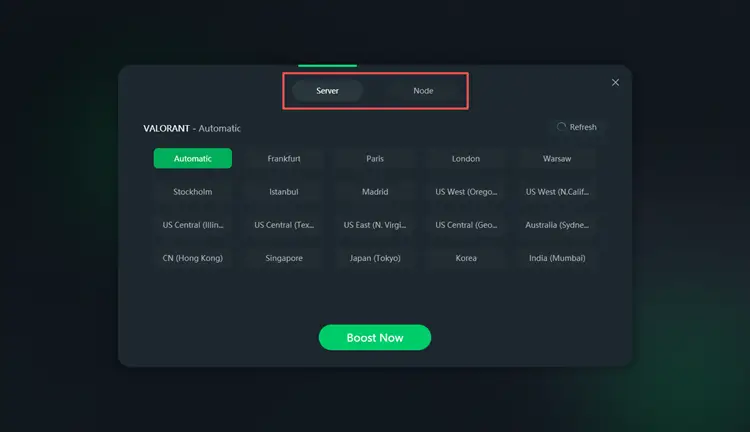
Step 5. Boost and Start VALORANT
Click Boost Now to optimize your connection, then launch VALORANT and check whether the VAN 79 error appears.
The Bottom Line
VALORANT Error Code VAN 79 can be annoying, but it is usually easy to fix with the above useful ways. From restarting your PC and checking Riot Vanguard to resetting DNS, updating drivers, and allowing VALORANT through your firewall, these fixes help restore your connection.
Since VAN 79 is often linked to unstable routing, high ping, or packet loss, in this case, using LagZapper can help you optimize your connection to VALORANT servers. Why not try it out? Download LagZapper for free to reduce lag, improve stability, and get back into smoother matches faster.
FAQs About VALORANT Error Code VAN 79
Still having questions about VALORANT error code VAN 79? Below are the most important FAQs to help you understand why this connection error happens and how to prevent it from coming back.
Q1: What does VALORANT error code VAN 79 mean?
It means game client cannot properly connect to Riot’s servers or Vanguard services, causing login failures, launch problems, matchmaking errors, or sudden disconnects.
Q2: Why does VALORANT show error code 79 on startup?
VALORANT may show VAN 79 on startup because of unstable internet, Vanguard conflicts, firewall restrictions, DNS issues, or corrupted game files.
Q3: Why does VAN 79 keep coming back?
VAN 79 may keep returning if your network remains unstable, Vanguard is not running correctly, or firewall settings continue blocking VALORANT.
Q4: Why does VAN 79 happen after a VALORANT update?
After an update, Riot Client, VALORANT files, or Vanguard services may fail to load properly. Restarting, repairing, or reinstalling Vanguard can help.
Q5: Can background apps cause VALORANT VAN 79?
Yes. Overlays, VPNs, firewall tools, network managers, or other background apps may interfere with VALORANT or Vanguard and trigger VAN 79.
Q6: Does VAN 79 mean my VALORANT account is banned?
No. VAN 79 is usually a connection or Vanguard-related error, not an account ban. Account restrictions normally show different messages or codes.