
Is Fortnite Down? How to Check Server Status and Fix Issues
When Fortnite suddenly stops working, most players immediately ask: is Fortnite down right now? Whether you’re stuck on the loading screen, unable to log in, or seeing “Fortnite servers not responding,” the issue is often related to server outages, maintenance, or connection problems.
In many cases, Fortnite server status can change quickly due to updates, traffic spikes, or backend issues. This guide will help you check if Fortnite is down, understand why Fortnite servers go offline, and fix common connection problems fast so you can get back into the game.
Is Fortnite Down Right Now?
Wondering “is Fortnite down right now”? Here’s a quick way to tell:
- If Epic Games servers show an outage, Fortnite is down for everyone.
- If servers are operational, the issue is likely on your network, device, or ISP.
- If only some players are affected, it may be a regional server or routing issue.
To confirm quickly, check the official Fortnite server status page or @FortniteStatus on X, then compare it with player reports on r/FortniteBR.
How to Check Fortnite Server Status (Is Fortnite Down Right Now?)
Is Fortnite down right now? The quickest way to determine whether Fortnite is down is to check official Epic Games sources first. Epic provides a public status page, where you can view real-time updates for all services, including Fortnite’s matchmaking system, login system, friends list, and more.
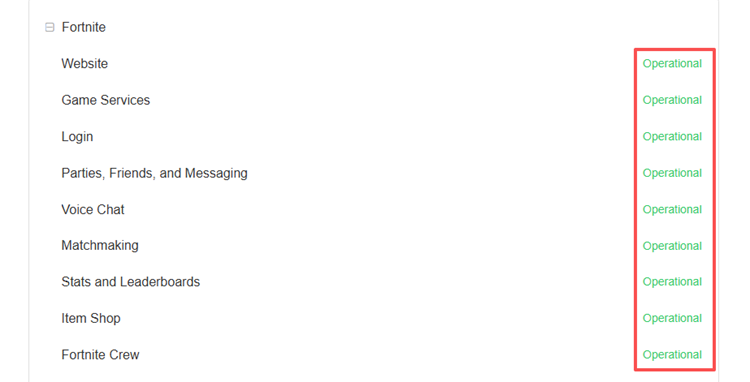
If all services show green, then Fortnite servers are working normally, and the issue is likely on your side (such as network, ISP, or device). If you see yellow or red indicators, it confirms that Fortnite servers are down or experiencing issues.
Why Is Fortnite Down Right Now? Common Reasons
Sometimes, when you check the Fortnite server status page, you’ll see that everything is listed as operational, yet the game still won’t load properly. In most cases, this means the issue is temporary, localized, or caused by a specific backend process failure rather than a complete system-wide outage. So, what exactly causes “Fortnite down”? Here are some of the most common reasons:
Game Updates & Patches
Major updates or seasonal patches temporarily take Fortnite server offline while Epic deploys new content and backend changes.
Server Overload (High Traffic Spikes)
When too many players log in at once, servers may become unstable, laggy, or temporarily crash after big updates.
Authentication/Login Service Issues
Even if servers are fine, Epic login systems can fail, preventing players from successfully signing in or accessing matches.
DDoS Attacks or Security Incidents
Malicious traffic floods Fortnite’s servers, overwhelming infrastructure and forcing temporary shutdowns to protect stability and security.
Region-Specific Network Problems
Local ISP or routing issues may result in service interruptions in specific regions, while players in other areas can continue playing normally.
Global Infrastructure Outages
Third-party services like AWS or Cloudflare failures can disrupt Fortnite connectivity even when Epic’s own systems are fully operational.
How to Fix Fortnite When Servers Are Not Responding
When servers are online, the “Fortnite down” issue is usually related to your network, device, or game files. Try 6 useful ways to restore a stable connection and get back into the game quickly.
Way 1. Check Maintenance Downtime
If regular updates or seasonal patches cause “Fortnite down”, it typically means the servers have been temporarily taken offline for scheduled maintenance. Fortnite downtime varies based on update size and technical complexity, so knowing typical timeframes helps you decide whether to wait or troubleshoot.
Most updates follow predictable windows, and Epic Games usually shares estimated downtime through official channels. Use the table below to set realistic expectations:
| Maintenance Type | Typical Duration | Possible Extension |
|---|---|---|
| Minor patches | 1–2 hours | Up to 3 hours |
| Regular updates | 2–4 hours | Up to 6 hours |
| Major updates | 4–6 hours | Up to 8+ hours |
| Season launches | 6–8 hours | Up to 12+ hours |
| Emergency fixes | Variable | Unpredictable |
If the current downtime is within the expected range, the best move is to wait. But if the outage continues beyond the typical timeframe, you should check official status updates for possible delays or unexpected issues.
Tip: For the latest new-season details, you can also check our Fortnite Chapter 7 Season 3 guide, including release date, start time, downtime, Battle Pass skins, and lag fixes.
Way 2. Restart Router & Run a Speed Test
If Fortnite servers are running normally, the issue is often on your side. A weak or unstable internet connection can cause lag, disconnections, or login failures even when the game is fully online. Here is how to check your internet connection:
Step 1. Turn off your router/modem > Unplug it for 30–60 seconds to clear temporary network issues.
Step 2. Plug it back in and wait until it fully restarts.
Step 3. Run a speed test to check ping, download, and upload stability
If the signal is weak, switch to an Ethernet cable or move closer to your Wi-Fi router. A stable, low-ping connection is more important for Fortnite than just high download speed.
Way 3. Delete the WebCache Folder
Corrupted cache files can interfere with Fortnite and Epic Games Launcher, especially after updates. This may lead to login issues, loading errors, or failed server connections. Follow steps to clear game cache:
Step 1. Fully close Fortnite and the Epic Games Launcher.
Step 2. Press Win + R, type %localappdata%, and press Enter. Go to EpicGamesLauncher > Saved, find the WebCache folder, and delete it.
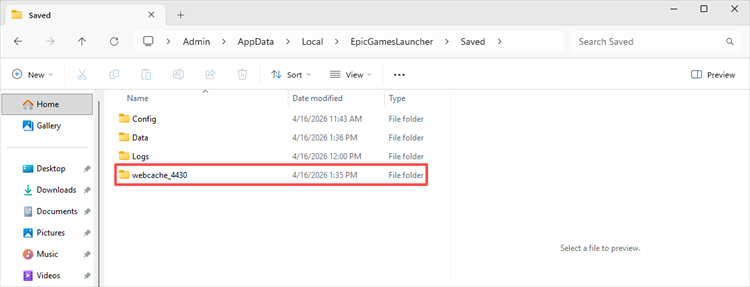
Step 3. Restart the Epic Games Launcher and launch Fortnite again.
Tip: Deleting the WebCache folder is safe; it will be automatically recreated when you restart the launcher.
Way 4. Update Fortnite
Running an outdated version of Fortnite can cause compatibility issues with the servers, which may prevent you from logging in or joining matches. Keeping the game updated ensures compatibility with the latest Fortnite servers and reduces connection errors. Let’s download and install any pending patches:
Step 1. Open the Epic Games Launcher > Go to your Library.
Step 2. Find Fortnite and check if an update is available > Click Update to download the latest patch.
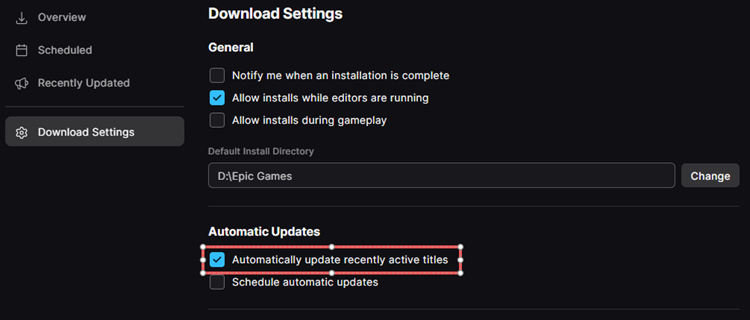
Step 3. Enable auto-update to ensure future updates install automatically.
Way 5. Reinstall Fortnite
If none of the previous fixes resolve the “Fortnite down” problem, corrupted or missing game files may be the cause. In this case, reinstalling the game can help restore missing components and fix persistent errors.
Step 1. Open Epic Games Launcher > Go to Library, click three dots on Fortnite, and then choose Uninstall.
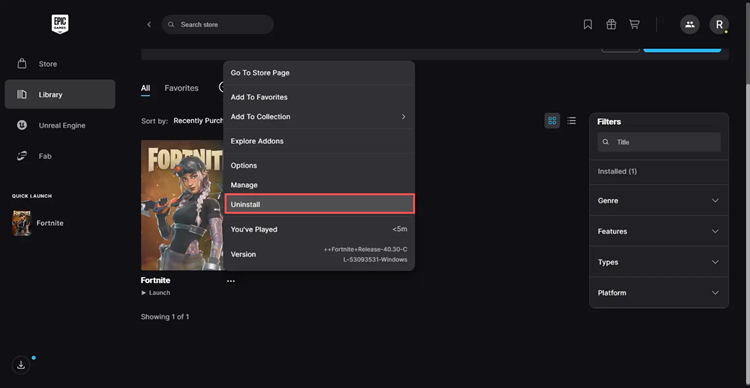
Step 2. Restart your device (optional but recommended), then reinstall Fortnite and launch it fresh.
Way 6. Restart Your Device
Temporary system glitches or memory issues can affect connectivity, even when everything else is working properly. Follow this full guide to refresh your system:
Step 1. Fully shut down your PC, console, or mobile device, then wait 30–60 seconds.
Step 2. Turn the device back on (avoid sleep or hibernation mode), then reconnect to your network.
Step 3. Launch Fortnite and check the connection again.
[Bonus] Try a Game Booster to Fix “Fortnite Down” Issue
If Fortnite server status shows “operational” but you still cannot connect or see the “Fortnite down” issue, the issue may be your routing path rather than actual Fortnite servers down status. A tool like LagZapper helps optimize your connection by reducing ping and improving stability when Fortnite servers are not responding due to network routing.
Highlights of LagZapper Game Booster:
- Reduces ping for faster in-game response
- Minimizes packet loss during matches
- Stabilizes connection to prevent disconnects
- Optimizes routing to Fortnite servers
- Uses multi-path technology for improved reliability
[Step-by-Step Guide] How to Boost Fortnite with LagZapper
So, how do you boost Fortnite with LagZapper? Just follow these simple steps:
Step 1: Download & Install LagZapper
Click the download button below to get and install LagZapper for free.
Step 2: Launch LagZapper & Sign In
Launch LagZapper and log in to start boosting your game.
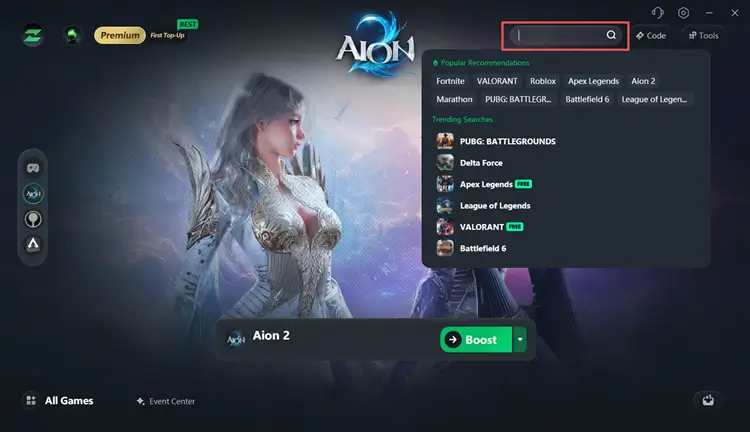
Step 3: Search for Fortnite
Use the search bar or browse the game list to find Fortnite and select it for game optimization.
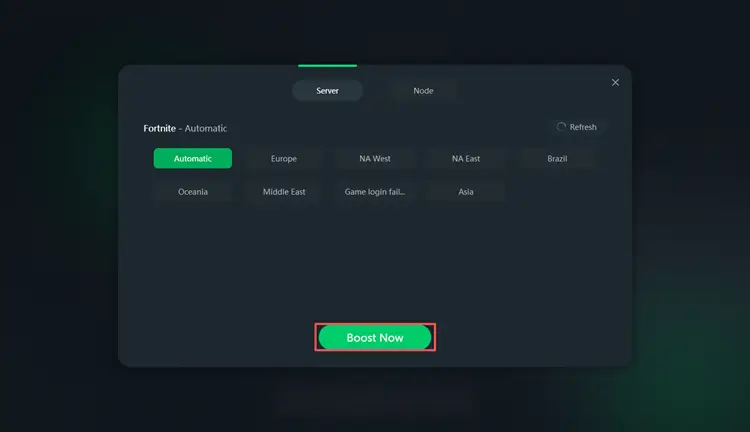
Step 4: Boost & Play Fortnite
Click the dropdown next to the Boost button to choose your preferred server or node. Then click Boost Now and start enjoying smoother gameplay.
The Bottom Line
Understanding Fortnite server status is essential for determining whether the issue is global or local. Even when Fortnite is down right now, it is usually temporary and caused by scheduled maintenance or game updates. In other cases, problems like high ping, packet loss, or inefficient routing can significantly affect gameplay performance even when servers are fully operational.
That’s where LagZapper comes in. It helps optimize your internet connection, reduce latency, and improve overall routing stability for a smoother and more consistent gaming experience. If you’re dealing with persistent connection issues, it’s worth trying as a simple way to improve performance in Fortnite. Download LagZapper for free right now!
FAQs About Fortnite Down
Here are some of the most common questions players ask when Fortnite appears to be down.
Q1: Can updates cause Fortnite downtime?
Yes. Major patches and seasonal updates often require temporary server shutdowns to deploy new content and system changes.
Q2: Is Fortnite down for everyone or just me?
If the servers are operating normally worldwide but you still can’t connect, the issue is most likely local, such as your internet connection, device, or ISP.
Q3: Why can’t I log into Fortnite even if servers are online?
Login issues can happen due to account-related problems, an outdated game version, or platform-specific errors on your console or launcher.
Q4: What does “Fortnite servers not responding” mean?
A: It means your game client is failing to communicate with Epic Games’ servers. This can happen due to server outages, maintenance, or network connection issues on your side.