
ACE COMBAT 8 Crashing? 7 Fixes for UE Error 01 & Startup Crashes
ACE COMBAT 8 crashing on PC can stop you before takeoff or interrupt a mission without warning. The game may close during startup, display UE Error 01, crash during cutscenes, or freeze in Mission 1. Some players can fly normally but still encounter crashes during mission transitions or replays, forcing them to restart the game before they can continue.
This guide will explain why ACE COMBAT 8 keeps crashing and walk you through seven fixes for UE Error 01, startup crashes, cutscene crashes, and Mission 1 freezes on PC.
Why Does ACE COMBAT 8 Keep Crashing?
ACE COMBAT 8 crashes can happen at different stages. Check the table below to match your symptoms with a possible cause and the first fix to try.
| Symptom | Possible Cause | First Fix to Try |
|---|---|---|
| UE Error 01 during startup | Graphics configuration issue | Reset GameUserSettings.ini |
| Cutscene or replay crashes | GPU driver compatibility | Update or reinstall your GPU driver |
| Crashes during loading | Damaged game files | Verify Steam files |
| Crashes with overlays enabled | Background software conflict | Disable overlays |
| Crashes during long sessions | Memory or storage pressure | Check SSD space and virtual memory |
| Crashes during demanding scenes | High graphics load | Lower graphics settings and cap FPS |
How to Fix ACE COMBAT 8 Crashing on PC - 7 Useful Fixes
Make sure the SSD containing ACE COMBAT 8 has at least 16 GB free and Windows virtual memory is enabled. Then try the seven fixes below in order.
Fix 1. Update ACE COMBAT 8 and Restart Steam
Game updates may include stability fixes for startup or mission crashes. Close ACE COMBAT 8 and check Steam Downloads for pending game updates. Wait for installation to finish, then select Steam > Exit and reopen Steam. Launch the game again and check whether the same startup, cutscene, or mission crash still occurs.
Fix 2. Close Background Apps and Disable Overlays
Background apps and in-game overlays can use system resources or interfere with the game. Close unnecessary browsers, recording tools, and other demanding apps. Temporarily disable any enabled in-game overlays, then relaunch ACE COMBAT 8 and retry the same scene. If stability improves, re-enable them individually to identify a possible conflict.
Fix 3. Verify ACE COMBAT 8 Game Files
An interrupted download or update can leave missing or damaged files that cause startup or loading crashes. Steam’s verification tool checks the installation and downloads replacements when needed, helping you rule out file problems before trying more involved fixes. Follow the steps below.
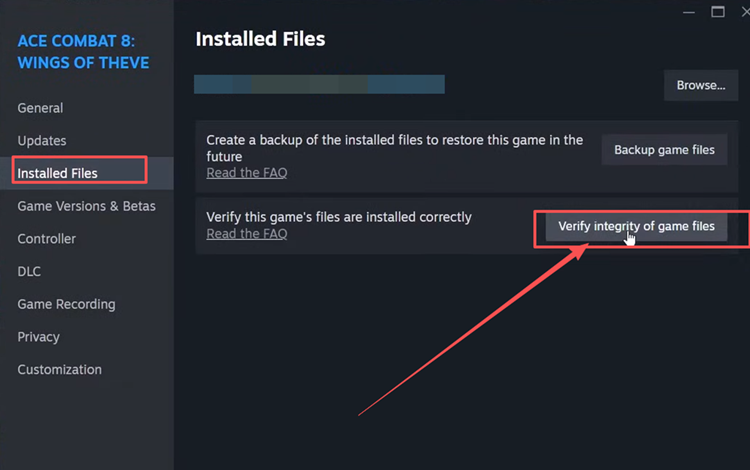
Step 1. Open Steam Library, right-click ACE COMBAT 8, and select Properties > Installed Files.
Step 2. Click Verify integrity of game files and wait for the check and any downloads to finish.
Fix 4. Reset the ACE COMBAT 8 GameUserSettings.ini File
Resetting GameUserSettings.ini lets ACE COMBAT 8 rebuild its local graphics configuration. This workaround may help with UE Error 01 during startup or the Mission 1 cutscene. Your graphics settings will return to their defaults. Back up the file before renaming it, and skip this fix if it is missing. Follow the steps below.
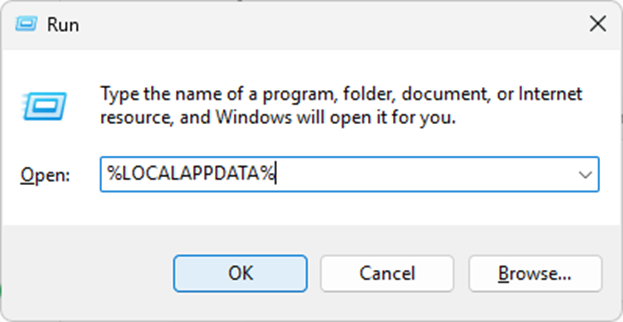
Step 1. Close the game, press Windows + R, enter %LOCALAPPDATA%, and press Enter.
Step 2. Open BANDAI NAMCO Entertainment > ACE COMBAT 8 > Saved > Config > Windows.
Step 3. Back up GameUserSettings.ini, rename it to GameUserSettings.ini.bak, and relaunch ACE COMBAT 8.
Fix 5. Lower Graphics Settings and Cap FPS
Higher graphics settings and an uncapped frame rate can increase GPU load during demanding scenes. If ACE COMBAT 8 crashes during cutscenes or missions, lowering the graphics preset and testing a 60 FPS limit may help you check whether rendering load contributes to the problem. Follow the steps below.
Step 1. Open ACE COMBAT 8 and enter the graphics settings menu.
Step 2. Choose a Low or Medium preset and set Frame Rate Limit to 60 FPS.
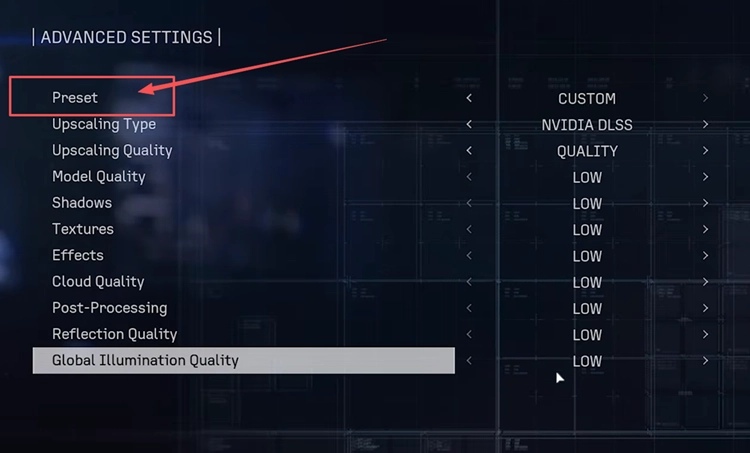
Step 3. Apply the changes, retry the same scene, and raise settings gradually if the game stays stable.
Fix 6. Update or Reinstall Your Graphics Driver
Outdated or damaged graphics drivers can contribute to ACE COMBAT 8 crashes. Download and install an updated driver for your GPU from the manufacturer’s official website, then restart your PC. If crashes persist after updating, reinstall the driver using the manufacturer’s installer to replace damaged components, then test the same startup sequence, cutscene, or mission again.
Fix 7. Clear the Shader Cache
Clearing the DirectX shader cache lets games rebuild cached shader data and may help with some graphics-related crashes. Try this if crashes started after you changed your graphics driver. The next launch may take longer or stutter briefly while shaders rebuild. After clearing the cache, restart ACE COMBAT 8 and test the same scene. Follow the steps below.
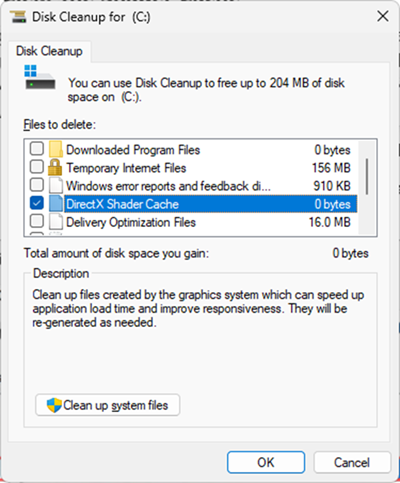
Step 1. Press Windows + R, enter cleanmgr, and press Enter to open Disk Cleanup.
Step 2. Select your system drive, check only DirectX Shader Cache, click OK, and confirm Delete Files.
[Bonus] Improve ACE COMBAT 8 Online Connection with LagZapper
Once ACE COMBAT 8 runs normally, online battles may still suffer from high ping, packet loss, lag spikes, or unstable routing. LagZapper can optimize the connection route between your PC and ACE COMBAT 8 servers to help improve connection stability during online play.
Why Use LagZapper for ACE COMBAT 8?
LagZapper can help ACE COMBAT 8 players:
- Smart Route Optimization: Finds a faster and more stable route to ACE COMBAT 8 servers to help reduce high ping, packet loss, jitter, and routing instability.
- Reduce Lag & Improve Stability: Helps lower ping, reduce game lag, minimize lag spikes, and improve responsiveness during online battles.
- One-Click Boost: Optimizes the ACE COMBAT 8 connection without manually changing complicated network, DNS, or router settings.
- Support for 3,000+ Games: Supports ACE COMBAT 8 and more than 3,000 other online games.
How to Boost ACE COMBAT 8 with LagZapper
Follow the three steps below to optimize your ACE COMBAT 8 connection before entering an online battle.
Step 1. Download and Install LagZapper
Download LagZapper for Windows and follow the on-screen instructions to complete the installation.
Step 2. Search for ACE COMBAT 8
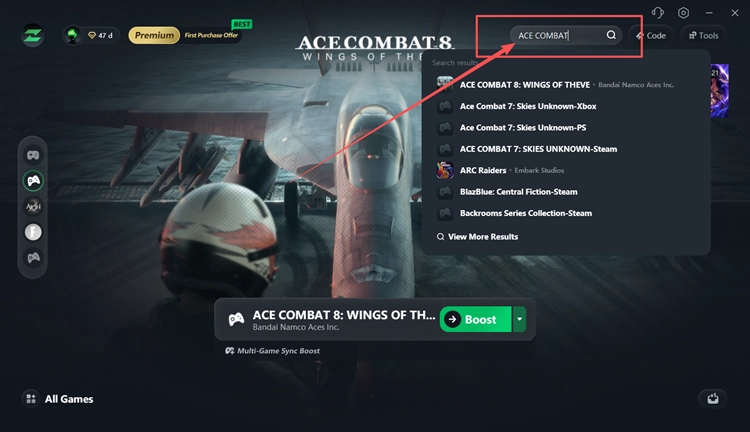
Launch LagZapper, sign in, and enter ACE COMBAT 8 in the search box.
Step 3. Select a Recommended Node and Click Boost
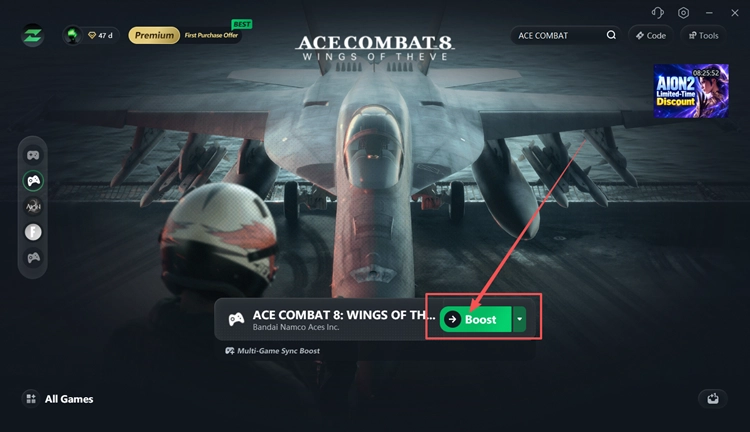
Choose a recommended ACE COMBAT 8 node, click Boost, then launch the game and enter online play.
The Bottom Line
If ACE COMBAT 8 keeps crashing, check updates, disable overlays, verify files, and reset the graphics configuration. Then lower graphics settings and cap FPS, update or reinstall your GPU driver, and clear the shader cache. Once the game runs normally, download LagZapper to help lower ping, reduce game lag, and limit packet loss during online play.
FAQs About ACE COMBAT 8 Crashing
Q1. Why Does ACE COMBAT 8 Keep Crashing?
Game bugs, driver conflicts, damaged files, overlays, or graphics configuration issues can cause repeated crashes.
Q2. What Is ACE COMBAT 8 UE Error 01?
It indicates an unexpected game crash; the code alone does not identify the underlying cause.
Q3. Can Resetting GameUserSettings.ini Fix ACE COMBAT 8 Error 01?
A community report found it helpful; back up the file before resetting your graphics configuration.
Q4. How Do I Fix ACE COMBAT 8 Crashing on Startup?
Update the game, disable overlays, verify files, and reset the local graphics configuration.
Q5. Does an ACE COMBAT 8 Fatal Error Mean My GPU Is Faulty?
Not necessarily. A fatal error message alone cannot confirm GPU damage or other hardware failure.