
Apex Legends Season 30 Update Stuck? 6 Fixes for Download Errors and Update Loops
Apex Legends Season 30: Marked launches on August 4, 2026, bringing a major Bloodhound rework, a refreshed World’s Edge, and new Corrupted Attachments. However, players may find the Apex Legends Season 30 update stuck on Preparing, at 0 B/s, or during downloading or patching, while others encounter repeated update loops or a version mismatch that prevents them from entering the game.
This guide will explain why the Season 30 update becomes stuck and provide six practical fixes for launcher, file, storage, and connection problems.
Why Is the Apex Legends Season 30 Update Stuck?
An Apex Legends update can stop at different stages when the launcher, storage, local files, platform services, or network connection cannot complete the download and installation.
Season Launch Traffic or Platform Rollout Delays
Launch-day demand or delayed platform rollout can leave the update waiting, restarting, or temporarily unavailable.
Corrupted Launcher or Console Cache
Corrupted cache data can stop Steam, the EA app, or consoles from detecting or continuing the update.
Insufficient Storage or Slow Disk Activity
Low storage can block unpacking, while slow disk activity may hold the download at 0 B/s.
Incomplete or Damaged Apex Legends Files
Interrupted downloads may leave damaged files that prevent patching and send Apex Legends into an update loop.
Unstable Downloads or Security Restrictions
Unstable connections, background downloads, firewalls, or antivirus software can interrupt the download of required update files.
How to Fix Apex Legends Season 30 Update Stuck – 6 Fixes
Try these six fixes in order, beginning with quick update checks before moving to deeper troubleshooting. In launcher-specific sections, use only the Steam or EA app steps that match your Apex Legends installation.
Fix 1. Check Server Status and Retry the Update
Before changing local settings, check EA’s official server status page for Apex Legends outages or maintenance. If services are unavailable, wait and retry later. If they are online, open your launcher’s download queue and manually start or resume the Season 30 update.
Fix 2. Fully Restart Steam or the EA App
Closing the launcher window may leave update-related processes running, so the stalled session can remain active. Fully exiting Steam or the EA app clears those processes and gives the client a fresh chance to detect and continue the Season 30 update. Follow the steps below to restart the launcher completely:
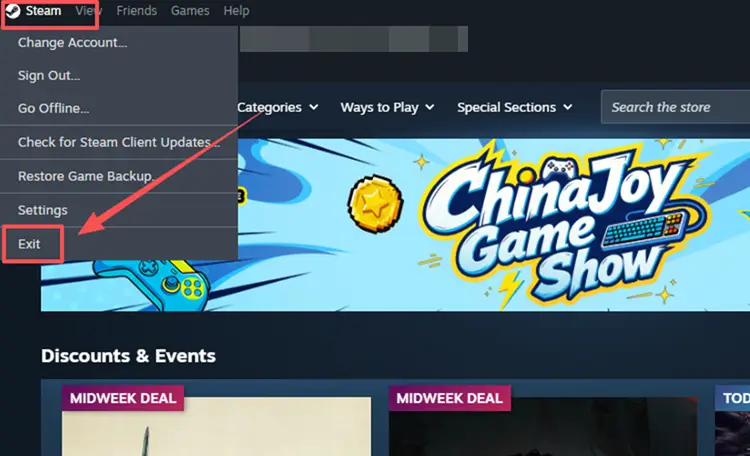
Step 1. In Steam, select Steam > Exit to close the client completely.
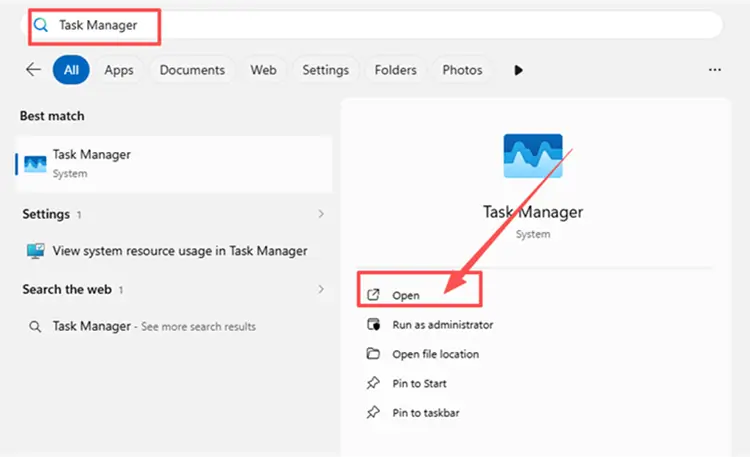
Step 2. Type Task Manager in the Windows search box and end any remaining Steam or Apex Legends processes.
Step 3. Reopen Steam, return to Apex Legends in Library, and select Update or Resume.
Tip: The EA app and other platforms follow the same basic process: close or restart the client or system completely, reopen it, and retry the update; exact menu paths differ.
Fix 3. Free Up Storage and Check Disk Activity
Large updates may need extra space to download, unpack, and replace files. Check the drive or console storage where Apex Legends is installed and remove unneeded files if space is low. At 0 B/s, check whether Windows still shows disk activity from the launcher; if so, it may still be patching, so wait before interrupting it.
Fix 4. Clear the EA App or Steam Download Cache
Damaged download-cache data can keep the Season 30 update stuck on Preparing, at a fixed percentage, or waiting in the queue. Clearing the cache removes temporary launcher data that may be blocking the download without reinstalling Apex Legends. Follow the steps below for your launcher:
👉 Clear the EA App Cache
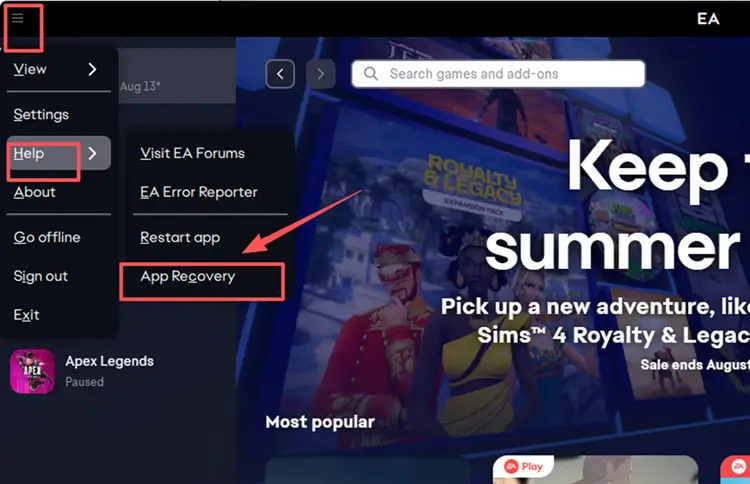
Step 1. Open the menu in the top-left corner of the EA app, then select Help > App Recovery.
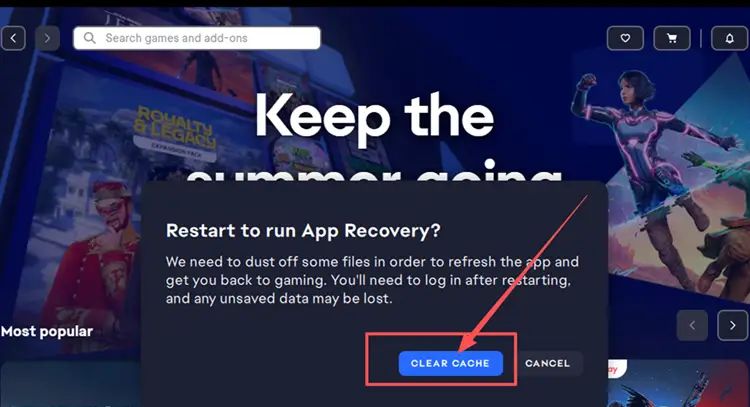
Step 2. Select Clear cache, reopen the EA app, and retry the Apex Legends update.
👉 Clear the Steam Download Cache
Step 1. Open Steam > Settings > Downloads, then select Clear Download Cache.
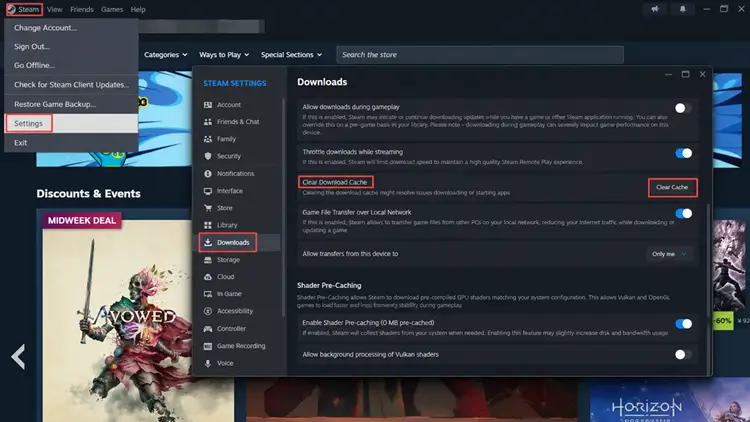
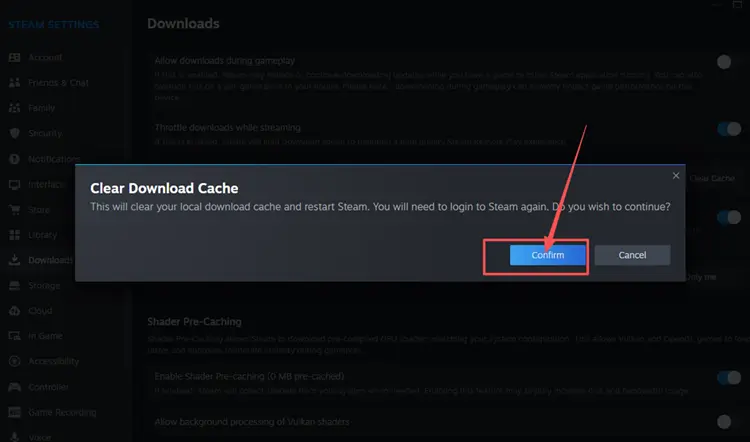
Step 2. Select Confirm, sign back in after Steam restarts, and resume the Apex Legends update.
Fix 5. Repair or Verify Apex Legends Files
An interrupted update can leave Apex Legends with missing or damaged files, causing the launcher to restart the patch, remain in the update queue, or show a version mismatch. Repairing or verifying the installation checks the game and redownloads damaged or missing data. Follow the steps below for your launcher:
👉 Repair Apex Legends in the EA App
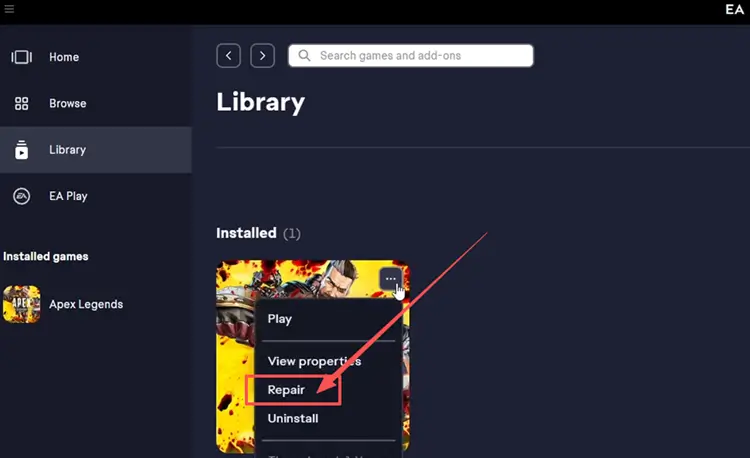
Step 1. Open the EA app, go to Library, and select Apex Legends.
Step 2. Select Manage > Repair, wait for the process to finish, and retry the update.
👉 Verify Apex Legends Files on Steam
Step 1. Open Steam Library, right-click Apex Legends, and select Properties.
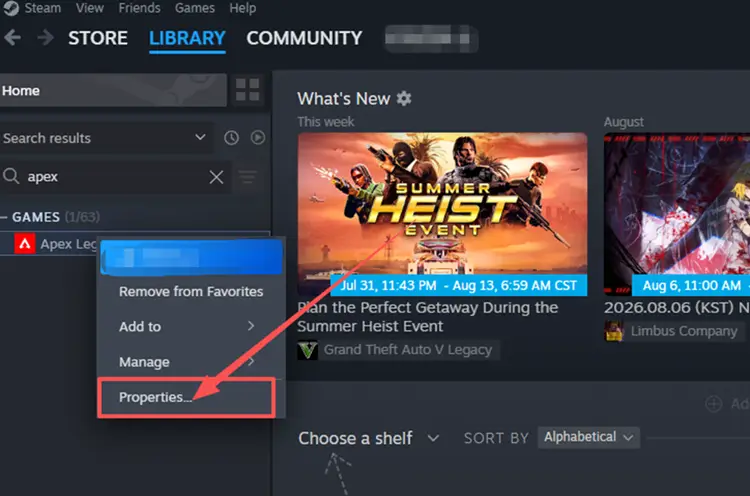
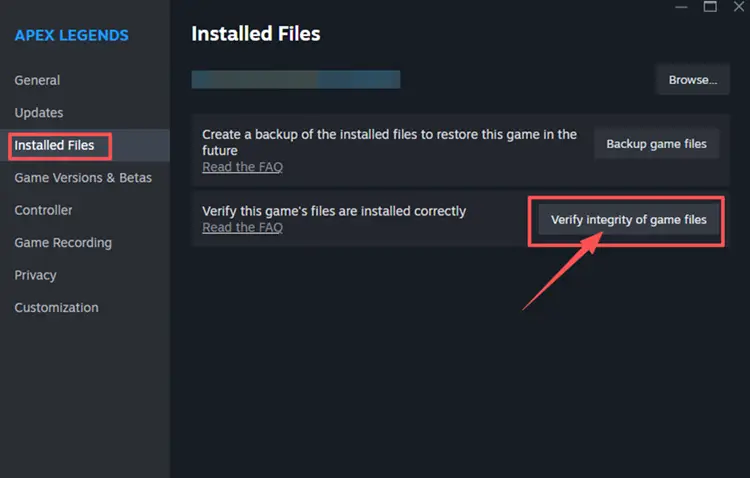
Step 2. Open Installed Files, select Verify integrity of game files, and wait for Steam to finish before retrying the update.
Fix 6. Stabilize the Download and Remove Connection Blocks
An unstable connection, competing downloads, or security rules can interrupt update traffic, leaving the Apex Legends update stuck at 0 B/s or repeatedly paused. Follow these steps before resuming the update:
👉 Reduce Bandwidth Use and Stabilize the Connection
Close bandwidth-heavy apps, pause other downloads, and use Ethernet if possible. If the connection remains unstable, restart your router and modem before resuming the update. These checks also apply to consoles.
👉 Allow Steam or the EA App Through Windows Firewall
Firewall or antivirus rules can prevent the launcher from reaching update services. Add Steam or the EA app as an exception instead of disabling security protection. Follow the steps below for Windows Firewall:
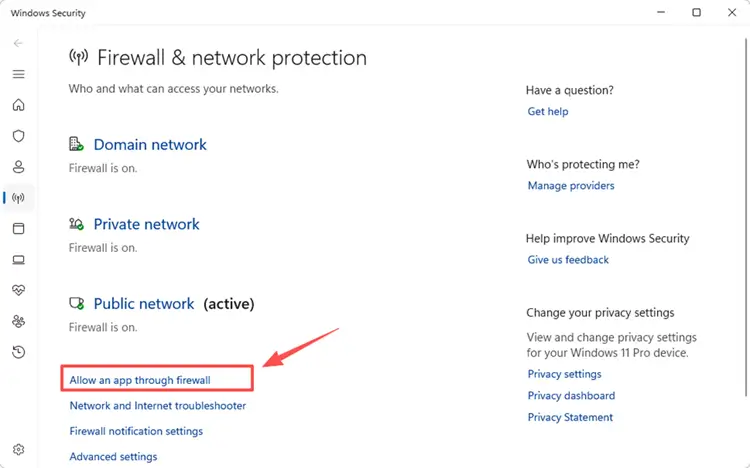
Step 1. Open Windows Security, select Firewall & network protection, and click Allow an app through firewall.
Step 2. Select Change settings, click Allow another app, and add the executable files for whichever launcher manages your Apex Legends installation—Steam or the EA app.
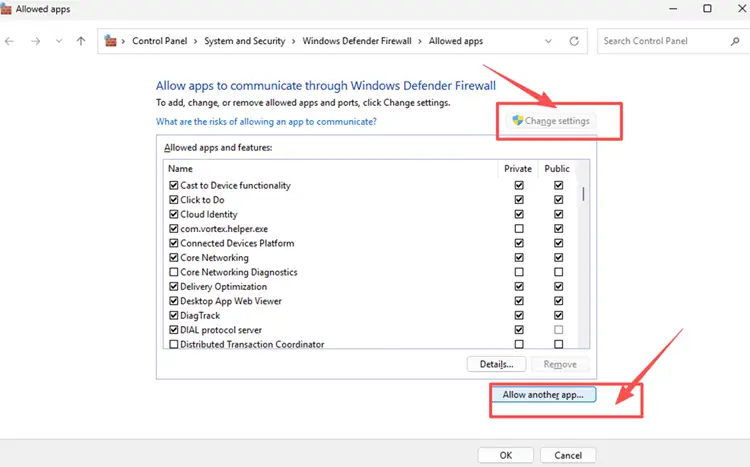
Step 3. Allow the selected launcher on your active network profile, click OK, and restart it.
[Bonus] Optimize Apex Legends Connection with LagZapper
Apex Legends relies on a stable connection for responsive movement, combat, and hit registration. LagZapper can optimize the route to the selected server, helping reduce high ping and packet loss caused by inefficient routing.
Why Use LagZapper for Apex Legends?
LagZapper can help Apex Legends players:
- Smart Route Optimization: Finds stable routes to reduce ping, packet loss, and jitter.
- Connection Stability: Helps reduce game lag, lower ping, and limit sudden latency changes.
- One-Click Boost: Optimizes the connection without manual router, DNS, or Windows changes.
- 3,000+ Game Support: Works with Apex Legends and thousands of other online games.
How to Boost Apex Legends with LagZapper
Follow these three steps to optimize the connection before launching Apex Legends.
Step 1. Download and Install LagZapper
To begin, download LagZapper for Windows and follow the on-screen instructions to complete the installation on your PC.
Step 2. Search for Apex Legends
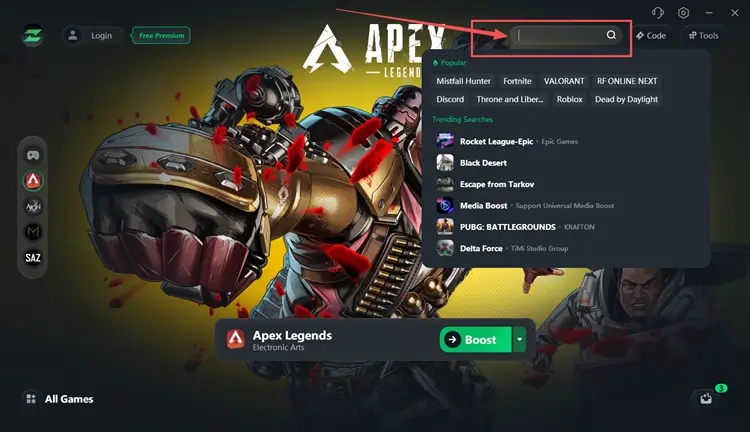
Launch LagZapper, then use the search bar or browse the supported games list to find Apex Legends.
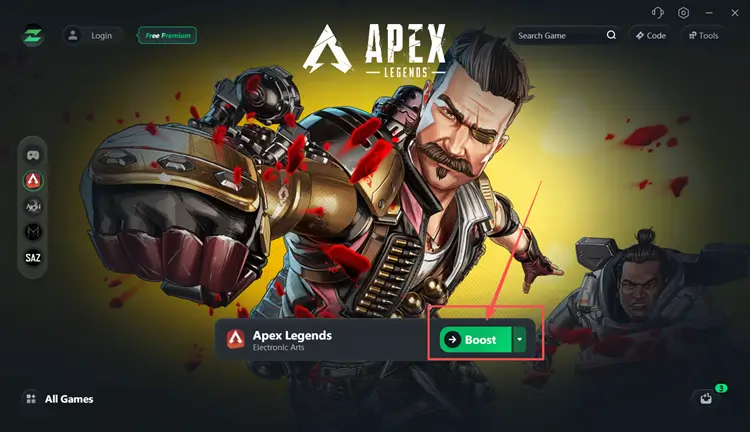
Step 3. Select a Server and Click Boost
Select an Apex Legends server or recommended node, then click Boost before launching the game.
The Bottom Line
The Apex Legends Season 30 update may become stuck because of rollout delays, stalled launcher processes, limited storage, damaged cache or game files, unstable downloads, or firewall restrictions. Check the official status and download queue first, then restart the launcher, free storage, clear the cache, verify files, stabilize the connection, and allow the launcher through Windows Firewall.
After the update finishes, if high ping, packet loss, or unstable routing affects matches, download LagZapper to optimize the server route and improve connection stability.
FAQs About Apex Legends Season 30 Update Stuck
Q1. Why Is the Apex Legends Season 30 Update Stuck?
Season rollout delays, corrupted cache, limited storage, damaged files, or unstable downloads can stop the update.
Q2. How Do I Fix an Apex Legends Update Stuck on Steam?
Restart Steam, check its download queue, clear the download cache, and verify Apex Legends files.
Q3. Why Is Apex Stuck on Downloading an Update File?
The launcher may be unpacking files, waiting for disk access, or retrying an interrupted download.
Q4. How Do I Stop an Apex Legends Update Loop?
Clear the launcher cache and verify game files to replace incomplete or damaged update data.
Q5. What Causes “Apex Game Version Does Not Match Host” After Updating?
The installed build is outdated or incomplete; finish the update and verify the game files.