
ArcheAge Chronicles Not Launching? 7 Fixes for Black Screen & Crashes
ArcheAge Chronicles not launching on Steam? Since the October 2026 demo opened, some PC players have reported clicking Play with no response, seeing Steam switch from Running back to Play, or getting stuck on a black screen. Others encounter sudden startup crashes or see the game close before reaching the main menu.
This guide will explain why ArcheAge Chronicles may fail to launch and provide seven practical fixes for Steam issues, black screens, and startup crashes on PC.
Why Is ArcheAge Chronicles Not Launching?
ArcheAge Chronicles may stop responding at different stages during startup. Check the table below to identify your symptom and choose the first fix to try.
| Symptom | Possible Cause | First Fix to Try |
|---|---|---|
| Demo won't start after download | Pending or incomplete update | Check Demo updates |
| Steam returns from Running to Play | Stuck Steam or game process | Restart Steam |
| Game crashes immediately on launch | Overlay or background app conflict | Disable overlays |
| Crashes during game loading | Missing or corrupted game files | Verify game files |
| Security or anti-cheat warning | Blocked game component | Check security software |
| Black screen or stuck on loading screen | GPU or first-launch initialization issue | Check GPU and drivers |
How to Fix ArcheAge Chronicles Not Launching on PC – 7 Fixes
Try the seven fixes below in order, starting with basic Steam checks before moving to security and GPU troubleshooting. Relaunch the game after each applicable fix.
Fix 1. Check Demo Access, Updates, and Official Notices
The ArcheAge Chronicles Steam Next Fest demo runs from October 19 to 26, 2026 (PDT), with no test key required. Make sure you installed the correct demo client and complete any pending Steam downloads or updates.
Next, check the game's Steam Announcements for maintenance notices, known launch issues, or hotfixes. If developers have acknowledged a startup bug, install the latest patch or wait for an official fix before changing more PC settings.
Fix 2. Restart Steam and End Stuck Game Processes
If Steam briefly shows Running before returning to Play, a stuck game process or temporary Steam client issue may prevent ArcheAge Chronicles from launching. Fully restarting both applications can clear these processes and refresh the Steam session.

Close the game, select Steam > Exit, and press Ctrl + Shift + Esc to open Task Manager. End any remaining ArcheAge Chronicles or Steam processes, then reopen Steam and launch the demo again.
Fix 3. Disable Overlays and Close Conflicting Background Apps
Steam Overlay, third-party in-game overlays, and unnecessary background apps can interfere with game rendering, potentially causing ArcheAge Chronicles to crash or display a black screen during startup. Temporarily disabling them can help identify software conflicts. Follow the steps below to disable overlays and close background apps.
Step 1. Open Steam, click Steam in the upper-left corner, and select Settings > In Game.
Step 2. Turn off Enable the Steam Overlay while in-game.
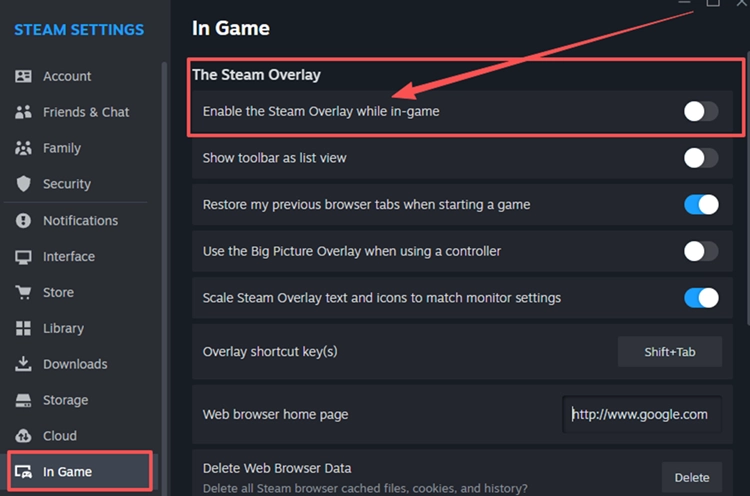
Step 3. Disable other active overlays in their respective settings, close unnecessary background apps in Task Manager, and relaunch the game.
Fix 4. Verify ArcheAge Chronicles Game Files
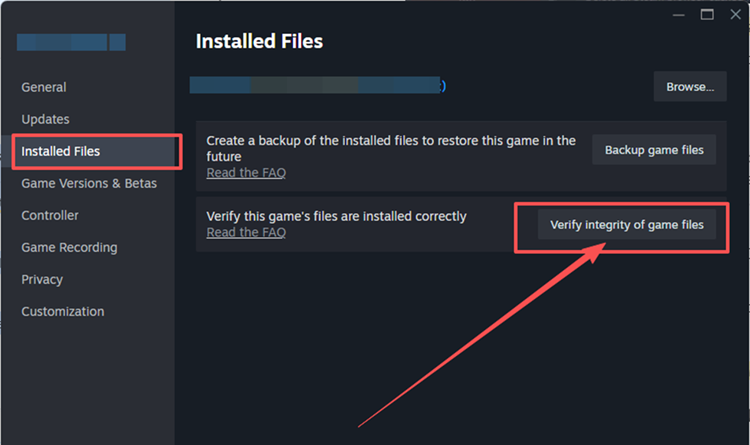
Missing or corrupted game files from incomplete downloads or updates may cause ArcheAge Chronicles to crash on startup or get stuck on a black screen. Steam can detect and replace damaged files without reinstalling the entire game. Follow the steps below to verify your game files.
Step 1. Open Steam Library, right-click ArcheAge Chronicles Demo, and select Properties > Installed Files.
Step 2. Click Verify integrity of game files, wait for the process to finish, and relaunch the game.
Fix 5. Check Security Software and XIGNCODE3 Conflicts
ArcheAge Chronicles uses XIGNCODE3 anti-cheat, and antivirus software may mistakenly block game or anti-cheat files during startup. Such conflicts can prevent the game from launching or trigger anti-cheat errors. Check your security software for blocked game components or recent warnings. If a legitimate file was mistakenly flagged, follow your security software's instructions to resolve the issue, then relaunch ArcheAge Chronicles.
Fix 6. Check GPU Selection and Update Your GPU Driver
Incorrect GPU selection or outdated graphics drivers may cause black screens or startup crashes. Also check that your PC meets the game's minimum requirements, including 16 GB RAM, an RTX 2060 SUPER or RX 6600, DirectX 12, and SSD storage. Follow the two checks below.
👉 Use Your Dedicated GPU
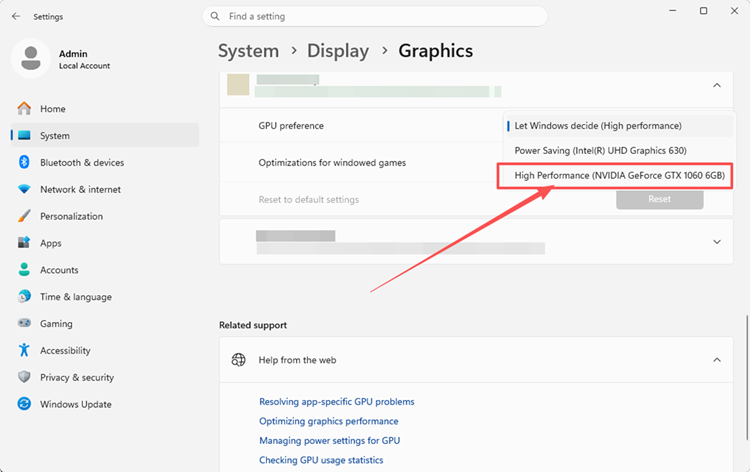
On PCs with integrated and dedicated graphics, Windows may assign the game to the power-saving GPU. Setting ArcheAge Chronicles to High performance can help resolve graphics-related startup issues. Follow the steps below to select your dedicated GPU.
Step 1. Press Windows + I and open Settings > System > Display > Graphics. If the game is not listed, use Browse to add its executable.
Step 2. Select ArcheAge Chronicles, click Options, choose High performance, and click Save. Then relaunch the game.
👉 Update Your GPU Driver
An outdated graphics driver can cause black screens, GPU timeouts, or startup crashes in ArcheAge Chronicles. Updating to the latest compatible driver may improve stability and compatibility with the current Demo build. Follow the steps below to check for an available update.
Step 1. Open the NVIDIA app and select the Drivers tab.
Step 2. Check for updates, then download and install the latest available Game Ready Driver.
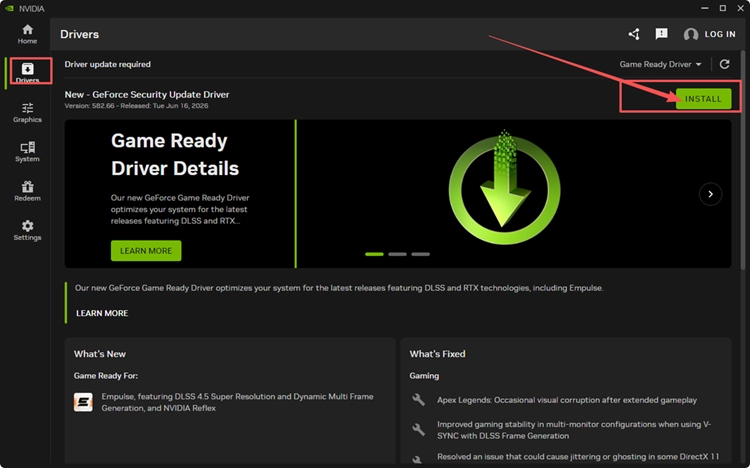
Step 3. Restart your PC and launch ArcheAge Chronicles again.
Tip: AMD and Intel users can update through AMD Software: Adrenalin Edition or Intel Driver & Support Assistant.
Fix 7. Allow Extra Time for the First Launch
ArcheAge Chronicles Demo may take longer to initialize on its first launch, leaving players on a black screen before the main menu appears. If the game is still running and using system resources, wait 5–10 minutes without restarting it. If the screen remains stuck, check for official updates.
[Bonus] Reduce ArcheAge Chronicles Lag with LagZapper
After fixing ArcheAge Chronicles launch issues, high ping, packet loss, or unstable routing can still affect your gameplay. LagZapper optimizes the connection route between your PC and game servers to reduce game lag, lower ping, and improve connection stability for smoother combat and multiplayer sessions.
Why Use LagZapper for ArcheAge Chronicles
- Smart Route Optimization: Finds stable routes to reduce high ping, packet loss, and jitter.
- Connection Stability: Helps reduce game lag, lower ping, and limit sudden latency changes.
- One-Click Boost: Optimizes game connections without manually changing router, DNS, or Windows settings.
- 3,000+ Game Support: Supports thousands of online games across different genres.
How to Boost ArcheAge Chronicles with LagZapper
Follow these three steps to optimize your ArcheAge Chronicles connection before launching the game.
Step 1. Download and Install LagZapper
Download LagZapper for Windows and follow the on-screen instructions to complete the installation.
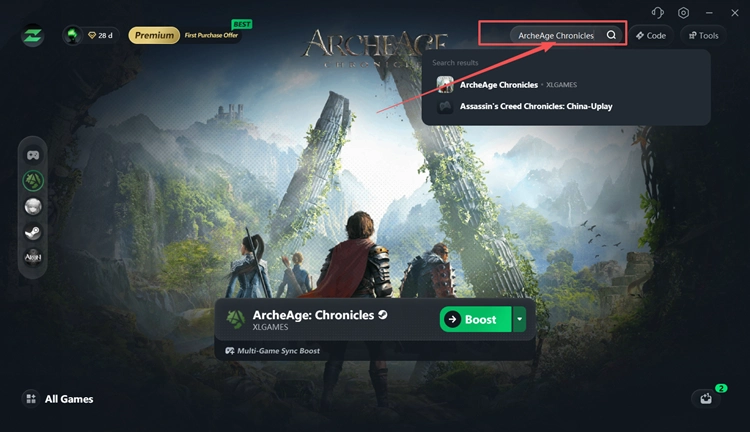
Step 2. Search for ArcheAge Chronicles
Open LagZapper and search for ArcheAge Chronicles in the search box.
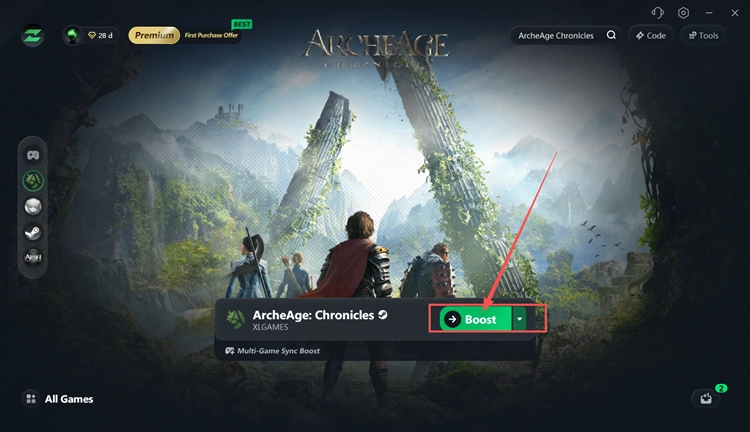
Step 3. Select a Node and Click Boost
Choose a recommended ArcheAge Chronicles server or node and click Boost. Once boosting is active, launch the game through Steam.
The Bottom Line
ArcheAge Chronicles not launching can result from Demo updates, stuck Steam processes, overlay conflicts, damaged files, security software, or GPU issues. Start with basic Steam checks, then try the remaining fixes for black screens and startup crashes. For high ping, packet loss, or unstable routing during gameplay, download LagZapper to improve connection stability.
FAQs About ArcheAge Chronicles Not Launching
Q1. What Should I Check First If ArcheAge Chronicles Won’t Launch?
Confirm Demo access, install pending Steam updates, and check official announcements for known launch issues.
Q2. How Do I Fix ArcheAge Chronicles Black Screen?
Check that the dedicated GPU is selected and update your graphics driver to improve compatibility.
Q3. Why is ArcheAge Chronicles Crashing on Startup?
Overlay conflicts, corrupted game files, or outdated graphics drivers can cause crashes during game initialization.
Q4. Why Is ArcheAge Chronicles Stuck on Loading Screen?
First-launch initialization may take several minutes. Wait briefly if the game is still using system resources.