
Battlefield 6 Anti Cheat Error? Fix EA Javelin Issues & Try 7 Useful Fixes
Battlefield 6 uses EA Javelin Anticheat on PC, but an anticheat failure can stop the action before a match even begins. A Battlefield 6 anti cheat error may appear as Error 94, an incompatible software or driver warning, a startup failure, or another Javelin-related message that keeps BF6 from launching normally.
This guide will help you identify which EA Javelin error you are facing and troubleshoot it in priority order, starting with quick checks before moving to deeper anticheat, file, driver, and security fixes.
What Does the Battlefield 6 Anti Cheat Error Mean?
Battlefield 6 anti cheat errors can appear as different EA Javelin messages, each pointing to a different issue. Check the table below to see what each common error usually means.
| EA Javelin Error or Message | What It Usually Means |
|---|---|
| EA Javelin Anticheat encountered an error / Error 94 | Javelin cannot start Battlefield 6 or locate the game installation folder correctly |
| Incompatible software detected | Javelin detected software that is not allowed to run with Battlefield 6 |
| Incompatible driver / Error #119 | Javelin detected an incompatible driver or related software component |
| Unacceptable configuration / Error #95 | Javelin detected an unacceptable system or software configuration |
| Invalid system configuration / system error | Changed game files or system settings may prevent Javelin from running correctly |
| Secure Boot error | Secure Boot is disabled or not properly configured for Battlefield 6 |
| The application encountered an unrecoverable error | Javelin encountered a system-level issue that prevents Battlefield 6 from starting correctly |
Why Does the Battlefield 6 Anti Cheat Error Happen?
A Battlefield 6 anti cheat error usually occurs when EA Javelin cannot start or verify the game correctly. The most common causes involve installation paths, damaged files, conflicting software, incompatible drivers, or Windows security settings.
EA Javelin Cannot Start or Find Battlefield 6
Javelin may fail to start BF6 or locate its installation folder, which can trigger Error 94.
Corrupted or Altered Game Files
Corrupted, incomplete, or altered BF6 files can interfere with Javelin and trigger anticheat or configuration errors.
Conflicting or Disallowed Background Software
Javelin may block BF6 when it detects incompatible or disallowed software running in the background.
Incompatible or Unsigned Drivers
Incompatible or outdated drivers can conflict with Javelin while Battlefield 6 is starting.
Secure Boot or System Security Configuration Issues
Disabled Secure Boot can prevent Battlefield 6 from meeting EA Javelin's security requirements and starting properly.
How to Fix Battlefield 6 Anti Cheat Error – 7 Useful Fixes
For a general EA Javelin error, try the fixes below in order. If the message names specific software, a driver, or Secure Boot, go directly to the matching fix.
Fix 1. Fully Restart BF6, the EA App, and Your PC
A temporary EA Javelin or launcher issue may prevent Battlefield 6 from starting correctly. Fully close BF6 and the EA app, then restart your PC to clear stalled processes and clear temporary launcher or anti-cheat states. After Windows starts again, reopen the EA app and launch Battlefield 6 to check whether the anti cheat error is gone.
Fix 2. Run the EA App as Administrator and Launch BF6 from It
If EA Javelin shows Error 94, it may be unable to start Battlefield 6 or locate the game’s installation folder. EA recommends relaunching the EA app with administrator privileges and starting BF6 directly from it. Follow the steps below.
Step 1. Fully close the EA app.
Step 2. Right-click the EA app and select Run as administrator.
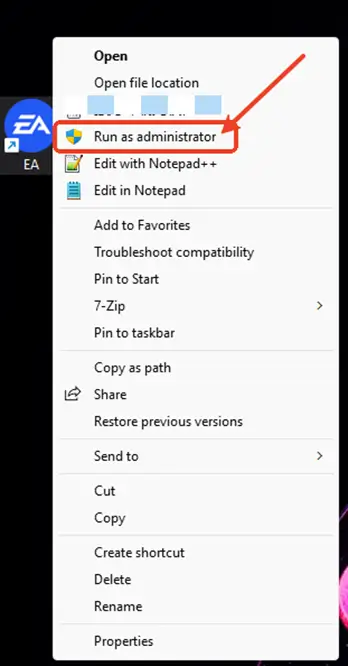
Step 3. Launch Battlefield 6 directly from the EA app, even if you purchased it through Steam or the Epic Games Store.
Fix 3. Update or Disable Software and Drivers Blocked by EA Javelin
If EA Javelin names incompatible software or a driver, deal with that item before changing unrelated settings. Update the associated software first, restart your PC, and launch BF6 again. EA specifically lists programs such as Interception, AutoHotkey, and ReWASD as disallowed with Battlefield 6.
For Error #119, use the driver name shown in the message to identify its associated software. If updating does not restore compatibility, disable or uninstall that software according to the manufacturer’s instructions, then restart Battlefield 6.
Fix 4. Reinstall EA Javelin Anticheat
If EA Javelin is damaged or its service cannot start correctly, reinstalling the anticheat can restore its files and configuration. EA specifically recommends reinstalling Javelin for Error 94 and other anticheat startup issues. Follow the steps below to reinstall EA Javelin Anticheat for Battlefield 6.
Step 1. Open Windows File Explorer, go to C:\Program Files\EA\AC, and run EAAntiCheat.Installer.exe.
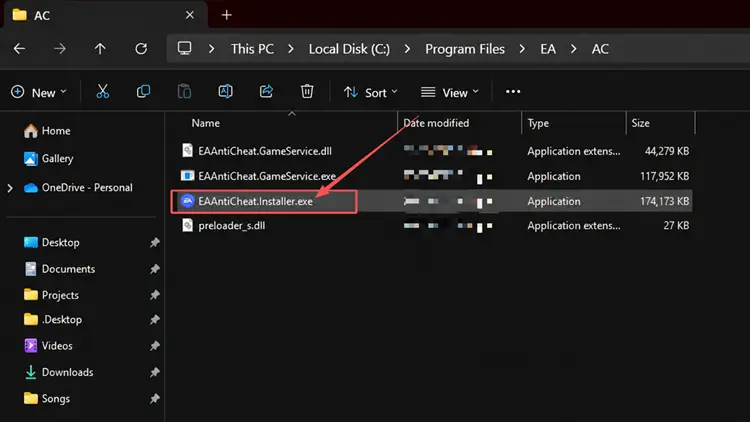
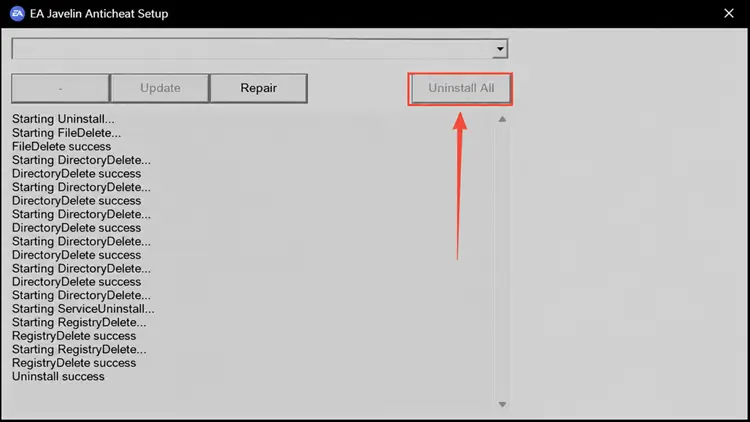
Step 2. Select Battlefield 6, then choose Uninstall to remove EA Javelin Anticheat for that game.
Step 3. Download the latest EA Javelin Anticheat installer, run it, select Battlefield 6, and choose Install.
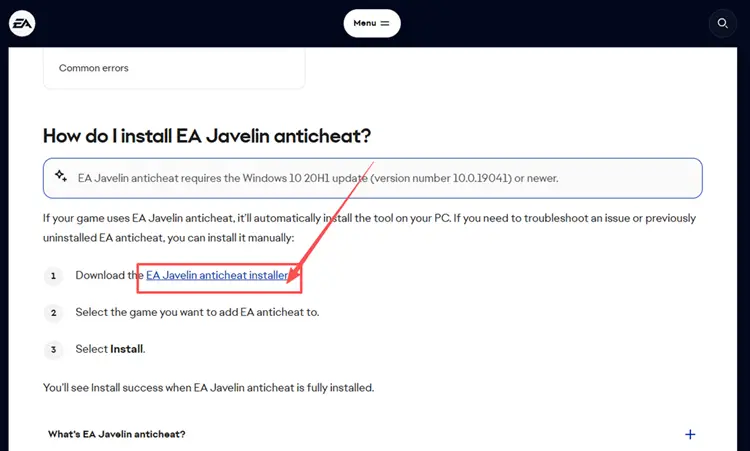
Step 4. Wait until Install success appears, then launch BF6 again to see whether the anti cheat error is resolved.
Fix 5. Verify or Repair Battlefield 6 Game Files
Corrupted or incomplete Battlefield 6 files can interfere with EA Javelin and prevent the game from launching correctly. Repairing or verifying the installation checks for damaged or missing files without reinstalling the entire game. Use the steps for your launcher below.
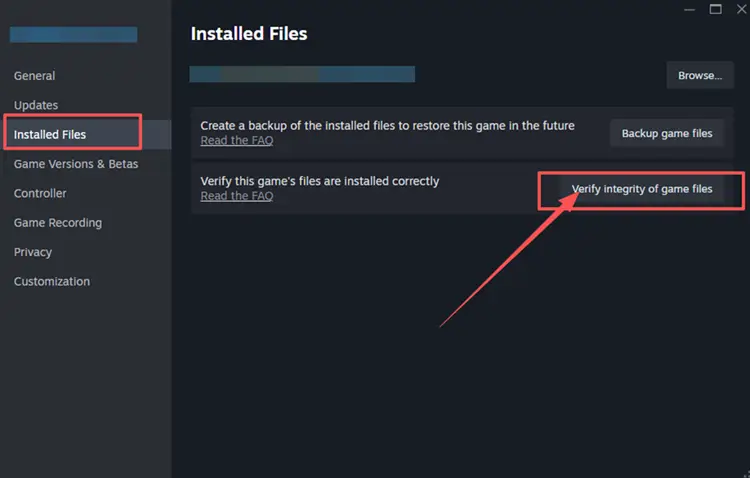
👉 Steam
Step 1. Open Steam Library, right-click Battlefield 6, and select Properties.
Step 2. Go to Installed Files and select Verify integrity of game files. Wait for Steam to finish before launching BF6 again.
👉 EA App
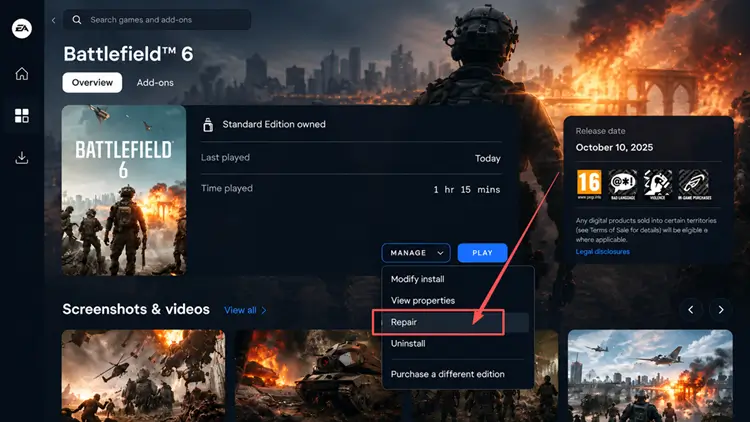
Step 1. Open the EA app > Library, find Battlefield 6, and select the three-dot menu on the game tile.
Step 2. Choose Repair, wait for the process to finish, then launch Battlefield 6 again.
Fix 6. Check Secure Boot and BF6 Security Requirements
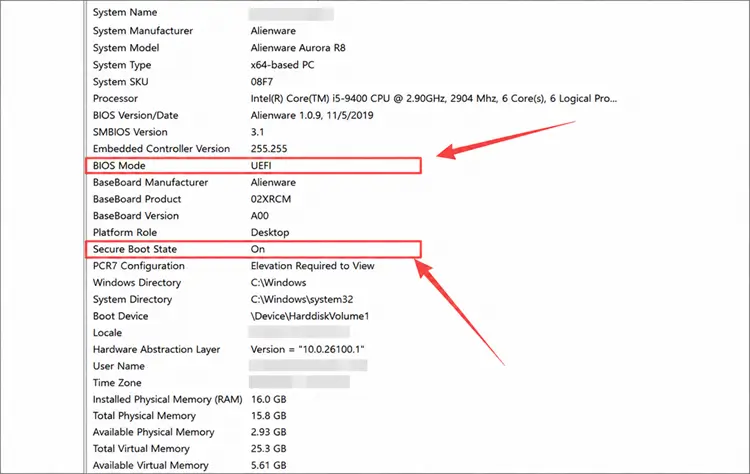
Battlefield 6 requires Secure Boot, and related Windows security features may also affect EA Javelin compatibility. If EA Javelin reports a Secure Boot problem, check your current system status. Follow the steps below.
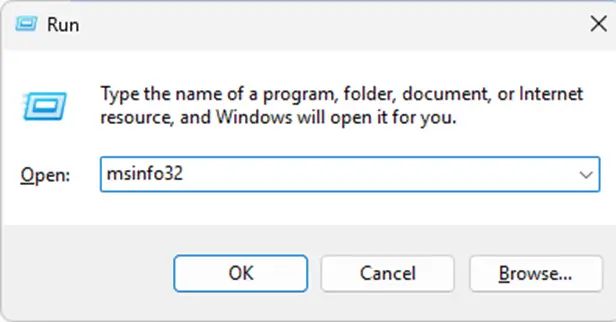
Step 1. Press Windows + R, enter msinfo32, and click OK.
Step 2. Under System Summary, confirm BIOS Mode is UEFI and Secure Boot State is On. If not, follow your PC or motherboard manufacturer’s instructions before changing firmware settings.
Fix 7. Allow Battlefield 6 Through Windows Security
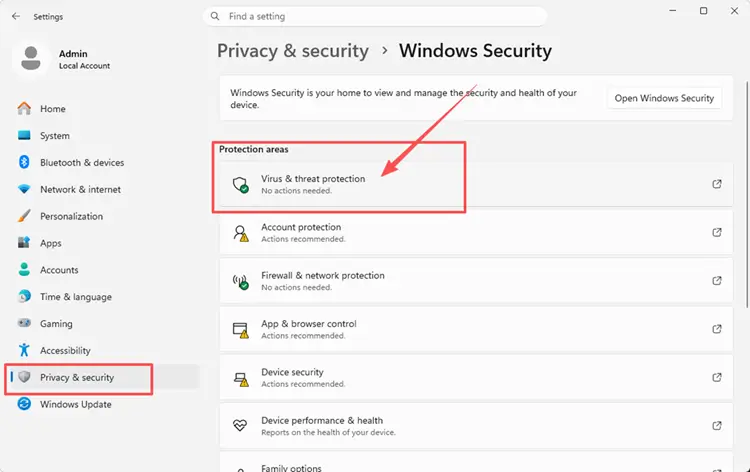
Windows Security may occasionally block trusted Battlefield 6 or EA Javelin files, preventing the anticheat from starting correctly. If security software interferes with BF6 files, adding a targeted exclusion can prevent repeated blocking.
Step 1. Open Windows Security > Virus & threat protection.
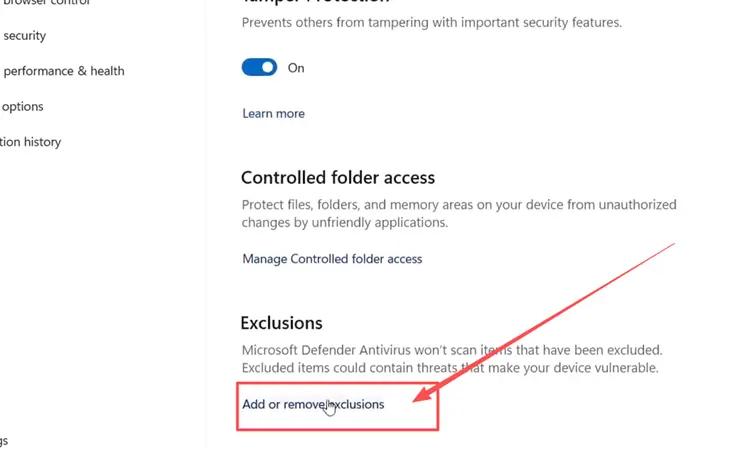
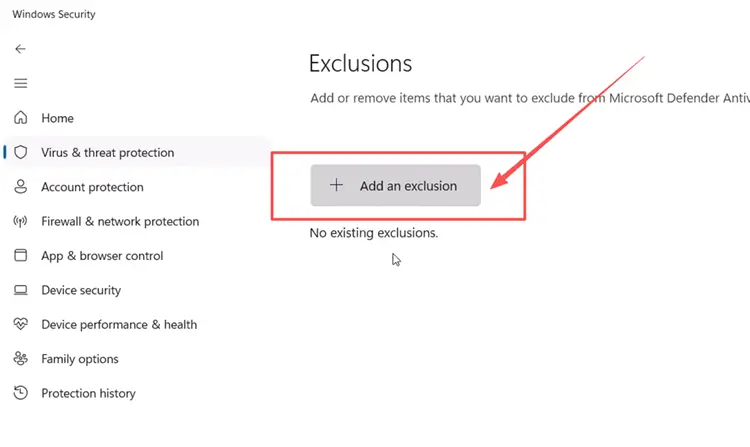
Step 2. Open Manage settings, scroll to Exclusions, select Add or remove exclusions, then choose Add an exclusion.
Step 3. Select File or Folder, then add the trusted Battlefield 6 or EA AntiCheat file location. Restart BF6 after saving the change.
[Bonus] How to Reduce Battlefield 6 Lag with LagZapper
Fixing a Battlefield 6 anti cheat error gets the game running again, but it does not necessarily resolve network problems during multiplayer matches. If BF6 launches normally but high ping, packet loss, lag spikes, or unstable routing continue, LagZapper can optimize the connection route between your PC and the game server.
Why Use LagZapper for Battlefield 6
- Smart Route Optimization: Finds a faster and more stable connection route for Battlefield 6 to help reduce routing delays and packet loss.
- Reduce Lag & Improve Stability: Helps reduce game lag, lower ping, and minimize sudden latency spikes.
- One-Click Boost: Optimize the Battlefield 6 connection without manually changing complicated network or router settings.
- Support for 3,000+ Games: Use LagZapper across Battlefield 6 and thousands of other supported online games.
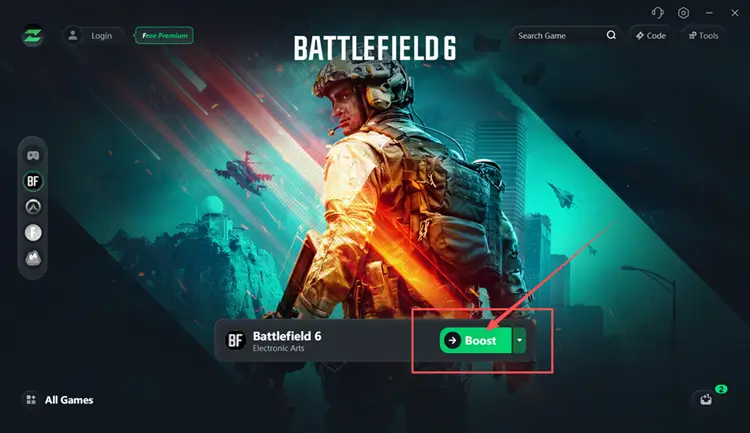
How to Boost Battlefield 6 with LagZapper
Follow these three steps to optimize your connection before launching BF6.
Step 1. Download and Install LagZapper
Download LagZapper for Windows and follow the on-screen instructions to complete the installation.
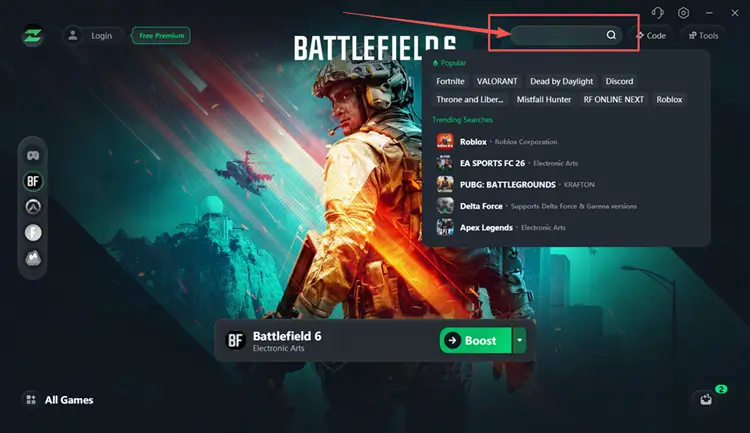
Step 2. Search for Battlefield 6
Launch LagZapper and search for Battlefield 6 in the supported games list.
Step 3. Select a Server and Boost
Choose a suitable server or node when available, click Boost, and then launch Battlefield 6.
The Bottom Line
A Battlefield 6 anti cheat error can result from EA Javelin startup failures, blocked software or drivers, damaged game files, or Secure Boot problems. Start with a full restart and the EA app administrator fix, then reinstall Javelin, repair BF6 files, and check system security settings if needed. Once Battlefield 6 launches normally, download LagZapper to help lower ping, reduce packet loss, and improve unstable network routing during multiplayer matches.
FAQs About Battlefield 6 Anti Cheat Error
Q1. What causes a Battlefield 6 anti cheat error?
It usually involves Javelin startup failures, conflicting software, damaged files, drivers, or Secure Boot settings.
Q2. How can I fix a BF6 anti cheat error?
Restart BF6, run the EA app as administrator, repair Javelin, and check conflicting software.
Q3. What is a Battlefield 6 Javelin anti cheat error?
It means EA Javelin detected a startup, software, driver, file, or system configuration problem.
Q4. Why does ea javelin anticheat encountered an error
Javelin may be unable to start Battlefield 6 or locate its game installation folder correctly.
Q5. What should I do after a Battlefield 6 anti cheat BSOD?
Stop repeatedly launching BF6, restart Windows, and investigate drivers, system stability, and the crash dump.
Q6. How do I fix a BF6 Javelin anti cheat error?
Match the displayed Javelin message with the relevant fix, especially software, driver, or Secure Boot errors.