
Can’t Connect to Throne and Liberty RU Server? How to Fix
Can’t connect to Throne and Liberty RU Server? After the Russia regional launch, some players may run into login timeouts, GateServer Connection Timeout, server disconnects, launcher errors, high ping, packet loss, or unstable routing.
Since the RU version is a separate regional service for Russia, Eastern Europe, and Central Asia, connection problems may come from heavy launch traffic, temporary server issues, VK Play or Astrum Play launcher errors, account region conflicts, firewall settings, DNS problems, or unstable ISP routes. In this guide, you will learn the most common causes of Throne and Liberty RU connection issues, how to fix them, and how to improve your connection route to reduce unstable ping and avoid random disconnects.
Why Can’t Connect to Throne and Liberty RU Server?
Some problems come from your local network, while others may be related to server status, launcher access, or the RU regional service. You may not be able to connect to the Throne and Liberty RU Server for several common reasons:
1. RU Server Not Open Yet or Under Heavy Traffic
During launch week or early access periods, the RU server may not be fully available yet, or it may experience heavy traffic. Players may see login queues, server delays, disconnects, failed connection errors, or temporary server response issues.
2. VK Play, Astrum Play, or Launcher Issues
If the launcher is stuck, the update does not complete, the login page fails to load, or the Play button does not respond, the issue may come from VK Play, Astrum Play, or the regional launcher instead of the game server.
3. Wrong Game Version or Regional Entry
The Throne and Liberty RU Server is separate from the global version. Old launchers, unsupported platforms, account region conflicts, or previous service entries may prevent you from connecting to the correct RU server.
4. Unstable Network Route
High ping, packet loss, ping spikes, ISP routing problems, cross-region congestion, or unstable Wi-Fi can make the connection unreliable and stop the game from connecting smoothly.
5. Local PC or Security Settings
Firewall, antivirus software, DNS settings, background programs, outdated drivers, missing system requirements, or anti-cheat restrictions may block the launcher, game client, update service, or connection process.
Latest Update: Throne and Liberty RU GateServer Timeout and DDoS Issues
After the Throne and Liberty RU launch, some players may encounter errors such as GateServer Connection Timeout, server connection timeout, login failed, disconnected from server, or server not responding. These problems often happen during login, server selection, character loading, or when entering the game world.
During launch periods, these errors may be caused by server overload, temporary maintenance, abnormal traffic, DDoS attacks, launcher instability, or unstable routing to the RU server. If many players report the same issue at the same time, it is more likely a server-side problem.
Optimize Throne and Liberty RU Route Using LagZapper [Quick & Easy Way]
Whether you are dealing with connection errors, lag, high ping, packet loss, ping spikes, or random disconnects, one of the quickest ways to improve your connection is to use a game booster. For online MMORPGs like Throne and Liberty RU Server, a stable network route is important because delays can affect login, movement, combat, dungeons, raids, PvP battles, and large-scale guild fights.
LagZapper helps optimize your connection path to the game server, reduce unstable ping, improve routing stability, and create a smoother gameplay experience. Instead of relying only on your default ISP route, LagZapper helps find a better route for your game traffic, which may reduce connection instability during launch periods, peak hours, or cross-region access.
Why Choose LagZapper Game Booster?
- One-Click Game Boost: Boost Throne and Liberty RU Server with one click and optimize your connection through a simple, beginner-friendly interface.
- Lower Ping and Less Lag: Optimize your network route to help reduce high ping, lag spikes, unstable latency, and delayed in-game response.
- Packet Loss Reduction: Improve connection stability and help reduce packet loss during combat, dungeons, raids, PvP, and open-world gameplay.
- Support for 3,000+ Games: LagZapper supports 3,000+ online games, making it useful for Throne and Liberty RU Server and many other popular online games.
How to Play Throne and Liberty RU with LagZapper
Before boosting, make sure Throne and Liberty RU is installed and ready on your PC. Then use LagZapper to optimize your route, reduce unstable ping, and connect to the RU server more smoothly.
Step 1. Download and Open LagZapper
Install LagZapper on your PC, then launch the app and sign in or create an account.
Step 2. Search for Throne and Liberty RU
Use the search bar to find Throne and Liberty RU in the supported game list.
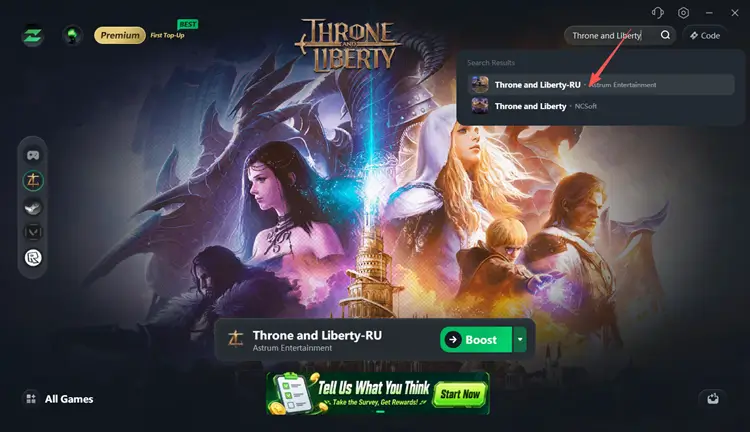
Step 3. Boost and Play Throne and Liberty RU
Select your preferred server or node, then click the Boost button to optimize your connection and enjoy smoother gameplay.
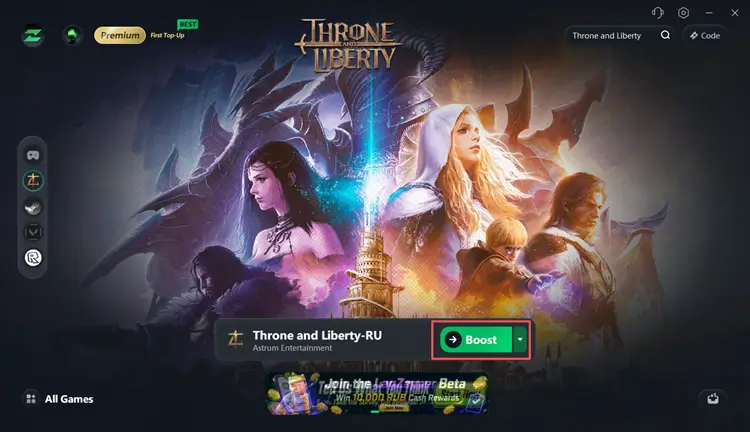
Tip: LagZapper will support boosting for Throne and Liberty Russia starting May 19, helping players optimize their connection during open beta and reduce lag, fix high ping, packet loss, and unstable routing.
How to Fix Throne and Liberty RU Server Connection Issues
If the Throne and Liberty RU server is online but you still cannot connect, the issue may come from the launcher, DNS, firewall, game version, or local network. Try the following ways before reinstalling the game.
Way 1. Check Throne and Liberty RU Server Status First
Before trying any local fixes, first check whether the Throne and Liberty RU server is officially open, under maintenance, or experiencing heavy launch traffic. Some connection issues may come from the server side rather than your PC or network.
You can check:
- Official Throne and Liberty server status
- VK Play or Astrum Play launcher notices
- Official social media channels
- Server maintenance announcements
- Community discussions and player reports
If the RU server has not opened yet, no local troubleshooting method can fix the issue. If the server is overloaded during launch, you may need to wait for an official update or try connecting again later.
Also Read: Throne and Liberty Russia Release Date: RU Server & Download >>
Way 2. Restart VK Play or Astrum Play Launcher
If the launcher is stuck, fails to update, or cannot connect to the login service, restart it completely. A launcher error may cause Throne and Liberty RU server login timeout even when the server is available. Follow these steps:
Step 1. Close Throne and Liberty RU > Exit VK Play or Astrum Play completely.
Step 2. Open Task Manager > End all related launcher and game processes > Restart your PC.
Step 3. Open the launcher as administrator > Try launching Throne and Liberty RU Server again.
Way 3. Allow the Game and Launcher Through Firewall
Windows Firewall or antivirus software may block the game client, launcher, update service, or anti-cheat service. When this happens, Throne and Liberty RU may fail to connect even if the server is already online. Check your firewall or antivirus settings and allow:
- Throne and Liberty game client
- VK Play launcher
- Astrum Play launcher
- Game update service
- Anti-cheat service
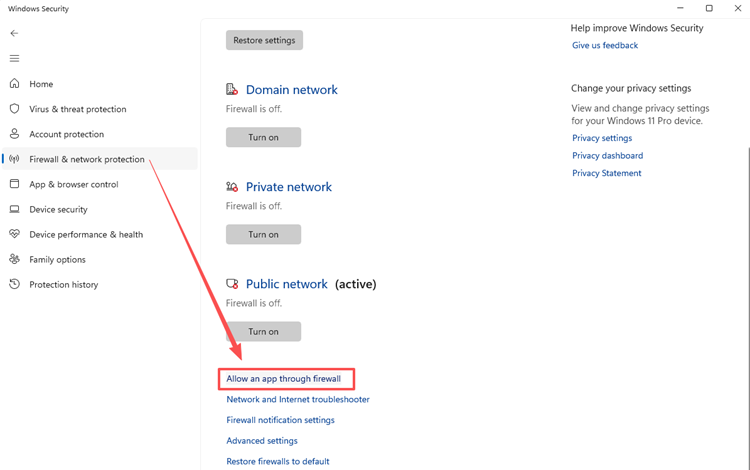
After adding these programs to the allowed list, restart the launcher and try connecting to the RU server again.
Way 4. Change Your DNS
If your DNS is unstable, the launcher or game client may fail to connect properly. Changing DNS can help with launcher loading issues, login errors, or connection failures. You can try these DNS options:
Google DNS
- Preferred DNS: 8.8.8.8
- Alternate DNS: 8.8.4.4
Cloudflare DNS
- Preferred DNS: 1.1.1.1
- Alternate DNS: 1.0.0.1
After changing DNS, restart your PC and try launching Throne and Liberty RU again.
Way 5. Check Your PC and Game Requirements
If your PC does not meet the requirements, Throne and Liberty may crash, freeze, or fail to launch. Make sure your device has Windows 10/11 64-bit, DirectX 12, enough RAM, enough storage space, and a stable broadband connection. Before launching the game:
- Update your graphics driver
- Free up storage space
- Install Windows updates
- Close background apps
These checks can help reduce launch errors, connection failures, and unstable gameplay during the RU open beta.
Way 6. Avoid Unstable Wi-Fi or Network Congestion
If you are using Wi-Fi, weak signal strength or network congestion may cause packet loss, ping spikes, or sudden disconnects. This is especially noticeable during PvP, dungeons, world bosses, and crowded open-world areas. To improve your connection:
- Use a wired Ethernet connection when possible
- Avoid downloading large files while playing
- Reduce the number of devices using the same network
The Bottom Line
If you can’t connect to the Throne and Liberty RU server, the problem may be caused by heavy server traffic, launcher errors, the wrong regional version, firewall blocks, DNS issues, or unstable network routing. Start by checking the official server status, then restart the launcher, allow the game through your firewall, change DNS, and make sure your PC meets the requirements.
If the server is online but you still face high ping, packet loss, login timeouts, or random disconnects, download LagZapper to optimize your connection route and enjoy a smoother Throne and Liberty RU server experience.
Throne and Liberty RU Server FAQ
Before trying more advanced ways, check these common questions about the Throne and Liberty RU server, including connection errors, launch timing, launcher access, high ping, and server maintenance.
Q1. Why can’t I connect to Throne and Liberty RU Server?
You may fail to connect because the server is not open, the launcher is overloaded, your region is incorrect, or your network route is unstable.
Q2. Can DDoS cause Throne and Liberty RU server connection timeout?
Yes. DDoS attacks or abnormal traffic spikes can cause RU server timeout, GateServer errors, or disconnects, but local network issues may look similar.
Q3. Is Throne and Liberty RU Server the same as the global version?
No. The RU server is a separate regional service with its own launcher, account system, server schedule, maintenance notices, and regional rules.
Q4. Why does Throne and Liberty RU Server keep disconnecting?
Frequent disconnects may happen because of server overload, unstable ISP routing, packet loss, firewall blocks, DNS issues, launcher errors, or temporary maintenance.
Q5. Can LagZapper help fix Throne and Liberty RU Server connection issues?
Yes. LagZapper can optimize your route to the game server, reduce unstable ping, improve connection stability, and create a smoother gameplay experience.
Q6. Should I use VK Play or Astrum Play for Throne and Liberty RU Server?
Follow the official Russia website and Astrum-related platform updates for the correct launcher, download method, login steps, and server access instructions.