
Darktide Crashing After the Skitarii Update? Try These 10 Fixes
Warhammer 40,000: Darktide received the Skitarii DLC and Patch 1.12.0 on June 23, 2026. After installing the update, some PC players have reported Darktide crashing after the update, failing to launch, or closing before the character selection screen. This guide explains how to fix a Darktide crash after the Skitarii update, including startup crashes, mod conflicts, corrupted files, GPU driver problems, and other common PC issues.
Why Is Darktide Crashing After the Update?
Darktide may keep crashing after a major update when new game files conflict with existing mods, configuration files, drivers, or cached data. If you experience Darktide crashing on startup, one of the following issues may be responsible:
- Outdated or incompatible mods
- Darktide Mod Loader conflicts
- Corrupted or incomplete game files
- Damaged AppData configuration files
- Outdated or unstable GPU drivers
- Corrupted shader cache
- Easy Anti-Cheat errors
- Overlays or background programs
- Excessive Worker Thread settings
- Unstable CPU or GPU overclocking
- Server or connection interruptions during online missions
Before trying the fixes below, fully restart Steam and your PC. This may complete pending update processes and release files that remained locked during installation.
How to Fix Darktide Crashing After the Skitarii Update - 10 Fixes
If Darktide keeps crashing after the Skitarii update, here is how to troubleshoot and fix the problem.
Fix 1. Disable Darktide Mods
Mods should be the first thing you check if Darktide starts crashing immediately after an update. Major updates can change scripts, interfaces, class systems, weapons, and internal game files. As a result, outdated mods may prevent Darktide from launching or cause it to crash before reaching the main menu.
To launch Darktide without mods:
Step 1. Open the Darktide installation folder and locate toggle_darktide_mods.bat.
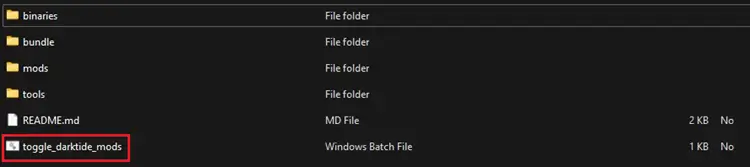
Step 2. Run the file and select the option to disable or unpatch mods.
Step 3. Restart Steam and launch Darktide again.
Note: Removing entries from mod_load_order.txt may not fully disable mods. If unpatching fixes the crash, a mod or Mod Loader component is incompatible.
Fix 2. Update Darktide Mod Loader and Mod Framework
To continue using mods after the update, install compatible versions of the Darktide Mod Loader, Mod Framework, and all enabled mods. Follow these steps:
Step 1. Download the latest compatible Darktide Mod Loader from its official GitHub Releases page, copy it into the Darktide folder, and replace existing files.
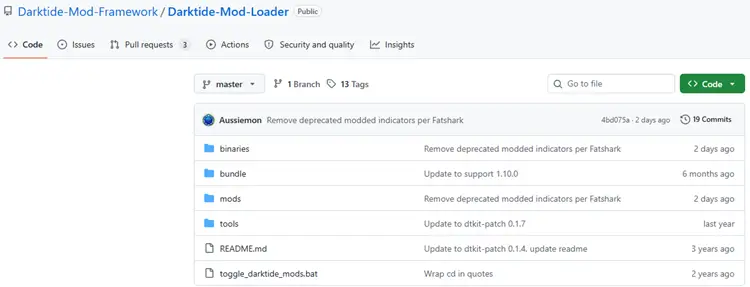
Step 2. Update the Darktide Mod Framework in the mods folder, and check each installed mod and disable any that do not support the current game version.
Step 3. Remove or disable outdated mods, run toggle_darktide_mods.bat to enable mods again, and then launch Darktide.
Fix 3. Verify the Integrity of Darktide Game Files
An interrupted update may leave Darktide with missing or corrupted files. Use Steam’s verification tool to repair them.
Step 1. Open Steam, go to Library, right-click Warhammer 40,000: Darktide, and select Properties.
Step 2. Open Installed Files and click Verify integrity of game files.
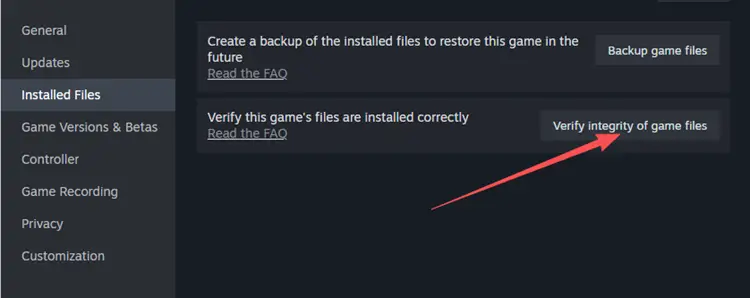
Step 3. Wait for Steam to finish, restart the client, and launch Darktide.
Steam will scan the installation and replace any missing or corrupted game files. Mod users should test the unmodified game before reinstalling the Mod Loader.
Fix 4. Reset the Darktide AppData Folder
Old configuration files may become incompatible after a major update. Resetting the Darktide AppData folder allows the game to generate fresh settings.
Note: This may reset your custom keybindings, graphics settings, and operative loadouts.
Step 1. Temporarily disable Steam Cloud for Darktide.
Step 2. Press Windows + R, enter %appdata%\Fatshark, and press Enter.
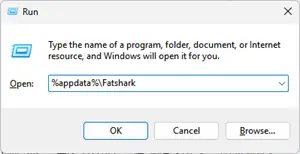
Step 3. Back up the Darktide folder, then delete it or rename it to Darktide_backup.
Step 4. Verify the game files in Steam, restart Darktide, and allow the game to generate a new configuration folder.
Fix 5. Update or Reinstall the GPU Driver
Outdated, corrupted, or incomplete GPU drivers may cause Darktide to crash during startup, shader compilation, character selection, or gameplay.
Step 1. Download the latest stable driver from NVIDIA, AMD, or Intel. Choose a clean installation when available to remove files left by the previous driver.
Step 2. Restart your PC. If Darktide crashes during shader compilation, open Disk Cleanup, select DirectX Shader Cache, and click OK to remove it.
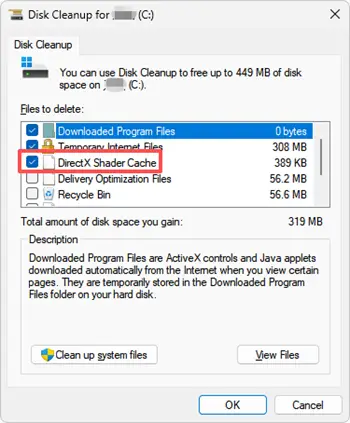
Tip: How to clear the DirectX Shader Cache? Close Darktide and Steam, search for Disk Cleanup, select the system drive, check DirectX Shader Cache, click OK > Delete Files, and restart your PC.
Step 3. Open the Darktide launcher, temporarily lower demanding graphics settings, disable ray tracing, and launch the game again.
If the crashes started after a recent GPU driver update, roll back to the previous stable version.
Fix 6. Lower the Worker Thread Count
A high Worker Thread count may cause Darktide to become unstable on some systems. You can lower this setting through the game launcher:
Step 1. Open Darktide through Steam and wait for the launcher to appear.
Step 2. Go to Settings, find Worker Threads, lower the value, and save your changes.
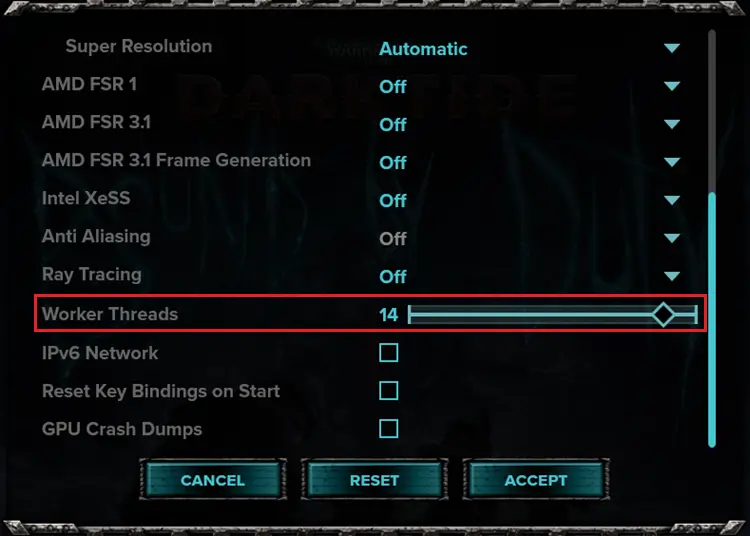
Step 3. Launch Darktide and check whether the crashing issue is resolved.
Tip: Lower the value gradually. If Darktide still crashes, try setting Worker Threads to 1 as a temporary troubleshooting step, as suggested by Fatshark Support.
Fix 7. Disable Overlays and Background Software
Game overlays and background tools can interfere with Darktide’s renderer and cause crashes after an update. Temporarily disable overlays, recording tools, and monitoring software, such as Steam, Discord, NVIDIA, AMD, and more.
Step 1. Press Ctrl + Shift + Esc to open Windows Task Manager.
Step 2. Under Processes, select unnecessary background apps and click End task.
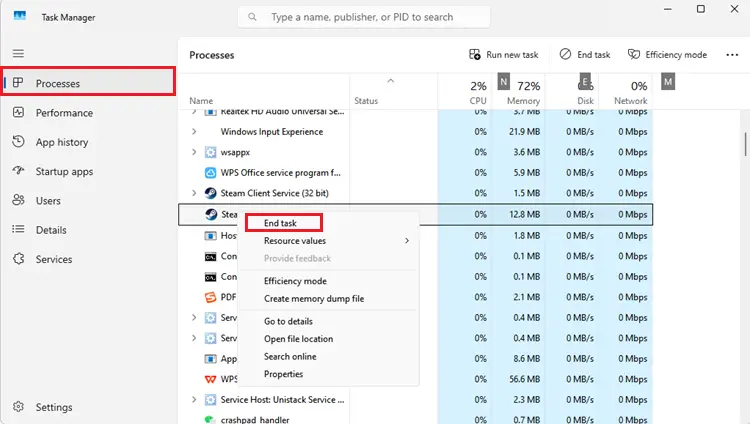
Step 3. Launch Darktide and check whether it still crashes.
If the crash stops, re-enable the applications one at a time to identify the conflicting program.
Fix 8. Repair Easy Anti-Cheat
If Darktide does not launch or shows an Easy Anti-Cheat error, the anti-cheat service may be corrupted, blocked, or missing.
Step 1. Open the Darktide installation folder and locate the Easy Anti-Cheat installer.
Step 2. Run the installer as an administrator, select Repair or Reinstall, and add Darktide and Easy Anti-Cheat to your antivirus exceptions.
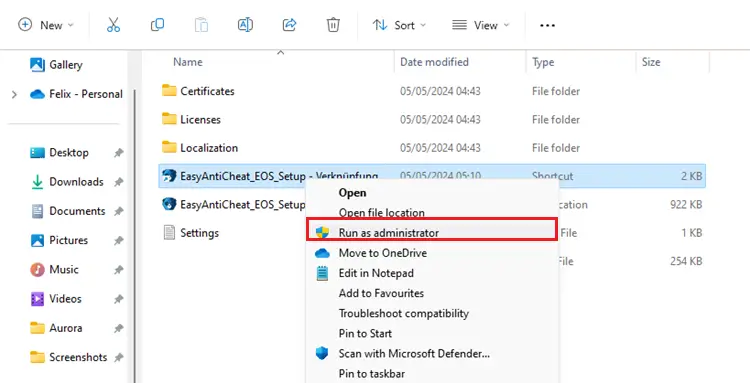
Step 3. Restart your PC, launch Darktide, and check whether the issue is resolved.
Note: Antivirus software may block updated Easy Anti-Cheat files. Add only official Darktide and Easy Anti-Cheat files to the exception list, and never disable antivirus protection permanently.
Fix 9. Reinstall Visual C++ Redistributables
Darktide requires Microsoft Visual C++ runtime components. Damaged or missing files may cause startup crashes or prevent the launcher from opening.
Step 1. Visit the official Microsoft website and download the latest supported Visual C++ Redistributables.
Step 2. Install both the x64 and x86 versions where available.
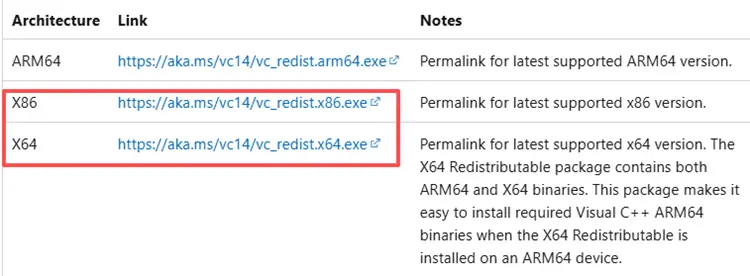
Step 3. Restart your PC and launch Darktide again.
Note: Do not download individual DLL files from third-party websites. The official Microsoft packages safely replace all required runtime components.
Fix 10. Remove Overclocking and Test Default Settings
A CPU, GPU, or memory overclock that worked before the update may become unstable under Darktide’s new workload.
Step 1. Open your BIOS or overclocking software and restore the following settings to default:
- CPU overclock
- GPU overclock or undervolt
- RAM XMP or EXPO profile
- Custom voltage or power limits
Step 2. Save the changes and restart your PC.
Step 3. Launch Darktide and check whether it still crashes.
If the game runs normally, restore your custom settings one at a time to identify the unstable configuration.
[Bonus] Reduce Darktide Lag with LagZapper After Fixing Crashes
Darktide is an online co-op game, so network problems may continue even after startup crashes are fixed. If you still experience high ping, unstable matchmaking, rubberbanding, or mission disconnects, the route between your PC and the Darktide server may be unstable.
LagZapper optimizes connection routes for supported PC games, helping reduce routing delays, avoid unstable network paths, and maintain a more consistent connection during Darktide missions.
Why Use LagZapper for a More Stable Darktide Connection?
- One-Click Boost: Applies a recommended Darktide route to reduce lag without manual network configuration.
- Lower Ping: Reduces routing delays for faster movement, attacks, and responses during online missions.
- Packet Loss Reduction: Stabilizes data transmission to reduce stuttering, delayed hits, and rubberbanding.
- Cross-Region Support: Optimizes long-distance routes when playing Darktide with friends in other regions.
How to Use LagZapper to Reduce Darktide Lag
Step 1. Install and Open LagZapper
Download LagZapper for Windows, complete the installation, then open the app and sign in.
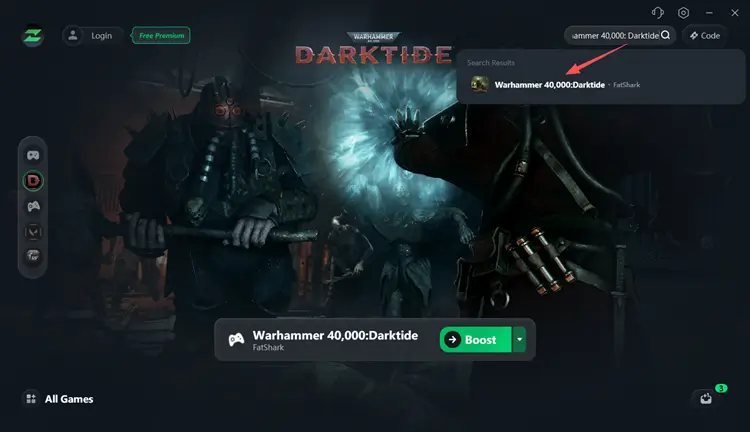
Step 2. Search for Darktide
Search for Warhammer 40,000: Darktide or find it in the supported games library.
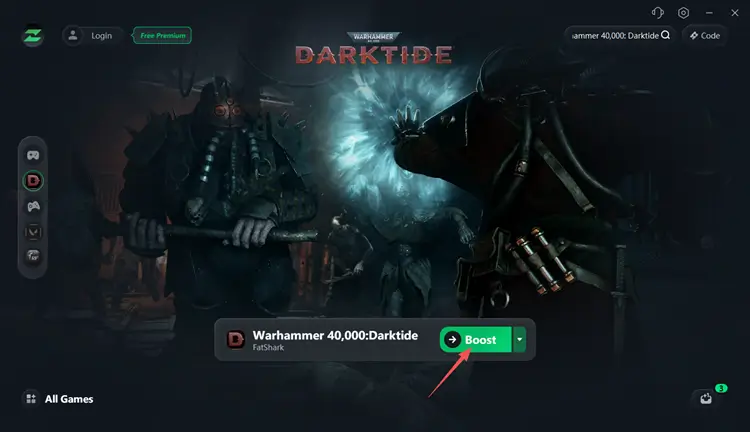
Step 3. Select a Server and Boost
Choose an available server or recommended node, then click Boost.
The Bottom Line
If Darktide crashes after the Skitarii update, try the fixes above to resolve common startup, mod, driver, and game file issues. Once Darktide runs normally, use LagZapper to help lower ping, reduce packet loss, avoid unstable network routes, and prevent mission disconnects. Download LagZapper and boost your Darktide today.