
Dead by Daylight Crashing After Update? 7 Fixes for DBD 10.1.0 Crashes
Dead by Daylight is a 1v4 asymmetrical multiplayer horror game where one Killer hunts four Survivors in each Trial. After the 10.1.0 Chorus of Sin update, some PC players have reported Dead by Daylight crashing after update, with the game closing at launch, freezing while loading into a Trial, showing Crash Reporter errors, or crashing unexpectedly in the middle of a match.
This guide will explain why DBD keeps crashing after update 10.1.0 and provide seven practical fixes for common PC crash symptoms.
Why Does Dead by Daylight Keep Crashing After Update 10.1.0?
DBD crashes after update 10.1.0 can occur at launch, while loading a Trial, or during a match. Check the table below to identify the likely cause and best first fix.
| Symptom | Likely Cause | First Fix to Try |
|---|---|---|
| Random crashes after 10.1.0, especially on Epic | Reported 10.1.0 crash issue | Check for a DBD hotfix |
| Crash Reporter or Access Violation | Damaged game files or software conflict | Verify game files |
| Crashes with overlays or after settings changes | Overlay or configuration conflict | Disable overlays or reset settings |
| Mid-game crashes after FPS drops | High graphics load or settings conflict | Lower graphics and test FSR off |
| Crashes while loading a Trial | Shader cache or graphics issue | Clear the shader cache |
| GPU Crash Dump or visual corruption | Outdated or unstable GPU driver | Update the GPU driver |
How to Fix Dead by Daylight Crashing After Update - 7 Fixes
Start with the First Fix to Try that matches your symptom in the table above. If it does not help, continue through the fixes below in order.
Fix 1. Update DBD to the Latest Version
Post-update crashes can sometimes come from bugs that need a game-side patch rather than a local PC fix. Check Steam or Epic Games Launcher for any newer Dead by Daylight update or hotfix and install it before changing other settings. If your game is already fully updated, continue with the fixes below.
Fix 2. Verify Dead by Daylight Game Files
Damaged or missing game files can cause Dead by Daylight to crash after an update, especially if the update was interrupted or installed incorrectly. Verifying the installation lets Steam or Epic Games Launcher scan the game and repair affected files without reinstalling DBD. The steps below use Epic Games Launcher as an example.
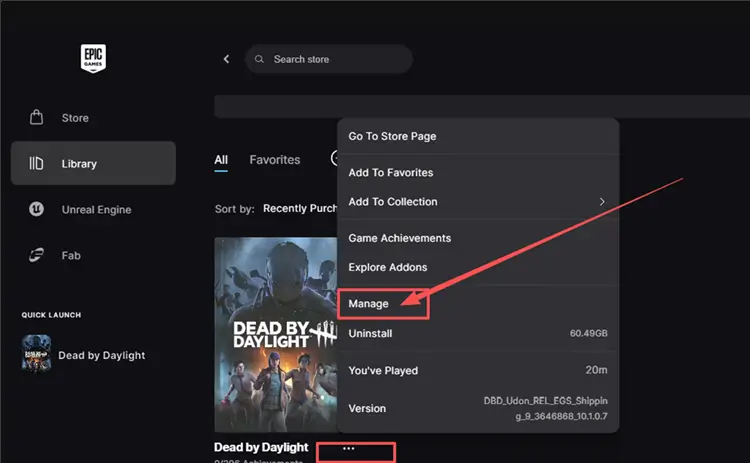
Step 1. Open Epic Games Launcher > Library, click the three dots next to Dead by Daylight, and select Manage.
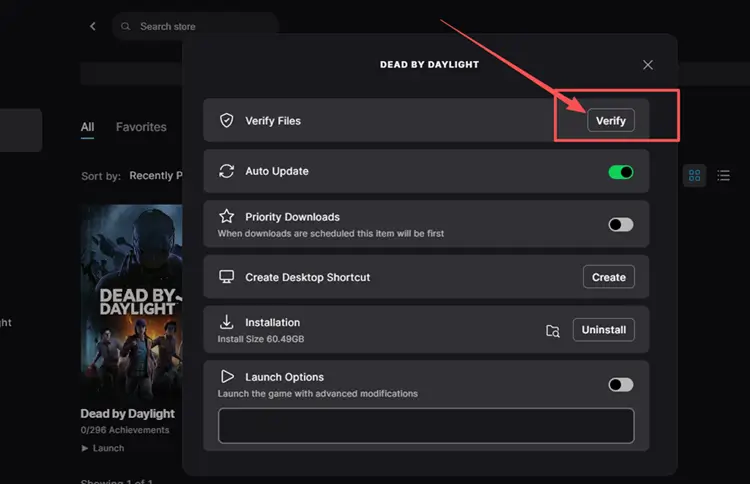
Step 2. Click Verify and wait for Epic Games Launcher to finish checking the files.
Fix 3. Disable Overlays and Recording Apps
Overlays and recording tools can sometimes conflict with DBD and contribute to unexpected crashes. Temporarily disable features such as Steam Overlay or NVIDIA Overlay, and close ReShade or any recording tools before launching the game again. If DBD stops crashing, re-enable them one at a time to identify the conflicting program.
Fix 4. Lower DBD Graphics Settings and Test FSR Off
If DBD crashes after sudden FPS drops or heavy GPU usage, lowering Quality can reduce graphics load and help test whether the crash is GPU-related. You can also temporarily turn FSR off to rule out a graphics compatibility issue. Follow the steps below.
Step 1. Open Settings > Graphics, lower Quality to Medium or Low, then set FSR to Off under Post Process.
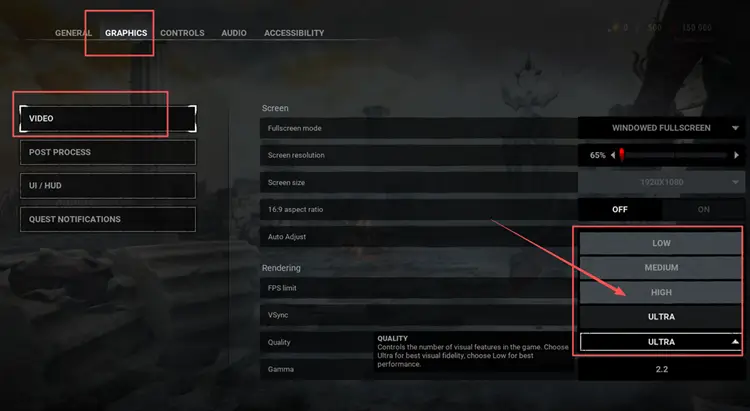
Step 2. Apply the changes and play a Custom Match to check whether DBD still crashes.
Fix 5. Clear the DirectX Shader Cache
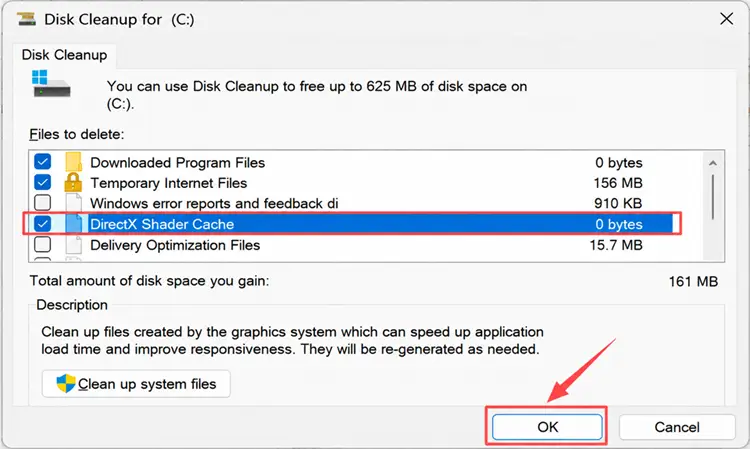
Outdated shader cache data may conflict with updated game files or graphics settings and contribute to loading freezes or crashes. Clearing the DirectX Shader Cache lets Windows rebuild the temporary shader data when needed. Follow the steps below.
Step 1. Press Windows + R, enter cleanmgr, and open Disk Cleanup.
Step 2. Select your system drive, check DirectX Shader Cache, click OK, and confirm Delete Files.
Fix 6. Update Your GPU Driver
Outdated or unstable graphics drivers can cause DBD crashes, freezes, or rendering issues, especially after a major game update. Keeping your GPU driver current can improve compatibility with the latest game build and graphics features. Dead by Daylight’s official PC troubleshooting guide also recommends updating video drivers. Follow the steps below.
Step 1. Open NVIDIA app on your PC.
Step 2. Open the Drivers tab, check for updates, then download and install the latest available Game Ready Driver.
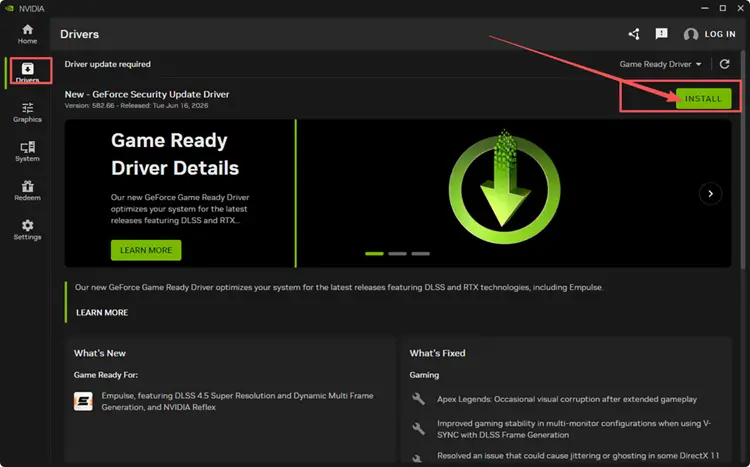
Step 3. Restart your PC and launch Dead by Daylight again.
Tip: AMD and Intel users can update through AMD Software: Adrenalin Edition or Intel Driver & Support Assistant.
Fix 7. Reset DBD’s GameUserSettings File
If DBD started crashing after graphics or display settings changed, resetting GameUserSettings.ini can help rule out a corrupted or incompatible configuration. The game can generate a fresh settings file on the next launch, while renaming the original keeps it available as a backup. Follow the steps below.
Step 1. Close Dead by Daylight, press Windows + R, enter %LOCALAPPDATA%\DeadByDaylight\Saved\Config, and click OK.
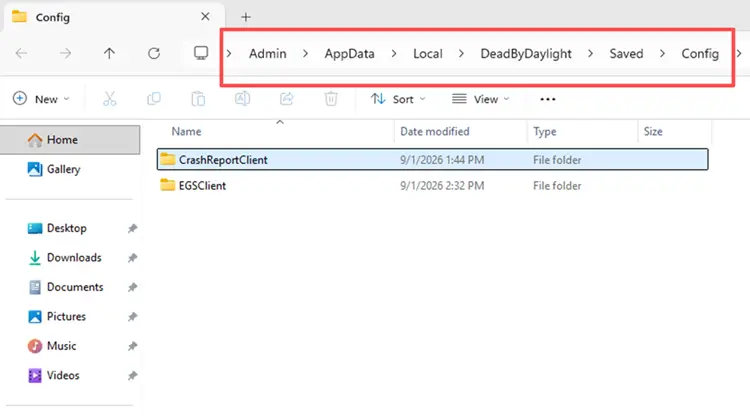
Step 2. Open EGSClient for Epic Games or WindowsClient for Steam, then rename GameUserSettings.ini to GameUserSettings_backup.ini.
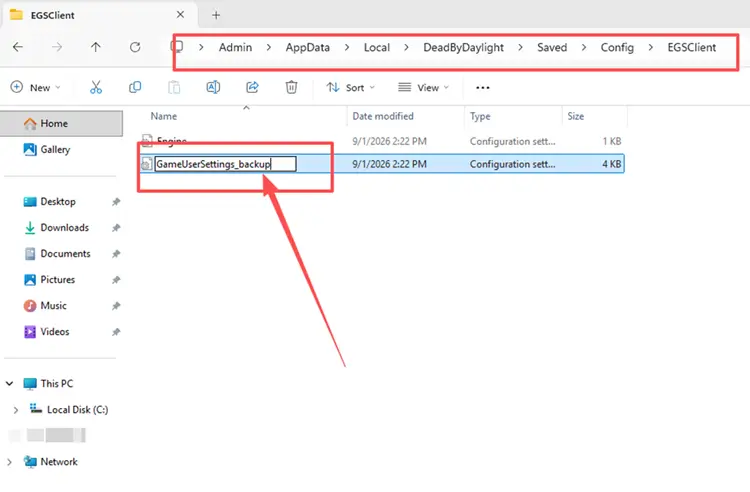
Step 3. Launch Dead by Daylight again and reconfigure your graphics and display settings.
[Bonus] Reduce Dead by Daylight Lag and Disconnects with LagZapper
Dead by Daylight relies on a stable connection for matchmaking and real-time Trials. If the game runs normally but high ping, packet loss, lag spikes, or unstable routing still cause delayed actions or disconnects, LagZapper can optimize the connection route and help improve stability during online play.
Why Use LagZapper for Dead by Daylight?
LagZapper can help Dead by Daylight players:
- Smart Route Optimization: Finds a faster and more stable route for Dead by Daylight to help reduce high ping, packet loss, jitter, and unstable connections.
- Reduce Lag & Improve Stability: Helps lower ping, reduce game lag, minimize lag spikes, and improve responsiveness during online Trials.
- One-Click Boost: Optimizes the Dead by Daylight connection without manually changing complicated network, DNS, or router settings.
- Support for 3,000+ Games: Supports Dead by Daylight and thousands of other popular online games.
How to Boost Dead by Daylight with LagZapper
Follow the steps below to optimize your Dead by Daylight connection before entering an online Trial.
Step 1. Download and Install LagZapper
Download LagZapper for Windows and follow the on-screen instructions to complete the installation on your PC.
Step 2. Open LagZapper and Search for Dead by Daylight
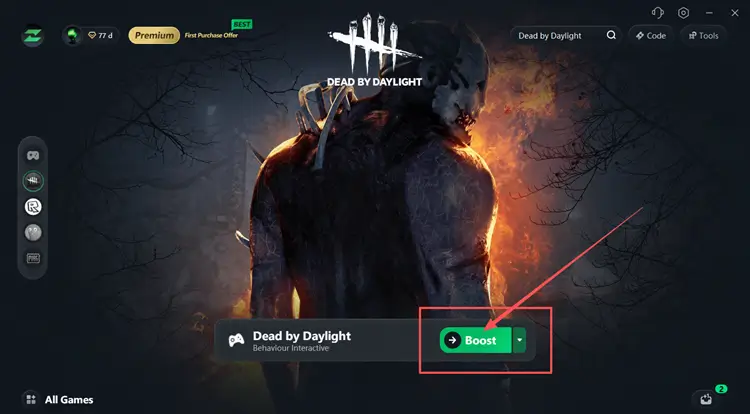
Launch LagZapper, sign in, and enter Dead by Daylight in the search box.
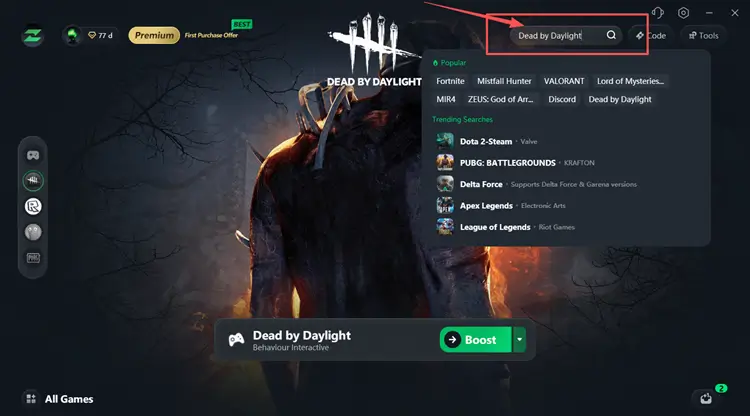
Step 3. Select a Recommended Node and Click Boost
Choose a suitable server or recommended node, click Boost, then launch Dead by Daylight through your game launcher.
The Bottom Line
Dead by Daylight crashing after update 10.1.0 may involve a game-side bug, damaged files, conflicting background tools, graphics settings, shader cache, or GPU drivers. Start with the latest DBD update and file verification, then work through the remaining fixes if crashes continue. For high ping, packet loss, or unstable online connections, download LagZapper to optimize DBD routing and improve connection stability.
FAQs About Dead by Daylight Crashing After Update
Q1. Why Is Dead by Daylight Crashing After Update 10.1.0?
Game bugs, damaged files, graphics conflicts, shader cache, or outdated drivers may cause crashes.
Q2. Why Does Dead by Daylight Keep Crashing During Matches?
Mid-match crashes may come from game bugs, damaged files, graphics conflicts, or unstable drivers.
Q3. How Do I Fix Dead by Daylight Crashing on PC?
Update DBD, verify files, disable conflicting apps, reset settings, and update your GPU driver.
Q4. Can a Dead by Daylight Crash Cause a DC Penalty?
Yes. Reported 10.1.0 crashes can be recorded as disconnects and trigger matchmaking penalties.