
Diablo 4 High Ping: How to Reduce Lag Spikes and Fix Connection Issues
Diablo 4 is a dark fantasy action RPG built around fast combat, dungeon farming, world events, and seasonal progression. But when Diablo 4 high ping appears, every fight can feel delayed. Skills respond late, characters rubberband, and Battle.net connection issues can interrupt Helltides, Nightmare Dungeons, World Boss fights, and group play, especially during peak hours.
This guide will explain why Diablo 4 high ping happens and show simple ways to fix Diablo 4 high ping, reduce Diablo 4 lag spikes, and improve connection stability.
Why Does Diablo 4 Have High Ping and Connection Issues?
Diablo 4 high ping can happen for several reasons. In many cases, the problem is not your internet speed alone, but how stable your route to Battle.net and Diablo 4 servers is.
Unstable Route to Diablo 4 Servers
Even with fast internet, your connection may take an inefficient route to Diablo 4 servers, causing higher latency, ping spikes, rubberbanding, or delayed actions.
Battle.net Connection Issues
Since Diablo 4 runs through Battle.net on PC, launcher problems, login instability, or Battle.net background processes may affect how smoothly the game connects online.
ISP Routing, Packet Loss, and Jitter
Your ISP may route traffic through congested or unstable nodes. This can cause packet loss, jitter, sudden ping spikes, and frequent connection drops.
Wi-Fi Instability or Router Problems
Weak Wi-Fi signals, router overload, or interference from other devices can make Diablo 4 feel laggy, especially during combat, dungeons, and world events.
Background Downloads and Bandwidth Usage
Battle.net updates, Steam downloads, cloud sync, video streaming, or other background apps can consume bandwidth and make Diablo 4 ping less stable.
High Traffic During Season 14 Launch or Peak Hours
During the Season 14 launch, weekend playtime, or evening peak hours, more players may return to Diablo 4, making latency and connection instability more noticeable.
Server Issues or Maintenance
Server issues or scheduled maintenance can temporarily affect Diablo 4 performance, leading to higher ping, login errors, or unexpected disconnects, especially during updates or peak player activity periods.
How to Fix Diablo 4 High Ping - 9 Useful Fixes
The fixes below outline simple steps to check server or Battle.net issues first, then make basic adjustments to improve overall connection stability without going into complex technical details.
Fix 1. Check Server Status
Before changing your network settings, check whether Diablo 4 or Battle.net is experiencing maintenance, login problems, or temporary service issues. If the issue is server-side, high ping in Diablo 4 may remain even when your home internet is stable.
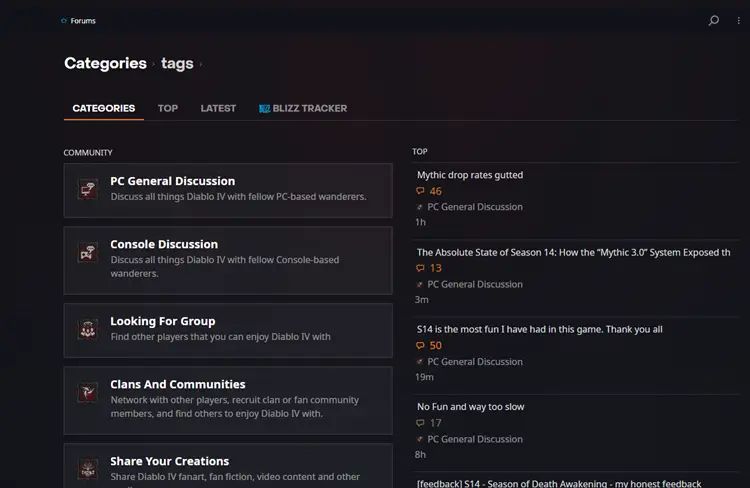
Open Battle.net and check launcher notices first. You can also visit the Diablo IV official forum to see whether other players are reporting similar ping spikes, lag spikes, rubberbanding, or connection issues.
Fix 2. Restart Diablo 4 and Battle.net
A simple restart can refresh your game session and reconnect Battle.net services. If Diablo 4 has been running for a long time, temporary launcher or connection errors may cause lag spikes, login delays, or unstable gameplay.
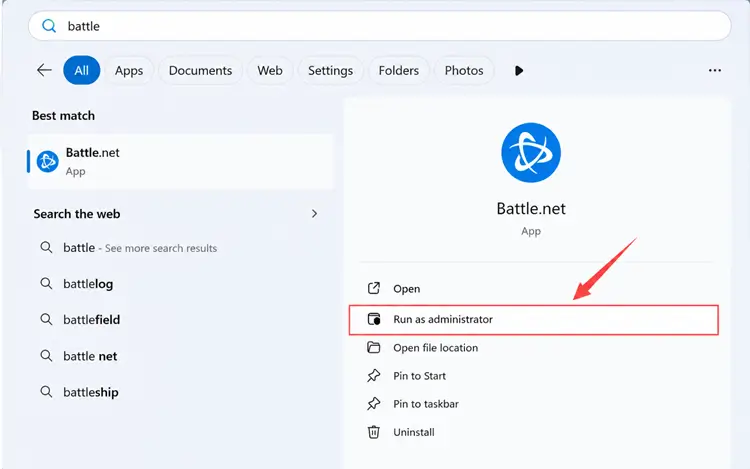
Close Diablo 4 completely, exit Battle.net from the system tray, then relaunch Battle.net as administrator. After that, open Diablo 4 again and check whether your ping becomes more stable.
Fix 3. Use a Wired Ethernet Connection
Wi-Fi is convenient, but it is more likely to suffer from interference, weak signals, and packet loss. In Diablo 4, even small wireless delays can cause ping spikes, rubberbanding, delayed skills, or unstable movement during dungeons and world events.
If possible, connect your device directly to the router with an Ethernet cable. A wired connection usually provides lower latency, better stability, and fewer packet loss issues than Wi-Fi, especially during peak hours or Season 14 farming.
Fix 4. Restart Your Router and Modem
Restarting your router and modem is a quick way to clear temporary network errors. A fresh restart can refresh your connection, free up router memory, and remove minor issues that may cause Diablo 4 high ping, lag spikes, or disconnects.
Turn off your router and modem, wait about 60 seconds, then plug them back in. After the connection is fully restored, restart your device, launch Diablo 4 again, and check whether your ping becomes more stable.
Fix 5. Close Background Downloads and Streaming Apps
Background downloads and streaming apps can quietly consume bandwidth while you are playing Diablo 4. Battle.net updates, Steam downloads, cloud sync tools, browsers, video streams, or other launchers may increase ping spikes, packet loss, and rubberbanding during dungeons or world events.
Before launching Diablo 4, close unnecessary apps and pause active downloads or uploads. Follow the steps below to close unnecessary apps.
Step 1. Press Ctrl + Shift + Esc to open Task Manager and check which applications are using the most network bandwidth.
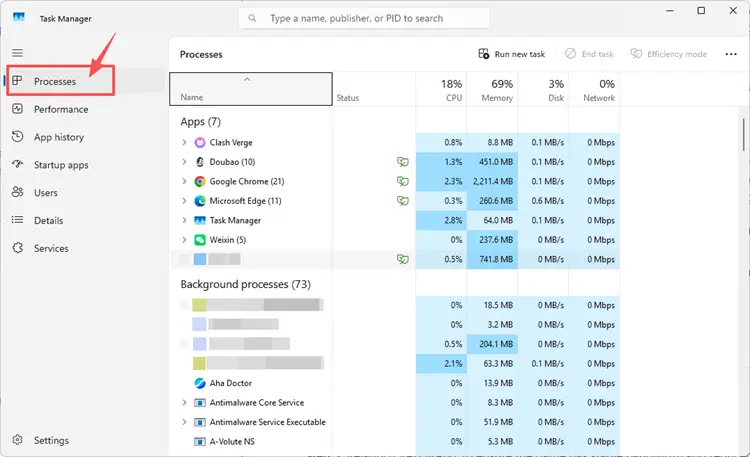
Step 2. Under the Processes tab, close unnecessary programs such as browsers, launchers, or apps downloading updates or syncing files.
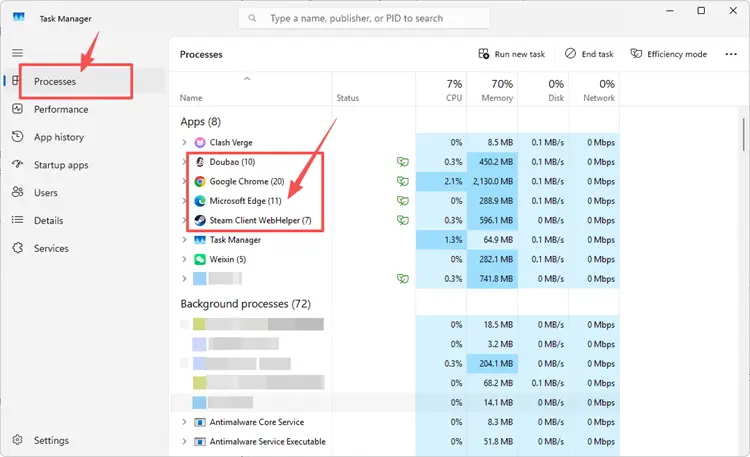
Step 3. Relaunch Diablo 4 to give the game more stable bandwidth and reduce the chance of ping spikes, lag spikes, or rubberbanding during gameplay.
Fix 6. Flush DNS and Reset Network Settings
An outdated DNS cache or temporary network configuration error may cause Diablo 4 connection issues, login delays, or unstable routing to Battle.net services. Flushing DNS can refresh stored connection records, while renewing your IP and resetting Winsock may help clear basic Windows network conflicts.
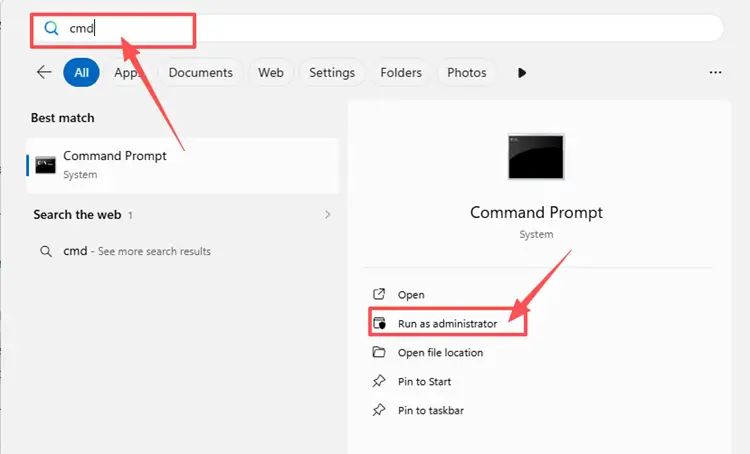
Step 1. Type cmd in the Windows search box, right-click Command Prompt, and select Run as administrator.
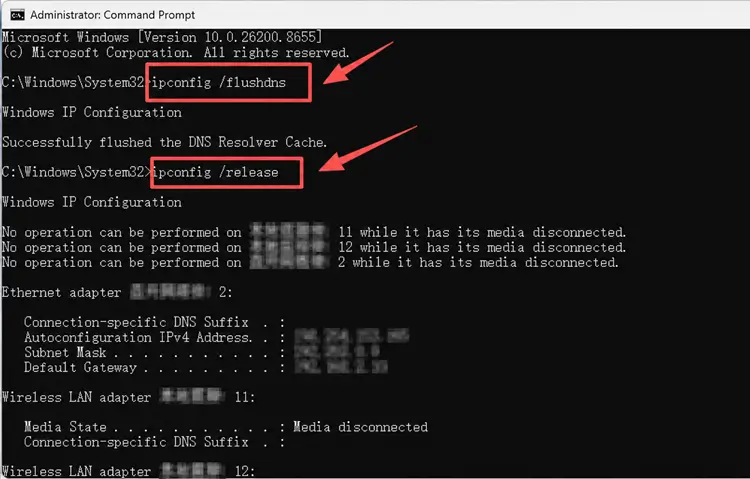
Step 2. Enter the following commands one by one, and press Enter after each command:
- ipconfig /flushdns
- ipconfig /release
- ipconfig /renew
- netsh int ip reset
- netsh winsock reset
Step 3. Restart your PC to apply the changes and launch Diablo 4 to check your ping.
Fix 7. Change DNS Settings
If Diablo 4 still has high ping after flushing DNS, your default DNS server may be slow, overloaded, or unstable. Changing DNS will not directly speed up every connection, but it may help your PC resolve Battle.net services more reliably and reduce connection lookup delays.
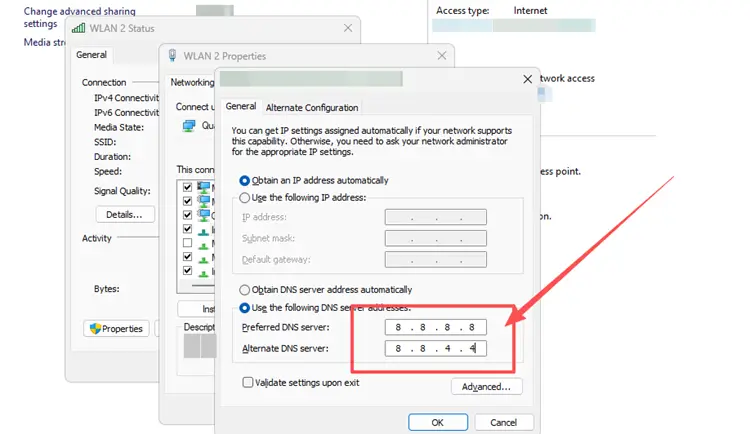
You can try trusted public DNS options such as Google DNS or Cloudflare DNS. Change your DNS settings according to the following steps:
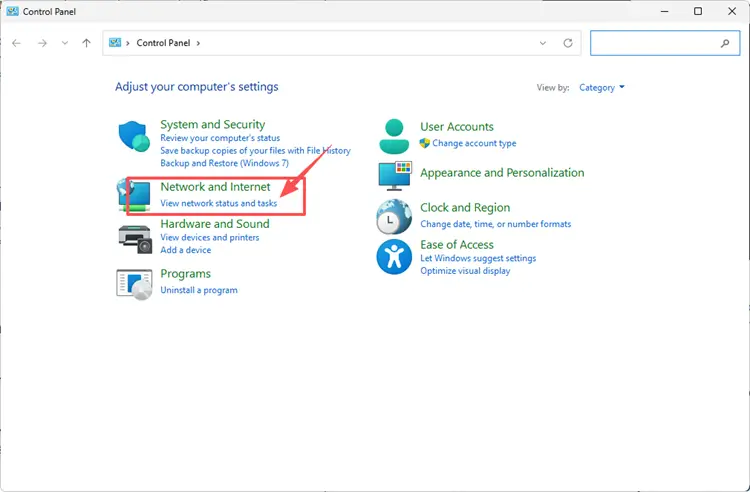
Step 1. Open Control Panel, go to Network & Internet, then click Network and Sharing Center.
Step 2. Select your current Wi-Fi or Ethernet connection, open Properties, and choose Internet Protocol Version 4 (TCP/IPv4).
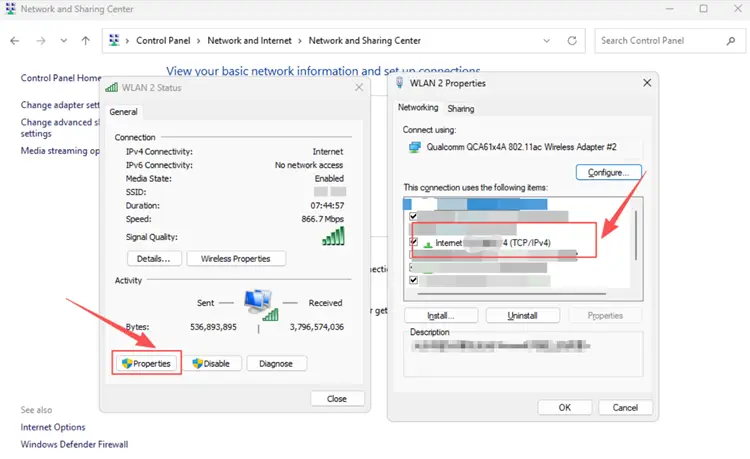
Step 3. Change DNS server assignment from automatic to manual, then enter a public DNS address such as Google DNS 8.8.8.8 / 8.8.4.4 or Cloudflare DNS 1.1.1.1 / 1.0.0.1.
Fix 8. Update Network Adapter Drivers
Outdated or faulty network adapter drivers can affect how your PC handles online connections, causing Diablo 4 high ping, packet loss, lag spikes, or unstable Battle.net connections. Updating the driver may improve compatibility with your router, Windows system, and online game traffic.
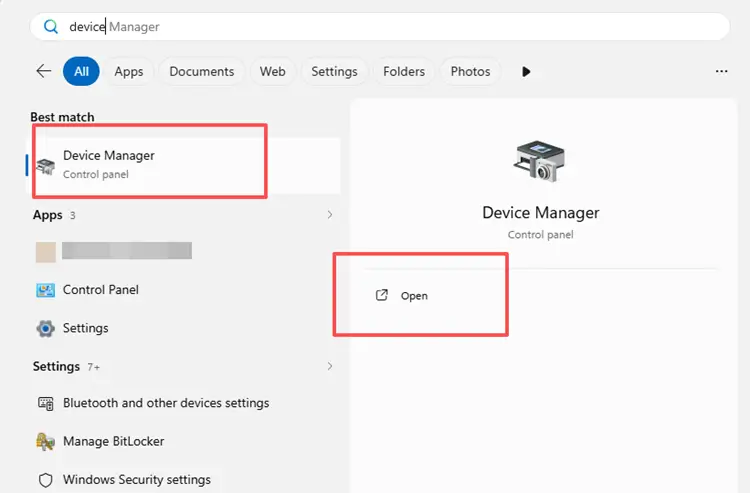
Step 1. Go to the Windows search box and open Device Manager.
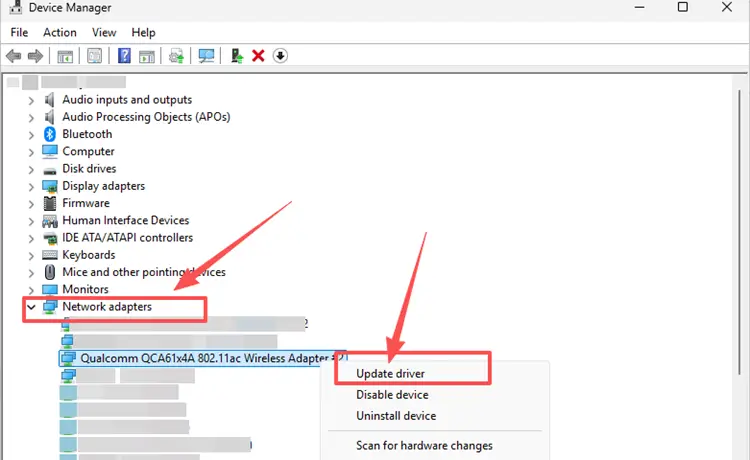
Step 2. Expand Network adapters, right-click your current Wi-Fi or Ethernet adapter, and select Update driver.
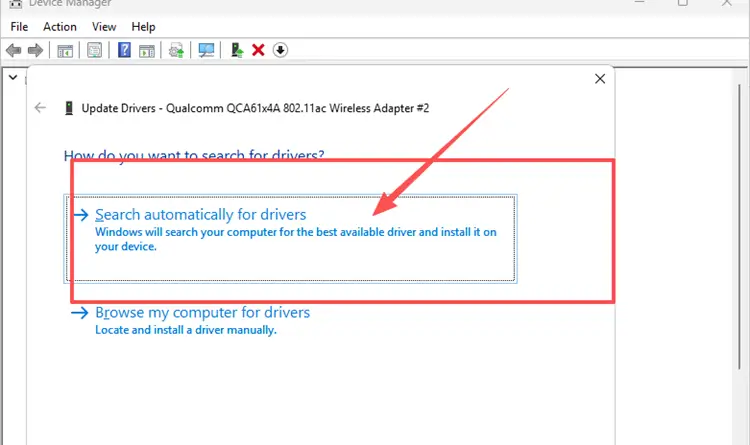
Step 3. Click Search automatically for drivers, install any available update, then restart your PC and relaunch Diablo 4.
Fix 9. Check Firewall or Antivirus Restrictions
Windows Firewall or antivirus software may sometimes block Diablo 4, Battle.net, or related background services from connecting properly. Instead of turning off security protection completely, add Diablo 4 and Battle.net to the allowed app list to reduce possible connection restrictions.
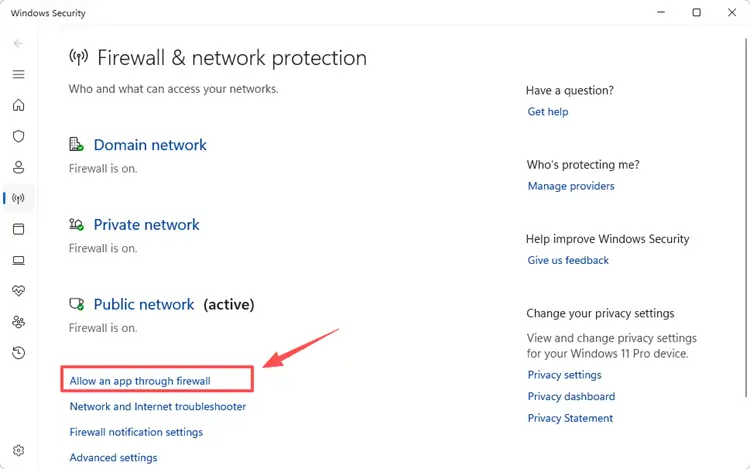
Step 1. Open Windows Security, navigate to Firewall & network protection, and select Allow an app through firewall.
Step 2. Click Change settings, then select Allow another app, browse to the game installation directory, and choose the game executable file to add it.
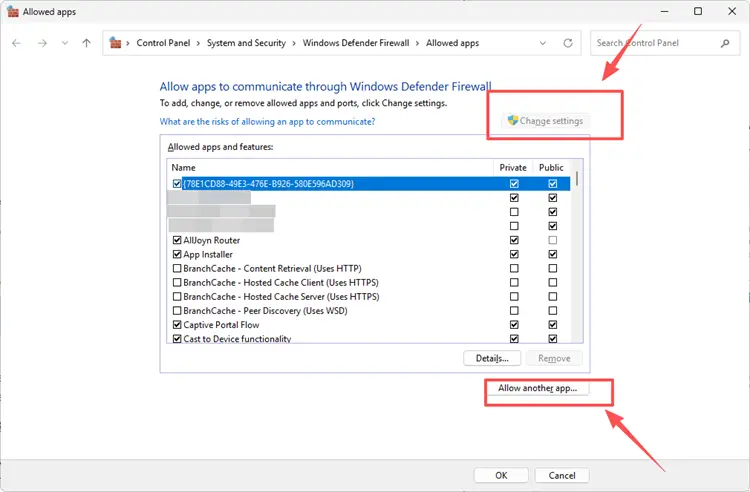
Step 3. Make sure the game is allowed on your active network, then click OK and relaunch the game.
[Bonus] How to Reduce Diablo 4 High Ping with LagZapper
Diablo 4 requires a stable connection for fast skill response, smooth movement, and reliable online play. If you still notice high ping, rubberbanding, delayed attacks, or sudden Diablo 4 lag spikes after checking your network, the problem may come from unstable routing or packet loss. LagZapper can help improve your connection route to Diablo 4 servers and make gameplay feel more stable during peak hours, group play, and seasonal content.
Key Advantages of Boosting Diablo 4 with LagZapper:
- Smart Route Optimization: Automatically finds a faster and more stable route for Diablo 4, helping reduce high ping, packet loss, jitter, and unstable Battle.net connections.
- Reduce Lag & Improve Stability: Lower ping, reduce game lag, minimize ping spikes, rubberbanding, and sudden disconnects during Helltide farming, Nightmare Dungeons, World Boss events, and progression.
- One-Click Boost: Optimize your Diablo 4 connection in seconds with one click. No complicated setup or manual network adjustments are required before you start playing.
- Support for 3,000+ Games: Use LagZapper to improve connection stability across 3,000+ online games, including Fortnite, VALORANT, Path of Exile 2, and other popular multiplayer titles.
[Step-by-Step Guide] How to Boost Diablo 4 with LagZapper
Step 1. Download and Install LagZapper
Download LagZapper for Windows and follow the on-screen instructions to complete the installation.
Step 2. Open LagZapper and Search for Diablo 4
Launch LagZapper, then use the search bar or browse the supported games list to find Diablo 4.

Step 3. Boost and Play Diablo 4
Select your preferred server or node if needed, then click Boost to optimize your connection before launching the game.

The Bottom Line
Diablo 4 high ping can be caused by server maintenance, unstable Wi-Fi, background downloads, DNS problems, outdated network drivers, firewall restrictions, or poor ISP routing. Start with simple checks first, then test the fixes above to reduce Diablo 4 high ping, packet loss, rubberbanding, and fix Diablo 4 connection issues.
For smoother dungeon runs and seasonal farming, downloading LagZapper can help optimize your route, reduce game lag, and keep Diablo 4 more stable.