
EA FC 26 Servers Down? How to Fix “EA Servers Are Not Available”
With World Cup excitement bringing more attention to EA FC 26 (EA SPORTS FC 26), many players are jumping back into online modes, Ultimate Team, and competitive matches. However, the surge in activity also means more connection issues are being reported across the community. Some players have shared issues like “EA FC 26 servers down,” failed logins, and random disconnects, including discussions on Reddit. If you are not sure whether EA FC 26 servers are down or your own network is causing the issue, this post will help you check server status and fix the “EA servers are not available” issue.
Are EA FC 26 Servers Down Right Now? Check EA FC 26 Server Status
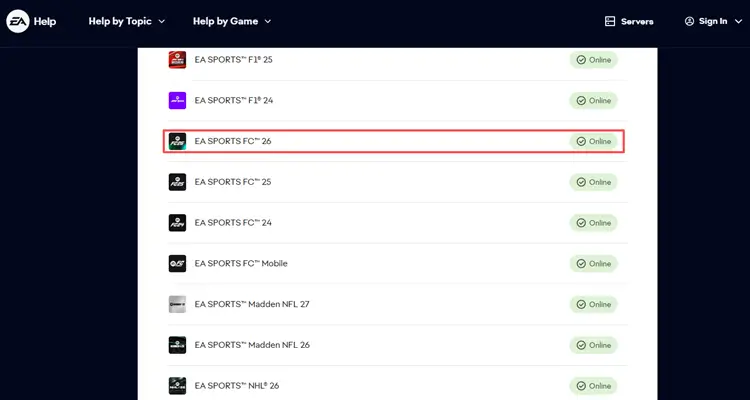
The fastest way to know whether EA FC 26 servers are down is to check the official EA Help server status page. EA Help shows the current status of EA games and services, including EA SPORTS FC 26. If the status shows an outage or maintenance, the issue is not on your side, and you usually need to wait until EA restores the service. If EA FC 26 appears online, the server status is probably not the main problem. Scroll down to learn more possible causes and fixes.
How to Fix “EA Servers Are Not Available” in EA FC 26
When EA FC 26 servers are online but you still see “unable to connect to EA servers,” the issue may come from your device, EA account, platform service, router, DNS settings, firewall, ISP routing, or local network stability.
Fix 1. Restart EA FC 26 and Your Platform
A temporary login session, platform glitch, or launcher error can sometimes cause the “EA servers are not available” issue in EA FC 26. First, close EA FC 26 completely. Then restart the platform you are using, such as the EA app, Steam, PlayStation, Xbox, or Nintendo Switch. After that, launch the game again and try entering online modes. For PC players, also exit the EA app or Steam from the system tray before reopening it.
Fix 2. Check Your EA Account
Sometimes, the “EA servers are not available” issue is related to your EA account rather than the game server. If your account is banned, suspended, deactivated, deleted, underage, or already in use on another device, EA FC 26 may fail to connect to online modes.
Make sure your EA account is active, not restricted, and not signed in elsewhere. If you recently changed your password or updated your security settings, sign out of your EA account and sign back in before testing the game again.
Fix 3. Restart Your Router
Router or local network issues can sometimes cause EA FC 26 disconnects, login errors, or unstable online matches. Turn off your router and unplug it from the power source. Wait for about one minute, then plug it back in and turn it on again. Once your connection is restored, launch EA FC 26 and check whether the “EA servers are not available” error is fixed.
Fix 4. Use a Wired Connection
Wi-Fi can be unstable during online matches, especially when the router is far away, the signal is weak, or nearby networks cause interference. In this case, a wired Ethernet connection is usually more reliable for EA FC 26 online gameplay. If the game keeps disconnecting, lagging, or showing connection errors, connect your PC or console directly to the router with an Ethernet cable.
Fix 5. Close Background Apps
If too many apps are running in the background, your system and network may become unstable. Downloads, cloud sync tools, browsers, streaming apps, and other games may use bandwidth or system resources while EA FC 26 is running. Here’s how to close unnecessary background applications:
Step 1. Press Ctrl + Shift + Esc to open Task Manager. Go to the Processes tab and check which apps are using high CPU, memory, or network resources.
Step 2. Select unnecessary apps, such as cloud sync tools, streaming apps, browsers, or download programs, then click End Task to close them.
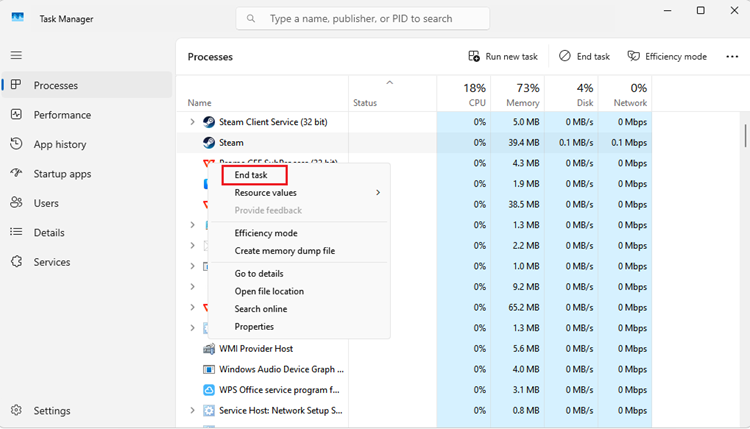
Step 3. Launch EA FC 26 again and check whether the connection becomes more stable.
Fix 6. Change DNS Settings
DNS problems can make it harder for your device to connect to EA servers. If your current DNS is slow or unstable, switching to a public DNS may help improve the connection.
Step 1. Press Win + R, type ncpa.cpl, and press Enter to open Network Connections.
Step 2. Right-click your active network connection, such as Wi-Fi or Ethernet, and select Properties.
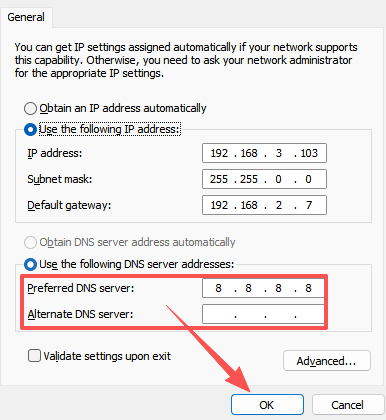
Step 3. Double-click Internet Protocol Version 4 (TCP/IPv4), then enter one of the following DNS options:
| DNS Provider | Preferred DNS | Alternate DNS |
|---|---|---|
| Google DNS | 8.8.8.8 | 8.8.4.4 |
| OpenDNS | 208.67.222.222 | 208.67.220.220 |
Step 4. Click OK to save the changes. Then, restart your device and router before launching EA FC 26 again.
Fix 7. Clear the EA app Cache on PC
Corrupted or outdated cache files may cause EA FC 26 online services to load incorrectly or keep showing connection errors. Clearing cache can help refresh the game launcher and platform connection.
Step 1. Close EA FC 26 completely and exit EA app from the system tray.
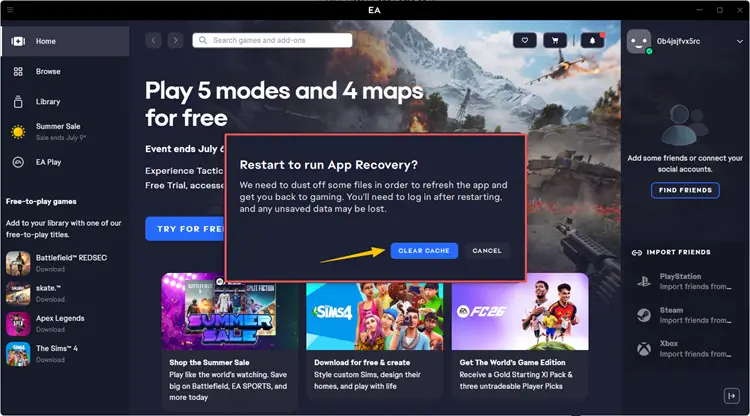
Step 2. Reopen EA app, click the three-line menu in the top-left corner, then go to Help > App Recovery.
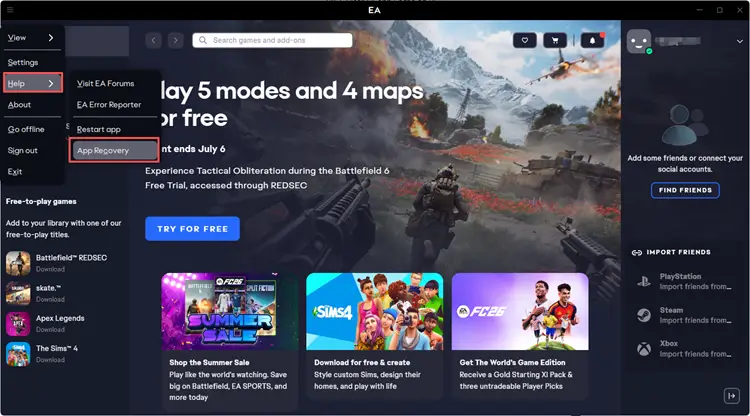
Step 3. Click Clear cache, wait for EA app to restart, then launch EA FC 26 again.
Fix 8. Check Firewall and Antivirus Settings
Firewall or antivirus software may block EA FC 26, EA app, Steam, or online connection services, causing the game to fail when connecting to EA servers.
Step 1. Open Windows Security and go to Firewall & network protection.
Step 2. Click Allow an app through firewall, then click Change settings.
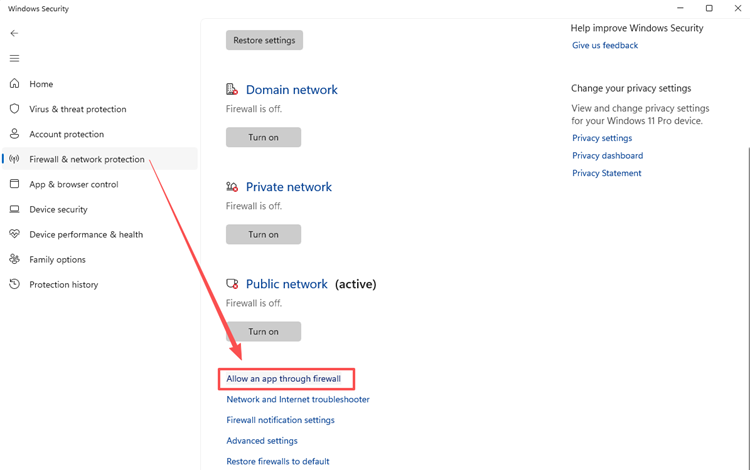
Step 3. Make sure EA FC 26 and your game launcher, such as EA app or Steam, are allowed through the firewall.
Tip: Do not keep your protection disabled permanently. If the game works after disabling security software, add EA FC 26 and its launcher to the allowed list instead.
How to Reduce Ping and Packet Loss with LagZapper
If EA FC 26 servers are online but you still experience high ping, packet loss, lag spikes, or disconnects, the issue may be related to your ISP route to the game server.
LagZapper helps optimize game routes, lower ping, reduce packet loss, and stabilize online connections. For EA FC 26 players, this can be useful when the game is playable but the connection feels unstable, delayed, or inconsistent.
Highlights of Using LagZapper
- One-Click Boost for EA FC 26: LagZapper optimizes EA FC 26 routes with one click, without complex manual network settings.
- Lower Ping for EA FC 26: LagZapper helps lower high ping in EA FC 26, making online matches feel smoother and more responsive.
- Reduce Lag and Packet Loss: LagZapper helps reduce lag, packet loss, and delays, keeping your EA FC 26 connection more stable.
- Stabilize Unstable Game Routes: LagZapper optimizes your ISP route to EA FC 26 servers, helping reduce disconnects and route instability.
How to Boost EA FC 26 Using LagZapper
Step 1. Download and Install LagZapper
Download LagZapper for Windows and follow the on-screen instructions to complete the installation.
Step 2. Open LagZapper and Sign In
Open LagZapper and sign in to optimize your connection for online games.
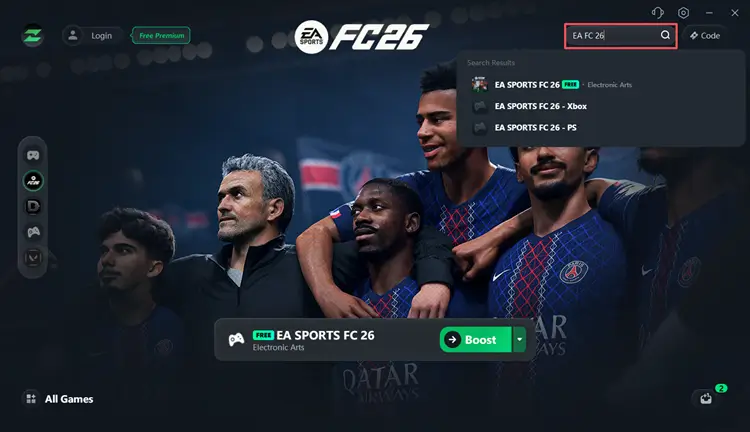
Step 3. Search for EA FC 26
Search for EA FC 26 or browse the supported games list to find the title you want to boost.
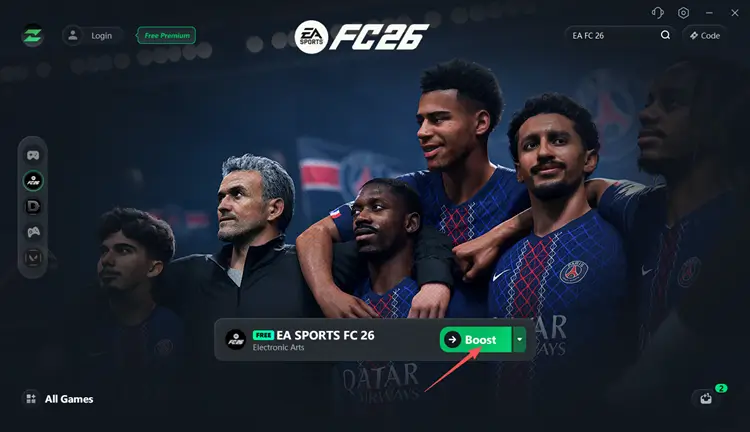
Step 4. Boost EA FC 26
Select your preferred server or node, then click Boost to optimize your connection and start playing with less lag.
The Bottom Line
If EA FC 26 servers are down, the best option is to wait until EA restores the service. Always check EA FC 26 server status first before troubleshooting your own device. If the servers are online but you see “can’t connect to EA servers” try restarting your router, using a wired connection, changing DNS, clearing the EA app cache, and checking firewall settings.
For high ping, packet loss, or unstable routes, LagZapper can help stabilize your EA FC 26 connection and make online matches smoother. Why not give it a try? Download LagZapper to play EA FC 26 with lower ping and a more stable connection.
FAQs About EA FC 26 Servers Down
Q1: How do I check EA FC 26 server status?
Check EA FC 26 server status on EA Help, official EA FC social channels, or in-game notices to confirm outages, maintenance, or online service issues.
Q2: Why does EA FC 26 say EA servers are not available?
This error means EA FC 26 cannot reach online services. It may be caused by server issues, unstable internet, DNS problems, firewall blocks, or bad routing.
Q3: Why can’t I connect to EA FC 26 servers?
You may be blocked by server outages, high ping, packet loss, unstable Wi-Fi, DNS errors, firewall settings, or poor routes to EA FC 26 servers.
Q4: Why does EA FC 26 keep disconnecting from online matches?
EA FC 26 may disconnect due to unstable Wi-Fi, packet loss, high ping, overloaded networks, or unstable routes between your device and EA servers.
Q5: Why does EA FC 26 lag even when servers are not down?
If servers are online, lag may come from your network, ISP routing, packet loss, long-distance servers, or background apps using bandwidth.
Q6: Can LagZapper help if EA FC 26 is lagging?
Yes. LagZapper can help lower ping, reduce packet loss, and stabilize routes when EA FC 26 servers are online but your connection is unstable.