
Escape from Tarkov Update 1.1 Stuck? Fix BSG Launcher Issues
Escape from Tarkov Update 1.1.0.0 launches on August 3, 2026, with maintenance starting at 07:00 BST / 02:00 EDT and lasting six to eight hours. During this period, the game will be unavailable, and installation may take longer than expected. Heavy player traffic may leave the Tarkov update stuck, not downloading, or frozen at 0 MB/s. Before reinstalling, check whether maintenance is ongoing or the BSG Launcher is stuck updating.
Is Escape from Tarkov Update 1.1 Stuck?
The BSG Launcher may appear broken during maintenance even when the issue is server-side. The Update button may be missing, the launcher may remain on “checking for updates,” or the game may fail to start.
Battlestate Games stated that Update 1.1.0.0 would:
- Begin on August 3 at 07:00 BST / 02:00 EDT
- Take approximately six to eight hours
- Make Escape from Tarkov unavailable
- Take longer if maintenance is extended
| Update symptom | Possible explanation |
|---|---|
| Update button is missing | The patch is not available for download yet |
| Escape from Tarkov will not start | Servers are under maintenance |
| Launcher is stuck checking updates | Update or authentication services are overloaded |
| Download remains at 0 MB/s | Patch servers are busy or the launcher session is frozen |
| Download speed repeatedly drops | Heavy CDN traffic or unstable routing |
| Update finishes but the game will not launch | Files are still installing, verifying, or repairing |
| A connection error appears | Maintenance, DNS, firewall, launcher traffic, or routing issues |
Do not repeatedly reinstall the game while maintenance is active. Wait for Battlestate Games to confirm that installation is complete before troubleshooting the BSG Launcher or local files.
Why Is the Escape from Tarkov Update Stuck?
An Escape from Tarkov update may stop downloading or installing for several reasons:
- Update 1.1 maintenance is active: The BSG Launcher may not download or verify the patch until deployment finishes. Maintenance may also be extended.
- Download servers are overloaded: Heavy traffic may leave the Tarkov update stuck, paused, or at 0 MB/s.
- The BSG Launcher has frozen: Background processes may continue running and block update checks or downloads.
- Disk space is insufficient: The launcher needs extra space to download, unpack, replace, and verify files.
- Antivirus or firewall software is interfering: Security tools may block the launcher from downloading or modifying game files.
- The network is unstable: Packet loss, weak Wi-Fi, DNS errors, ISP congestion, or poor routing may interrupt the download.
- Launcher or game files are corrupted: Interrupted patches or damaged data can prevent Update 1.1 from installing correctly.
How to Fix Escape from Tarkov Update 1.1 Stuck – 7 Fixes
Follow these fixes one by one and test the update after each step before continuing.
Fix 1. Check the Escape from Tarkov Maintenance Status
Before changing launcher, game, or network settings, confirm whether Update 1.1 maintenance is still active. Check:
- The official Escape from Tarkov X account
- Announcements in the BSG Launcher
- The official Escape from Tarkov website
- Battlestate Games maintenance updates
- Recent community reports
If Battlestate Games says installation is ongoing or has been extended, wait for services to return. Local fixes cannot resolve an Escape from Tarkov update stuck because the patch has not been fully deployed.
Note: Maintenance may exceed six to eight hours. Do not reinstall Tarkov while the update is still being deployed.
Fix 2. Wait Until the Initial Download Rush Eases
After maintenance ends, heavy traffic may still slow the Tarkov update or leave the download stuck at 0 MB/s. Try the following:
- Keep the launcher open for several minutes.
- Check whether the downloaded file size changes.
- Pause and resume the update once.
- Avoid repeatedly restarting the launcher.
- Retry later if patch servers are overloaded.
A brief 0 MB/s reading does not always mean the download has frozen. The launcher may be unpacking or verifying files, so check disk activity in Task Manager before restarting it.
Fix 3. Close All BSG Launcher Processes
A normal restart may leave BSG Launcher processes running in the background. If the Tarkov launcher is still stuck updating, close all related processes before reopening it.
Step 1. Close the BSG Launcher.
Step 2. Right-click the Windows Start button to open Task Manager and end any related processes, related to:
- BsgLauncher.exe
- BSG Launcher
- EscapeFromTarkov.exe
- EscapeFromTarkov_BE.exe
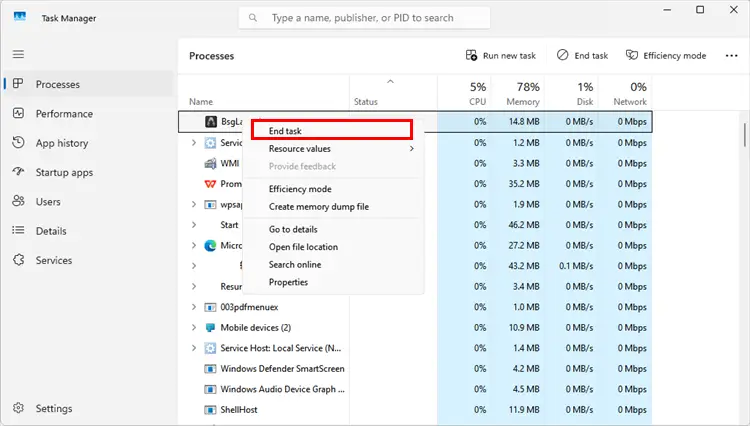
Step 3. Wait 30 seconds, reopen the launcher, and check for the update again.
Fix 4. Check Free Disk Space and the Installation Path
Escape from Tarkov needs extra space to download, unpack, and install Update 1.1.
Step 1. Open File Explorer > This PC and check the drive where Tarkov is installed.
Step 2. Check the Windows system drive as well, since temporary update files may be stored there.
Step 3. Delete or move large files, and then reopen the BSG Launcher and retry the update.
Tip: Keep more free space than the displayed patch size because temporary extraction files may require additional storage.
Fix 5. Run the BSG Launcher as Administrator
Windows permissions may prevent the launcher from replacing or verifying Escape from Tarkov files.
Step 1. Close the BSG Launcher completely.
Step 2. Search for Battlestate Games Launcher in the Windows Start menu > Right-click it and select Run as administrator.
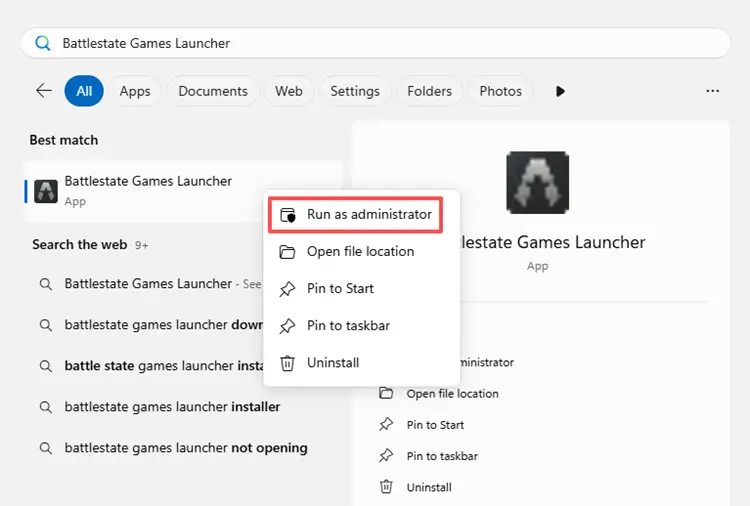
Step 3. Approve the Windows prompt and retry the update. If the update still fails, allow the launcher through Windows Firewall:
- Open Windows Security > Firewall & network protection.
- Select Allow an app through firewall > Change settings.
- Allow BSG Launcher and Escape from Tarkov on the required networks.
Also, check whether your antivirus is blocking the launcher, and re-enable any protection disabled during testing.
Fix 6. Restart Your Network and Flush DNS
If the Tarkov update is stuck at 0/0 or the launcher cannot reach the patch server, reset your connection.
Step 1. Restart your router, then use a wired connection and pause other downloads if possible.
Step 2. Search for Command Prompt, right-click it, and select Run as administrator.
Step 3. Enter the following command: ipconfig /flushdns
Step 4. Reopen the BSG Launcher and retry the download. Test a mobile hotspot if the problem continues.
Fix 7. Check Game Integrity or Reinstall the BSG Launcher
If the update fails during installation or verification, repair the game files first.
Step 1. Open the BSG Launcher and run Integrity Check for Escape from Tarkov.
Step 2. Let the launcher scan and replace any missing or damaged files.
Step 3. If the launcher still crashes or cannot update, uninstall only the BSG Launcher, then download and reinstall the latest version as administrator.
Step 4. Select the existing Tarkov installation folder and run another integrity check before reinstalling the full game.
Reinstall the entire game only if the launcher cannot detect or repair the existing files.
[Bonus] How to Stabilize the Escape from Tarkov Connection
LagZapper cannot end maintenance or fix overloaded Tarkov servers. However, once services are online, unstable routing may cause slow downloads, launcher errors, high ping, packet loss, or disconnections.
LagZapper optimizes the network route between your Windows PC and supported game servers. When a better route is available, it may help reduce ping spikes, packet loss, and connection instability during Escape from Tarkov raids.
LagZapper Highlights for Escape from Tarkov
- Helps lower ping when a faster, more stable route is available.
- Reduces packet loss caused by inefficient or unstable routing.
- Helps minimize sudden lag spikes and network jitter during raids.
- Provides one-click boosting without complex manual network settings.
How to Boost Escape from Tarkov with LagZapper
Once Tarkov services are online, you can use LagZapper to optimize the connection route before launching the game.
Step 1. Download and Install LagZapper
Download LagZapper for Windows and complete the installation.
Step 2. Search for Escape from Tarkov
Open LagZapper, sign in, and enter Escape from Tarkov in the search bar.
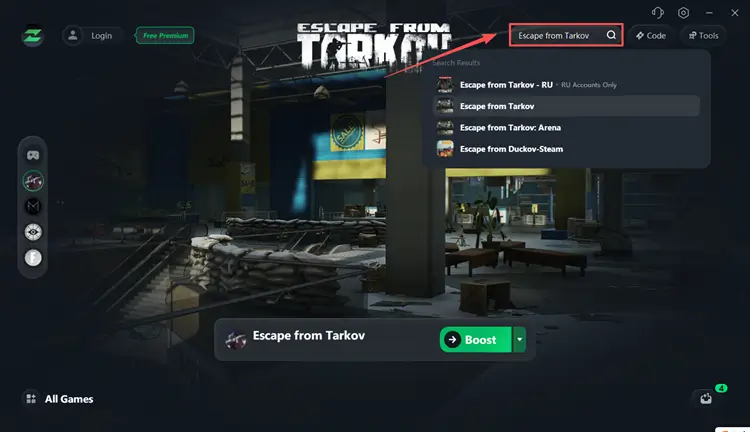
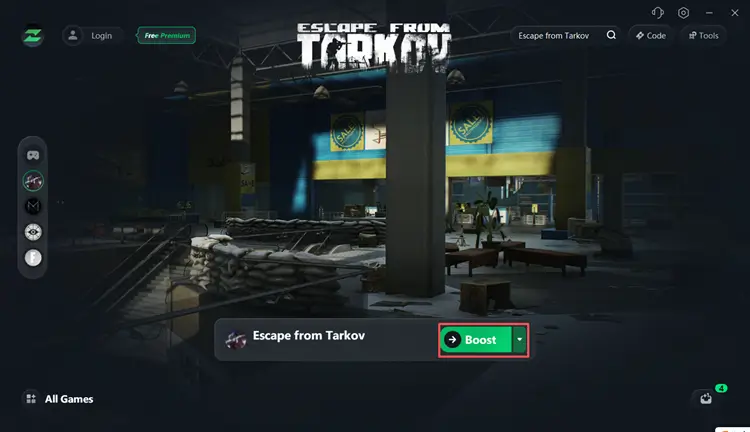
Step 3. Select a Server and Boost
Choose a target server or recommended node, then click Boost.
Results may vary by location, ISP, local network, selected server, and current Battlestate Games service status.
The Bottom Line
If Escape from Tarkov Update 1.1 remains unavailable during maintenance, wait for Battlestate Games to confirm deployment is complete. When the patch is live but still stuck, restart the BSG Launcher, check disk space, run it as administrator, reset your network, flush DNS, and verify game files. Avoid reinstalling the full game unless repair options fail. Once servers are online, use LagZapper to optimize your route and help reduce lag, packet loss, and unstable connections.
Escape from Tarkov Update Stuck FAQ
Q1. Why is Escape from Tarkov Update 1.1 not showing in the launcher?
The update may still be under maintenance or not yet available. Check official Battlestate Games announcements first.
Q2. Why is my Tarkov update stuck at 0 MB/s?
The launcher may be verifying files, patch servers may be overloaded, or the launcher process may have frozen.
Q3. How do I fix the BSG Launcher stuck updating Tarkov?
Restart all launcher processes, check disk space, run it as administrator, flush DNS, and verify game files.
Q4. How long does Escape from Tarkov Update 1.1 maintenance take?
Maintenance is estimated to last six to eight hours but may be extended.
Q5. Should I reinstall Escape from Tarkov when the update is stuck?
Not immediately. Try the launcher, network, storage, and integrity fixes first. Reinstall only as a last resort.