
Fortnite Not Updating? Try 7 Fixes for Stuck Downloads, Update Loops, and Install Errors
Fortnite not updating can prevent players from downloading the latest patch or launching the game with the correct version. A Fortnite update stuck issue may appear at 0% or a specific percentage, remain on Queued or Verifying, or enter an endless update loop in the Epic Games Launcher or on consoles.
This guide will explain why Fortnite is not updating and provide seven practical fixes for stuck downloads, update loops, and installation errors.
Why Is Fortnite Not Updating?
Fortnite update failures can come from server-side delays, launcher issues, storage limits, network problems, or corrupted files. Understanding these causes helps identify the right fix faster.
- Epic maintenance or update rollout delays: The latest patch may still be deploying, or download services may be overloaded.
- Frozen Launcher or console update process: A stalled background task or download queue may prevent the update from continuing.
- Insufficient storage or slow disk activity: Fortnite needs extra space to download, unpack, install, and verify update files.
- Unstable or limited download connection: Network interruptions or Launcher speed limits may pause or slow the update.
- Corrupted cache, files, or permissions: Damaged Launcher data, incomplete files, or insufficient write access may cause update loops and installation failures.
How to Fix Fortnite Not Updating – 7 Useful Fixes
Start with quick checks before moving to deeper fixes, covering launcher, storage, connection, cache, file, and network-related update issues.
Fix 1. Check Fortnite Update Status
Before changing local settings, check whether Fortnite or Epic Games services are experiencing maintenance, outages, or update deployment delays. The Epic Games Public Status page shows current service availability and reported incidents.
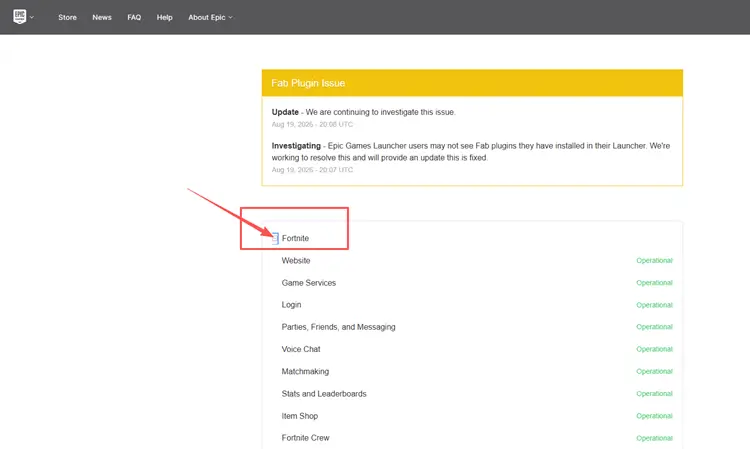
If Epic confirms a server-side issue, wait until services recover and try the update again. If everything is operational, continue with the local fixes below.
Fix 2. Restart the Launcher or Console
Closing only the Epic Games Launcher window may leave update processes running, so Fortnite can remain stuck at Queued, 0%, or Verifying. Fully exit Fortnite and the Launcher from the system tray. If Epic processes remain in Task Manager, end them, reopen the Launcher, and select Update or Resume.
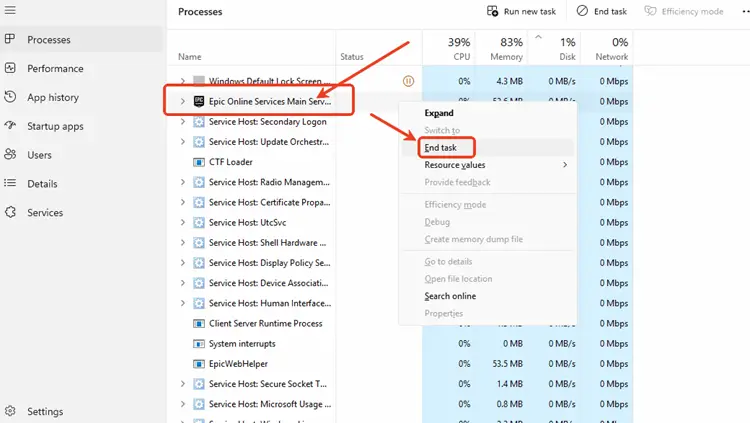
On a console, close Fortnite and perform a full system restart instead of using sleep or rest mode. After the console reconnects, open the download queue and retry the update.
Fix 3. Check Storage and Disk Activity
Fortnite updates need free space for temporary files, decompression, installation, and verification - not only the displayed patch size. Check the Fortnite installation drive or console storage, and remove unnecessary files if space is low.
A download rate of 0 B/s does not always mean the update is frozen. In the Epic Games Launcher download graph, continued read or write activity means files are still being installed. Wait for the disk activity to finish before restarting or cancelling the update.
Fix 4. Stabilize the Download Connection
An unstable connection or competing traffic can interrupt Fortnite update data, leaving the download paused or returning to 0%. Pause other downloads and video streams, use Ethernet when possible, and restart the modem and router to refresh the connection.
The Epic Games Launcher also includes a download speed limit that may slow updates. Follow the steps below to remove the limit.
Step 1. Open the Epic Games Launcher and select the Settings icon in the top-right corner.
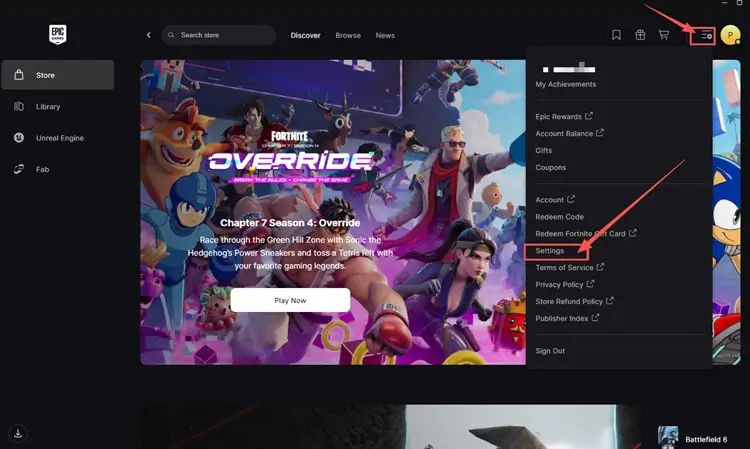
Step 2. Open Download Settings and turn off Limit Download Speeds.
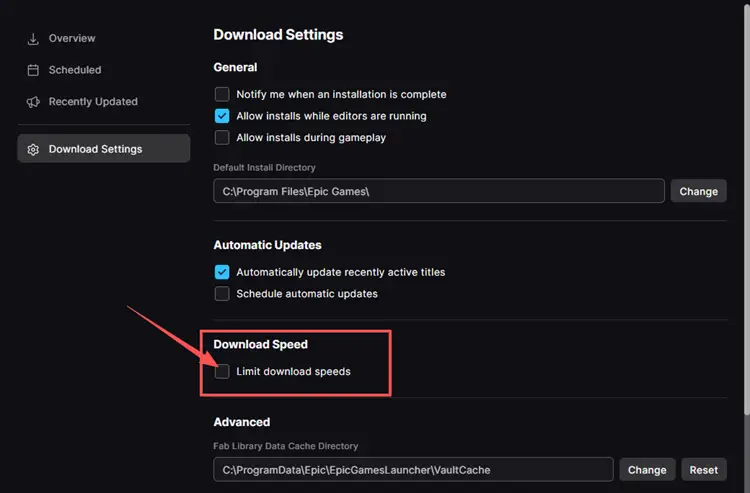
Step 3. Restart the Launcher and resume the Fortnite update.
On consoles, pause other downloads and retry from the platform download queue.
Fix 5. Clear the Epic Games Launcher Cache
Corrupted or outdated Launcher cache data can interfere with Fortnite downloads, causing a Fortnite update failed error, keeping the update on Queued, looping through Verifying, or preventing it from starting. Clearing these temporary files does not uninstall Fortnite, and Epic Games Launcher recreates the required cache after reopening. Follow the steps below to clear the Launcher cache on Windows.
Step 1. Fully exit Fortnite and Epic Games Launcher from the system tray. Make sure no Epic Games processes remain in Task Manager.
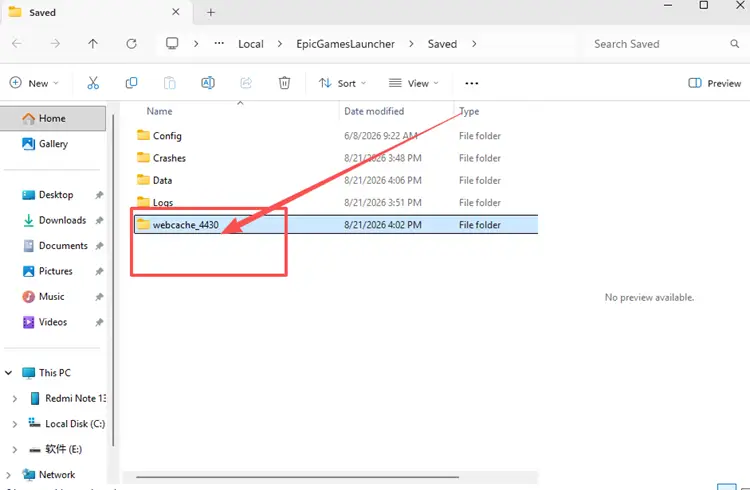
Step 2. Press Windows + R, enter %localappdata%, and open EpicGamesLauncher > Saved.
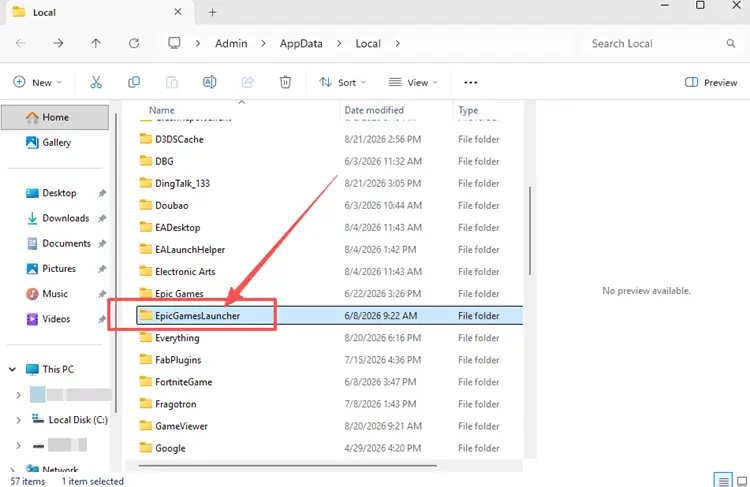
Step 3. Delete webcache, webcache_4147, and webcache_4430 if present, then reopen the Launcher and retry the update.
Fix 6. Verify Fortnite Files
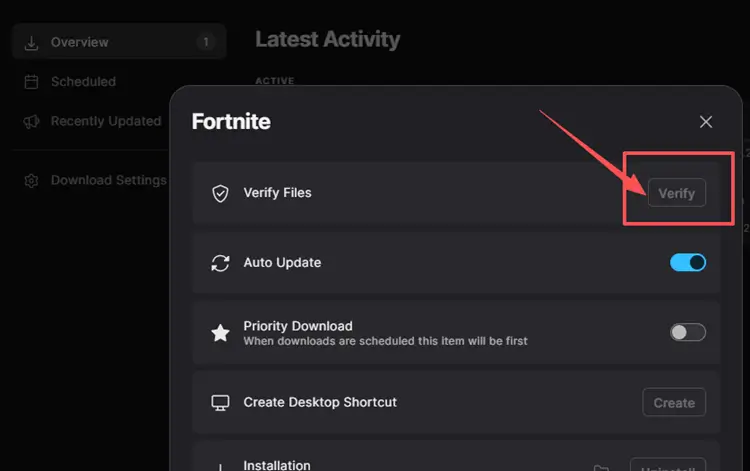
Damaged game files, incomplete updates, or permission issues can prevent Fortnite from finishing an update. Verifying the game files checks the installation and replaces missing or corrupted data, while running the Epic Games Launcher as administrator can help resolve write access problems. Follow the steps below to verify Fortnite files and retry the update with elevated Launcher permissions.
Step 1. Right-click the Epic Games Launcher shortcut and select Run as administrator.
Step 2. Open Library, find Fortnite, and select Manage.
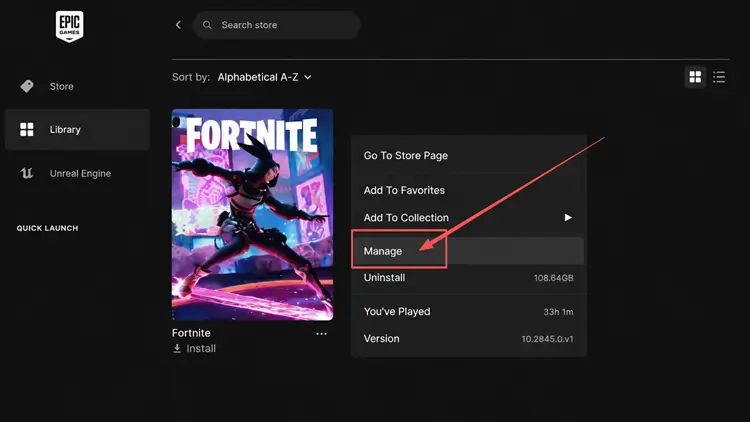
Step 3. Choose Verify and wait for the process to complete before retrying the update.
Fix 7. Reset the Windows Network Stack
If Fortnite still will not update on Windows, damaged Winsock, TCP/IP, IP, DNS, or proxy settings may block Epic Games Launcher from reaching update services. Resetting them can clear local conflicts. Reset the proxy only for “Please wait while we start your update” on an unmanaged connection. Follow these steps.
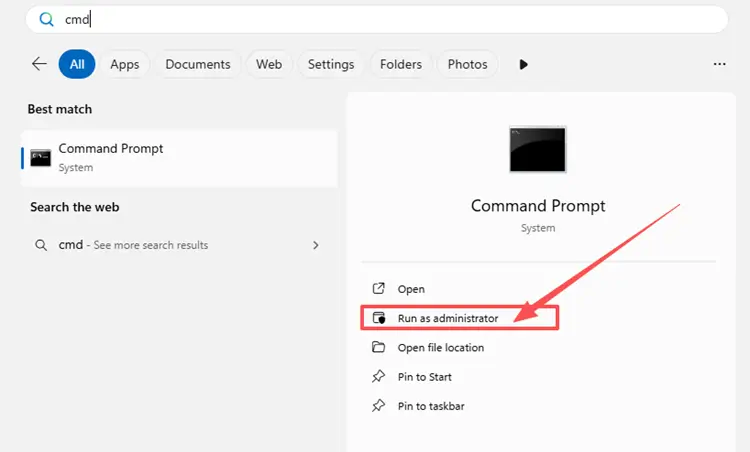
Step 1. Type cmd in Windows Search, right-click Command Prompt, and select Run as administrator.
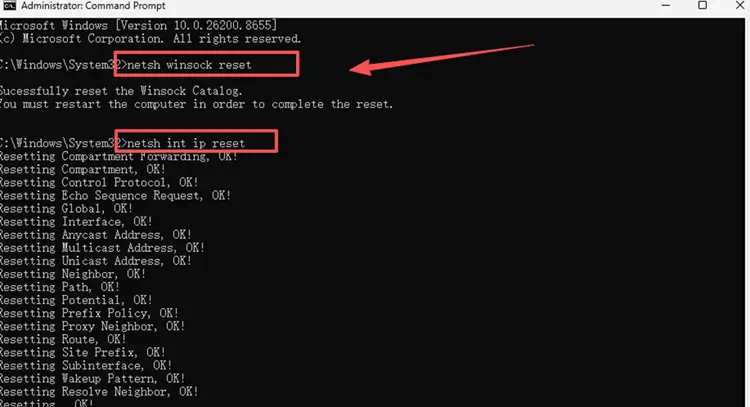
Step 2. Run these commands one at a time in the listed order:
- netsh winsock reset
- netsh int ip reset
- ipconfig /release
- ipconfig /renew
- ipconfig /flushdns
For the proxy-related error only, run netsh winhttp reset proxy.
Step 3. Restart the PC, reconnect to the internet, and retry the Fortnite update in Epic Games Launcher.
[Bonus] How to Reduce Fortnite Lag After the Update with LagZapper
Once Fortnite finishes updating, high ping, packet loss, or unstable ISP routing may still cause delayed building, rubberbanding, and disconnects. Download LagZapper to reduce game lag, lower ping, and optimize the route between a Windows PC and Fortnite servers. LagZapper improves gameplay connections; it does not repair or download update files.
Why Use LagZapper for Fortnite?
- Smart Route Optimization: Finds a faster and more stable route for Fortnite to help reduce routing delays and packet loss.
- Reduce Lag & Improve Stability: Helps reduce game lag, lower ping, and minimize sudden latency spikes.
- One-Click Boost: Optimizes the Fortnite connection without manually changing complicated network or router settings.
- Support for 3,000+ Games: Works with Fortnite and thousands of other supported online games.
How to Boost Fortnite with LagZapper
Follow the steps below to optimize the Fortnite connection before entering your next match.
Step 1. Download and Install LagZapper
Download LagZapper for Windows and follow the on-screen instructions to complete the installation.
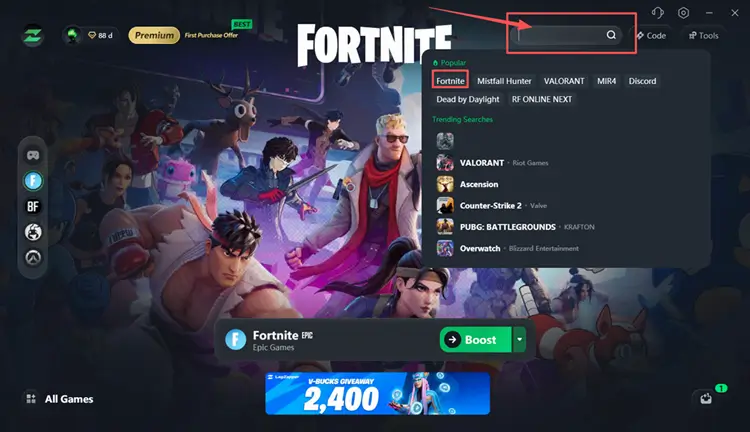
Step 2. Search for Fortnite
Launch LagZapper, then use the search bar or browse the supported games list to find Fortnite.
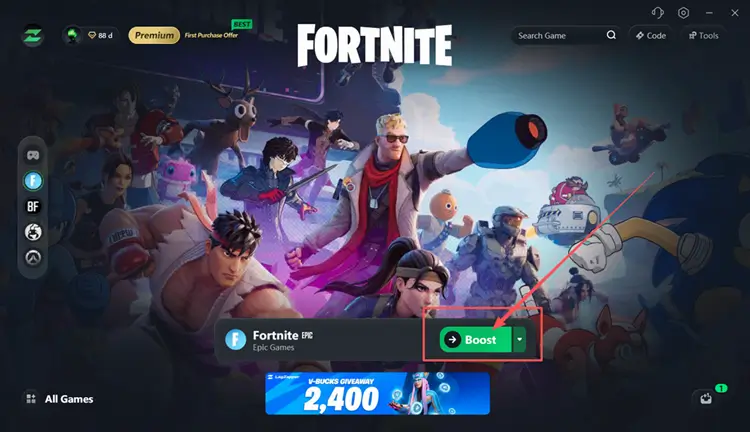
Step 3. Select a Server and Boost
Select a Fortnite server or recommended node, then click Boost before launching the game.
The Bottom Line
Fortnite not updating may result from Epic service interruptions, stalled Launcher processes, insufficient storage, unstable downloads, corrupted cache, or damaged files. Check the update status first, then complete the relevant fixes in order. Once the update finishes, players experiencing high ping, packet loss, or unstable routing can download LagZapper to optimize the Fortnite connection route.
FAQs About Fortnite Not Updating
Q1. Why is my Fortnite not updating?
Check Epic services first, then restart the Launcher, free storage, clear cache, and verify files.
Q2. How can I fix Fortnite not updating?
Check Epic services, restart the Launcher, confirm storage, stabilize the connection, clear cache, and verify files.
Q3. Why is Fortnite stuck on checking for updates?
The Launcher may be waiting for Epic services, reading corrupted cache, or validating incomplete game files.
Q4. Does clearing the Epic Games Launcher cache uninstall Fortnite?
No. It removes temporary webcache data without deleting the installed game or account progress.