
Fortnite Unable to Connect to Server: Fix Login Failed & Can’t Join Match
If you see Fortnite unable to connect to server, login failed, can’t join match, or stuck on matchmaking messages, the problem usually happens before you actually enter a match. You may be able to open the game, reach the lobby, or press Ready, but Fortnite fails to connect to Epic services, gameplay servers, matchmaking queues, or a specific game mode.
This guide explains why Fortnite says unable to connect to server and how to fix related issues step by step. Whether the issue is caused by Fortnite server maintenance, Epic Games service problems, unstable local network routing, DNS errors, firewall settings, or matchmaking region problems, the fixes below can help you identify the cause and get back into the game.
Why Fortnite Says Unable to Connect to Server
Server Maintenance or Outage
Fortnite servers may be temporarily unavailable during updates, events, or maintenance, preventing login or matchmaking.
Epic Services Connection Failure
Issues with Epic login, matchmaking, or game services can interrupt the connection process and trigger errors.
Unstable Internet Connection
Weak Wi-Fi, packet loss, or high latency can disrupt communication between your device and Fortnite servers.
DNS or Routing Problems
Outdated DNS records or poor ISP routing can prevent your system from reaching Fortnite servers correctly.
Firewall or Security Restrictions
Firewall or antivirus settings may block Fortnite or Epic Launcher from accessing required network services.
Matchmaking Region Issues
Incorrect or overloaded server regions can cause failures when trying to join matches.
Background Network Usage
Downloads, streaming, or other apps using bandwidth can interfere with Fortnite’s connection stability.
How to Fix Fortnite Unable to Connect to Server
If Fortnite fails to connect to servers, you can resolve it with a series of practical troubleshooting steps. This section covers proven fixes, including server checks, network adjustments, and system settings to restore stable login and matchmaking.
Fix 1. Check Fortnite and Epic Games Server Status
Before changing your PC or network settings, check whether Fortnite servers are currently working. Visit the Epic Games Public Status page and review Fortnite, Login, Game Services, and Matchmaking. If any service shows degraded performance or maintenance, the issue is likely server-side.
This step is critical after updates or events. If servers are down, wait until Epic restores services. Restarting your router or changing DNS will not fix official outages.
Fix 2. Restart Fortnite and Epic Games Launcher
If servers are online, restart Fortnite and Epic Games Launcher. Temporary session errors can block connections, especially after updates or failed launches.
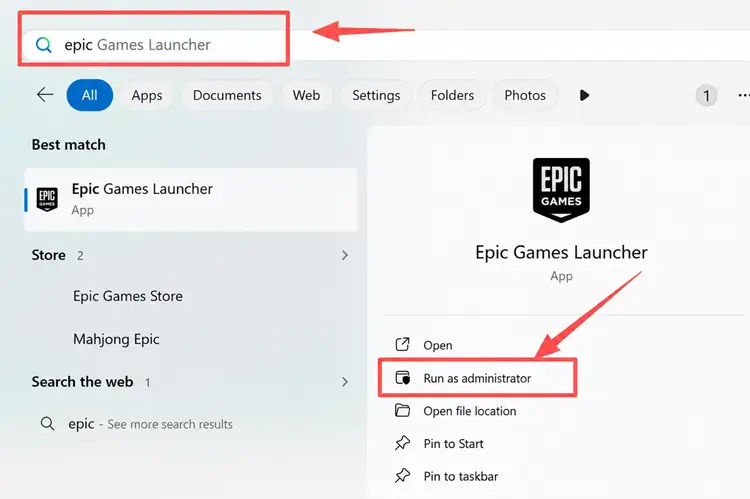
Close both completely, including the system tray. Reopen the launcher and start Fortnite again. You can also run the launcher as administrator to avoid permission issues.
Fix 3. Check Your Internet Connection
Unstable internet can cause login failed or matchmaking errors. Even if browsing works, packet loss or high latency can break Fortnite connections.
Restart your router, switch to Ethernet if possible, and pause background downloads. This helps stabilize your connection for online gameplay.
Fix 4. Change Your Fortnite Matchmaking Region
If you can’t join matches, try changing the matchmaking region. Some regions may be overloaded or unstable.
Set the region to Auto first, then test nearby regions with lower ping. Avoid distant regions, as they may increase latency and affect gameplay.
Fix 5. Flush DNS and Reset Network Settings
If Fortnite still says unable to connect to server, login failed, or can’t join match, your current DNS settings may be outdated or unstable. DNS helps your system find the correct server addresses for Epic services and Fortnite game servers. When DNS records are incorrect or slow to update, Fortnite may fail to connect properly during login or matchmaking.
You can first flush your DNS cache to remove outdated records.
Step 1. Flush DNS Cache
Open Command Prompt as administrator, type ipconfig /flushdns, and press Enter. After the confirmation message appears, restart your PC and launch Fortnite again.
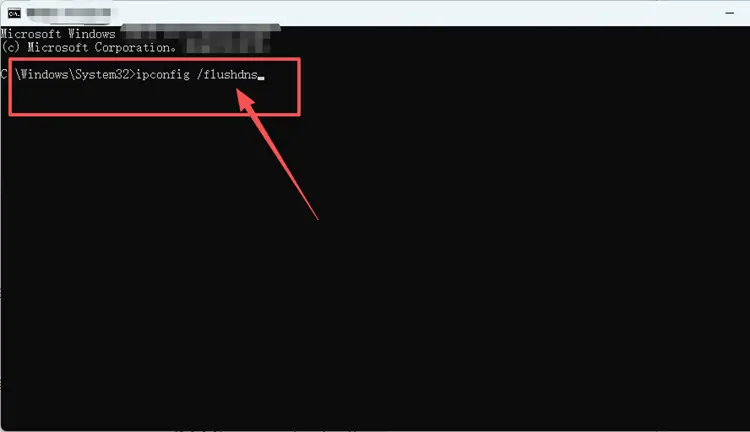
If the issue continues, try switching to a reliable public DNS option such as Google DNS or Cloudflare DNS. This may help improve how your system reaches Epic services, especially when your ISP’s DNS is causing connection delays or unstable routing.
Step 2. Open DNS Settings
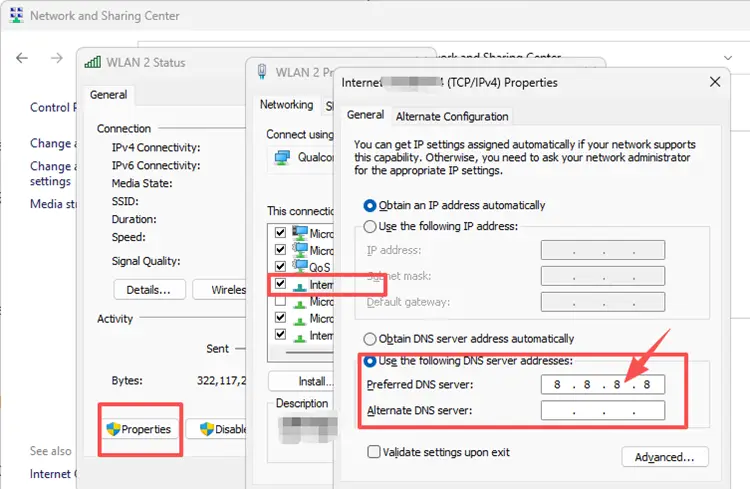
Open Control Panel, go to Network & Internet, then click Network and Sharing Center. Select your current Wi-Fi or Ethernet connection, open Properties, and choose Internet Protocol Version 4 (TCP/IPv4).
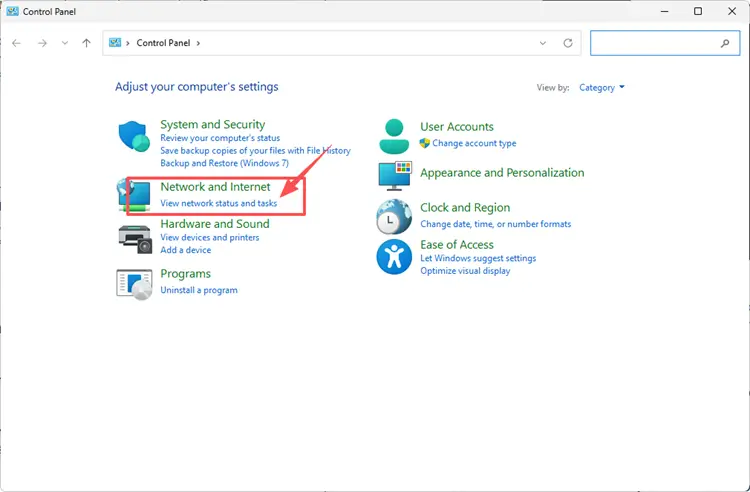
Step 3. Enter a Public DNS Address
Select Use the following DNS server addresses, then enter a public DNS option such as Google DNS (8.8.8.8 / 8.8.4.4) or Cloudflare DNS (1.1.1.1 / 1.0.0.1). Save the settings and reconnect to your network.
Fix 6. Allow Fortnite Through Firewall
Firewall settings may block Fortnite connections. This can cause login or connection errors. Allow Fortnite and Epic Games Launcher through Windows Firewall. If using third-party security software, add them as trusted apps instead of disabling protection.
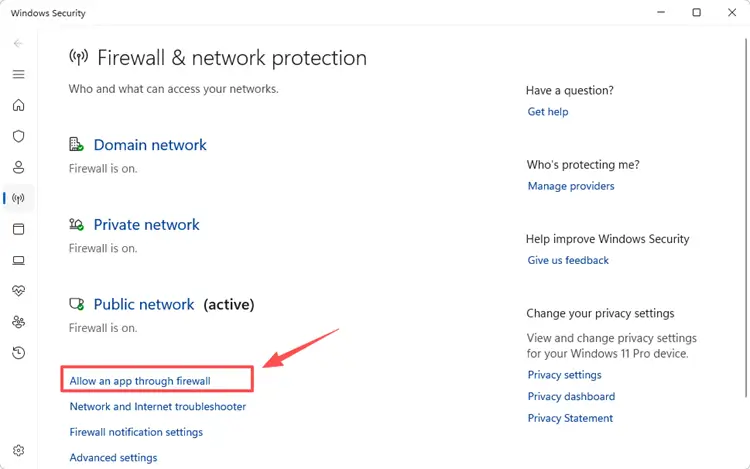
Step 1. Open Windows Security, navigate to Firewall & network protection, and select Allow an app through firewall.
Step 2. Click Change settings, then select Allow another app, browse to the game installation directory, and choose the game executable file to add it.
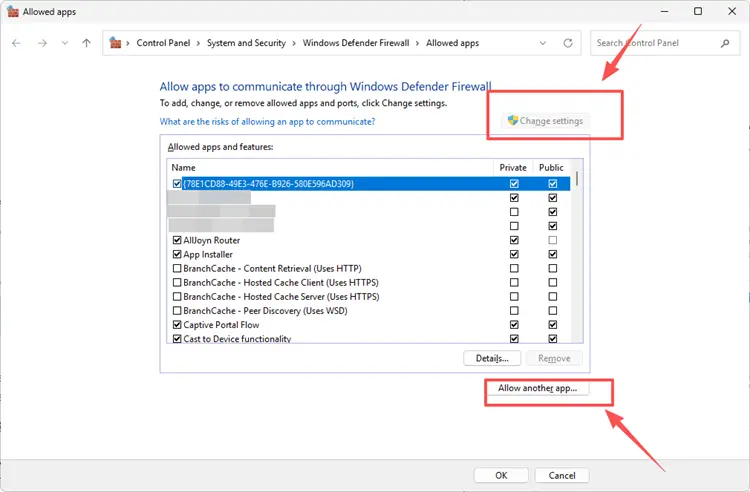
Step 3. Make sure the game is allowed on your active network, then click OK and relaunch the game.
Fix 7. Verify Fortnite Game Files
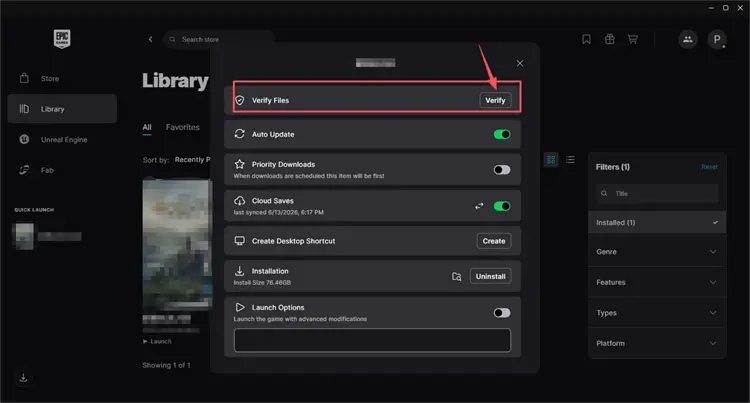
Corrupted files can cause connection issues. Verifying files can repair missing or damaged data. In Epic Games Launcher, go to Library, select Fortnite, and click Verify. Restart the launcher after the process completes.
Enjoy Smoother Fortnite Gameplay with LagZapper
If Fortnite servers are working normally but you still experience high ping, packet loss, lag spikes, login delays, or unstable matchmaking, the issue may be caused by poor routing between your PC, your ISP, Epic services, and Fortnite servers. LagZapper is a powerful PC game booster that helps reduce unstable routing, improve connection stability, and create a smoother connection path for Fortnite.
Highlights of LagZapper Game Booster
- One-Click Boost for Fortnite: Quickly find Fortnite in LagZapper, choose a suitable server or node if needed, and optimize your connection before jumping into a match.
- Lower Ping in Fortnite Matches: LagZapper helps optimize the route between your PC and Fortnite servers, which may lower ping and improve response time during fights.
- Reduce Lag and Packet Loss During Gameplay: LagZapper helps reduce game lag, packet loss, and ping spikes, making drops, builds, fights, and endgame moments smoother.
- Smart Route Optimization for Cross-Region Play: When playing Fortnite across regions, LagZapper helps route your game traffic through a more optimized path for a more stable connection.
- Support for 3,000+ Games, Including Fortnite: LagZapper supports Fortnite and 3,000+ online games across FPS, MMORPG, MOBA, action, and multiplayer genres.
[Step-by-Step Guide] How to Boost Fortnite with LagZapper
Step 1. Download and Install LagZapper
Download LagZapper for Windows, then follow the on-screen instructions to complete the installation process and set up the application on your PC.
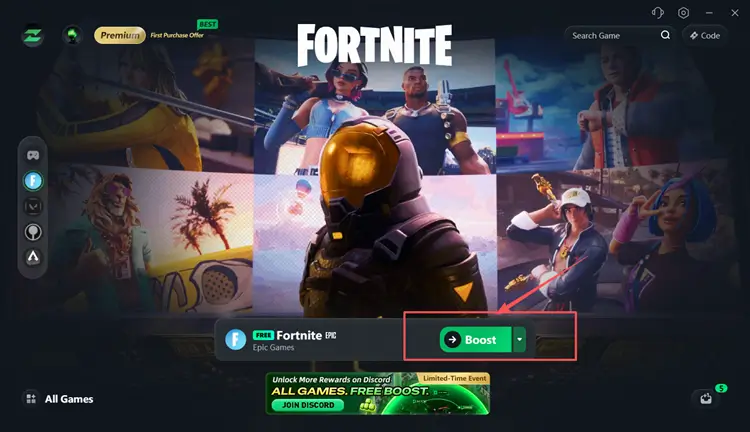
Step 2. Open LagZapper and Search for Fortnite
Launch LagZapper, then use the search bar or game list to locate Fortnite.
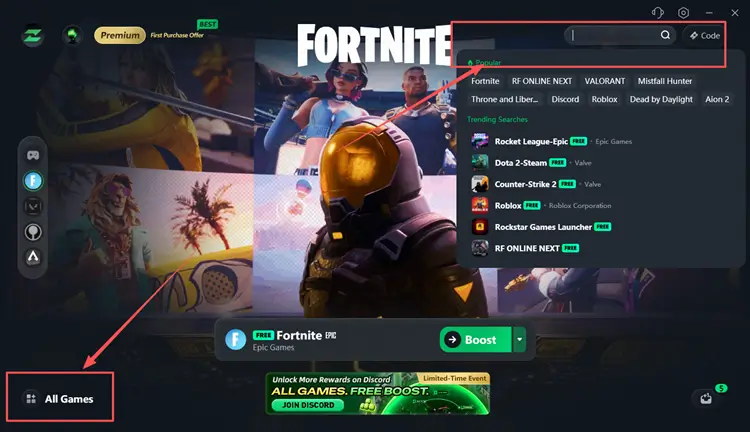
Step 3. Boost and Launch Fortnite
Select the best available server node or optimized route, click Boost to apply network optimization, and then launch Fortnite to test login, matchmaking, and gameplay connection stability.
The Bottom Line
Fortnite unable to connect to server is usually caused by server maintenance, Epic service issues, unstable internet, DNS errors, firewall restrictions, or poor routing rather than one single problem. Most players can restore connection stability by checking server status, restarting the launcher, switching to Ethernet, flushing DNS, and allowing Fortnite through firewall.
For players who still face login failed, can’t join match, stuck on matchmaking, or unstable gameplay, downloading LagZapper can help optimize routing paths between your PC, Epic services, and Fortnite servers. It may improve connection stability, reduce packet loss, and deliver smoother Fortnite matches.