
Gears E-Day Early Access Not Working? 7 Fixes for Steam & Xbox App
Gears of War: E-Day Early Access went live worldwide on October 1, 2026, at 8:00 AM PDT / 15:00 UTC. However, some players are still unable to get into the game, with Steam showing “Game not released,” the Play button staying greyed out, Premium access not being detected, or the game refusing to launch after preload.
This guide will explain how to fix Gears E-Day Early Access issues involving Premium eligibility, launchers, Day 1 updates, unpacking, and the PC online requirement.
Why Is Gears E-Day Early Access Not Working?
Early Access issues can appear differently on Steam and the Xbox app, so identifying the exact symptom first can make troubleshooting easier. Check the table below to find where to start.
| Symptom | Possible Cause | First Fix to Try |
|---|---|---|
| Steam shows “Game not released” | Steam release status not refreshed | Fully restart Steam |
| Xbox app Play button is greyed out | Account or entitlement mismatch | Check Microsoft Store account |
| Premium access is not recognized | Missing eligibility or wrong purchase account | Check Premium eligibility and purchase account |
| Game will not launch after preload | Day 1 update still pending | Install the latest update |
| Game will not relaunch after closing | Background process still running | End the game process |
| Xbox app game still will not launch | Gaming Services issue | Repair Gaming Services |
Early Access requires the Premium Edition or Premium Edition Upgrade. The upgrade requires the base game or an active Xbox Game Pass Ultimate membership. Standard Edition or Game Pass access alone does not include Early Access. The standard release begins October 6, 2026.
Stay connected to the internet during Early Access. Offline play on PC is unavailable until October 6, 2026.
How to Fix Gears E-Day Early Access Not Working - 7 Useful Fixes
Start with the fix that matches your symptom in the table above. If the cause is unclear, try the following fixes in order until Gears E-Day Early Access works normally.
Fix 1. Fully Close the Game and Restart the Launcher
Gears E-Day may remain active in the background after closing, interfering with the next launch. Steam may also keep showing “Game not released” until its release status refreshes. End any remaining game process in Task Manager, then fully exit and reopen Steam or the Xbox app before launching again.
Fix 2. Sign In to the Correct Microsoft Store Account
Make sure Microsoft Store is signed in with the account that owns your game and Premium Upgrade, or holds the required subscription. If the wrong account is active, sign out and switch accounts. Confirm the intended account in the Xbox app, then reopen it and try again.
Fix 3. Complete Pending Game Updates and Unpacking
After Early Access unlocks, Gears E-Day may still need to install an update or unpack preloaded files before it can launch. These processes must finish even if you downloaded the preload earlier. Follow the steps below.
Step 1. Open Steam or the Xbox app and check the download status of Gears of War: E-Day.
Step 2. Start any pending game update and wait for downloading, installation, and unpacking to finish.
Step 3. Once these processes finish and Play becomes available, launch the game.
Fix 4. Clear the Steam Download Cache
If a pending Gears E-Day download or update remains stuck after restarting Steam, try clearing the download cache. Clearing the cache forces Steam to refresh its local download data without removing installed games. Follow the steps below.
Step 1. Open Steam > Settings > Downloads.
Step 2. Click Clear Download Cache, then confirm the action.
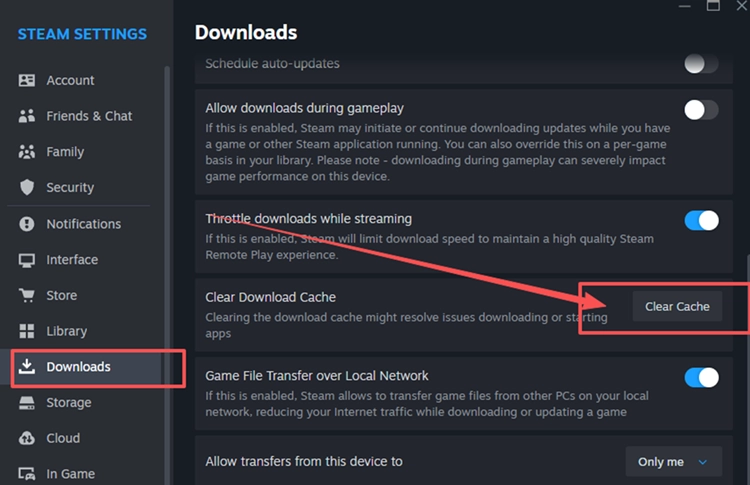
Step 3. Sign back in to Steam and resume the Gears E-Day download or update.
Fix 5. Free Up SSD Space if Unpacking Stalls
If unpacking stalls, check the available space on the SSD where Gears E-Day is installed. If space is low, move large personal files or uninstall unused games, then resume the installation or update. Downloads and updates may require additional storage.
Fix 6. Verify Game Files if the Unlocked Game Still Won’t Launch
If Early Access is already unlocked but Gears E-Day still will not launch, missing or corrupted files from the preload or Day 1 update may be blocking startup. Verifying the installation can repair these files without reinstalling the entire game. Follow the steps below.
Step 1. Open Steam or the Xbox app and locate Gears of War: E-Day.
Step 2. On Steam, select Properties > Installed Files > Verify integrity of game files. On the Xbox app, open Manage > Files > Verify and Repair.
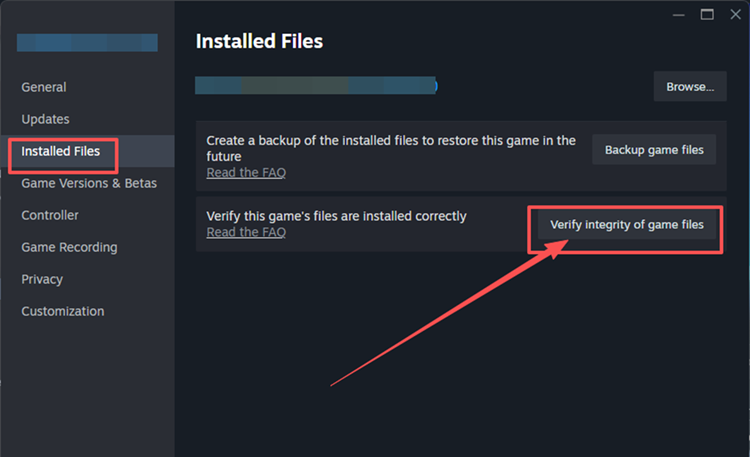
Step 3. Wait for the repair to finish, restart the launcher, and try launching Gears E-Day again.
Fix 7. Run the Gaming Services Repair Tool in the Xbox App
If Gears E-Day still will not launch through the Xbox app, damaged or outdated Gaming Services components may be interfering with startup. Microsoft recommends the Gaming Services Repair Tool for troubleshooting launch, installation, and update issues in the Xbox app. Follow the steps below.
Step 1. Open the Xbox app, click your profile picture, and select Support.
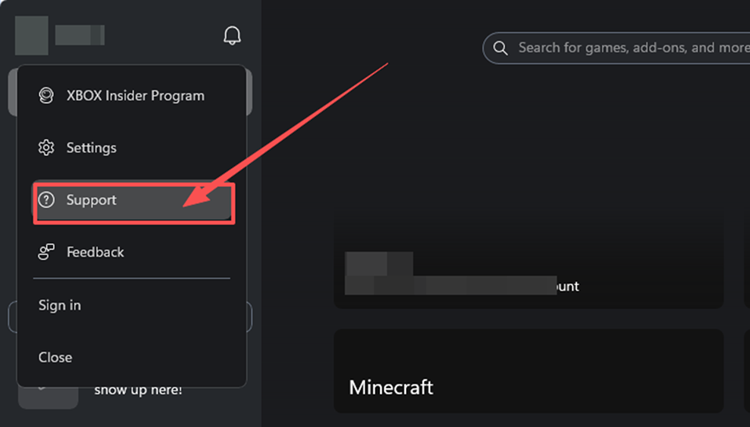
Step 2. Select Gaming Services Repair Tool > Start Repairing and let the repair finish.
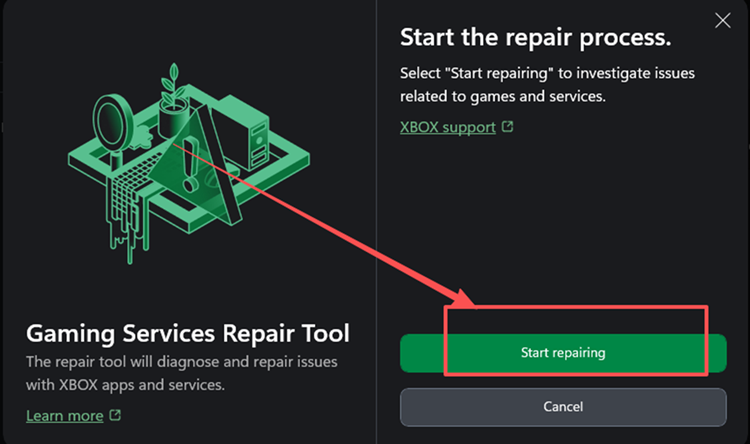
Step 3. Restart your PC, reopen the Xbox app, and launch Gears E-Day again.
[Bonus] Improve Gears E-Day Connection Stability with LagZapper
When playing Gears E-Day online, high ping, packet loss, or unstable routing can cause delayed responses and connection instability. LagZapper can optimize the route to the game server, reduce game lag, lower ping, and improve connection stability.
Why Use LagZapper for Gears E-Day?
- Smart Route Optimization: Finds stable routes to reduce high ping, packet loss, and jitter.
- Connection Stability: Helps reduce game lag, lower ping, and limit sudden latency changes.
- One-Click Boost: Optimizes the connection without manually changing router, DNS, or Windows settings.
- 3,000+ Game Support: Works with Gears E-Day and thousands of other popular online games.
How to Boost Gears E-Day with LagZapper
Follow these three steps to optimize your Gears E-Day connection before entering online gameplay.
Step 1. Download and Install LagZapper
Download LagZapper for Windows and follow the on-screen instructions to complete the installation on your PC.
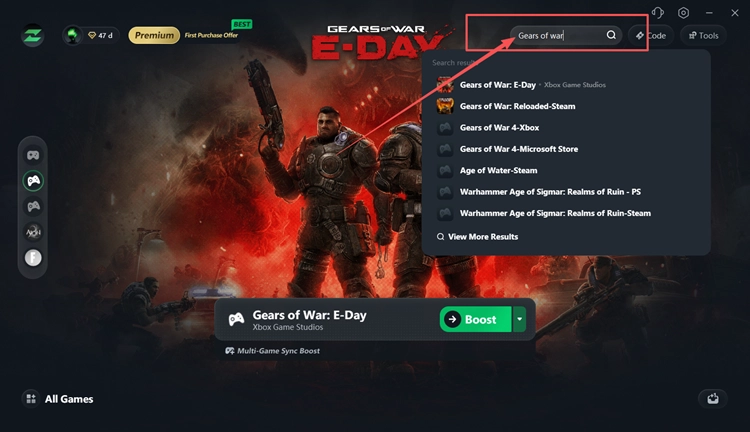
Step 2. Search for Gears of War: E-Day
Launch LagZapper and enter Gears of War: E-Day in the search bar to find the game.
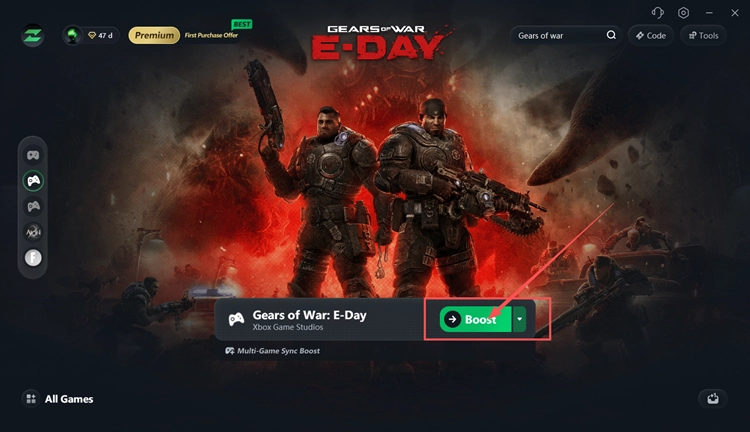
Step 3. Select a Recommended Node and Click Boost
Select a recommended Gears E-Day node, then click Boost before launching the game.
The Bottom Line
If Gears E-Day Early Access is not working, start by restarting Steam, checking your Microsoft account and Premium access, installing pending updates, closing stuck background processes, verifying game files, or repairing Gaming Services. Once the game launches normally, high ping, packet loss, or unstable routing can still affect multiplayer. Download LagZapper to optimize the connection route and improve stability.
FAQs About Gears E-Day Early Access Not Working
Q1. Why Is Gears E-Day Early Access Not Working?
Launcher, account entitlement, pending updates, or Gaming Services issues may block Early Access.
Q2. Why Is Gears of War E-Day Early Access Not Working with Game Pass?
Game Pass alone does not include Early Access. Premium Edition or Premium Upgrade is required.
Q3. What Does Gears E-Day Game Not Released Mean on Steam?
Your edition may lack Early Access, or Steam may need to refresh its release status.
Q4. Why Is Gears E-Day Premium Upgrade Not Working?
The Xbox app may not be recognizing the Premium entitlement on your current account.
Q5. How Do I Fix Gears E-Day Early Access Not Working on Steam?
Restart Steam, finish pending updates or unpacking, then verify the game files.
Q6. How Do I Fix Gears E-Day Early Access Not Working on Xbox?
On Xbox consoles, check Premium eligibility, your purchase account, and pending updates.