
Granblue Fantasy Relink Co-Op Lag: How to Fix Multiplayer Issues
Granblue Fantasy: Relink is an action RPG where players can team up online for co-op quests. But few things ruin an intense boss fight faster than Granblue Fantasy Relink co-op lag. If constant connection problems and delayed responses are making your multiplayer sessions unstable, don’t worry - you’re not alone. This guide will explain why Granblue Fantasy Relink co-op lag happens and show you how to fix multiplayer lag and connection issues step by step.
Why Is Granblue Fantasy Relink Co-Op Lagging?
Granblue Fantasy Relink co-op lag may come from your connection, platform status, security settings, or PC performance.
Long Distance Between Granblue Fantasy: Relink Co-op Players
Long-distance co-op can increase ping because data travels farther, making Granblue Fantasy: Relink multiplayer feel delayed.
Unstable Wi-Fi or Packet Loss
Weak Wi-Fi or packet loss can cause lag spikes, delayed actions, and unstable online co-op sessions.
Background Downloads and Bandwidth Usage
Steam downloads, cloud syncing, streaming apps, or browser updates can use bandwidth and make co-op lag worse.
Firewall or Antivirus Connection Blocks
Firewall or antivirus software may block the game’s online connection. When this happens, Granblue Fantasy: Relink may fail to join or maintain co-op sessions.
Platform or Server-Side Issues
Sometimes the problem is not on your side. Steam, PlayStation Network, or maintenance can cause connection errors, matchmaking failures, or unstable online co-op performance.
Insufficient System Resources
Not every lag problem is network-related. If your PC is overloaded, Granblue Fantasy: Relink may stutter or feel delayed.
How to Fix Granblue Fantasy Relink Co-Op Lag - 10 Useful Fixes
Before changing advanced settings, start with simple checks and basic network fixes. The following 10 fixes may help you fix common Granblue Fantasy Relink network errors, reduce Granblue Fantasy Relink ping and make online co-op feel more stable.
Fix 1. Check Granblue Fantasy: Relink Server Status
Before changing local settings, check whether Granblue Fantasy: Relink has maintenance, updates, or known online service notices. Visit the Granblue Fantasy: Relink official news page or other official channels, and also review Steam or PlayStation Network status if you play on those platforms. If co-op lag comes from a server-side or platform-side issue, local network changes may not fix it right away.
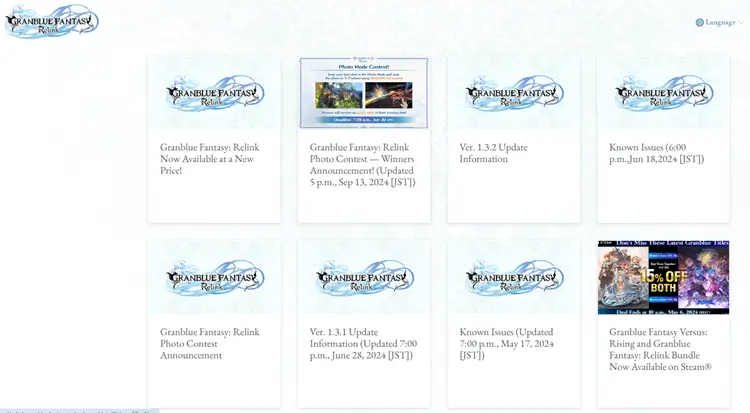
If everything looks normal, Granblue Fantasy Relink co-op lag is more likely related to your local network or device performance. Continue with the fixes below to narrow down the cause and improve multiplayer stability.
Fix 2. Check System Requirements
Make sure your PC can run Granblue Fantasy: Relink smoothly. According to the Steam store page, the game requires at least 16 GB RAM and 90 GB available storage on PC, so low memory or limited disk space may cause stuttering instead of true network lag. See the table below for more details.
| Granblue Fantasy: Relink System Requirements on Steam | ||
|---|---|---|
| Requirement | Minimum | Recommended |
| OS | Windows 11 64-bit | Windows 11 64-bit |
| Processor | Intel Core i3-9100 / AMD Ryzen 3 3200G | Intel Core i7-8700 / AMD Ryzen 5 3600 |
| Memory | 16 GB RAM | 16 GB RAM |
| Graphics | NVIDIA GeForce GTX 1060 6GB / AMD Radeon RX 580 8GB | NVIDIA GeForce RTX 2080 8GB / AMD Radeon RX 6700 XT 8GB |
| DirectX | Version 11 | Version 11 |
| Storage | 90 GB available space | 90 GB available space |
| Additional Notes | SSD recommended. Capable of 1080p/30fps when graphics are set to Standard. | SSD recommended. Capable of 1080p/60fps when graphics are set to Ultra. |
Fix 3. Restart the Game, Steam, and Your PC
A simple restart can clear temporary glitches that may affect Steam, the game client, or your system connection. Close Granblue Fantasy: Relink completely, exit Steam from the system tray, then relaunch both before joining another co-op session.
If the lag or connection issue continues, restart your PC as well. This can refresh background services, release stuck processes, and give the game a cleaner start before you move on to deeper network fixes.
Fix 4. Restart Your Router and Modem
Restarting your router and modem can refresh your home network and clear temporary connection problems. If Granblue Fantasy Relink network error appears suddenly, power off both devices, wait for a short time, then turn the modem back on before restarting the router.
After the network is fully restored, reconnect your PC and launch the game again. This simple step may help reduce unstable ping, random disconnects, or delayed responses during co-op sessions.
Fix 5. Close Background Downloads and Apps
Steam downloads, cloud syncing, video streaming, browser updates, or voice chat apps can keep using bandwidth while you play. If these tasks run during co-op, Granblue Fantasy Relink co-op lag may become more noticeable, especially when your connection is already unstable. Follow the steps below to close unnecessary background downloads and apps during your gameplay:
Step 1. Press Ctrl + Shift + Esc to open Task Manager and view running apps and background processes.
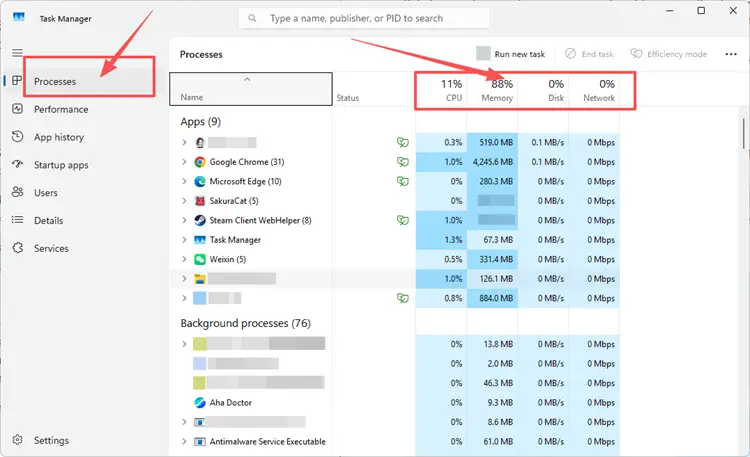
Step 2. Check Processes for apps using high Network, CPU, or Memory, like browsers, sync tools, launchers, or downloads.
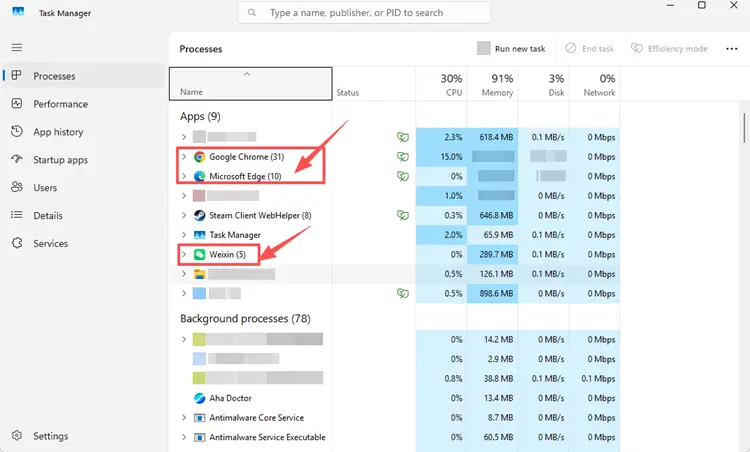
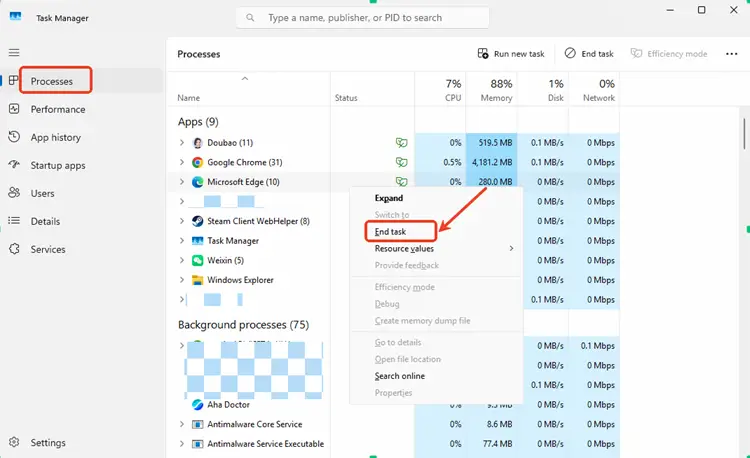
Step 3. Select non-essential apps and click End Task.
Fix 6. Use a Wired Ethernet Connection
Wi-Fi is convenient, but it can be affected by distance, walls, signal interference, or other devices using the same network. If Granblue Fantasy Relink lag happens during online quests, switching to a wired Ethernet connection can make your connection more stable. Connect your device directly to the router with an Ethernet cable, then restart Steam and the game.
Fix 7. Allow Granblue Fantasy: Relink Through Firewall
Windows Firewall or antivirus software may sometimes restrict Granblue Fantasy: Relink, Steam, or related online services from connecting properly. Instead of turning off protection completely, add the game to the allowed app list to reduce possible connection blocks.
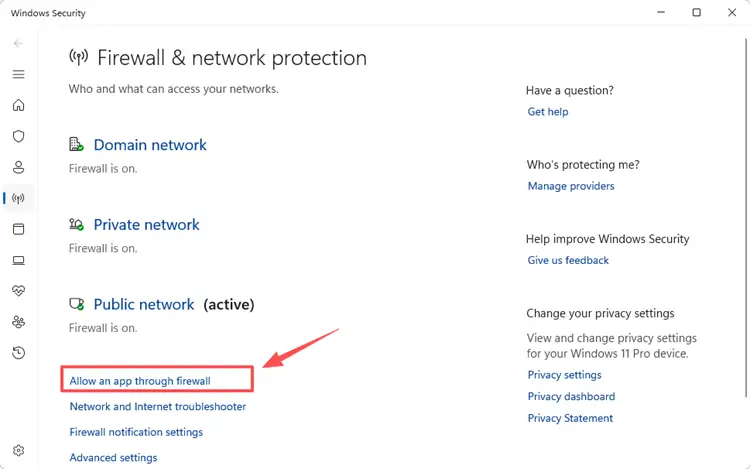
Step 1. Open Windows Security, go to Firewall & network protection, and select Allow an app through firewall.
Step 2. Click Change settings, select Allow another app, then browse to the Granblue Fantasy: Relink installation folder and add the game executable file.
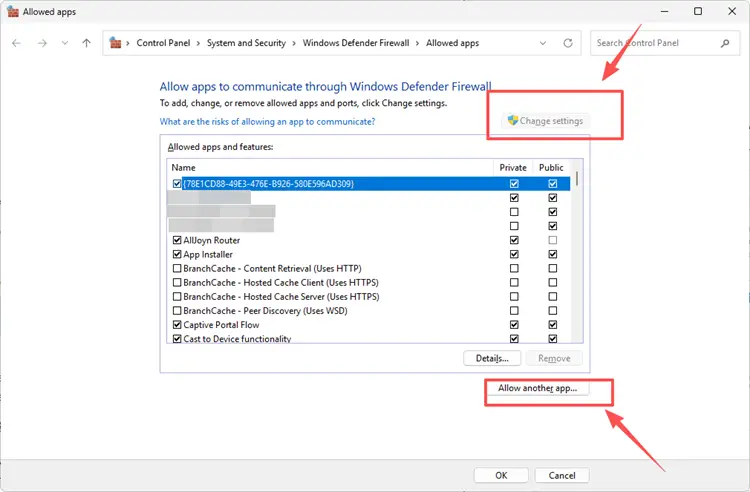
Step 3. Make sure Granblue Fantasy: Relink is allowed on your active network, click OK, and relaunch the game.
Fix 8. Flush DNS and Reset Network Settings
An outdated DNS cache or a temporary Windows network error may affect how Granblue Fantasy: Relink connects to online services. Flushing DNS and resetting network settings can refresh stored connection records and clear basic network conflicts that may cause co-op lag or connection issues.
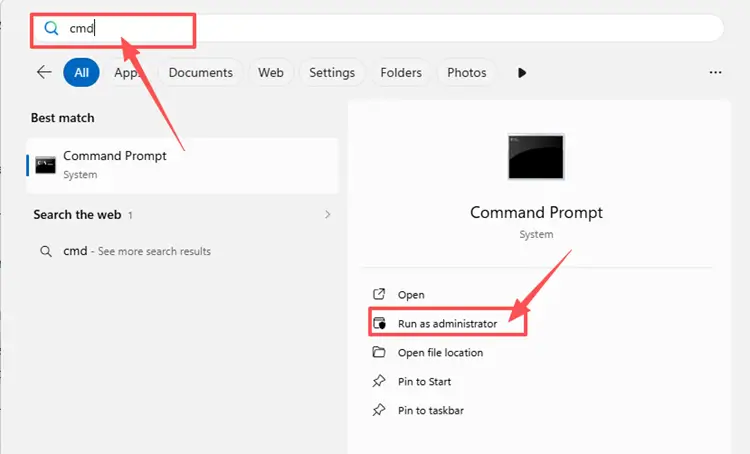
Step 1. Type cmd in the Windows search box, right-click Command Prompt, and select Run as administrator.
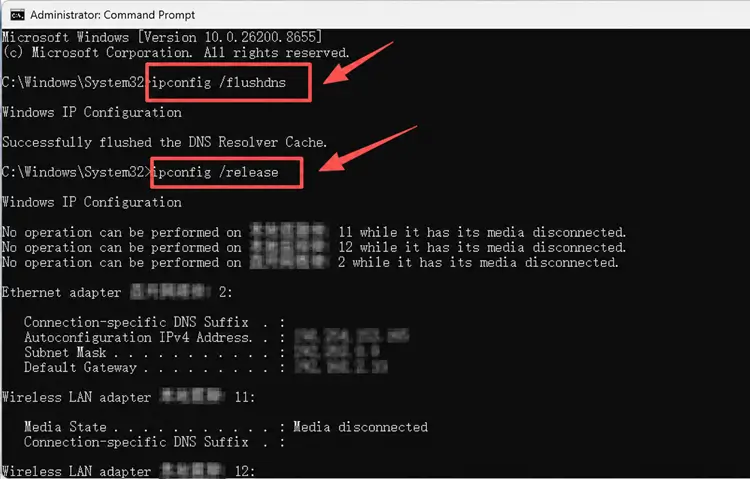
Step 2. Enter the following commands one by one, and press Enter after each command:
- ipconfig /flushdns
- ipconfig /release
- ipconfig /renew
- netsh int ip reset
- netsh winsock reset
Step 3. Restart your PC to apply the changes, then launch Granblue Fantasy: Relink again and test another co-op session.
Fix 9. Change DNS Settings
If Granblue Fantasy Relink lag still happens after flushing DNS, your default DNS server may be slow or unstable. Changing DNS will not fix server-side problems, but it may help your PC reach online services more reliably. Try the following steps to change your DNS settings.
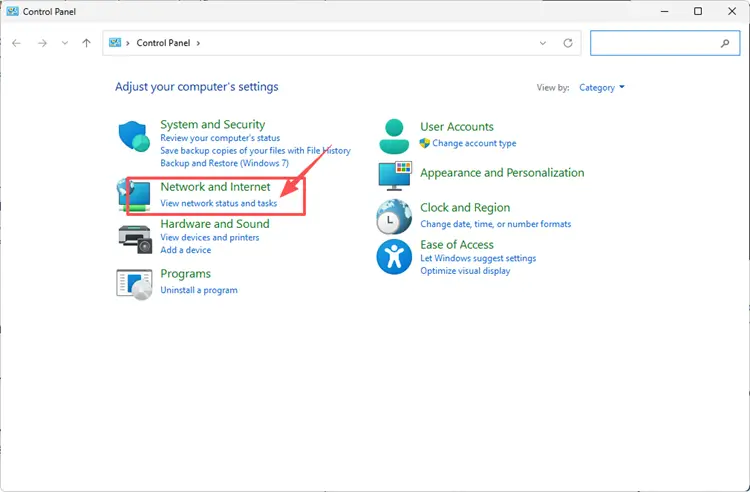
Step 1. Open Control Panel, go to Network & Internet, then click Network and Sharing Center.
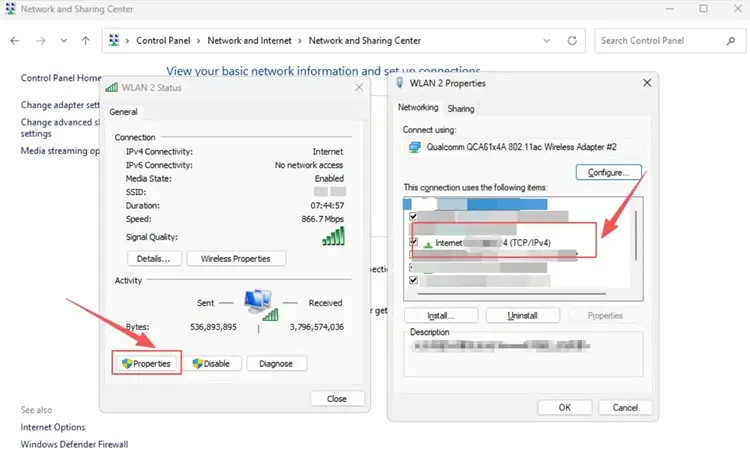
Step 2. Select your current Wi-Fi or Ethernet connection, open Properties, and choose Internet Protocol Version 4 (TCP/IPv4).
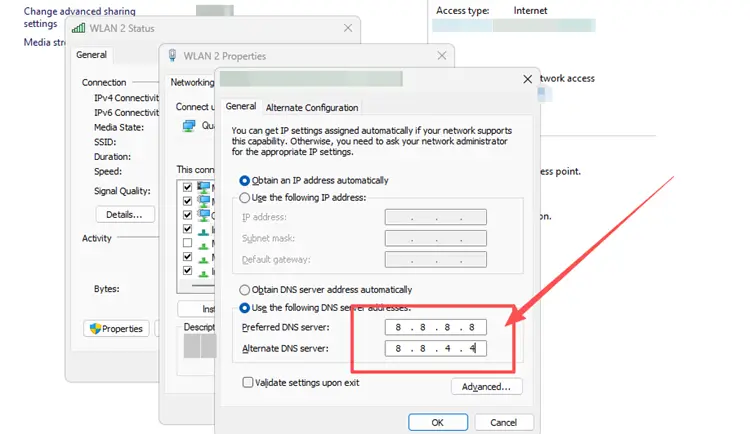
Step 3. Change DNS server assignment from automatic to manual, then enter a public DNS address such as Google DNS 8.8.8.8 / 8.8.4.4 or Cloudflare DNS 1.1.1.1 / 1.0.0.1.
Step 4. Save the changes, restart Granblue Fantasy: Relink, and check whether co-op connection becomes more stable.
Fix 10. Verify Game Files on Steam
Missing, outdated, or corrupted game files may cause Granblue Fantasy: Relink to launch incorrectly, load slowly, or run into online connection issues. Verifying game files on Steam checks the local installation and replaces damaged files that may affect co-op stability.
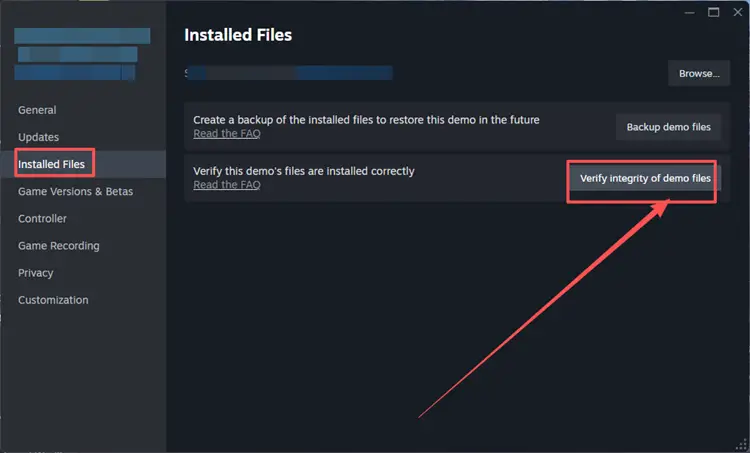
Step 1. Open Steam Library, right-click Granblue Fantasy: Relink, and select Properties.
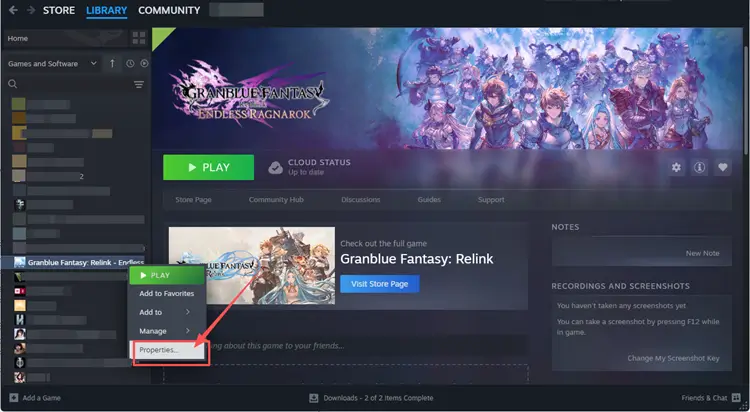
Step 2. Go to Installed Files, then click Verify integrity of game files.
[Bonus] How to Reduce Granblue Fantasy Relink Co-op Lag with LagZapper
Granblue Fantasy: Relink co-op quests rely on a stable connection, especially when players team up across different regions. If you still experience lag spikes, delayed responses, packet loss, or unstable routing after basic network fixes, LagZapper can help optimize the connection route between your device and online services.
Key Advantages of Boosting Granblue Fantasy: Relink with LagZapper:
- Smart Route Optimization: Automatically finds a faster and more stable route for Granblue Fantasy: Relink, helping reduce high ping, packet loss, jitter, and unstable connections.
- Reduce Lag & Improve Stability: Lower ping spikes, reduce game lag, and improve multiplayer stability when joining online co-op quests with friends or other players.
- One-Click Boost: Optimize your Granblue Fantasy: Relink connection in seconds with one click. No complicated setup or manual network adjustments are required before playing.
- Support for 3,000+ Games: Use LagZapper to improve connection stability across 3,000+ online games, including Fortnite, VALORANT, Path of Exile 2, and other popular multiplayer titles.
How to Boost Granblue Fantasy: Relink with LagZapper [Step-by-Step Guide]
Before starting your next co-op quest, follow the steps below to prepare a smoother connection in one click with LagZapper. It helps reduce game lag and keeps multiplayer sessions more responsive.
Step 1. Download and Install LagZapper
Download LagZapper for Windows and follow the on-screen instructions to complete the installation.
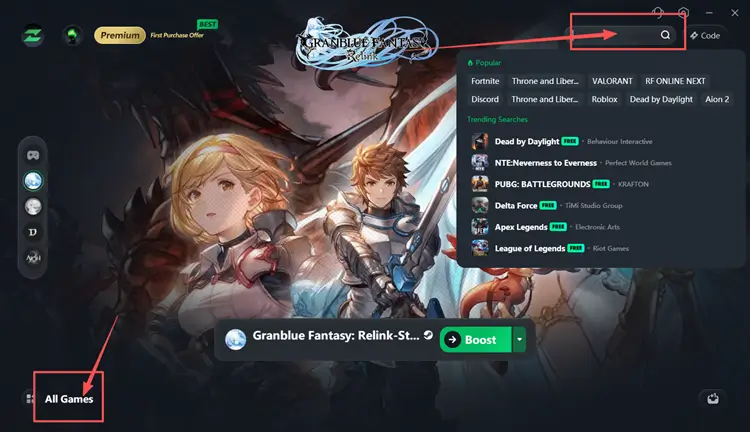
Step 2. Open LagZapper and Search for Granblue Fantasy: Relink
Launch LagZapper, then use the search bar or supported games list to find Granblue Fantasy: Relink.
Step 3. Boost and Play Granblue Fantasy: Relink
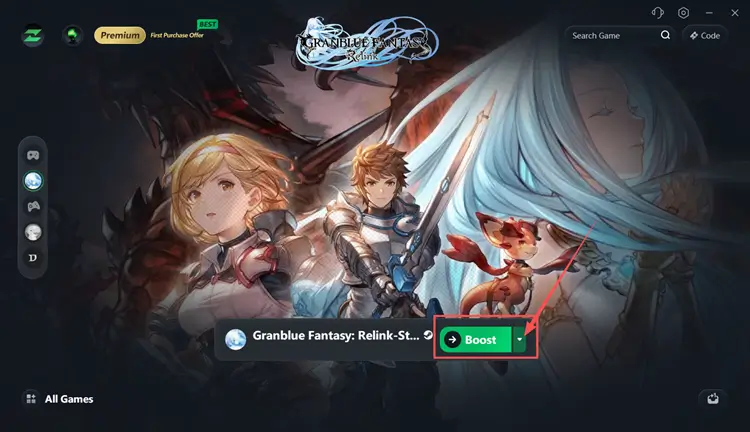
Select your preferred server or node if needed, then click Boost to optimize your connection before launching the game.
The Bottom Line
Granblue Fantasy Relink co-op lag can come from server issues, unstable Wi-Fi, background apps, firewall blocks, DNS problems, or corrupted files. Start with basic checks, then move to network resets and Steam file repair if needed. To make online co-op smoother, download LagZapper to reduce game lag and improve connection stability before your next quest.