
Halloween: The Game Crashing? 8 Fixes for Startup and Mid-Match Crashes
Halloween: The Game is an Unreal Engine 5-powered 1v4 asymmetrical horror game developed by IllFonic, putting Michael Myers against the Heroes of Haddonfield. The game officially launched on September 8, 2026. However, some PC players are already encountering Halloween: The Game crashing, including crashes on startup, sudden closures during matches, freezes, and black screens that interrupt gameplay.
This guide will explain why Halloween: The Game keeps crashing after launch and provide eight practical fixes for startup and mid-match crashes on PC.
Why Does Halloween: The Game Keep Crashing?
Halloween: The Game can crash at different stages, from startup and loading screens to Story Mode or multiplayer matches. The timing and error message can help narrow down the problem. Check the table below to find the most likely cause and the first fix to try.
| Crash Symptom | Possible Cause | First Fix to Try |
|---|---|---|
| Crashes after launch or a recent patch | Game-side stability issue or outdated build | Update the game |
| Crashes while loading or opening Story Mode | Damaged or incomplete game files | Verify game files |
| Instant crash on some Intel Core Ultra PCs | Intel AI Boost/NPU conflict | Disable Intel AI Boost temporarily |
| Random crashes, freezes, or black screens | Graphics driver or display/rendering issue | Update the GPU driver |
| EAC 30005 or game not launching | Easy Anti-Cheat service problem | Repair Easy Anti-Cheat |
| Story Mode or Loomis-related crashes | DirectX 12 rendering conflict | Try DirectX 11 |
How to Fix Halloween: The Game Crashing on PC – 8 Fixes
Use the table above to start with the fix that best matches your crash symptom. If you are unsure where to begin, update the game first, then try the remaining fixes in order.
Fix 1. Update Halloween: The Game to the Latest Version
IllFonic has already released multiple crash fixes for Halloween: The Game, including the September 5 Early Access hotfix and the September 8 Patch 1.0.1. Before changing PC settings, make sure Steam or Epic has installed the latest game update. Restart the launcher afterward, then test the same crash again.
Fix 2. Verify Halloween: The Game Files
Missing or corrupted game files can cause Halloween: The Game to crash during startup or loading, especially after an interrupted update. Steam can scan the installation and replace files that no longer match. Follow the steps below to verify the game files.
Step 1. Open Steam Library, right-click Halloween: The Game, and select Properties > Installed Files.
Step 2. Click Verify integrity of game files and wait for Steam to complete the process.
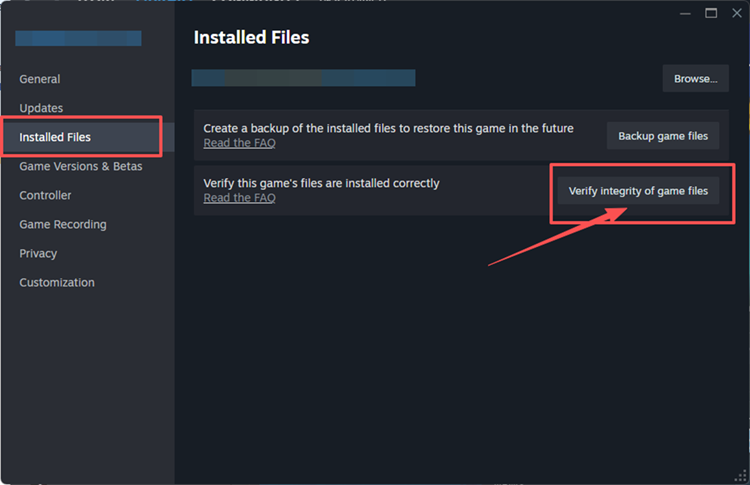
Tip: Epic Games users can open Library, click the three dots next to Halloween: The Game, select Manage, and click Verify.
Fix 3. Temporarily Disable Intel AI Boost
If Halloween: The Game crashes immediately on an Intel Core Ultra PC, Intel AI Boost may be involved in a startup compatibility conflict. Temporarily disabling the NPU can help test whether it is causing the crash. Because disabling Intel AI Boost may affect NPU-based camera or audio features, re-enable it after testing.
Step 1. Press the Windows key, search for Device Manager, and open it.
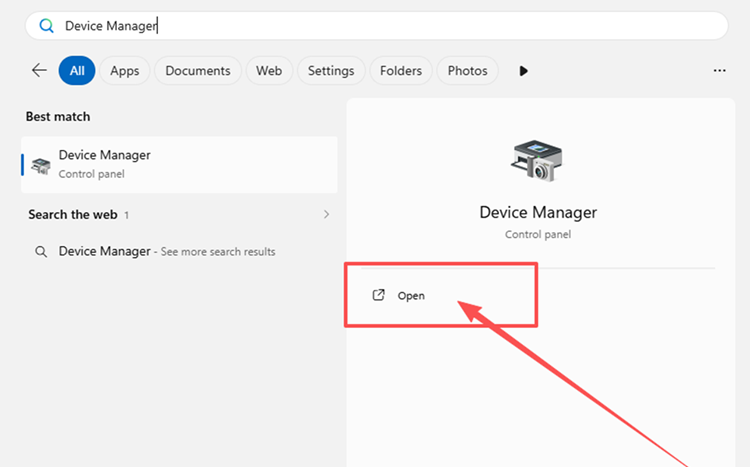
Step 2. Expand Neural processors, right-click Intel(R) AI Boost, and select Disable device.
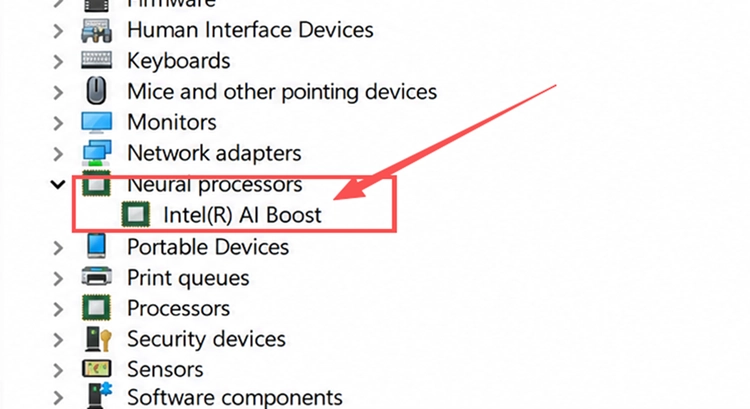
Step 3. Launch Halloween: The Game and test the startup again. Re-enable Intel AI Boost after troubleshooting.
Fix 4. Install or Update Your Graphics Driver
Outdated or unstable graphics drivers can contribute to Halloween: The Game crashes, freezes, or black screens, especially when the game initializes its DirectX 12 graphics features. Installing the latest GPU driver can improve compatibility and rendering stability. Follow the steps below to update your driver.
Step 1. Open the NVIDIA app on your PC.
Step 2. Open the Drivers tab, check for updates, then download and install the latest available Game Ready Driver.
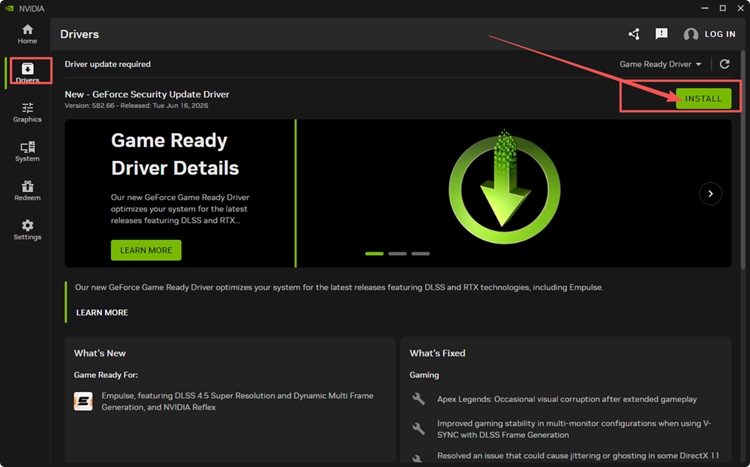
Step 3. Restart your PC and launch Halloween: The Game again.
Tip: AMD and Intel users can update through AMD Software: Adrenalin Edition or Intel Driver & Support Assistant.
Fix 5. Close OBS and Disable Overlays or Monitoring Tools
OBS, overlays, and monitoring tools can hook into the game’s rendering process and may interfere with Halloween: The Game. Before launching the game, close OBS and any unnecessary monitoring tools, then disable Steam or GPU overlays. If the crashes stop, re-enable them one at a time to identify the conflict.
Fix 6. Use Borderless Windowed and Lower Graphics Settings
If Halloween: The Game launches but freezes, shows a black screen, or crashes during matches, try switching from Fullscreen to Borderless Windowed and lowering the graphics settings. Reduce demanding options such as shadows and effects first. This can lower GPU load and help determine whether the crash is related to graphics or display settings.
Fix 7. Repair Easy Anti-Cheat If an EAC Error Appears
Halloween: The Game uses Easy Anti-Cheat. If the game stops during launch with an EAC 30005 or similar service error, the Easy Anti-Cheat service may not be starting correctly. EAC includes a built-in self-repair command that can repair the Windows service. Follow the steps below.
Step 1. Search for Command Prompt in Windows and select Run as administrator.
Step 2. Enter the following commands one at a time:
- cd "C:\Program Files (x86)\EasyAntiCheat_EOS"
- EasyAntiCheat_EOS.exe repair
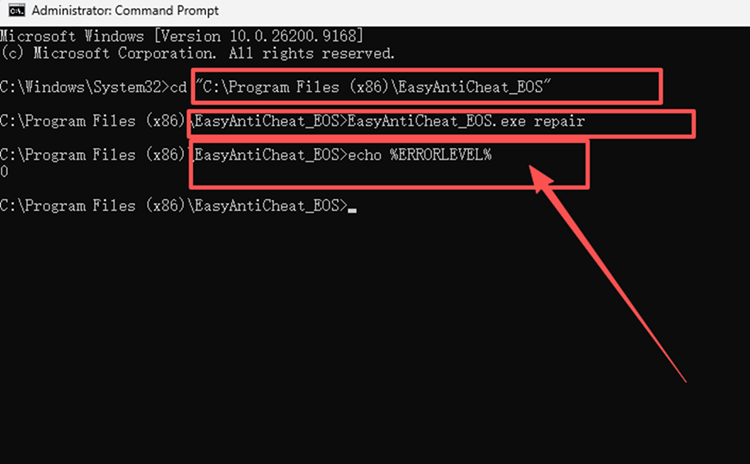
Step 3. Enter echo %ERRORLEVEL%. If the result is 0, restart your PC and launch Halloween: The Game again.
Fix 8. Launch Halloween: The Game with DirectX 11
If Halloween: The Game still crashes in Story Mode or during matches, forcing DirectX 11 can help bypass some DirectX 12-related rendering problems. This workaround is worth testing when the previous fixes do not help. If DX11 causes lower performance or new issues, remove the launch option afterward.
Step 1. Open Steam Library, right-click Halloween: The Game, and select Properties.
Step 2. Under General > Launch Options, enter -dx11.
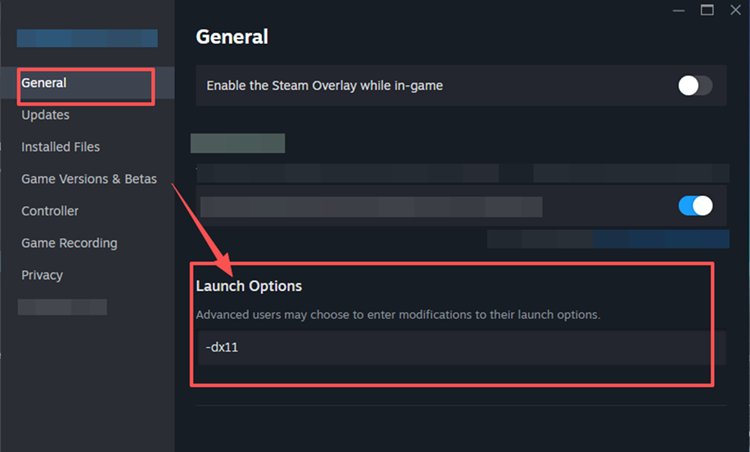
Step 3. Launch the game and test the same crash again. Remove -dx11 if it does not help or reduces performance.
[Bonus] Reduce Halloween Multiplayer Lag and Disconnects with LagZapper
Halloween: The Game relies on online connections for its multiplayer matches. If high ping, packet loss, lag spikes, or unstable routing causes delayed actions or unexpected disconnects, LagZapper can optimize the connection route between your PC and the game server to improve network stability.
Why Use LagZapper for Halloween: The Game?
- Smart Route Optimization: Finds a faster and more stable route for Halloween: The Game, helping reduce high ping, packet loss, jitter, and unstable connections.
- Reduce Lag & Improve Stability: Helps lower ping, reduce game lag, minimize lag spikes, and improve responsiveness during multiplayer matches.
- One-Click Boost: Optimizes the game connection with one click without manually changing complicated network or router settings.
- Support for 3,000+ Games: Supports thousands of online games across multiplayer, FPS, survival, and other genres.
How to Boost Halloween: The Game with LagZapper
Follow the steps below to optimize your connection before entering a Halloween: The Game multiplayer match.
Step 1. Download and Install LagZapper
Download LagZapper for Windows and follow the on-screen instructions to complete the installation.
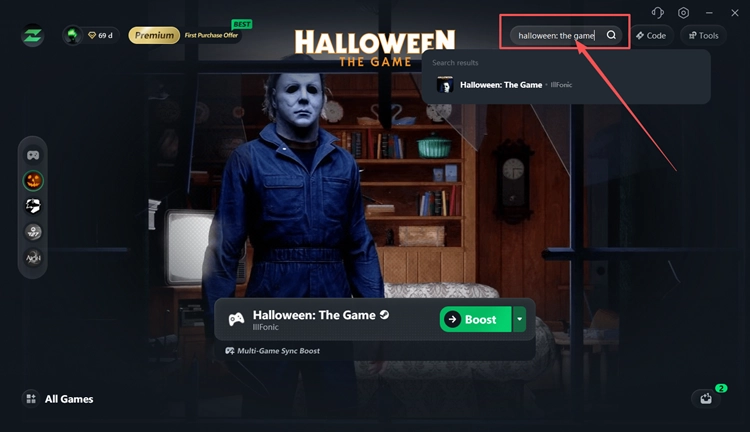
Step 2. Open LagZapper and Search for Halloween: The Game
Launch LagZapper, then use the search bar to search for Halloween: The Game.
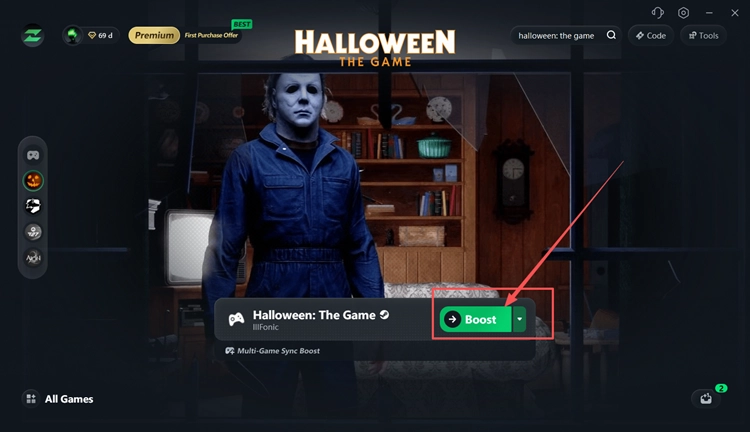
Step 3. Select a Recommended Node and Click Boost
Select a recommended server node, then click Boost to optimize the connection before launching Halloween: The Game.
The Bottom Line
Halloween: The Game crashing on PC can involve outdated game files, graphics drivers, background software conflicts, Easy Anti-Cheat errors, display settings, or DirectX issues. Install the latest game update first, then use the crash symptom to choose the most relevant fix instead of changing multiple PC settings at once.
If the game runs normally but multiplayer suffers from high ping, packet loss, lag spikes, or disconnects, download LagZapper to optimize the network route and improve connection stability.
FAQs About Halloween: The Game Crashing
Q1. Why Does Halloween: The Game Keep Crashing on PC?
Crashes may involve game files, graphics drivers, overlays, EAC, display settings, or DirectX conflicts.
Q2. How Do I Fix Halloween Crash on Startup?
Update the game, verify its files, update your GPU driver, and test DirectX 11.
Q3. Why Is Halloween Game Not Launching?
A failed launch may involve Easy Anti-Cheat, damaged files, driver problems, or software conflicts.
Q4. Why Does Halloween: The Game Crash During Matches?
Mid-match crashes may involve rendering load, graphics settings, overlays, or remaining game-side stability issues.
Q5. How Do I Fix Halloween: The Game Black Screen?
Try Borderless Windowed, lower graphics settings, update drivers, and disable overlays. Post-match black screens may require a game update.