
Hell Let Loose Vietnam Crash on Startup? Try These 7 Fixes
Is Hell Let Loose Vietnam crashing on startup, while loading a match, or after joining a server? Players have reported stability issues affecting both AMD and NVIDIA systems, including crashes, freezing, and sudden game closures. During pre-release testing, the developers also acknowledged crash problems on certain AMD GPUs. If Hell Let Loose Vietnam keeps crashing on your PC, the cause may involve GPU drivers, corrupted files, graphics settings, or system conflicts. Try the seven fixes below to improve stability before launch.
Why Does Hell Let Loose Vietnam Keep Crashing?
Hell Let Loose Vietnam crashes can happen in several situations:
- Hell Let Loose Vietnam crash on startup
- Hell Let Loose Vietnam crashes loading match
- Hell Let Loose Vietnam crash after joining server
- Random crashes during gameplay
- Hell Let Loose Vietnam freezing before closing to desktop
- Hell Let Loose Vietnam AMD crash or stability issues
- Hell Let Loose Vietnam NVIDIA crash
- Stuttering or performance drops before a crash
During pre-release testing, developers confirmed stability issues on some AMD GPUs, while players also reported NVIDIA crashes. Optimization and stability improvements are still ongoing ahead of launch.
How to Fix Hell Let Loose Vietnam Crashing
If Hell Let Loose Vietnam keeps crashing, start with the basic fixes below to rule out damaged files, driver problems, and system conflicts.
Fix 1. Verify Hell Let Loose Vietnam Game Files
Corrupted or incomplete files can cause a Hell Let Loose Vietnam crash on startup or while loading a match. Verifying the installation can replace missing or damaged files.
Step 1. Open Steam, go to Library, right-click Hell Let Loose: Vietnam, and select Properties.
Step 2. Go to Installed Files and click Verify integrity of game files.
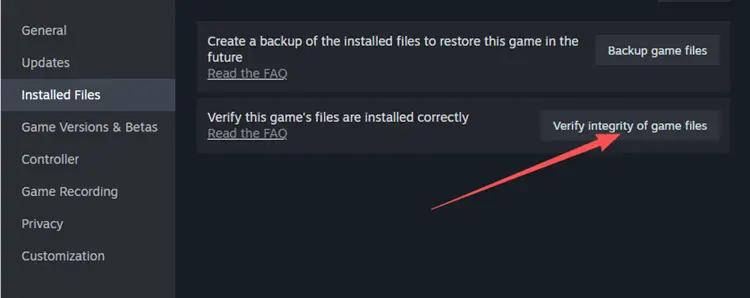
Step 3. Wait for Steam to finish the scan, then restart the game.
Fix 2. Update or Reinstall Your GPU Driver
If Hell Let Loose Vietnam crashes on startup or keeps crashing during matches, update your graphics driver first. Crash reports have affected both AMD and NVIDIA systems, with developers specifically noting stability issues on some AMD GPUs.
Update your GPU driver through:
- NVIDIA App for NVIDIA GPUs
- AMD Software: Adrenalin Edition for AMD GPUs
If the latest driver still causes crashes, try a clean reinstall or roll back to a previous stable version. Then restart your PC and relaunch the game.
Fix 3. Disable Overlays and Monitoring Tools
Overlays and monitoring tools can sometimes cause Hell Let Loose Vietnam crashing or freezing. Temporarily disable them to rule out software conflicts.
Step 1. Disable in-game overlays:
- 👉 Steam: Library > Hell Let Loose: Vietnam > Properties > General > turn off Steam Overlay
- 👉 Discord: User Settings > Game Overlay > turn off Enable in-game overlay
- 👉 NVIDIA App / AMD Software: Settings > disable In-Game Overlay
Step 2. Close MSI Afterburner, RivaTuner, and other FPS or hardware monitoring tools.
Step 3. Restart Hell Let Loose: Vietnam and test another match.
Fix 4. Run Steam and the Game as Administrator
Permission issues can sometimes cause Hell Let Loose Vietnam crashing or prevent game services from launching correctly. Try running Steam with administrator privileges.
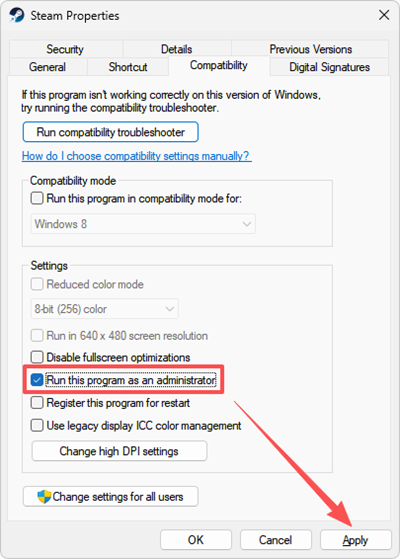
Step 1. Close Steam completely, then right-click Steam > Properties > Compatibility.
Step 2. Check Run this program as an administrator, click Apply > OK, then reopen Steam and launch Hell Let Loose: Vietnam.
Fix 5. Remove GPU Overclocking or Undervolting
Overclocking, undervolting, or aggressive tuning profiles can cause Hell Let Loose Vietnam crashing during gameplay. Temporarily return your hardware to default settings. Reset custom settings in:
- AMD Software: Adrenalin Edition
- MSI Afterburner
- NVIDIA tuning tools
- BIOS CPU settings
- RAM overclocking or XMP/EXPO profiles
Then restart your PC and test the game again. This fix is especially useful if crashes happen after several minutes of gameplay rather than immediately at startup.
Fix 6. Lower Graphics Settings and Limit FPS
High graphics settings can increase GPU load and may contribute to Hell Let Loose Vietnam crashing or freezing. Try lowering the graphics settings and limiting your FPS.
Step 1. Launch Hell Let Loose: Vietnam and open Settings > Video/Graphics.
Step 2. Go to Settings > Video, lower Shadow Quality, FX Quality, Foliage Quality, Post Process Quality, View Distance, and Resolution Scale. If a frame-rate limit option is available, set it to 60 FPS.
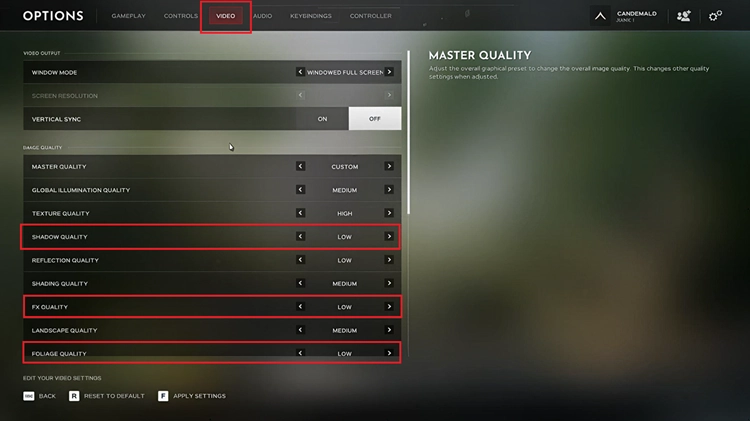
Step 3. Apply the changes, restart the game, and test another match.
Fix 7. Test Another Server and Check Your Connection
If Hell Let Loose Vietnam crashes after joining a server or becomes unstable while loading a match, the issue may be related to the server or network connection rather than your GPU.
Step 1. Join another server, preferably one closer to your location.
Step 2. Pause downloads and other bandwidth-heavy apps while playing.
Step 3. Check whether the problem is actually high ping, packet loss, lag, or repeated disconnects rather than a full game crash.
If the game stays open but the connection becomes unstable, LagZapper may help optimize the network route, lower ping, and improve connection stability.
[Bonus] Use LagZapper for Hell Let Loose Vietnam Network Issues
LagZapper does not fix GPU drivers or client-side crashes. However, it may help when Hell Let Loose Vietnam network issues happen alongside high ping, packet loss, lag, or unstable multiplayer connections.
Key Benefits of LagZapper for Hell Let Loose Vietnam
- Lower high ping: Improve routing to distant servers and help lower ping during multiplayer matches.
- Reduce packet loss: Stabilize data transfer and help reduce packet loss in large online battles.
- Improve connection stability: Keep a steadier connection and help reduce lag while joining servers.
- Reduce network interruptions: Minimize lag spikes, connection drops, and other network-related disruptions.
How to Use LagZapper for Hell Let Loose Vietnam
Use LagZapper in three simple steps to optimize your connection before joining a multiplayer server.
Step 1. Download and Install LagZapper
Download LagZapper for Windows and complete the installation.
Step 2. Search for Hell Let Loose Vietnam
Open LagZapper, sign in, and search for Hell Let Loose Vietnam in the supported games list.
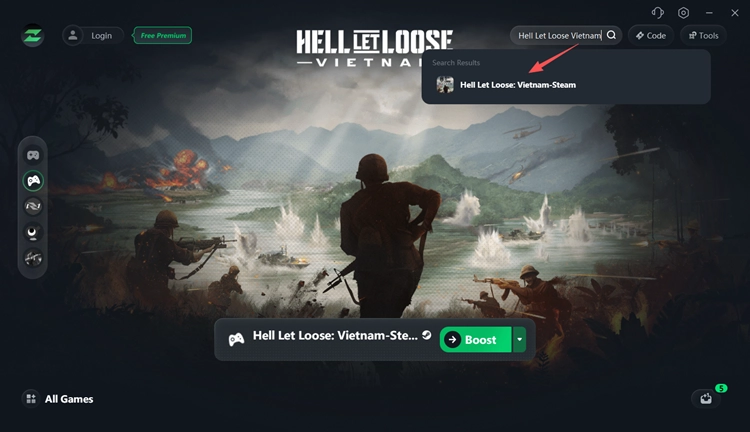
Step 3. Boost and Play
Select a recommended or nearby server node, click Boost, then launch the game and join a multiplayer server.
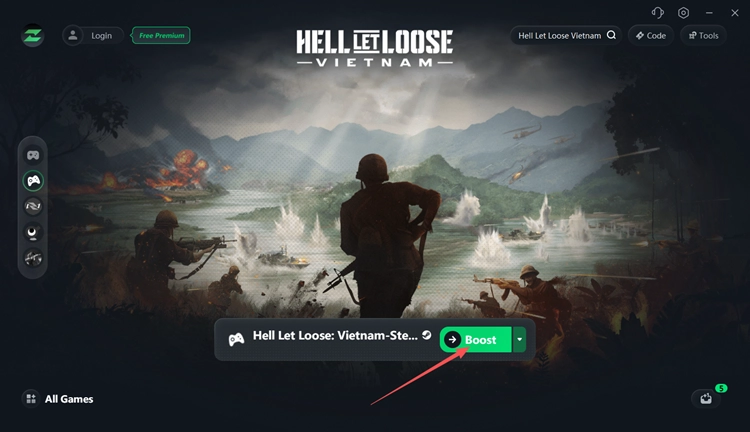
LagZapper can help optimize routing when you experience high ping, packet loss, lag, or unstable connections after joining a server.
The Bottom Line
That’s all about how to fix Hell Let Loose Vietnam keeps crashing on PC. If crashes or instability happen after joining a server, also check for high ping, packet loss, or connection issues. For network-related problems, LagZapper can optimize game routing and improve connection stability. Download LagZapper for Windows for a smoother Hell Let Loose Vietnam multiplayer experience.
FAQs on Hell Let Loose Vietnam Keeps Crashing
Q1. Why Does Hell Let Loose Vietnam Keep Crashing?
Crashes may result from GPU drivers, corrupted files, unstable hardware settings, background software, or game optimization issues.
Q2. How to Fix Hell Let Loose Vietnam Crash on Startup?
Verify game files, update GPU drivers, disable overlays, remove overclocking, and restart Steam or your PC.
Q3. Why Does Hell Let Loose Vietnam Crash After Joining a Server?
It may involve client instability, GPU issues, game files, or server-related problems. Try another server and retest. Steam’s problem forum includes reports specifically about crashes after joining.
Q4. Does Hell Let Loose Vietnam Have AMD Crash Issues?
Yes. Developers confirmed that certain AMD GPUs may experience crashes or stability issues during testing.
Q5. Does Hell Let Loose Vietnam Crash on NVIDIA GPUs?
Yes. NVIDIA users have also reported repeated crashes in the official Steam Report a Problem forum.
Q6. Why Does Hell Let Loose Vietnam Keep Freezing and Crashing?
Freezing and crashes may be related to GPU load, drivers, hardware instability, or ongoing performance optimization.
Q7. How to Fix Hell Let Loose Vietnam Crashes When Loading a Match?
Verify game files, update GPU drivers, lower graphics settings, disable overlays, and remove unstable hardware tuning.