
How to Change Fortnite Name: Full Guide for PC, PS5, Xbox & Switch
Looking for how to change Fortnite name in 2026? Your in-game identity is tied to your Epic Games account or platform profile, which is why many players search for how to change your name on Fortnite across PC, Mac, PlayStation, Xbox, Nintendo Switch, and mobile. Whether you want a fresh start or simply need to update your gamer tag, this guide from the LagZapper official website will show you how to change your Fortnite username on every platform.
Can You Change Your Fortnite Name? [Free or Paid]
Yes, you can change Fortnite username, but whether it is free or paid depends on the platform you play on. For players using PC, Mac, Nintendo Switch, or mobile, your Fortnite display name is tied directly to your Epic Games account, meaning how to change your Fortnite name is completely free and can be done anytime.
On PlayStation and Xbox, the system works differently. Your in-game name is linked to your PSN Online ID or Xbox Gamertag. Both Sony and Microsoft typically offer one free name change, but after that, any additional changes are typically paid.
Fortnite Name Change Overview:
| Platform | Cost | Change Method |
|---|---|---|
| PC / Mac | Free | Epic Games account |
| Mobile | Free | Epic Games account |
| Nintendo Switch | Free | Epic Games account |
| Xbox | First change free, then ~$9.99 USD | Gamertag change |
| PlayStation | First change free, then ~$9.99 (PS Plus ~ $4.99–$5.00) | PSN Online ID |
How to Change Fortnite Name on PC or Mac (Epic Games)
If you play Fortnite on PC or Mac, your in-game name is linked directly to your Epic Games account. To change your Fortnite name, you’ll need to update it through the official account settings on the Epic Games website. Here is a full guide on how to change your name on Fortnite without switching platforms:
Step 1. Open your browser and go to the official Epic Games website > Log in using your current account credentials.
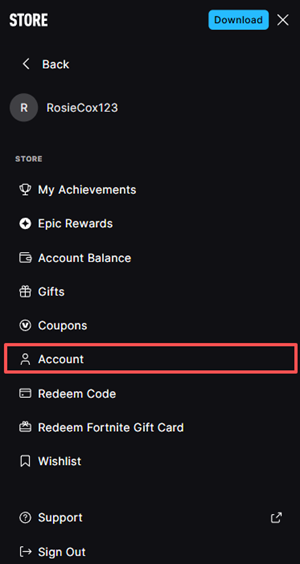
Step 2. Click your username (top-right corner) and choose Account > Settings.
Step 3. Locate your current Display name > Click the edit (pencil) icon next to your name.
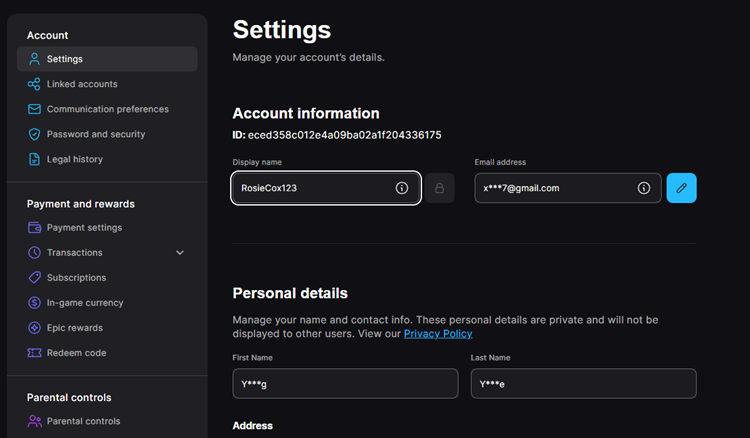
Step 4. In the prompt window, enter your new Fortnite name and click Continue to save your changes.
Tip: Thinking of how to change your name in Fortnite on Switch? On Nintendo Switch, Fortnite uses your Epic Games display name, not your Switch nickname. Simply log in via a browser and update your Display Name, just like on PC.
How to Change Fortnite Name on Mobile (iOS & Android)
If you’re wondering how to change your name in Fortnite on mobile, the process is the same as on PC. Whether you’re playing on Android or using cloud services, your name is managed through your Epic Games account. Follow the simple steps below:
Step 1. Open your mobile browser and go to the Epic Games website > Sign in to your account.
Step 2. Tap the menu icon in the top-right corner, then select your profile/username.
Step 3. Go to the Account section, find Display Name, tap the edit icon, and enter your new name to confirm.
How to Change Fortnite Name on PlayStation (PS4 & PS5)
If you play Fortnite on Sony Interactive Entertainment consoles, your in-game name is linked to your PlayStation Network account (PSN Online ID). This means you can’t change your Fortnite name inside Epic Games settings; instead, you need to update your PSN ID, which will automatically update your in-game name. Here is how to change Fortnite name on PS5/PS4:
Step 1. Log in to your PSN account through the PlayStation website on a computer and open the Account Management page.
Step 2. Click Edit next to your existing PSN Online ID > Enter your desired new ID and click Check Availability.
Step 3. If the name is available, confirm the change and complete the process.
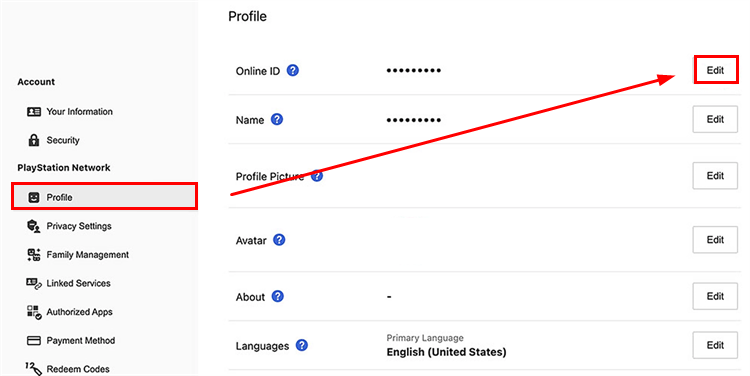
After updating your PSN Online ID, you will be signed out of all PlayStation devices, and your new ID will automatically appear as your Fortnite name the next time you log in.
How to Change Your Fortnite Name on Xbox
If you’re playing Fortnite on a Microsoft console, your in-game name isn’t linked to your Epic Games account but tied to your Xbox identity, known as your Gamertag. To think how to change your Fortnite name on Xbox, you’ll need to update your Xbox Gamertag through your Microsoft account. Follow the steps below:
Step 1. Go to the official Xbox website and sign in with the account linked to your console.
Step 2. Find your current username, click More actions, then select Xbox Settings from the dropdown menu.
Step 3. Choose the Change gamertag option, enter your preferred Gamertag in the field provided, then click Next to preview how it will look.
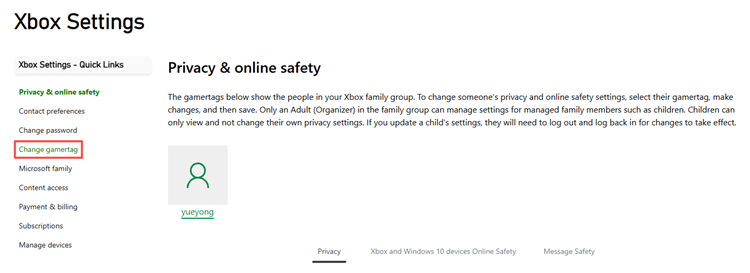
Step 4. If the name is available, click the CHANGE GAMETAG button to confirm and apply your new name.
The Bottom Line
That’s all about how to change your Fortnite name. Players on PC, Mac, mobile, and Nintendo Switch update their Epic Games display name directly, while PlayStation and Xbox users need to change their PSN Online ID or Xbox Gamertag instead. Just remember that cooldown rules and platform limits may apply.
Besides, if you experience lag or high ping while playing Fortnite, try LagZapper, a game booster designed to reduce lag and stabilize your connection for smoother, more consistent gameplay. Give it a try and download LagZapper for free to improve your gaming experience.
FAQ About Changing Fortnite Name
If you still have questions about changing your Fortnite display name, the answers below cover the most common concerns and issues.
Q1: What are the rules for choosing a new name?
Your display name must be 3–16 characters, follow community guidelines (no offensive or inappropriate content), avoid impersonation, and use only supported characters. Violations may lead to a reset or penalties.
Q2: Why can’t I change Fortnite username right now?
A few common reasons may be blocking the change: the 14-day cooldown hasn’t ended, your email isn’t verified, your account is in a restricted (cabined) state, or the name you chose is already taken.
Q3: How often can you change your display name?
You can update your Fortnite display name once every 14 days. After making a change, you’ll need to wait for the cooldown period to end before editing it again.
Q4: Can I reuse my old Fortnite name?
Yes, but only if no one else has claimed it after you changed it. Usernames are released back into the pool once they’re no longer in use.
Q5: Is changing the Fortnite name safe?
Yes, as long as you use the official Epic Games website or platform account settings. Avoid third-party tools to protect your account.
Q6: Will I lose my skins or progress if I change my name?
No. Changing Fortnite name does not affect your skins, stats, purchases, or overall account progress.