
How to Fish Multiplayer Not Working? 8 Fixes for Black Screens & Join Errors
How to Fish multiplayer not working can show up in several ways: Steam invitations may fail, you may be unable to invite friends, or you can't join friends after accepting an invite. Some players also run into a How to Fish connection failed error, red Steam Relay text, or a How to Fish multiplayer black screen when entering a lobby.
This guide explains what may cause these multiplayer problems and provides eight practical fixes for failed invites, connection errors, joining issues, and How to Fish black screen problems.
Why Is How to Fish Multiplayer Not Working?
Understanding why How to Fish multiplayer is not working can help you narrow down the problem and choose the right fix. Check the table below.
| Symptom | Possible Cause | First Fix to Try |
|---|---|---|
| Steam Relay text turns red | Steam Relay initialization or connection issue | Update game & check Relay warning |
| Steam invite fails / unable to invite friends | Stale Steam or lobby session | Restart How to Fish & Steam |
| Can't join a friend's lobby | Lobby or host session issue | Create a fresh private lobby |
| Black screen after joining a lobby | Outdated build or lobby session bug | Update How to Fish |
| One player can host but another cannot | Host-side session or connection issue | Switch hosts and test again |
| Multiplayer breaks only with mods enabled | Mod incompatibility or version mismatch | Disable multiplayer mods |
How to Fix How to Fish Multiplayer Not Working - 8 Useful Fixes
Start with the First Fix to Try that matches your symptom in the table above. If it does not help, continue through the fixes below in order.
Fix 1. Update How to Fish and Check for Steam Relay Warnings
Recent How to Fish patches have addressed multiplayer problems, including black screens when joining a lobby. Patch 1.0.9 also added a Steam connection debug to the main menu, making an update the best place to start. Follow the steps below to update the game and check for Steam connection warnings.
Step 1. Open Steam Library and install any available How to Fish update. If no update appears, restart Steam and check again.
Step 2. Launch How to Fish and check the main menu for any Steam connection warning.
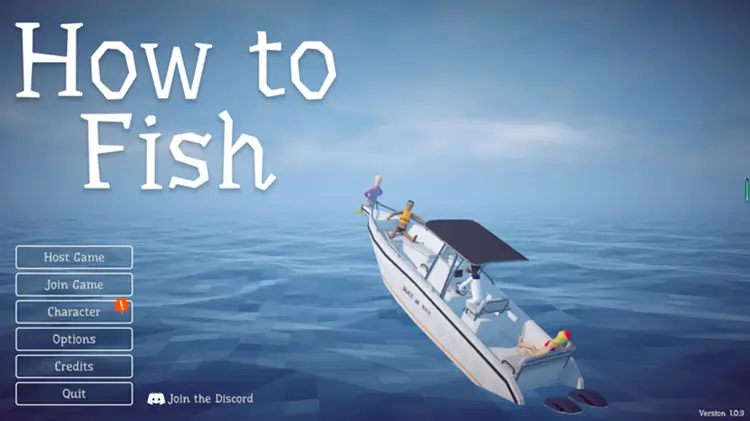
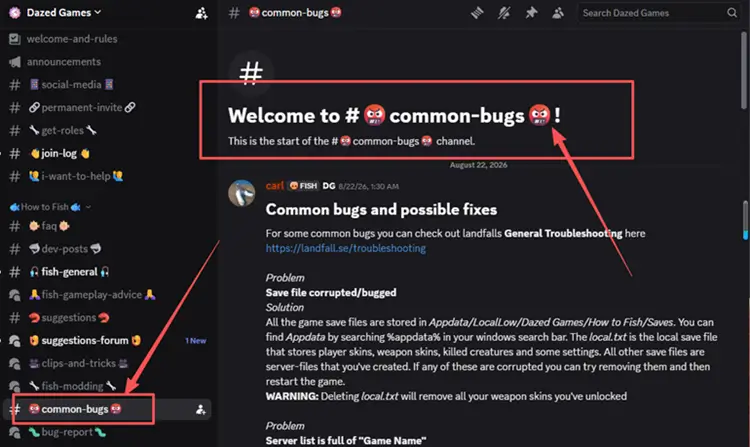
Step 3. If the Steam Relay text turns red, follow the developer’s current #common-bugs guidance. If no red connection warning appears, continue with the next fix.
Fix 2. Fully Restart How to Fish and Steam for Everyone
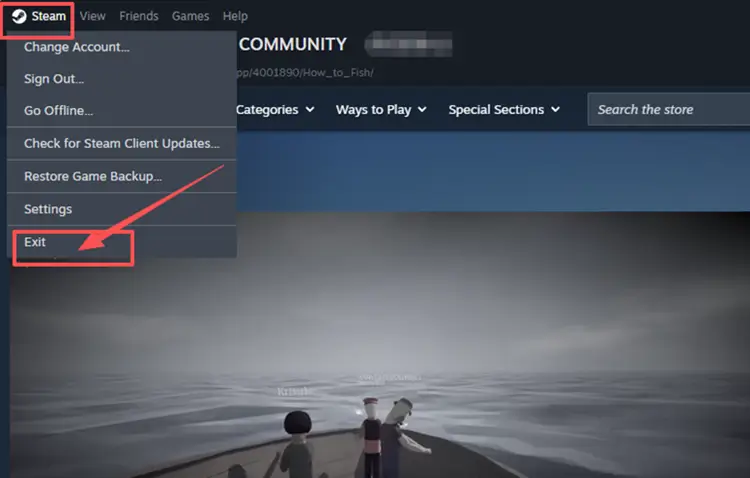
A failed lobby or invite may persist if How to Fish or Steam did not close completely. Ask the host and every joining player to exit the game, select Steam > Exit, and close any remaining How to Fish or Steam processes in Task Manager. Then reopen Steam, let the host launch How to Fish first, and try multiplayer again.
Fix 3. Create a Fresh Private Lobby and Send a New Invite
An old or failed lobby may keep causing join or invite problems even after Steam reconnects. How to Fish now supports invite-only private lobbies, so creating a fresh session can help reset the multiplayer connection. Follow the steps below to create a new private lobby and resend the invite.
Step 1. Open Server Settings, choose the invite-only session option, and restart How to Fish so the change takes effect.
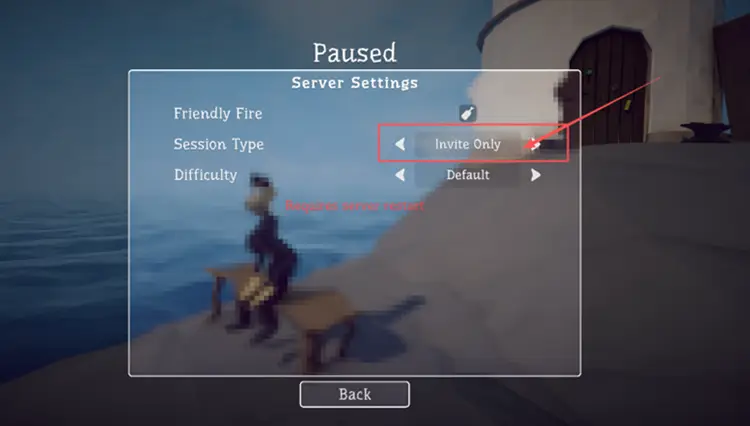
Step 2. Host a new private lobby after restarting instead of reusing the previous failed session.
Step 3. Send your friend a new Steam invite and ask them to join through the latest invitation.
Fix 4. Let Another Player Host and Test with One Friend
If a fresh lobby still fails, switch hosts to check whether the issue is tied to one player's session or connection. Ask another player to create the lobby and invite only one friend first. If that works, add the others gradually; if failures occur only with one host, focus later network checks on that player.
Fix 5. Disable Multiplayer Mods and Test a Vanilla Lobby
Multiplayer or lobby mods can cause compatibility problems after game updates or when players use different mod setups. Temporarily disable all third-party mods for both the host and joining players, restart How to Fish, and create a clean vanilla lobby. If multiplayer works normally, re-enable the mods one at a time to identify the conflict.
Fix 6. Verify How to Fish Game Files in Steam
Missing or corrupted game files may interfere with How to Fish loading or multiplayer sessions, especially after updates or mod changes. Steam can check the local installation and restore files that do not match correctly. Follow the steps below to verify How to Fish game files.
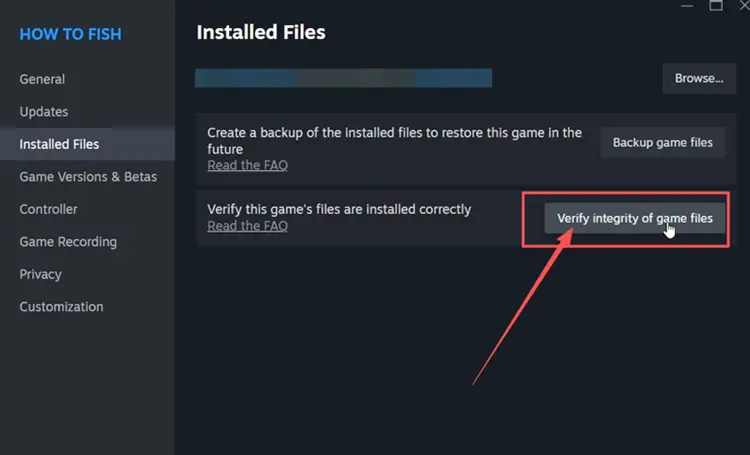
Step 1. Open Steam Library, right-click How to Fish, and select Properties > Installed Files.
Step 2. Click Verify integrity of game files, wait for Steam to finish, and then relaunch How to Fish.
Fix 7. Restart the Router and Test Another Network
Temporary router or network issues can interrupt the connection between the host and joining players, causing failed joins or disconnects. Restart your router and test multiplayer again. If possible, use an Ethernet cable instead of Wi-Fi for a more stable connection. If the problem continues, briefly try another Wi-Fi network or mobile hotspot to check whether your original network is involved.
Fix 8. Allow How to Fish and Steam Through Windows Firewall
Windows Firewall may block How to Fish or Steam from communicating properly during multiplayer sessions. Add both programs to the allowed apps list instead of disabling firewall protection. Follow the steps below to check their Windows Firewall permissions.
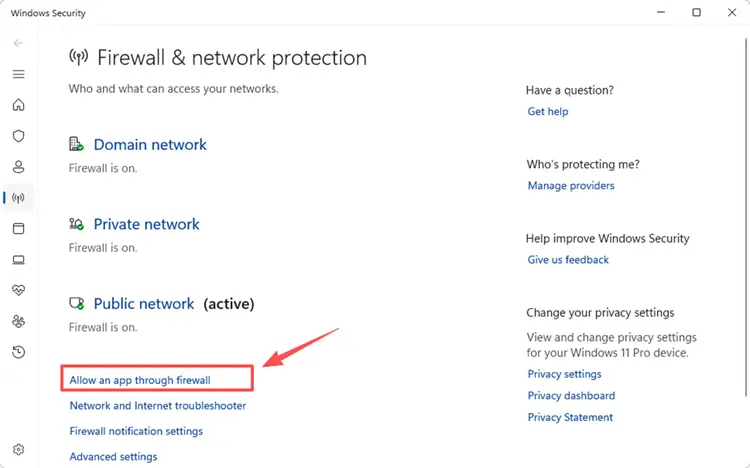
Step 1. Open Windows Security, select Firewall & network protection, and click Allow an app through firewall.
Step 2. Click Change settings > Allow another app, then add the executable files for How to Fish and Steam if they are not already listed.
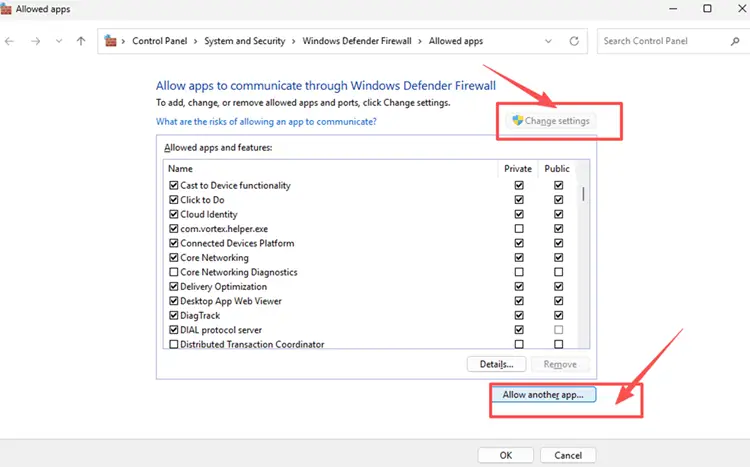
Step 3. Allow both apps on your active network profile, click OK, then restart Steam and How to Fish and test multiplayer again.
[Bonus] Improve How to Fish Connection Stability with LagZapper
How to Fish multiplayer relies on a stable connection when hosting or joining Steam co-op sessions. If multiplayer already works but high ping, packet loss, or unstable routing causes lag or disconnects, LagZapper can optimize the connection route and improve stability before you enter a lobby.
Why Use LagZapper for How to Fish
LagZapper can help How to Fish players:
- Smart Route Optimization: Finds stable routes to help reduce high ping, packet loss, jitter, and routing instability.
- Connection Stability: Helps reduce game lag, lower ping, and limit sudden latency changes during multiplayer sessions.
- One-Click Boost: Optimizes the connection without manually changing router, DNS, or Windows settings.
- 3,000+ Game Support: Works across more than 3,000 supported online games.
How to Use LagZapper for How to Fish
Follow these three steps to optimize the connection before hosting or joining a How to Fish multiplayer lobby.
Step 1. Download and Install LagZapper
Download LagZapper for Windows and follow the on-screen instructions to complete the installation on your PC.
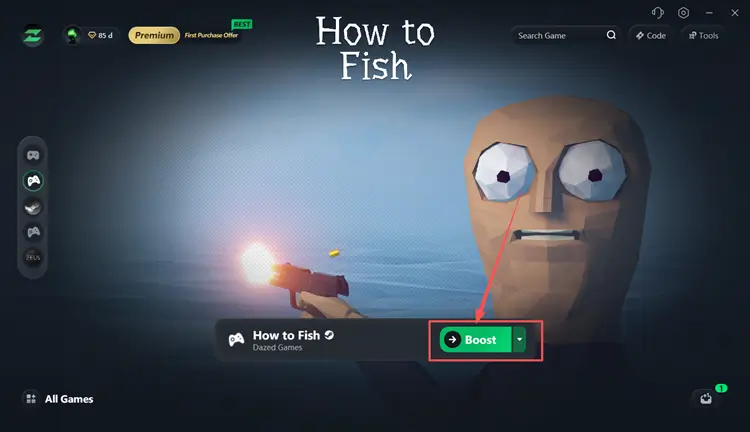
Step 2. Search for How to Fish
Launch LagZapper, then use the search bar or browse the supported games list to find How to Fish.
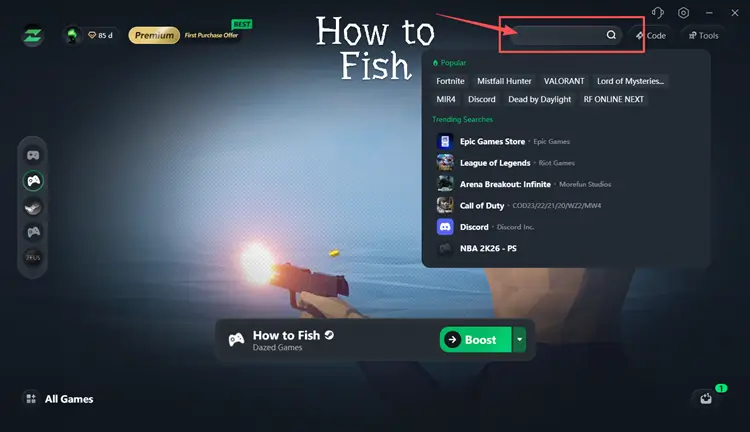
Step 3. Select a Recommended Node, Click Boost, and Launch the Game
Select a recommended node, click Boost, and then launch How to Fish before hosting or joining a multiplayer lobby.
The Bottom Line
The How to Fish multiplayer not working issue may involve outdated builds, stale Steam sessions, failed lobbies, host-side problems, incompatible mods, damaged files, unstable networks, or firewall restrictions. Start with the Steam Relay and update checks, then work through the remaining fixes in order until invites, joining, and multiplayer sessions work normally.
If multiplayer works but high ping, packet loss, or unstable routing still affects connection stability, download LagZapper to optimize the connection route for smoother multiplayer sessions.
FAQs About How to Fish Multiplayer Not Working
Q1. Why Is How to Fish Multiplayer Not Working?
Outdated builds, failed Steam sessions, lobby problems, mods, network instability, or firewall rules may interfere.
Q2. How Do I Fix How to Fish Connection Failed?
Update the game, restart Steam, recreate the lobby, switch hosts, and test your network connection.
Q3. Why Do I Get a How to Fish Multiplayer Black Screen?
An outdated build, failed lobby session, damaged files, or multiplayer bug may cause the black screen.
Q4. How Can I Fix How to Fish Unable to Invite Friends?
Restart Steam for everyone, create a fresh private lobby, and send a completely new invitation.
Q5. Why Can't I Join Friends in How to Fish?
A stale lobby, host-side connection problem, mod mismatch, or blocked network traffic may prevent joining.