
League of Legends Lag During MSI 2026? Fix Ping, Packet Loss & Lag Spikes
MSI 2026 is bringing global League of Legends attention back to the Rift. The tournament takes place at Daejeon Convention Center II from June 28 to July 12, featuring the Play-In Stage from June 28 to July 1 and the Bracket Stage from July 3–6 and July 8–12.
During major esports events like MSI, many players return to ranked, ARAM, and custom games, making issues like high ping, packet loss, lag spikes, delayed skills, and rubberbanding more noticeable. Well, this post explains why League of Legends lag happens during MSI 2026 and how to fix League of Legends lagging before your next match.
Why Is League of Legends Lagging During MSI 2026?
League of Legends lag during MSI 2026 can be caused by Riot servers, network issues, unstable routing, or PC performance problems. Common causes include:
- League server maintenance or regional server outages
- High ping to your selected League of Legends server
- Packet loss between your ISP and Riot game servers
- Unstable Wi-Fi connection or weak router signal
- Background downloads, cloud sync, or streaming apps
- Poor ISP routing during peak gaming hours
- Firewall, DNS, or incorrect network settings
- PC performance drops that feel like network lag
How to Fix League of Legends Lag During MSI 2026 - 8 Fixes
Read on to learn how to fix lag spikes on League of Legends with 8 practical fixes, from checking Riot servers to optimizing your network and device.
Fix 1. Restart League of Legends & Riot Client
A simple restart is one of the quickest ways to fix temporary client, session, or connection issues in League of Legends. Follow these steps to restart the game and Riot Client properly:
Step 1. Close League of Legends completely, and exit Riot Client from the system tray.
Step 2. Wait a few seconds, then reopen Riot Client as administrator.
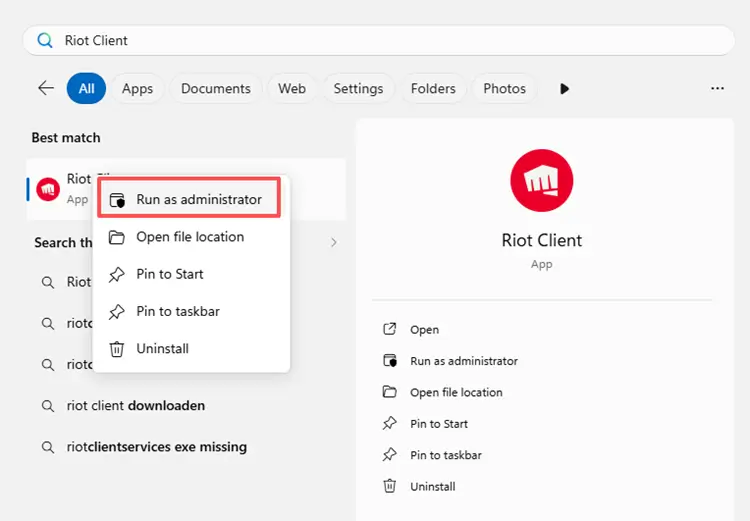
Step 3. Launch League of Legends again and test a Practice Tool or ARAM match.
Fix 2. Close Background Apps
League of Legends does not need a lot of bandwidth, but it does need a stable connection. Downloads, cloud sync tools, video streaming, and other online apps can cause sudden lag spikes even when your internet speed looks normal.
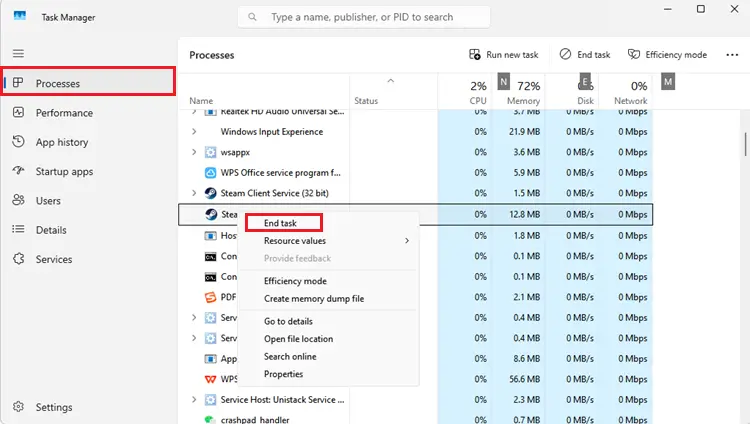
Step 1. Press Ctrl + Shift + Esc to open Task Manager.
Step 2. Go to the Processes tab and check which apps are using high Network, CPU, or Memory.
Step 3. Select unnecessary apps, such as Steam, Riot downloads, and more, and click End Task to close them.
Fix 3. Use a Wired Ethernet Connection
Wi-Fi is a common reason for League of Legends lag spikes. Even if your speed test looks normal, Wi-Fi can still cause packet loss and unstable ping during real-time matches.
Step 1. Connect your PC to the router with an Ethernet cable and turn off Wi-Fi temporarily.
Step 2. Restart League of Legends and test a Practice Tool or ARAM match.
Step 3. Check whether your ping becomes more stable and lag spikes are reduced.
Fix 4. Restart Your Router and Modem
If League of Legends is lagging but other websites load normally, your router or modem may still be causing unstable game traffic. Restarting your network devices can refresh the connection and clear temporary routing issues.
Step 1. Turn off your router and modem.
Step 2. Wait at least 30 seconds, then turn them back on.
Step 3. Wait until the connection is fully restored, then reopen League of Legends and test your ping again.
Fix 5. Change DNS Settings
DNS issues can affect how your PC connects to Riot services, login systems, and League of Legends servers. If your current DNS is slow or unstable, switching to a public DNS may help improve connection stability. Follow these steps to change your DNS:
Step 1. Press Win + R, type ncpa.cpl, and press Enter to open Network Connections.
Step 2. Right-click your active network connection, such as Wi-Fi or Ethernet, and select Properties.
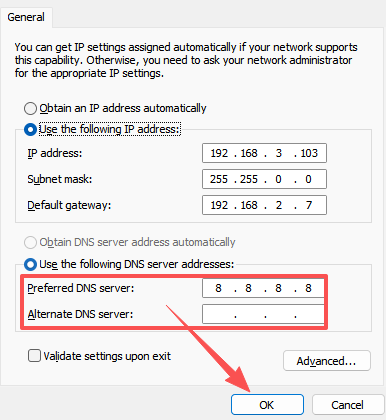
Step 3. Double-click TCP/IPv4, select Use the following DNS server addresses, and enter one of the DNS options below:
| DNS Provider | Preferred DNS | Alternate DNS |
|---|---|---|
| Google DNS | 8.8.8.8 | 8.8.4.4 |
| Cloudflare DNS | 1.1.1.1 | 1.0.0.1 |
Step 4. Click OK to save the changes, then restart your PC and router.
Fix 6. Allow League of Legends Through Firewall
Firewall or antivirus software may block Riot Client, League of Legends, or related network traffic. This can lead to login errors, connection timeouts, or in-game lag. Here’s how to allow League of Legends through Windows Firewall:
Step 1. Press Win + S, type Windows Security, and open it.
Step 2. Go to Firewall & network protection > Allow an app through firewall.
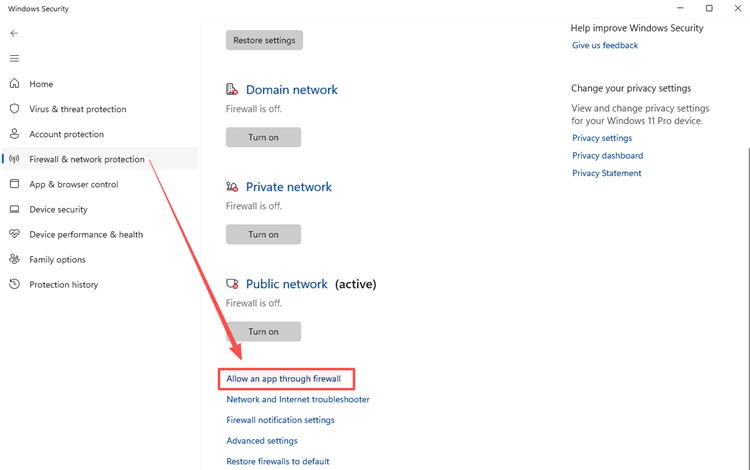
Step 3. Click Change settings, then check whether the following apps are allowed:
- Riot Client
- League of Legends
- LeagueClient.exe
- RiotClientServices.exe
Step 4. Make sure both Private and Public boxes are checked for these apps > Click OK to save the changes.
Fix 7. Update Network Drivers
Outdated or unstable network drivers can cause packet loss, ping spikes, or unstable connections in League of Legends. Updating your network adapter driver may help improve connection stability.
Step 1. Right-click Start, select Device Manager, and expand Display adapters.
Step 2. Right-click your adapter, then select Update driver > Search automatically for drivers.
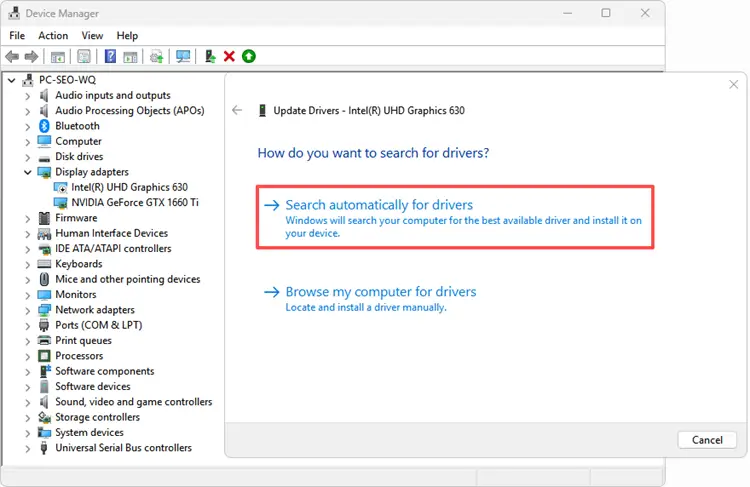
Step 3. Restart your PC after the update is complete.
If you use a gaming motherboard or a dedicated network card, you can download the latest network driver from the manufacturer’s official website.
Fix 8. Lower In-Game Settings
Not all League of Legends lag is caused by network issues. FPS drops, stuttering, or input delay can also make the game feel delayed, especially on older PCs. Try the recommended settings below for smoother gameplay:
| Setting | Recommended Option |
|---|---|
| Display Mode | Full Screen |
| Graphics Quality | Medium or Low |
| Shadows | Off |
| Vertical Sync | Off |
| Effects Quality | Medium or Low |
| Environment Quality | Low |
Here’s how to lower League of Legends in-game settings:
Step 1. Launch League of Legends, enter a match or Practice Tool, press Esc, and open Video settings.
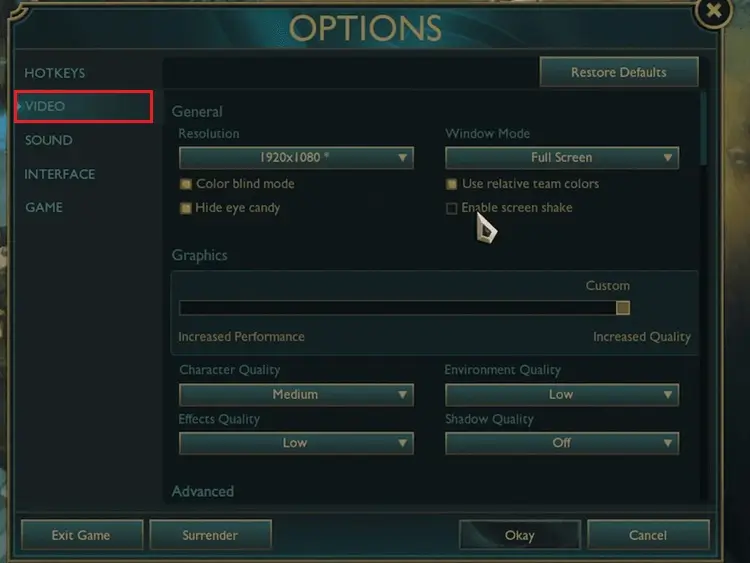
Step 2. Set Window Mode to Full Screen, lower Graphics Quality, turn Shadows Off, and set Effects Quality and Environment Quality to Low.
Step 3. Click Okay to save the changes, restart the game, and test again.
[Bonus] How to Reduce League of Legends Lag with LagZapper
During MSI 2026, League of Legends players may experience unstable connections during peak gaming hours. If Riot servers are online but you still have high ping, packet loss, or unstable routing, the problem may come from your ISP route rather than the game server.
In this case, LagZapper, a powerful PC game booster, can help you optimize your connection route, reduce lag, lower ping, and make online matches feel more stable.
Highlights of Using LagZapper
- One-Click Boost: With one-click boost, you can optimize League of Legends quickly without complex manual network settings and reduce lag caused by unstable routes.
- Reduce Lag Spikes: LagZapper helps stabilize unstable routes that may cause sudden ping jumps during team fights, ranked games, or peak gaming hours.
- Reduce Packet Loss: LagZapper can help improve route stability when packet loss makes your champion freeze, teleport, or respond late.
- Lower Ping for League of Legends: LagZapper helps optimize your route to League of Legends servers, making online matches feel more responsive and helping lower ping during gameplay.
How to Use LagZapper for League of Legends
Follow the steps below to set up LagZapper, search for League of Legends, and optimize your connection before starting a match.
Step 1. Download and Install LagZapper
Download LagZapper for Windows, and then follow the on-screen instructions to complete the installation.
Step 2. Open LagZapper and Sign In
Launch LagZapper and sign in to start optimizing your connection for online games.
Step 3. Search for League of Legends
Search for League of Legends or browse the supported games list to find it.
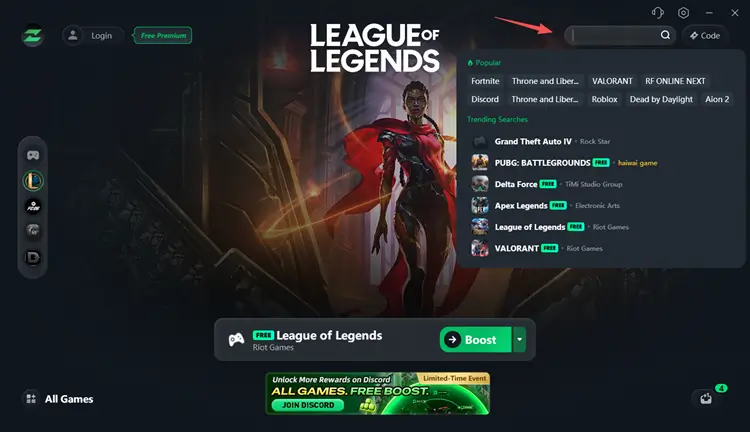
Step 4. Boost and Play League of Legends
Select your preferred server or node, then click Boost to optimize League of Legends connection and start playing with less lag.

The Bottom Line
MSI 2026 is a great time to return to League of Legends, but lag can ruin ranked games, ARAM matches, and MSI-inspired play sessions. If League of Legends is lagging during MSI 2026, start by checking Riot server status, then test your network, router, DNS, firewall, and background apps.
If the connection still feels unstable, LagZapper game booster can help you reduce League of Legends lag, lower ping, and stabilize your route for smoother matches during MSI season.
FAQs About League of Legends Lag During MSI 2026
Q1: Why is League of Legends lagging during MSI 2026?
A: It may be caused by Riot server issues, unstable Wi-Fi, packet loss, high ping, background apps, or poor routing from your ISP.
Q2: How do I fix League of Legends lag during MSI 2026?
A: Check Riot server status, restart the Riot Client, use Ethernet, close background apps, change DNS, and test your connection again.
Q3: Why is my LoL ping so high during MSI 2026?
A: High ping can happen because of server distance, ISP routing, network congestion, Wi-Fi instability, or background downloads.
Q4: How do I fix packet loss in League of Legends?
A: Switch to Ethernet, restart your router, stop downloads, check firewall settings, and use a route optimizer if your ISP route is unstable.
Q5: Can LagZapper help reduce League of Legends lag?
A: Yes. If Riot servers are online but your route is unstable, LagZapper can help lower ping, reduce packet loss, and stabilize gameplay.