
Limbus Company Server Issues? How to Fix Connection Errors
Limbus Company is a turn-based RPG from Project Moon, but its online services can still be affected by sudden traffic spikes, maintenance, or local connection problems. After the 9th Walpurgis Night update, many players reported Limbus Company server issues, including repeated server errors, slow loading, stuck connections, and unstable in-game responses.
This guide will explain why these problems happen, show you how to check Limbus Company server status, and provide 10 fixes for common connection and loading issues.
Why Is Limbus Company Having Server Issues?
Limbus Company server error can result from both official service disruptions and problems with your local game or connection.
Scheduled Maintenance or an Unexpected Server Outage
Scheduled or emergency maintenance can temporarily disable login, resource downloads, and other online services for all players.
Heavy Server Traffic After an Update or Event
After the 9th Walpurgis Night update, sudden traffic spikes overloaded server capacity and triggered temporary connection errors.
Update-Related Bugs or Client Errors
New patches may introduce client-side bugs that prevent login, freeze menus, or interrupt normal game responses.
Corrupted or Missing Game Files
Damaged or incomplete local files may stop Limbus Company from launching, loading resources, or connecting correctly.
Unstable Internet or Poor ISP Routing
Packet loss, weak Wi-Fi, or poor ISP routing can delay server requests and cause repeated connection failures.
How to Fix Limbus Company Server Issues - 10 Fixes
Start with basic checks before changing advanced network settings. The 10 fixes below will help determine whether the problem is server-side or local, then troubleshoot Limbus Company connection issues step by step.
Fix 1. Check Limbus Company Server Status
Before changing your PC or network settings, first check Limbus Company server status and confirm whether the game is under maintenance or experiencing a widespread outage. Visit the Steam Community announcements or other official channels for maintenance notices, known issues, server load warnings, and service recovery updates.
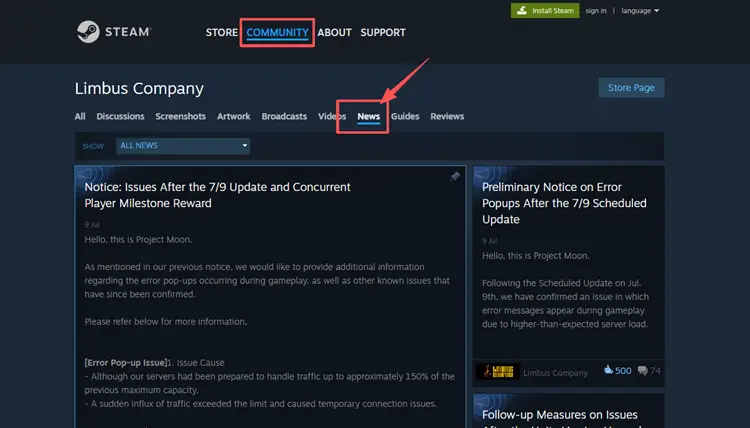
If Project Moon confirms a server-side problem, wait for the service to stabilize instead of changing your DNS or firewall settings. If there are no official outage reports and the issue seems to affect only your connection, proceed with the fixes listed below.
Fix 2. Run Limbus Company as Administrator
Windows permission restrictions can sometimes prevent Limbus Company from accessing local files or required system components, which may lead to startup, loading, or client connection errors. Running the game with administrator privileges can help rule out these local permission conflicts, but it cannot restore an offline or overloaded official server.
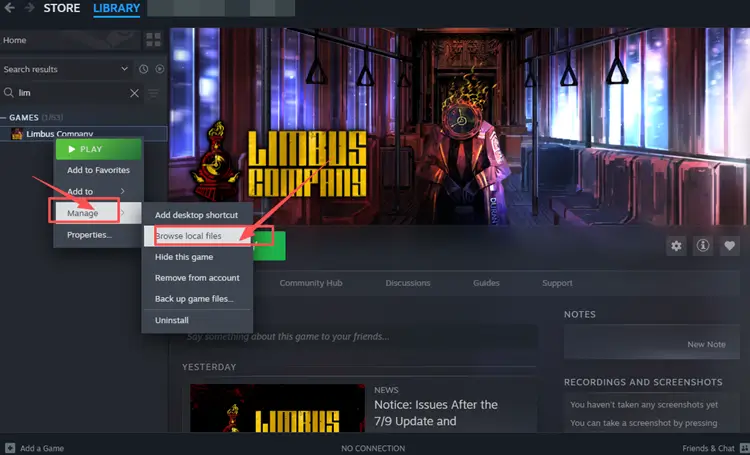
Step 1. Open Steam Library, right-click Limbus Company, and select Manage > Browse Local Files.
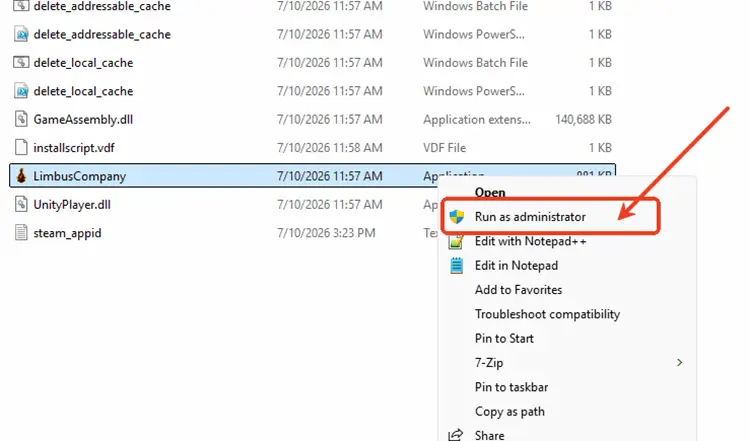
Step 2. Right-click the Limbus Company executable file and select Run as administrator.
Fix 3. Restart Your Router and Modem
If Limbus Company servers are online but connection errors continue, your router or modem may have a temporary network or routing problem. Restarting both devices can refresh your home connection, clear minor network errors, and help restore more stable communication between your PC and the game services.
Turn off your router and modem, wait about 30–60 seconds, then power them back on. Once the internet connection is fully restored, launch Steam and Limbus Company again to check whether the loading or connection issue has improved.
Fix 4. Use a Wired Ethernet Connection
When official servers are working normally, Wi-Fi interference, distance from the router, walls, or other connected devices may make your connection unstable. Switching to Ethernet gives your PC a more direct connection to the router, which may reduce packet loss and connection drops while Limbus Company loads or communicates with its servers.
Fix 5. Close Background Downloads and Apps
Steam downloads, cloud syncing, video streaming, browser updates, or other launchers can use bandwidth and system resources while Limbus Company is running. This may cause slower resource loading, delayed server responses, or client lag, especially when your network, CPU, or available memory is already limited. Close unnecessary programs before launching the game.
Step 1. Press Ctrl + Shift + Esc to open Task Manager and view running apps and background processes.
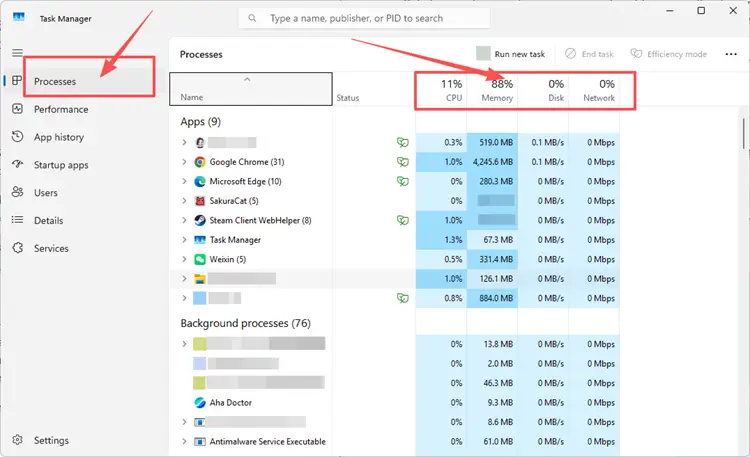
Step 2. Check the Processes tab for apps using high Network, CPU, or Memory, such as browsers, sync tools, launchers, streaming apps, or downloads.
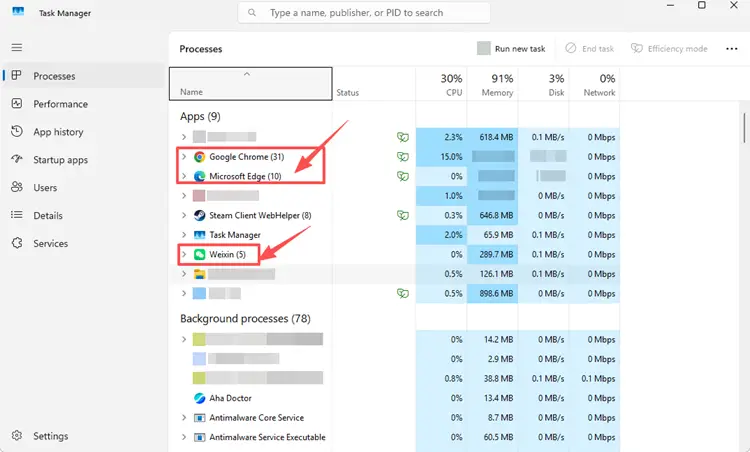
Step 3. Select any non-essential app and click End task, but avoid closing Windows system processes.
Fix 6. Verify Limbus Company Game Files
Missing or corrupted game files may prevent Limbus Company from launching correctly, loading resources, or communicating properly with online services. You can use Steam’s file verification tool to check the local installation and automatically replace damaged or missing files. However, this method cannot fix an official server outage.
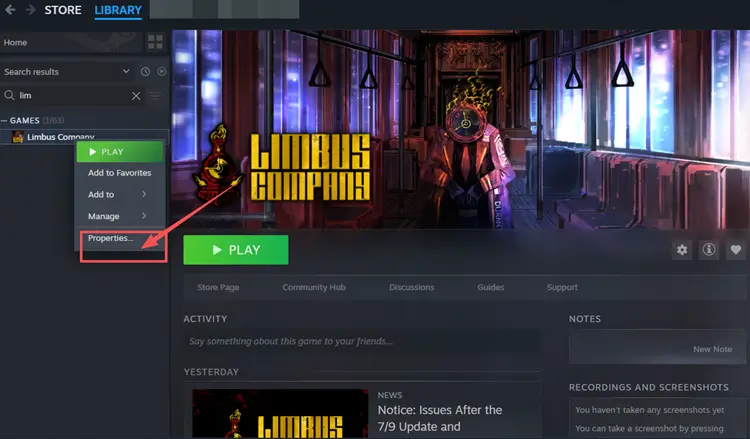
Step 1. Open Steam Library, right-click Limbus Company, and select Properties.
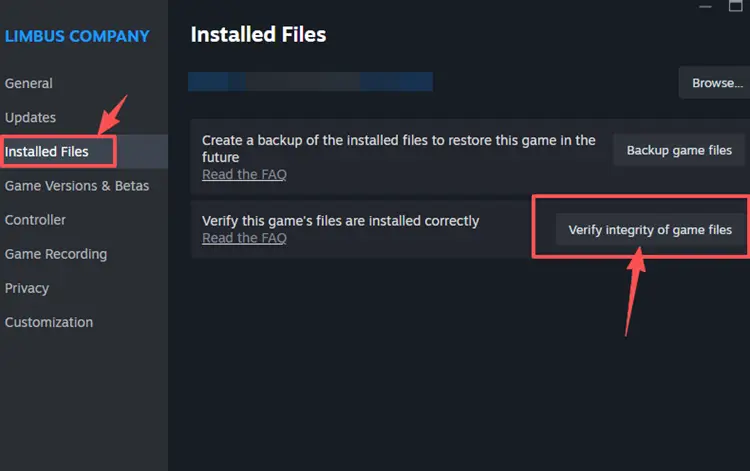
Step 2. Select Installed Files, then click Verify integrity of game files.
Fix 7. Flush DNS and Reset Network Settings
An outdated DNS cache or temporary Windows network error may affect how Limbus Company connects to online services. Flushing DNS and resetting network settings can refresh stored connection records and clear basic network conflicts that may cause server errors, stuck connections, or slow loading.
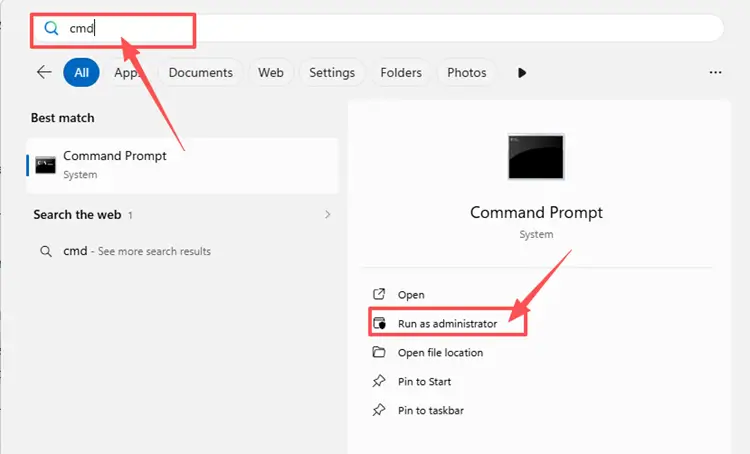
Step 1. Type cmd in the Windows search box, right-click Command Prompt, and select Run as administrator.
Step 2. Enter the following commands one by one, pressing Enter after each command:
- ipconfig /flushdns
- ipconfig /release
- ipconfig /renew
- netsh int ip reset
- netsh winsock reset
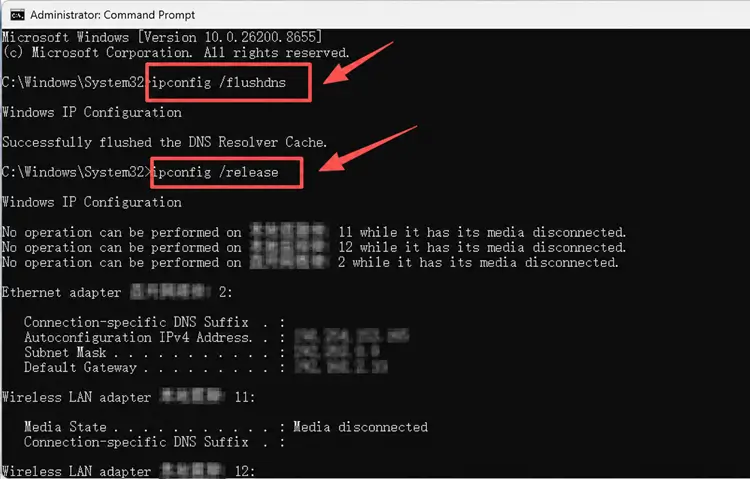
Step 3. Restart your PC to apply the changes, then open Steam and Limbus Company to test the connection again.
Fix 8. Change DNS Settings
If Limbus Company connection issues continue after flushing DNS, your default DNS server may be slow or unstable. Changing DNS cannot fix maintenance or an overloaded official server, but it may help your PC reach Steam and Limbus Company online services more reliably.
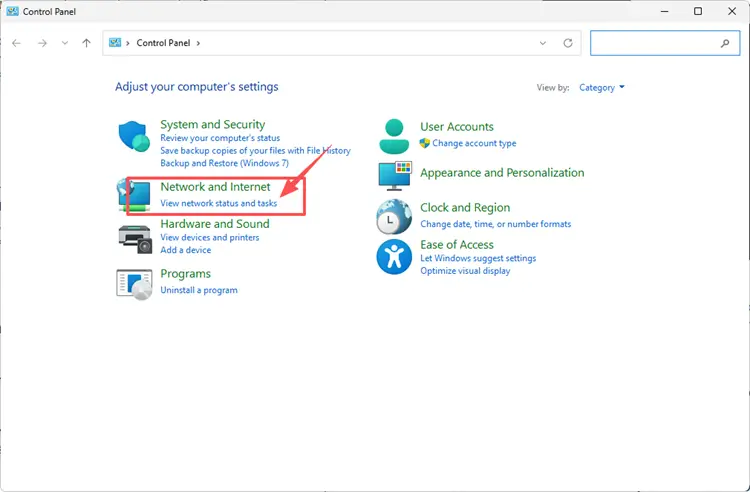
Step 1. Open Control Panel, select Network & Internet, and click Network and Sharing Center.
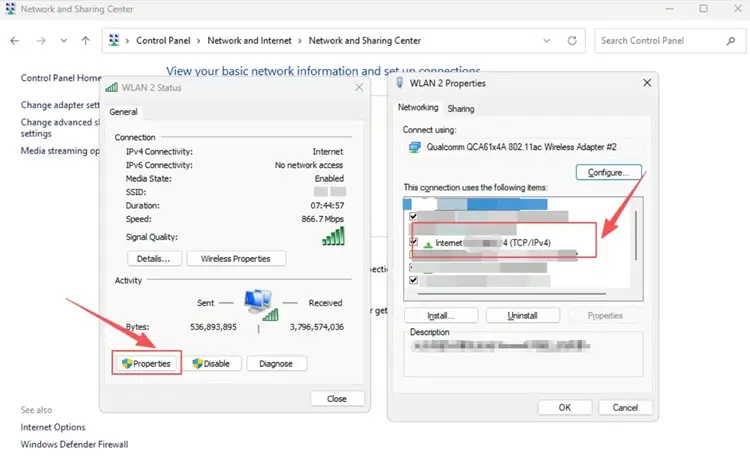
Step 2. Click your current Wi-Fi or Ethernet connection, select Properties, and double-click Internet Protocol Version 4 (TCP/IPv4).
Step 3. Select Use the following DNS server addresses, then enter Google DNS 8.8.8.8 / 8.8.4.4 or Cloudflare DNS 1.1.1.1 / 1.0.0.1.
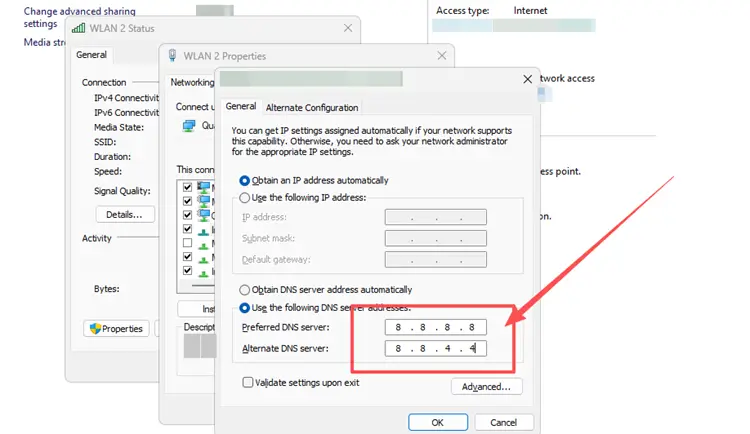
Step 4. Click OK to save the changes, then restart Steam and Limbus Company to check whether the connection improves.
Fix 9. Allow Limbus Company Through Firewall
Windows Firewall or antivirus software may sometimes block Limbus Company or Steam from communicating with required online services. Instead of disabling your security protection completely, add the game and Steam to the allowed app list to reduce possible connection restrictions.
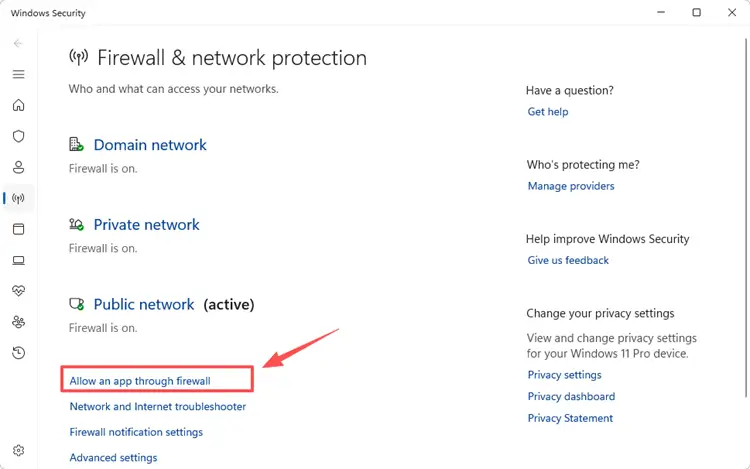
Step 1. Open Windows Security, select Firewall & network protection, and click Allow an app through firewall.
Step 2. Click Change settings > Allow another app, browse to the Limbus Company installation folder, and add the game executable.
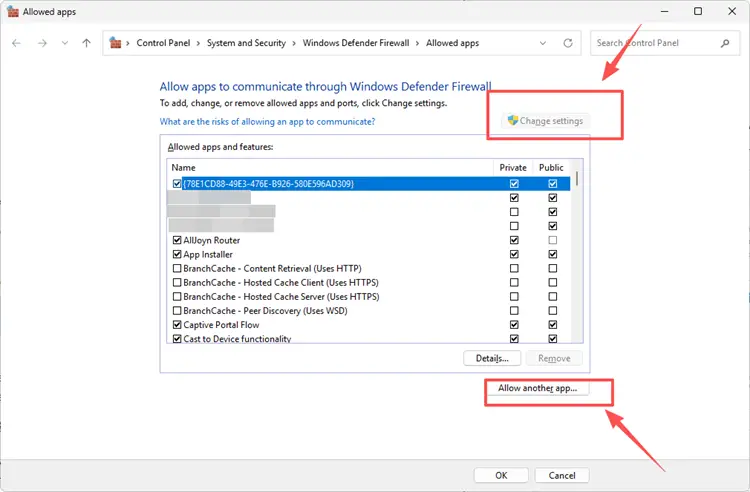
Step 3. Make sure Limbus Company and Steam are allowed on your active network, click OK, and relaunch the game.
Fix 10. Update Your Network Adapter Driver
Outdated or faulty network adapter drivers can affect how Windows handles online traffic, which may lead to unstable connections, slow loading, or repeated connection errors in Limbus Company. Updating the driver may improve compatibility with your router and Windows network components, especially when other devices connect normally but the problem continues on your PC.
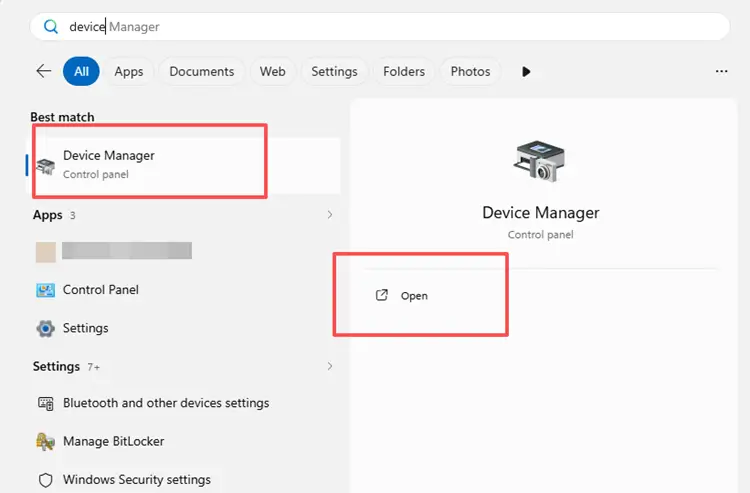
Step 1. Type Device Manager in the Windows search bar and open it.
Step 2. Expand Network adapters, right-click your active Wi-Fi or Ethernet adapter, and select Update driver.
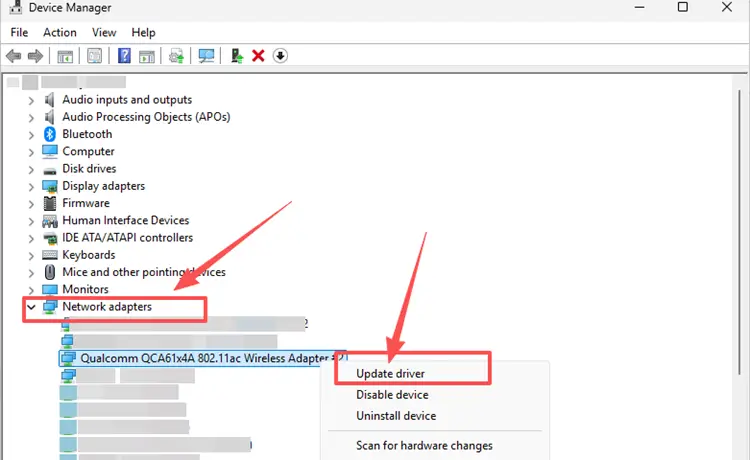
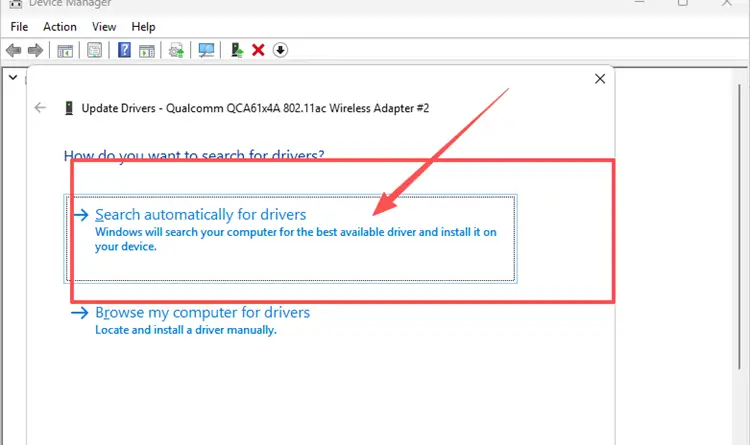
Step 3. Click Search automatically for drivers, install any available update, then restart your PC.
[Bonus] How to Improve Limbus Company Connection with LagZapper
Even when Limbus Company servers are online, packet loss, network congestion, or unstable ISP routing may still cause slow loading, repeated connection errors, and delayed server responses. If these problems continue after the basic fixes above, LagZapper can help optimize the connection route between your Windows PC and the game’s online services.
Why Use LagZapper for Limbus Company Connection Issues
- Smart Route Optimization: Automatically finds a faster and more stable network route, helping reduce packet loss, jitter, and connection instability when accessing Limbus Company online services.
- Reduce Lag & Improve Stability: Reduce game lag, slow server responses, loading delays, and repeated connection errors caused by unstable routing or network congestion.
- One-Click Boost: Optimize your Limbus Company connection in seconds with one click, without manually changing complicated router or Windows network settings.
- Support for 3,000+ Games: Use LagZapper to improve connection stability across more than 3,000 supported online games, including Fortnite, VALORANT, and Path of Exile 2.
How to Boost Limbus Company with LagZapper [Step-by-Step Guide]
Before launching Limbus Company, follow the steps below to optimize your connection route with LagZapper.
Step 1. Download and Install LagZapper
Download LagZapper for Windows and follow the on-screen instructions to complete the installation.
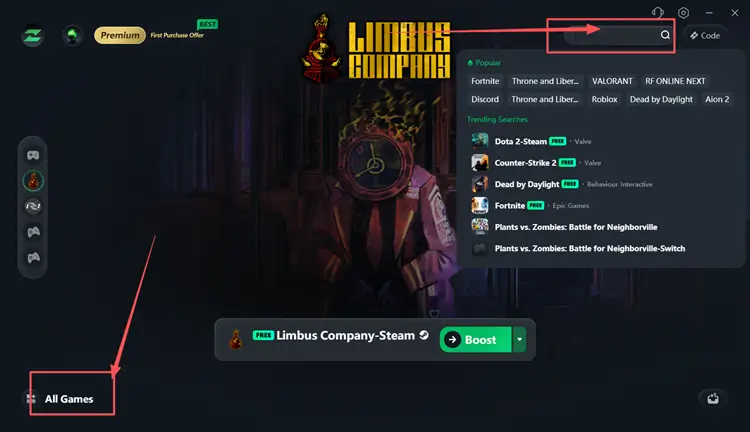
Step 2. Open LagZapper and Search for Limbus Company
Launch LagZapper, then use the search bar or supported games list to find and select Limbus Company.
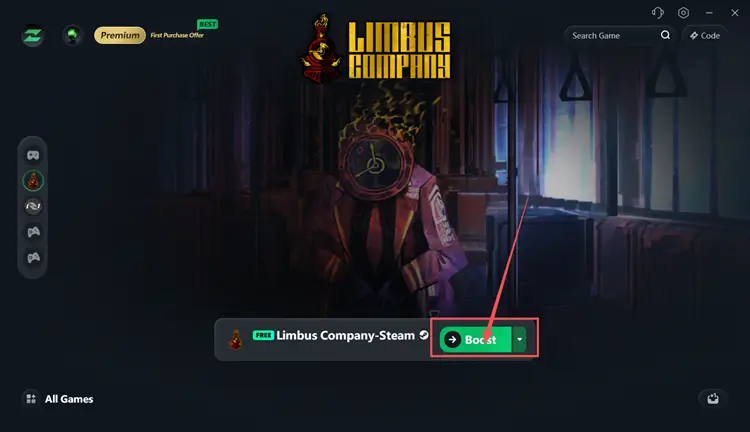
Step 3. Boost and Launch Limbus Company
Select a suitable server or node if needed, then click Boost before opening Steam and launching the game.
The Bottom Line
Limbus Company server issues may come from maintenance, heavy traffic, unstable internet, damaged files, firewall restrictions, DNS problems, or outdated network drivers. Check the official server status first, then work through the local PC and network fixes when the problem only affects your connection.
When the official services are online but unstable routing or packet loss continues, downloading LagZapper can help reduce game lag, improve loading stability, and maintain a smoother Limbus Company connection.
FAQs About Limbus Company Server Issues
Q1. Is Limbus Company Down Right Now?
Check official Steam announcements or other official channels to confirm whether a widespread server outage is happening.
Q2. Did the 9th Walpurgis Night Update Cause Server Issues?
Yes. The July 9 update caused temporary server errors after player traffic exceeded expected capacity.
Q3. Why Is Limbus Company Stuck on Connecting or Loading?
Server overload, unstable routing, damaged files, or firewall restrictions can leave the game stuck loading.
Q4. How Can I Fix Limbus Company Connection Issues?
Check server status first, then troubleshoot your network, game files, DNS, firewall, and drivers.