
Marathon Free Week High Ping? How to Fix Lag and Packet Loss
Marathon Free Week gives new players a great opportunity to experience Bungie’s PvPvE extraction shooter before purchasing the game. During Marathon Open Play Week, you can explore Tau Ceti IV, try different playstyles, gather valuable loot, fight rival squads, and extract with your gear at risk.
However, high ping, lag, packet loss, ping spikes, or random disconnects can quickly ruin the experience. In a fast-paced extraction FPS, every movement, gunfight, and extraction decision matters. Well, this guide explains why Marathon connection issues happen and how to lower ping, reduce lag, and get a more stable Marathon connection.
What Is Marathon Free Week?
Marathon Free Week, officially called Marathon Open Play Week, runs from June 2 to June 9, 2026. During this limited-time event, players can try Marathon for free at the start of Season 2, including the new Night Marsh zone, a new Runner shell, new gear, and other seasonal content. Players who purchase the game after Open Play Week can also keep their items and progression.
According to Bungie, Marathon Open Play Week opens the game to all players, making it a good time to try the PvPvE extraction shooter, invite friends, and explore the latest seasonal update. Instead of offering only a short demo, this event gives players a fuller look at Marathon’s gameplay loop, from entering runs and looting valuable items to fighting enemies, surviving tense encounters, and extracting with rewards.
Why Marathon High Ping and Lag Happen?
Marathon high ping and lag can happen for many reasons. According to Marathon Help, lag usually appears as delayed actions, slow hit registration, stuttering movement, or rubberbanding. Here are the most common causes:
1. Server Distance or Cross-Region Matchmaking
If you play Marathon on a faraway server or join friends in another region, your ping may increase. Longer data travel distance can cause delayed actions, rubber banding, and ping spikes during combat.
2. Unstable ISP Routing
Your ISP may send Marathon traffic through crowded or unstable routes, which can cause high ping, packet loss, slow loading, matchmaking issues, or disconnects.
3. Packet Loss During PvPvE Fights
Packet loss means some game data does not reach the server properly. In Marathon, this may cause delayed shooting, stuttering movement, slow item interactions, or disconnects during important runs.
4. Free Week Traffic Spike
During Marathon Free Week, many new and returning players may log in at the same time. Heavy server traffic can cause temporary lag, matchmaking delays, unstable connections, or server-side issues.
5. Local Network Problems
Marathon lag may also come from your own network setup. Unstable Wi-Fi, router problems, background downloads, firewall restrictions, or outdated DNS records can all affect connection stability.
How to Fix Marathon High Ping and Lag [6 Ways]
If Marathon feels laggy, your ping stays high, or you keep running into packet loss and disconnects, try the following ways one by one.
Way 1. Check Marathon Server Status First
Before adjusting your network settings, check the official Marathon Server and Update Status page from Bungie Help, where you can find maintenance notices, update information, and service-related announcements. Also, you can follow Bungie Server Status on X for real-time updates about server maintenance, outages, and ongoing service problems.
Way 2. Use a Wired Connection
If you are playing Marathon over Wi-Fi, switch to a wired Ethernet connection if possible. Wi-Fi can be affected by distance, walls, signal interference, router quality, and other connected devices.
A wired connection is usually more stable for online shooters. It can help reduce packet loss, ping spikes, and sudden connection drops. This is especially important in Marathon, where unstable latency can affect gunfights, movement, looting, and extraction.
Way 3. Close Background Downloads and Apps
Background apps may use bandwidth and make your Marathon connection unstable. Before launching the game, close unnecessary programs that are downloading, uploading, syncing, or streaming data.
- Close Heavy Background Processes
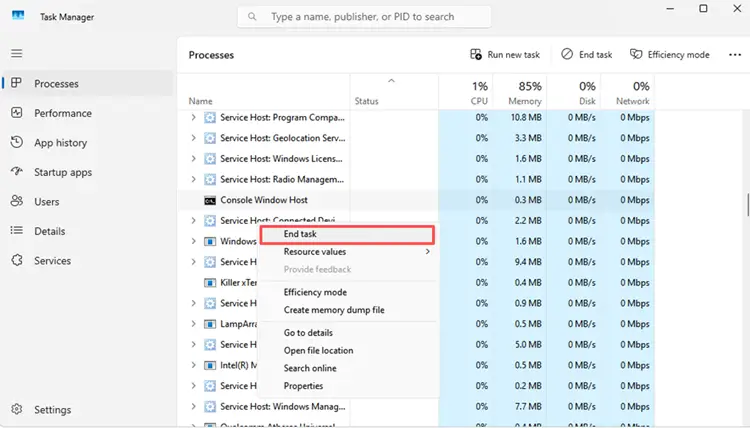
Press Ctrl + Shift + Esc to open Task Manager. In the Processes tab, check which apps are using too much network, CPU, or memory. Right-click any unnecessary program and select End task.
- Pause Downloads and Syncing
Pause active downloads from Steam, Epic Games Launcher, Battle.net, web browsers, or other game launchers. You should also pause cloud sync tools such as OneDrive, Google Drive, Dropbox, or iCloud.
Way 4. Restart Your Router and PC
Restarting your router and PC can fix temporary network issues. It helps refresh your connection, clear small routing errors, and resolve short-term local network problems. Follow these steps:
Step 1. Close Marathon and Steam, then shut down your PC.
Step 2. Turn off your router and wait for about 30 seconds. Then turn it back on and wait until the connection is fully restored.
Step 3. Restart your PC, launch Marathon again, and test your connection.
Way 5. Flush DNS on Windows
If your PC is using outdated or unstable DNS records, Marathon may not connect smoothly. Flushing DNS can refresh your local DNS cache and may help fix connection problems, login errors, or unstable routing. Follow these steps on Windows:
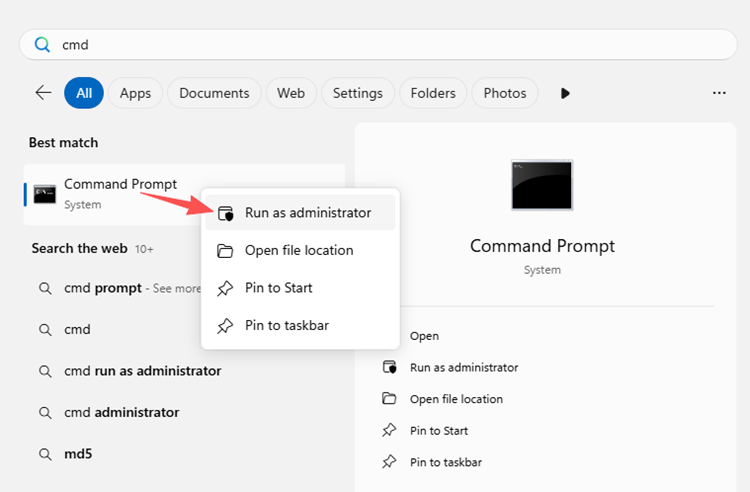
Step 1. Press Win + R, type cmd, then right-click Command Prompt and select Run as administrator.
Step 2. Type the following command and press Enter: ipconfig /flushdns
Step 3. Restart Marathon and test your connection again.
Way 6. Allow Marathon Through Firewall
Windows Firewall or third-party antivirus software may block Marathon, Steam, or related network traffic. If this happens, you may run into login errors, matchmaking problems, random disconnects, or unstable gameplay. Follow these steps to check firewall permissions on Windows:
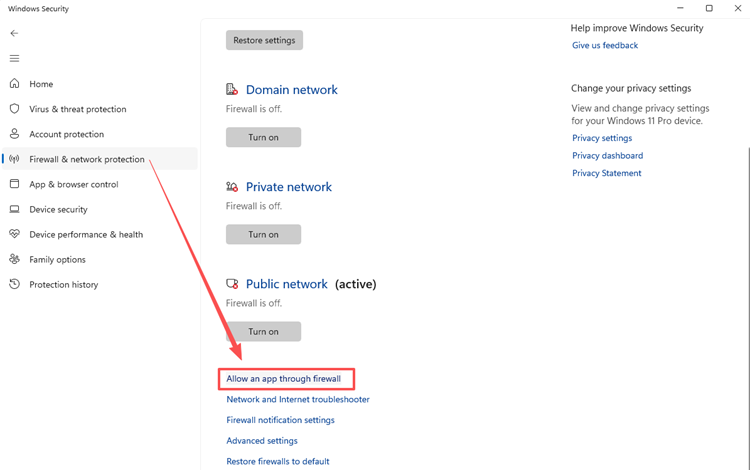
Step 1. Open Windows Security and go to Firewall & network protection.
Step 2. Click Allow an app through firewall, then find Marathon and Steam in the app list. (Make sure both apps are allowed on private networks.)
Step 3. Restart your PC, launch Marathon again, and test your connection.
If you use third-party antivirus software, check its firewall, app control, or network protection settings as well.
Quickest Way to Use LagZapper to Optimize Marathon Routing
If you are tired of checking every network setting one by one, one of the quickest and easiest ways to improve your Marathon connection is to use LagZapper - a powerful PC game booster. When your internet speed looks normal but Marathon still has high ping, packet loss, ping spikes, or random disconnects, the issue may come from poor routing instead of bandwidth. LagZapper helps optimize the route between your ISP and the Marathon server, making cross-region gameplay smoother and more stable.
Highlights of LagZapper Game Booster
- One-Click Boost for Marathon: Quickly find Marathon in LagZapper, choose a suitable server or node if needed, and optimize your connection before entering a run.
- Lower Ping in Marathon Matches: LagZapper helps optimize the route between your PC and Marathon servers, which may lower ping and improve response time during fights.
- Reduce Lag and Packet Loss During Runs: LagZapper helps reduce lag, packet loss, and ping spikes, making Marathon runs, squad fights, loot interactions, and extractions smoother.
- Smart Route Optimization for Cross-Region Play: When playing Marathon across regions, LagZapper helps route your game traffic through a more optimized path for a more stable connection.
- Support for 3,000+ Games, Including Marathon: LagZapper supports Marathon and 3,000+ online games across FPS, MMORPG, MOBA, action, and multiplayer genres.
How to Boost Marathon with LagZapper [Step-by-Step Guide]
With LagZapper, you can optimize Marathon routing, reduce high ping, improve match stability, and lower packet loss. Follow these steps to boost Marathon with LagZapper:
Step 1. Download and Install LagZapper
Download LagZapper for Windows and follow the on-screen instructions to complete the installation.
Step 2. Open LagZapper and Search for Marathon
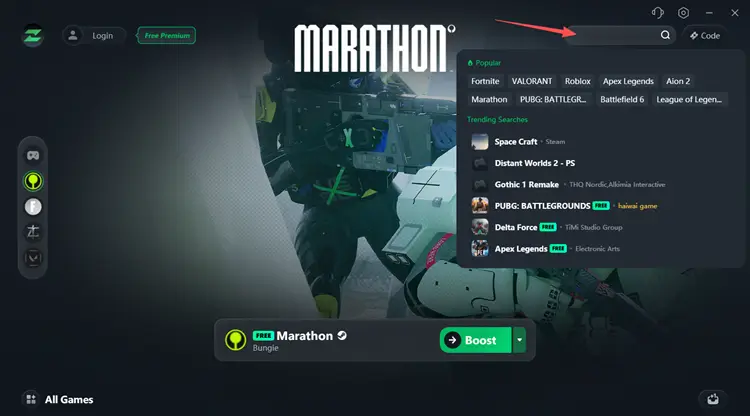
Launch LagZapper, and then use the search bar or browse the supported games list to find Marathon.
Step 3. Boost and Play Marathon
Select your preferred server or node if needed, then click Boost to boost Marathon.
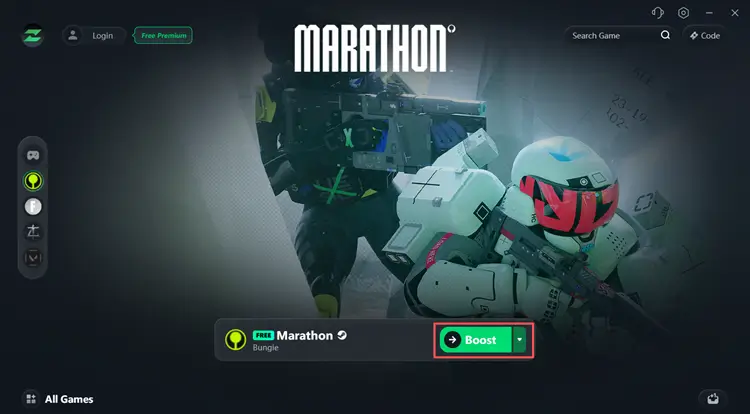
LagZapper will optimize your connection route so you can play Marathon with less lag, lower ping, and a more stable connection.
Final Thoughts
Marathon Free Week is a great opportunity to experience Bungie’s PvPvE extraction shooter, but high ping, lag, packet loss, and unstable routing can quickly make each run more difficult. Since Marathon relies on fast reactions, smooth combat, looting, and successful extraction, a stable connection is essential. Download LagZapper, boost your connection, and enjoy Marathon Free Week with lower ping, less lag, and a more stable network.