
MECCHA CHAMELEON Can’t Join Friends? How to Fix Server Issues
If MECCHA CHAMELEON can’t join friends, your friend’s server may not show up, Steam invites may fail, or the game may only display a few public rooms. This issue is often caused by version mismatch, delayed server refresh, outdated game files, private room settings, or temporary multiplayer instability. Well, this guide will show you how to fix MECCHA CHAMELEON can’t join friends issues, including server not showing, failed invites, and multiplayer connection problems.
Why You Can’t Join Friends in MECCHA CHAMELEON
MECCHA CHAMELEON is a multiplayer hide-and-seek game where players can create servers, join public matches, and play with friends. Since multiplayer depends on online lobbies, Steam invites, host-created rooms, and matching game versions, connection problems may happen when the host, other players, Steam, or the game client are not fully synced.
Common reasons include:
- Your game version is different from your friend’s version
- One player has not restarted the game after a recent update
- Steam has not fully installed or applied the latest patch
- The server list is delayed, cached, or not refreshing properly
- The private server password was entered incorrectly
- Steam invites are failing or not opening the correct lobby
- The host’s network connection is unstable
- Firewall or antivirus software is blocking multiplayer traffic
- The game servers are temporarily busy or overloaded
How to Fix “MECCHA CHAMELEON Can’t Join Friends”
Can’t join friends in MECCHA CHAMELEON? Learn how to fix server not showing, invites not working, and multiplayer not working issues.
Fix 1. Restart MECCHA CHAMELEON
First, restart MECCHA CHAMELEON instead of only leaving the lobby or returning to the main menu. Close the game completely, wait a few seconds, and launch it again from Steam. Ask your friend to do the same, then create a new server and check whether the room appears in the server browser. This simple step is especially useful when MECCHA CHAMELEON can’t join friends after a recent update.
Fix 2. Make Sure Everyone Has Updated the Game
A version mismatch is one of the most common reasons why MECCHA CHAMELEON servers do not show up. If the host has updated the game but your friend has not, both players may see different server lists. This can make it impossible to find or join the same room. To check for updates:
Step 1. Launch Steam on your PC and go to the Library tab, where your installed games are listed.
Step 2. Right-click MECCHA CHAMELEON in your Steam Library, select Properties, and open the Updates tab.
Step 3. Make sure automatic updates are enabled. Restart Steam and check whether an update starts.
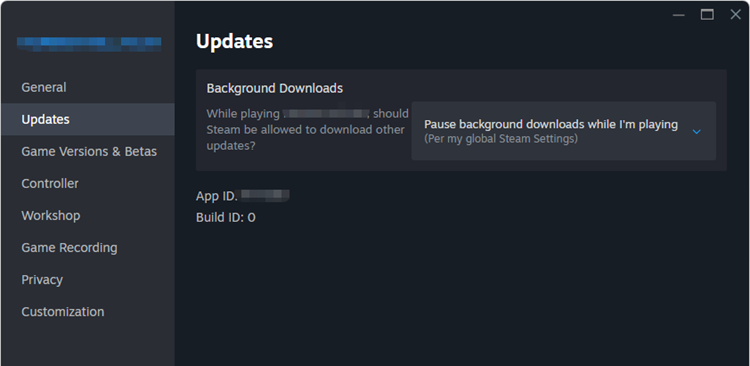
After the update is installed, all players should restart the game before trying to join the same server again.
Fix 3. Restart Steam
Steam may not apply game updates right away. If MECCHA CHAMELEON multiplayer is not working, fully close Steam and launch it again. Make sure Steam is not just minimized to the system tray. Right-click the Steam icon, select Exit, and then reopen Steam. After restarting Steam, go to your Library, check MECCHA CHAMELEON, and see whether a new update starts downloading.
Fix 4. Recreate the Server
If your friend still cannot find your server, ask the host to close the current room and create a new one. For private matches, try using a simple password first. Avoid spaces, special characters, or very long passwords while testing, as this can help rule out password matching issues. After the server is recreated, ask your friend to refresh the server list a few times and check whether the room appears.
Fix 5. Let Another Player Host the Room
MECCHA CHAMELEON’s room connection may depend on the host’s network environment. If your server does not appear or your friends keep failing to join, ask another player to create the lobby instead. Choose the player with the most stable internet connection as the host. For multiplayer hosting, a wired connection is usually more reliable than Wi-Fi.
Fix 6. Use a Fresh Lobby
Old lobbies may become stuck, outdated, or invalid after the host changes room settings, leaves the lobby, restarts the game, or reconnects to Steam. In this case, the invite link or Steam invite may still look usable, but it may no longer connect your friend to the correct room.
Ask the host to close the current lobby completely and create a new room from scratch. After the new room is created, send a fresh invite to your friend and ask them to join through the latest invitation.
Fix 7. Check the Password
If you are joining a private server in MECCHA CHAMELEON, make sure the password is entered exactly as the host set it. Even a small difference can prevent your friend from finding or joining the room.
Pay close attention to uppercase and lowercase letters, extra spaces before or after the password, and similar-looking characters such as 0 and O or 1 and l. Special symbols may also cause confusion if players type them differently.
Fix 8. Enable Steam Overlay
Steam invites may not work correctly if Steam Overlay is disabled. If you click an invite but nothing happens, or if the Join Game option does not open MECCHA CHAMELEON properly, check whether Steam Overlay is turned on. Follow the simple steps:
Step 1. Open Steam > Click Steam in the top-left corner and select Settings.
Step 2. Go to the In Game tab > Turn on Enable the Steam Overlay while in-game.
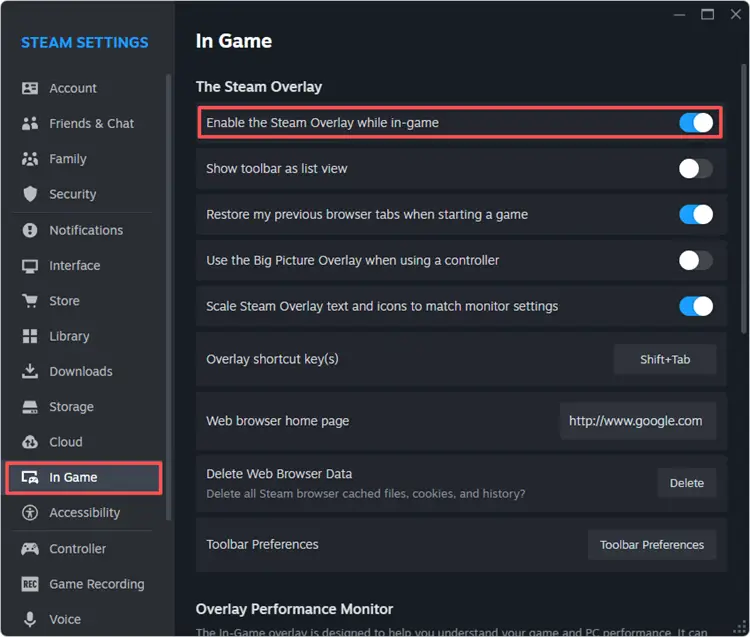
Step 3. Restart Steam to apply the change > Launch MECCHA CHAMELEON again.
After that, ask your friend to send a new Steam invite. Accept the invite through Steam Friends or the Steam Overlay, then check whether you can join the room successfully.
Fix 9. Check Firewall and Antivirus Settings
If MECCHA CHAMELEON still can’t join friends after restarting or updating the game, Windows Firewall or antivirus software may be blocking its multiplayer connection.
Step 1. Open Windows Security > Go to Firewall & network protection.
Step 2. Click Allow an app through firewall > Make sure Steam and MECCHA CHAMELEON are allowed.
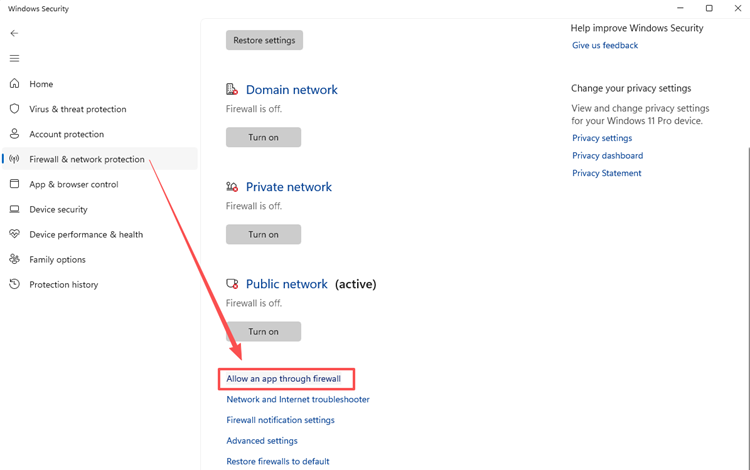
Step 3. Enable both Private and Public network access for Steam and MECCHA CHAMELEON.
Step 4. Restart Steam > Launch MECCHA CHAMELEON again.
If you use third-party antivirus software, open its settings and check whether Steam or MECCHA CHAMELEON has been blocked. Add them to the allowlist if needed, then try joining your friend’s room again.
Fix 10. Improve Your Network Connection
A weak or unstable network may cause failed joins, missing servers, or sudden disconnects in MECCHA CHAMELEON. Restart your router, use a wired Ethernet connection if possible, close downloads or cloud sync apps, and avoid unstable VPNs. You can also ask the player with the best connection to host or test another network. If the server appears and disappears repeatedly, the host’s connection may be unstable.
Reduce MECCHA CHAMELEON Lag and Stabilize Multiplayer with LagZapper
After fixing basic server, invite, and update issues, you may still experience lag, high ping, packet loss, delayed actions, or unstable multiplayer sessions in MECCHA CHAMELEON. In this case, the problem may be related to your connection route instead of the game lobby itself.
LagZapper is a PC game booster that helps optimize supported online game connections, reduce lag, lower ping, reduce packet loss, and stabilize the route between your PC and game servers.
How to Use LagZapper to Reduce MECCHA CHAMELEON Lag
Step 1. Download and Install LagZapper
Download LagZapper for Windows, and then follow the on-screen instructions to complete the installation.
Step 2. Open LagZapper and Sign In
Launch LagZapper and sign in to start optimizing your connection for online games.
Step 3. Search for MECCHA CHAMELEON
Search for MECCHA CHAMELEON or browse the supported games list to find the game.
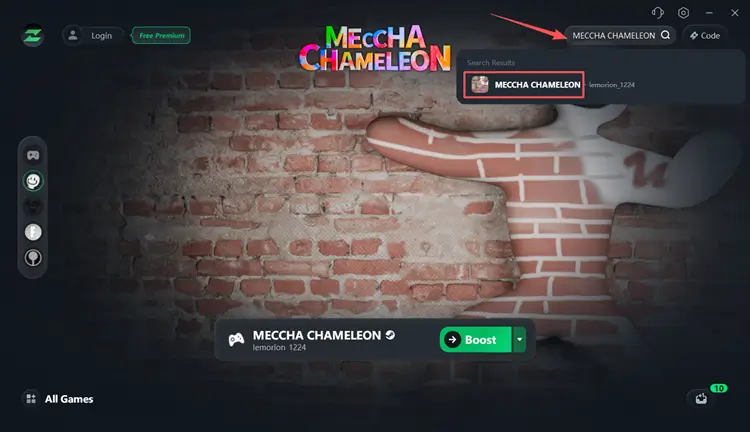
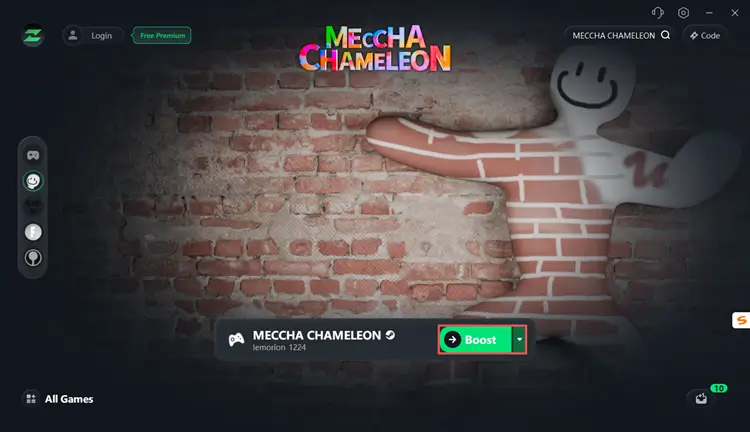
Step 4. Boost and Play MECCHA CHAMELEON
Select your preferred server or node, then click Boost to optimize your connection and play with less lag.
Final Words
MECCHA CHAMELEON can’t join friends issues may happen when servers do not show up, Steam invites fail, game versions do not match, or lobby sessions get stuck. Start with the basic fixes first: restart the game, restart Steam, update MECCHA CHAMELEON, and recreate the server.
If you can see the server but still cannot join, check the private room settings, Steam Overlay, firewall permissions, and network connection. If you can join but still experience lag, high ping, packet loss, or unstable gameplay, downloading LagZapper may help optimize your connection and make online matches smoother.
FAQ
Q1: Why is my MECCHA CHAMELEON server not showing?
Your server may not show if the browser has not refreshed, the game version differs, the lobby is stuck, or the host connection is unstable.
Q2: How do I fix MECCHA CHAMELEON invites not working?
Restart Steam, enable Steam Overlay, set your status to Online, recreate the lobby, and ask your friend to send a fresh invite.
Q3: Why does MECCHA CHAMELEON multiplayer stop working after an update?
After an update, some players may still run an older version. Restart Steam, update MECCHA CHAMELEON, and make sure everyone uses the same version.
Q4: Why can’t my friend join my MECCHA CHAMELEON server?
Your friend may have a different game version, an expired invite, blocked network settings, or a server list that has not refreshed properly.
Q5: Can LagZapper fix MECCHA CHAMELEON server issues?
LagZapper cannot fix game bugs or server outages, but it may help reduce lag, packet loss, and unstable routes during multiplayer sessions.