
How to Fix Mistfall Hunter High Ping and OCE Server Lag
Mistfall Hunter is a third-person dark fantasy PvPvE extraction ARPG developed by Bellring Games. Mistfall Hunter high ping can appear as delayed actions, rubberbanding, packet loss, or sudden lag spikes during matches. For players in Australia, New Zealand, and other parts of Oceania, the problem may be linked to the lack of a dedicated local server rather than simply the speed of their home internet connection.
This guide will explain the current OCE server situation, the main causes of Mistfall Hunter high ping, and practical fixes you can try to improve connection stability.
Why Is Mistfall Hunter Ping So High?
Mistfall Hunter high ping can result from regional server limitations or problems along the connection path, so understanding the cause is essential before applying the right fix.
Long-Distance and Inefficient ISP Routing
When OCE players connect to overseas infrastructure, extra distance and inefficient ISP routing can add network hops, latency, and unstable ping.
Regional Server Load and Congestion
High player activity and congested international routes can delay OCE traffic, causing temporary ping spikes, packet loss, and slower in-game responses during peak hours.
Unstable Wi-Fi and Background Bandwidth Usage
Weak Wi-Fi signals, wireless interference, downloads, cloud syncing, and streaming can consume local bandwidth, making an already distant OCE connection less stable.
Does Mistfall Hunter Have an Australia or OCE Server?
Mistfall Hunter does not currently list a dedicated server in Australia, New Zealand, or another OCE location. Its official launch server deployments are instead located across five countries, leaving Oceania without nearby local infrastructure.
Current Mistfall Hunter Server Locations
The table below summarizes Mistfall Hunter’s officially announced server regions and their corresponding deployment locations at launch.
| Server Region | Official Server Location |
|---|---|
| China | China |
| North America | United States |
| Europe | Germany |
| Asia-Pacific | Singapore |
| South America | Brazil |
How the Current Server Setup Affects OCE Players
Because Mistfall Hunter has no listed server infrastructure in Australia, New Zealand, or elsewhere in Oceania, players in these regions may face higher baseline latency when connecting to overseas servers. Bellring Games has not confirmed which deployment serves OCE players, so actual ping may vary by location, ISP, and network route.
How to Fix Mistfall Hunter High Ping – 6 Useful Fixes
The following fixes help identify server-side or regional connection problems and reduce local network issues that may add extra latency, packet loss, or instability.
Fix 1. Check Mistfall Hunter Server Status and Regional Access
High ping is not always caused by your home network. Before changing router or Windows settings, confirm whether Mistfall Hunter is under maintenance, experiencing a widespread service problem, or affected by regional server load. Local troubleshooting cannot resolve an official outage or server-side disruption.
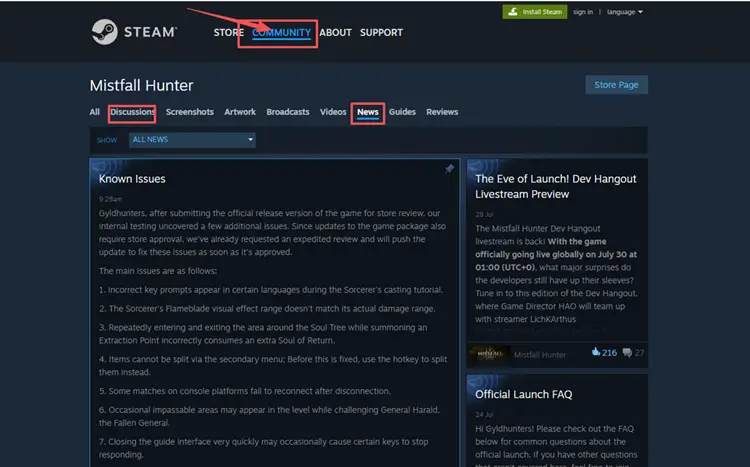
Check the official Steam announcements and community reports for maintenance notices, login failures, or similar complaints from other OCE players. If many players are affected simultaneously, wait for an official update before trying local fixes. If no widespread problem appears, continue with the network checks below.
Fix 2. Restart Your Router and Modem
Your router or modem may worsen Mistfall Hunter high ping when the local connection becomes unstable or the equipment has been running for an extended period. Restarting both devices can refresh the connection and may reduce temporary ping spikes or packet loss. Turn off your modem and router, wait 30–60 seconds, then power them back on. Once the internet connection is fully restored, launch Mistfall Hunter and test your ping again.
Fix 3. Switch to a Wired Ethernet Connection
Wi-Fi can worsen Mistfall Hunter high ping when signals are weak, congested, or blocked by walls. A wired Ethernet connection usually provides a more stable local link and may reduce packet loss, ping spikes, and rubberbanding during combat and extraction. Connect your PC directly to the router with an Ethernet cable, then relaunch Mistfall Hunter and test the connection again.
Fix 4. Close Background Downloads and Network-Heavy Apps
Cloud syncing, video streaming, browser downloads, voice chat apps, and Steam updates can continue using bandwidth while you play. When these tasks run during a match, Mistfall Hunter ping may become less stable, especially for OCE players already affected by overseas routing. Follow the steps below to close unnecessary background activity:
Step 1. Press Ctrl + Shift + Esc to open Task Manager.
Step 2. In Processes, check the Network column for apps using the most bandwidth.
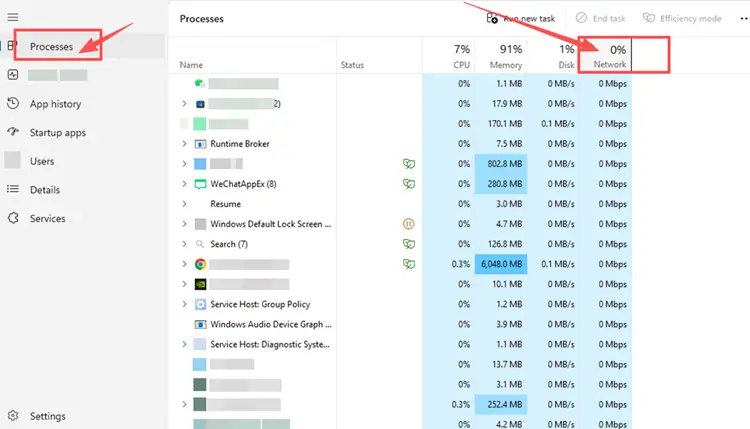
Step 3. End only non-essential tasks, then pause downloads on Steam and other launchers.
Fix 5. Reset the Windows Network Stack
If Mistfall Hunter remains unstable after basic network checks, corrupted Winsock, TCP/IP, IP address, or DNS settings may be affecting your local connection. Resetting the Windows network stack refreshes these components, although it cannot fix server congestion, ISP routing, or missing OCE infrastructure. Follow the steps below to reset the network stack through Command Prompt.
Step 1. Type cmd in the Windows search box, right-click Command Prompt, and select Run as administrator.
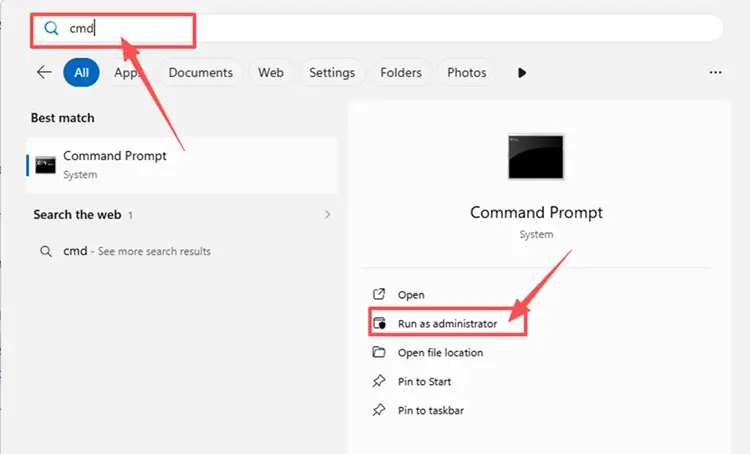
Step 2. Run the following commands one at a time:
- netsh winsock reset
- netsh int ip reset
- ipconfig /release
- ipconfig /renew
- ipconfig /flushdns
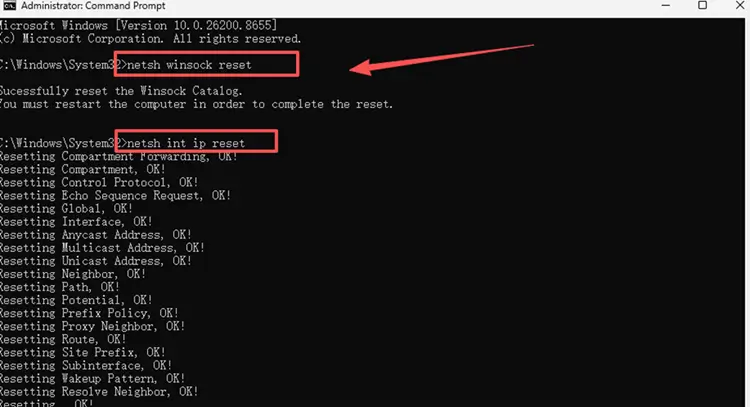
Step 3. Restart your PC, reconnect to the internet, and test Mistfall Hunter again.
Fix 6. Update Your Network Adapter Driver
An outdated or corrupted network adapter driver may cause unstable Wi-Fi, random disconnects, or packet loss, making Mistfall Hunter lag feel worse. If the connection remains unstable after basic checks, update the driver to improve local network stability. However, this cannot fix overseas server distance, regional outages, or ISP routing problems.
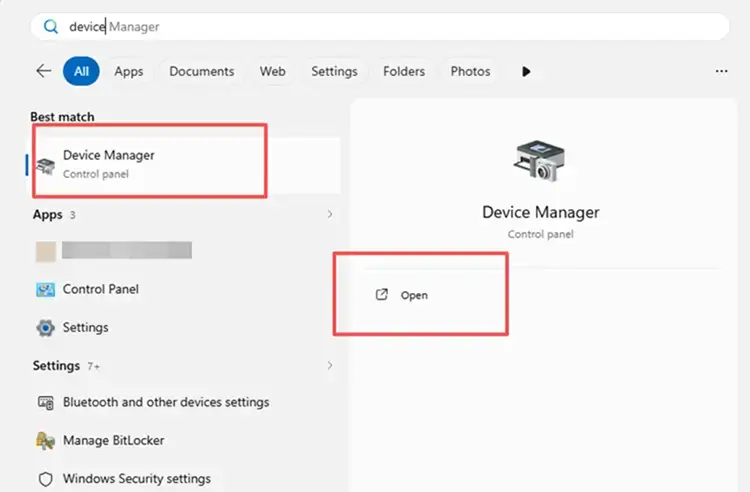
Step 1. Open Device Manager through the Windows search bar.
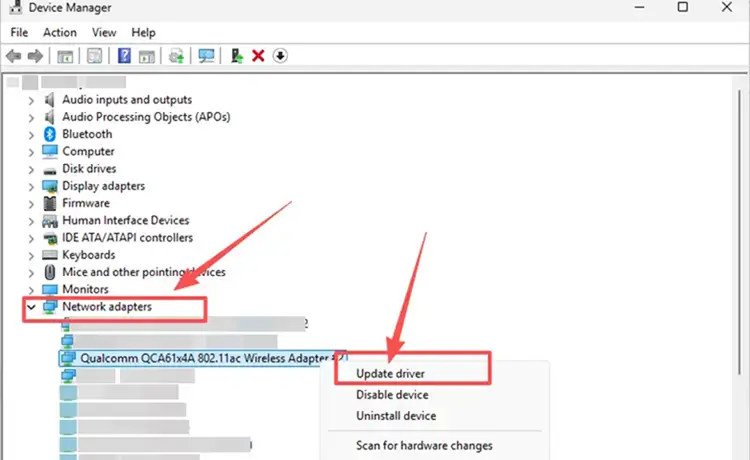
Step 2. Expand Network adapters, right-click your active Wi-Fi or Ethernet adapter, and select Update driver.
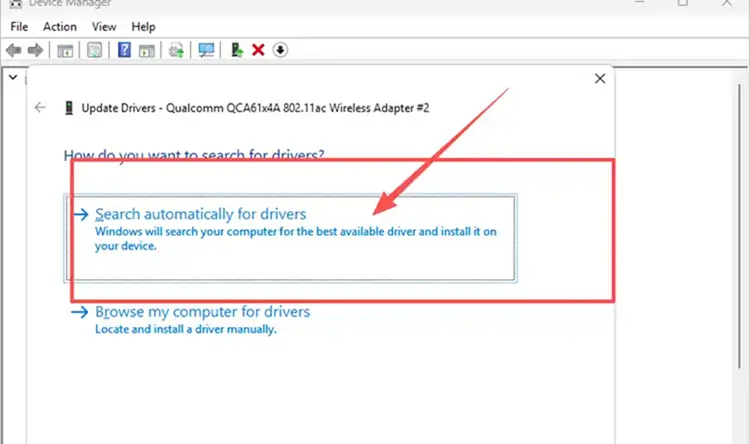
Step 3. Select Search automatically for drivers and install any available update. Restart your PC before testing Mistfall Hunter again.
[Bonus] How to Reduce Mistfall Hunter High Ping with LagZapper
Mistfall Hunter depends on a stable connection for real-time PvPvE combat and extraction. For OCE players connecting to overseas infrastructure, inefficient ISP routing may add extra delay even when their home internet appears fast and stable. If local fixes do not resolve high ping or unstable routing, download LagZapper to reduce game lag and packet loss while helping lower ping spikes.
Tip: LagZapper is an official boosting partner for Mistfall Hunter. Learn more about the LagZapper × Mistfall Hunter collaboration.
Why Use LagZapper for Mistfall Hunter?
- Smart Route Optimization: Automatically finds a faster and more stable route for Mistfall Hunter, helping reduce high ping, packet loss, jitter, and unstable server connections.
- Reduce Lag & Improve Stability: Helps lower ping, reduce game lag, minimize random disconnects, and improve connection stability during combat and extraction.
- One-Click Boost: Optimize your connection in seconds with one click. No complicated setup or manual network adjustments are required before you start playing.
- Support for 3,000+ Games: Use LagZapper to improve connection stability across 3,000+ online games, including Fortnite, VALORANT, and other popular multiplayer games.
How to Boost Mistfall Hunter with LagZapper
Follow the steps below to optimize the Mistfall Hunter connection before entering your next expedition.
Step 1. Download and Install LagZapper
Download LagZapper for Windows and follow the on-screen instructions to complete the installation.
Step 2. Open LagZapper and Search for Mistfall Hunter
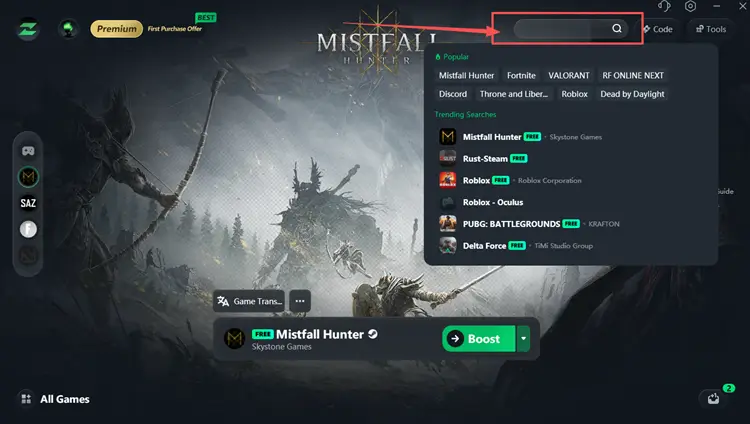
Launch LagZapper, then use the search bar or browse the supported games list to find Mistfall Hunter.
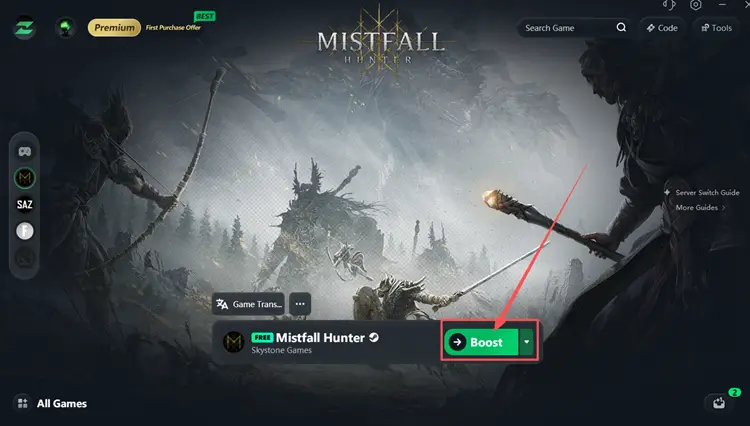
Step 3. Select a Server or Recommended Node and Boost
Select a server or recommended node in LagZapper, then click Boost before launching Mistfall Hunter.
The Bottom Line
Mistfall Hunter high ping in Australia and OCE may result from overseas server distance, inefficient ISP routing, congestion, or local connection instability. Start by checking the server status, then restart your network, use Ethernet, close background downloads, and repair Windows network settings where necessary. When servers are online but routing remains unstable, download LagZapper to optimize your Mistfall Hunter connection route.
FAQs About Mistfall Hunter High Ping and OCE Servers
Q1. What causes Mistfall Hunter high ping?
Server distance, inefficient routing, congestion, Wi-Fi interference, and background downloads can all increase latency.
Q2. Why is Mistfall Hunter high ping in Australia and OCE?
Australia and New Zealand lack local servers, so traffic travels overseas and may encounter longer routes or congestion.
Q3. Is Mistfall Hunter down, or is the problem local?
Check official announcements and community reports; widespread complaints may indicate maintenance, outages, or regional server problems.
Q4. Why does Mistfall Hunter lag despite fast internet?
Download speed does not determine latency; distance, routing, congestion, jitter, and packet loss can still cause Mistfall Hunter lag.
Q5. How can I fix Mistfall Hunter high ping?
Check server status, restart your network, use Ethernet, close downloads, reset Windows networking, and update adapter drivers.