
Mistfall Hunter Server Queue Stuck? Fix Login Queue Issues
Mistfall Hunter launched globally on July 30, 2026, at 01:00 UTC, and players quickly began reporting login queue problems. A Reddit discussion includes queues starting above 400 or 1,000, with some positions later freezing at 14, 7, 3, or 2. Steam General Discussions also showed a launch-day thread titled “Queue stuck at 2 or?” shortly after release.
Because some players eventually connected, current evidence points to heavy server traffic or delayed queue updates. This guide explains why the Mistfall Hunter queue gets stuck, and what to do when the server queue is not moving.
Why Is the Mistfall Hunter Server Queue Stuck?
A Mistfall Hunter queue stuck problem usually has one of these causes:
1. Heavy Launch Traffic
Mistfall Hunter launched without preload, so many players began downloading and logging in at the same time. This can slow the authentication service even when the game servers remain online.
2. Delayed Queue Updates
The queue may still be processing even when the displayed position does not refresh. Some players remain at a low number before entering suddenly.
3. Temporary Server Instability
Overloaded services can cause frozen queue positions, login timeouts, connection errors, or returns to the title screen.
4. Regional Server Load
Traffic may vary by server region, causing different queue times for different players.
5. Unstable Network Connection
Packet loss, weak Wi-Fi, or background downloads can interrupt communication with the login server.
6. Broken Login Session
Repeatedly leaving the queue, switching networks, or losing connection during authentication may leave the current session unresponsive.
How to Fix Mistfall Hunter Server Queue Stuck - 6 Useful Fixes
Try the following fixes in order. If your queue position is still decreasing, do not restart the game immediately.
Fix 1. Wait Before Leaving the Queue
Remain on the queue screen if the number changes occasionally. Launch-day queues may update slowly or pause at one position before moving again, so a queue that appears unchanged for several minutes is not necessarily frozen.
Restart Mistfall Hunter only when:
- The queue position has not moved for an extended period.
- A login or connection error appears.
- Your internet connection was interrupted.
- The game client stops responding.
- Other players are entering while your position remains unchanged.
Avoid repeatedly reopening the game. Reddit users reported being moved from position 10 to 18, or from 13 to 416, after leaving and rejoining.
Fix 2. Check the Official Server Status
Check the following sources for recent server updates and similar player reports:
- The official Mistfall Hunter Discord
- Mistfall Hunter Steam announcements and discussions
- Recent social media and Reddit reports
If many players report stuck queues, login errors, or disconnections at the same time, the issue is likely server-side. Wait for an official update instead of reinstalling the game or repeatedly resetting your network.
Fix 3. Restart Mistfall Hunter Once
If the queue has stopped or the client appears disconnected:
Step 1. Close Mistfall Hunter and wait 30–60 seconds for the process to end.
Step 2. Restart Steam, launch the game, and rejoin the queue once.
Avoid repeated restarts, as they may reset your progress or move you farther back in the queue. Restart only when the queue is clearly no longer updating.
Fix 4. Restart Steam Completely
A stale Steam authentication session may interfere with the login process.
Step 1. Close Mistfall Hunter, then select Steam > Exit and wait for Steam to close completely.
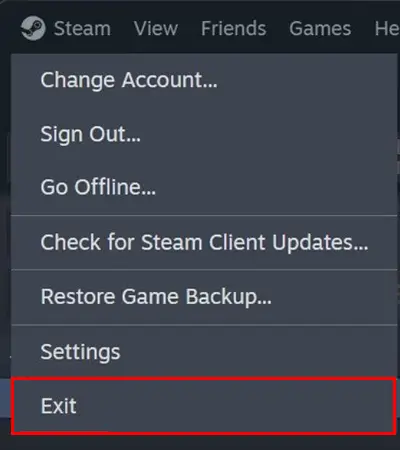
Step 2. Reopen Steam and launch Mistfall Hunter again.
Do not rely only on the window close button, as Steam may continue running in the system tray.
Fix 5. Stabilize Your Internet Connection
A temporary connection interruption may cause the queue to stop updating or return you to the login screen. Try the following:
- Restart your router.
- Use wired Ethernet instead of Wi-Fi.
- Move closer to the router.
- Pause other Steam updates.
- Stop cloud backups and large downloads.
- Close video streams.
- Avoid unstable mobile hotspots.
A stable connection matters more than high download speed while waiting in the login queue. Steam also recommends pausing or limiting downloads when they affect game connectivity.
Fix 6. Verify Mistfall Hunter Game Files
Verify the game files if Mistfall Hunter crashes during login, returns to the login screen, or fails to reconnect.
Step 1. Open Steam > Library, right-click Mistfall Hunter, and select Properties.
Step 2. Open Installed Files and click Verify integrity of game files.
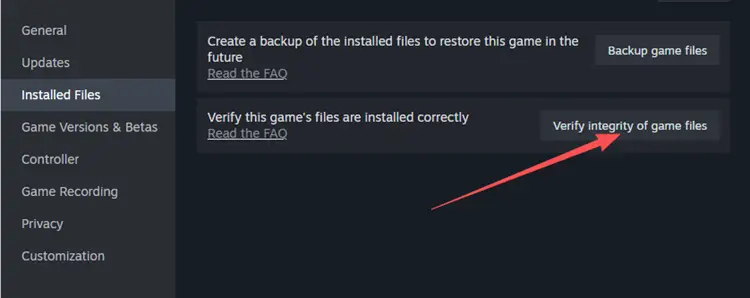
Step 3. Wait for the scan to finish, then restart the game.
Tip: Do not reinstall the entire game unless Steam repeatedly detects corrupted files or the client cannot launch.
How to Reduce Mistfall Hunter Connection Instability
A game booster cannot remove an official login queue or repair an overloaded game server. However, after you enter the game, route optimization may help when an inefficient network path causes high ping, packet loss, or connection instability.
As Mistfall Hunter’s official boosting partner, LagZapper helps Windows PC players optimize their connection route to supported game servers. During the official LagZapper × Mistfall Hunter collaboration, all players can boost Mistfall Hunter for free.
LagZapper Highlights for Mistfall Hunter
- Optimizes routes to supported Mistfall Hunter servers
- Helps lower ping when a better route is available
- Reduces packet loss caused by inefficient routing
- Improves connection stability during combat and extraction
- Supports cross-region connection optimization
How to Boost Mistfall Hunter with LagZapper
Follow this step-by-step guide to optimize your Mistfall Hunter connection with LagZapper before entering the game.
Step 1. Download and Install LagZapper
Download LagZapper for Windows and complete the installation.
Step 2. Open LagZapper and Find Mistfall Hunter
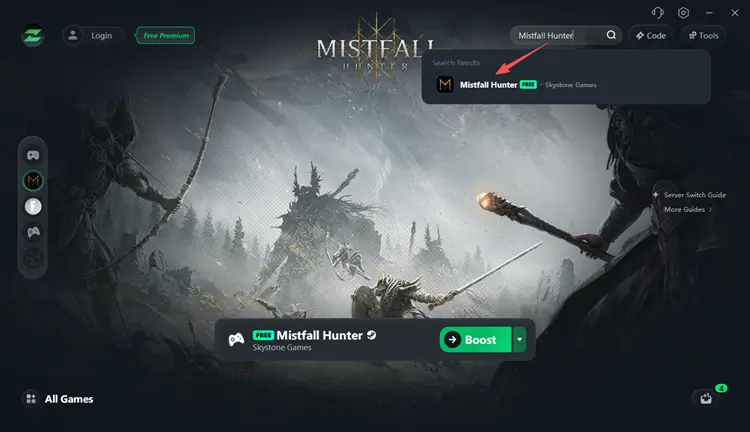
Launch LagZapper, sign in, search for Mistfall Hunter, and select it from the supported games list.
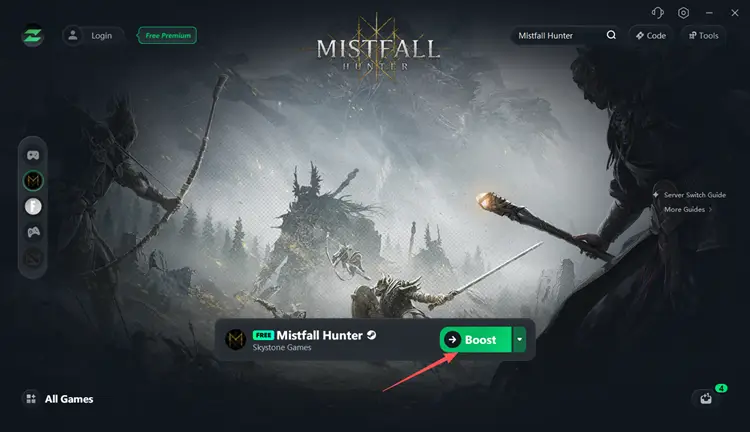
Step 3. Select a Server, Boost, and Play
Choose a server or recommended node, click Boost, and then launch Mistfall Hunter.
In addition to Mistfall Hunter, LagZapper supports 3,000+ games, including Fortnite, Palworld, VALORANT, and many other popular online games.
The Bottom Line
A Mistfall Hunter server queue stuck at a low position does not always mean the servers are down. Current Reddit reports show that some queues move slowly or stop updating, while other players enter after waiting.
If the queue is still moving, stay in it. If it remains frozen, restart the game once, verify the files, and stabilize your connection. After logging in, download LagZapper for Windows to optimize your connection route and help reduce high ping, packet loss, and instability when a better route is available.
Mistfall Hunter Server Queue FAQ
Q1. Why is there a queue in Mistfall Hunter?
The queue limits simultaneous logins when server traffic is high. Launch-day demand or regional congestion may increase the waiting time.
Q2. Is Mistfall Hunter down right now?
There is currently no confirmed global outage. However, some players are reporting login queues that move slowly or stop updating.
Q3. Why is my Mistfall Hunter queue stuck at 2?
The queue display may be delayed, the login service may be overloaded, or your session may have temporarily lost its connection.
Q4. Should I restart Mistfall Hunter when the queue is stuck?
Restart only if the position has not moved for a long time or a connection error appears. Restarting may reset your queue position.
Q5. Can I skip the Mistfall Hunter server queue?
No official way can skip the login queue. Avoid third-party services claiming to provide priority access or guaranteed queue bypasses.
Q6. Can LagZapper fix the Mistfall Hunter server queue?
LagZapper cannot remove an official queue or fix an offline server. When the servers are online, it may help reduce lag caused by packet loss or inefficient routing.