
NBA 2K27 Early Access Not Working? 8 Fixes for Server & Launch Errors
NBA 2K27 Early Access has started, but some eligible players may still have trouble getting into the game or using its online features. The game may remain locked after the unlock time, fail to connect to 2K servers, require an online connection for MyCAREER, or show connection errors and repeated disconnects when players try to access online modes.
This guide will explain the common causes of NBA 2K27 Early Access Not Working and provide eight practical fixes for server, unlock, and launch errors.
Which NBA 2K27 Editions Include Early Access?
NBA 2K27 Early Access began on August 26, 2026, at 9:00 AM PT, giving eligible players up to nine days of play before the September 4 release. Because eligibility also depends on the platform, confirm both your edition and platform below before troubleshooting a locked game.
- Standard Edition: No Early Access; available on PS5, Xbox Series X|S, Steam, and Nintendo Switch 2.
- Deluxe Edition: Early Access on PS5, Xbox Series X|S, and Steam.
- Ultra Edition: Early Access on PS5, Xbox Series X|S, and Steam.
Why Is NBA 2K27 Early Access Not Working?
NBA 2K27 Early Access problems can appear in several ways, from a locked game to online or launch errors. Check the table below for a quick diagnosis.
| Symptom | Likely Cause | First Fix to Try |
|---|---|---|
| Early Access still locked | Edition, platform, or license issue | Confirm edition & restart platform |
| MyCAREER says online is required | 2K server connection issue | Check server status |
| Server unavailable after ToS | Unverified 2K email | Verify your 2K account |
| EFEAB30C or 4B538E50 | Latest game data missing | Finish the latest update |
| Online modes keep disconnecting | Network or routing issue | Test another network |
| NBA 2K27 won’t launch on Steam | Damaged game files | Verify game files |
How to Fix NBA 2K27 Early Access Not Working - 8 Useful Fixes
If your symptom matches one in the table above, start with the recommended First Fix to Try. Otherwise, follow the fixes below in order until the issue is resolved.
Fix 1. Check NBA 2K27 Server Status
Before changing any network settings, check the official NBA 2K Server Status first. During Early Access, heavy player traffic or temporary service issues may affect logins and online modes such as MyCAREER, MyTEAM, and The City. If the status page shows a widespread outage or many players are reporting the same issue, wait and try again later instead of reinstalling the game.
Fix 2. Fully Restart NBA 2K27 and Your Platform
A failed launch or connection attempt may leave NBA 2K27 or your platform stuck in an old session. Fully restarting the game and platform can clear lingering processes and force a fresh license or server check. Use the steps for your platform below.
For Steam players
Step 1. Fully close NBA 2K27, then select Steam > Exit to close the client completely.
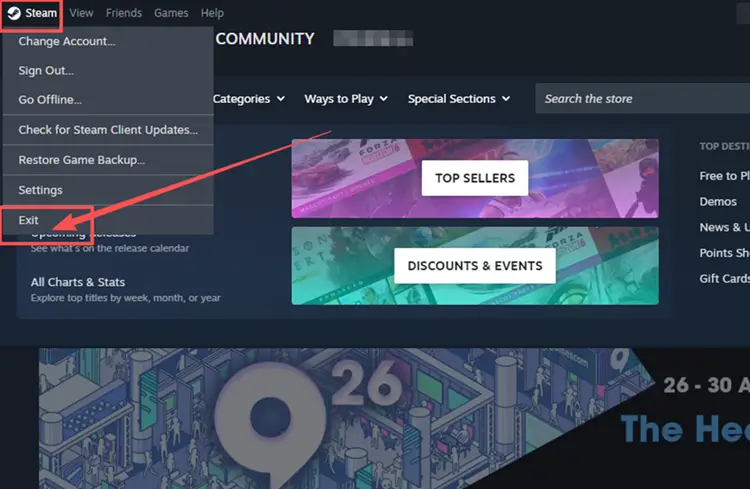
Step 2. Open Task Manager and end any remaining Steam or NBA 2K27 processes.
Step 3. Reopen Steam and launch NBA 2K27 again.
For PS5 / Xbox Series X|S players
Fully quit NBA 2K27 and restart the console instead of leaving the game suspended. If NBA 2K27 is still locked on PS5, open Settings > Users and Accounts > Other > Restore Licenses, then relaunch the game.
Fix 3. Install the Latest NBA 2K27 Update and Sync Game Data
Install any pending NBA 2K27 or platform updates before reconnecting. If you see EFEAB30C or 4B538E50, the latest NBA 2K data may still be downloading. Try playing a couple of Play Now games and wait for the update prompt, then return to the main menu so the new data can be applied.
Fix 4. Verify Your NBA 2K Account Email
Use this fix specifically if “The 2K Sports Server is not available at this time” appears after you try to accept the NBA 2K Terms of Service. According to 2K, this can happen when the email address connected to your NBA 2K account has not been verified. Sign in to NBA2K.com with your platform ID, complete the email verification, restart NBA 2K27, and accept the terms again.
Fix 5. Restart Your Router and Test Another Network
Temporary router or local network issues can cause NBA 2K27 connection errors or repeated disconnects even when 2K servers are online. Turn off your router and modem for about 60 seconds, then reconnect and try again. If the issue continues, test Ethernet, another Wi-Fi network, or a mobile hotspot. If another network works, your original connection is more likely involved.
Fix 6. Change DNS and Flush the DNS Cache
For Steam players on Windows, a stale DNS cache or unreliable DNS resolver may interfere with NBA 2K27 online connections. 2K recommends trying Google Public DNS, while flushing the cache removes stored DNS entries. Follow the steps below:
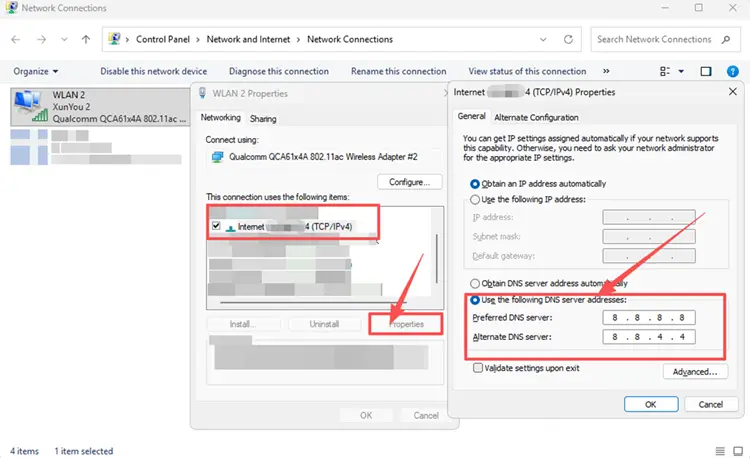
Step 1. Press Windows + R, enter ncpa.cpl, and open your active connection’s Properties > Internet Protocol Version 4 (TCP/IPv4).
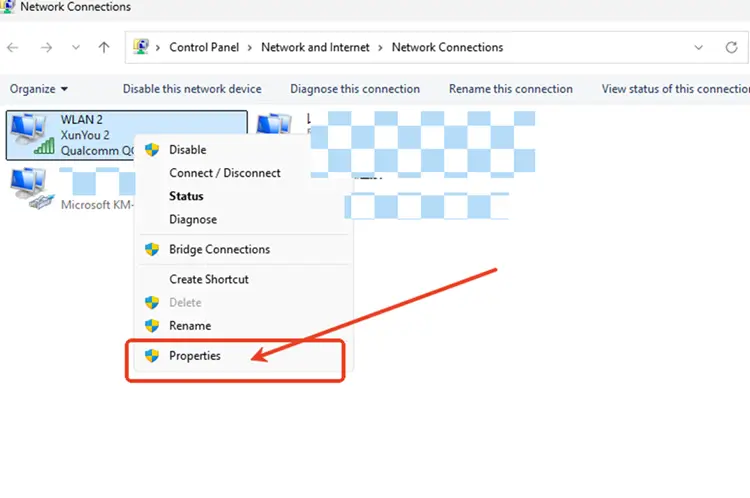
Step 2. Select Use the following DNS server addresses, enter 8.8.8.8 and 8.8.4.4, then save the changes.
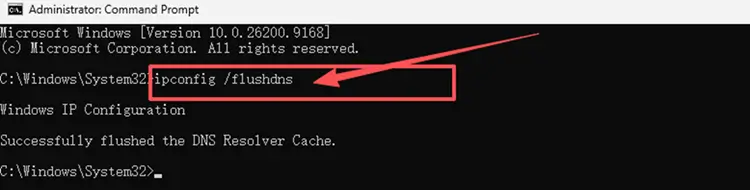
Step 3. Open Command Prompt as administrator, run ipconfig /flushdns, then restart NBA 2K27.
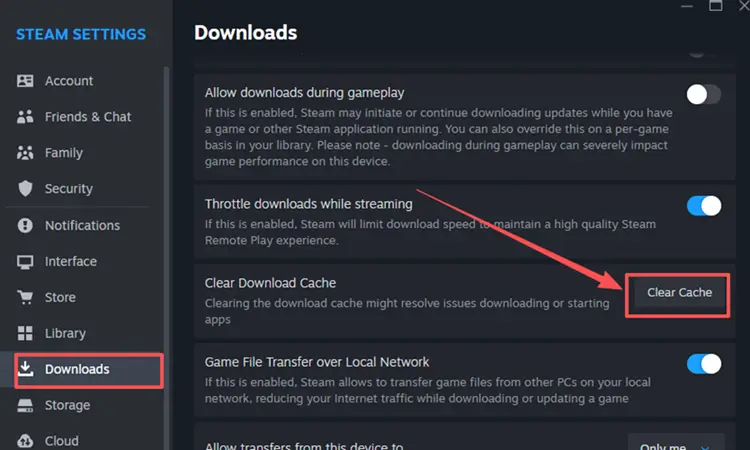
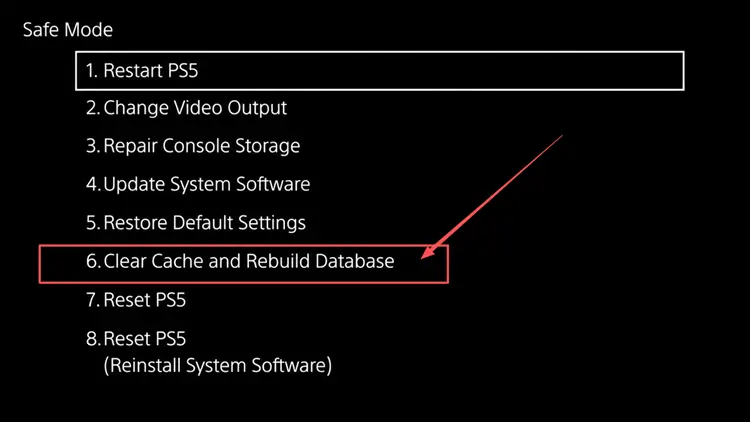
Fix 7. Clear the Steam or Console Cache
Cached platform data can sometimes interfere with game updates or normal launches. Clearing the relevant cache gives Steam or your console a fresh start without reinstalling NBA 2K27. Use the method for your platform below:
For Steam Players
Open Steam > Settings > Downloads > Clear Download Cache, confirm the reset, then sign back in after Steam restarts.
For PS5 Players
Turn off the console, hold the power button until the second beep, connect the controller by USB, then select Clear Cache and Rebuild Database > Clear System Software Cache.
For Xbox Series X|S players
Quit NBA 2K27 and remove it from My games & apps > Quick Resume. Then hold the console power button for about 10 seconds to fully shut it down before restarting.
Fix 8. Verify NBA 2K27 Game Files on Steam
Missing or corrupted NBA 2K27 files can prevent the game from launching properly on Steam, especially after an interrupted download or update. Steam can scan the local installation and replace files that are missing or damaged. Follow the steps below to verify the game files:
Step 1. Open Steam > Library, right-click NBA 2K27, and select Properties.
Step 2. Go to Installed Files and click Verify integrity of game files.
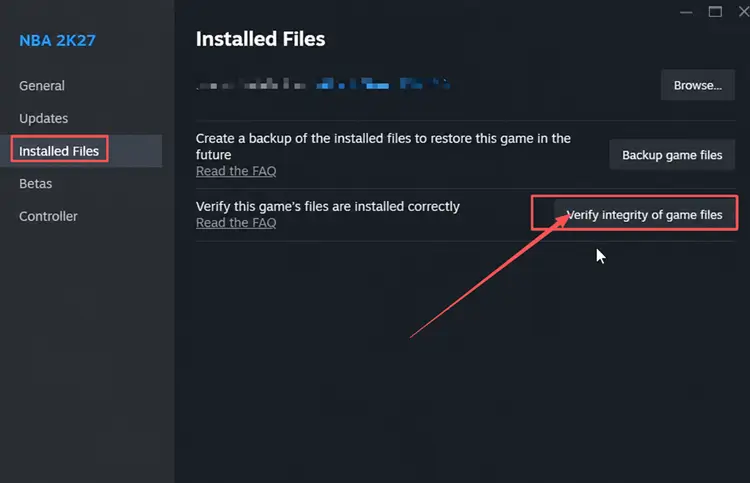
Step 3. Wait for Steam to repair the files, then restart Steam and launch NBA 2K27.
[Bonus] Improve NBA 2K27 Connection Stability with LagZapper
NBA 2K27 relies on a stable connection for MyCAREER, MyTEAM, The City, and other online modes. If the servers are online but high ping, packet loss, lag spikes, or unstable routing still affect your experience, LagZapper can optimize the connection route and help improve stability before you enter online play.
Why Use LagZapper for NBA 2K27?
LagZapper can help NBA 2K27 players:
- Smart Route Optimization: Finds a faster and more stable route for NBA 2K27 to help reduce high ping, packet loss, jitter, and unstable connections.
- Reduce Lag & Improve Stability: Helps lower ping, reduce game lag, minimize lag spikes, and improve responsiveness during NBA 2K27 online play.
- One-Click Boost: Optimizes the NBA 2K27 connection without manually changing complicated network, DNS, or router settings.
- Support for 3,000+ Games: Supports NBA 2K27 and thousands of other popular online games.
#1. How to Boost NBA 2K27 with LagZapper on PC
Follow the steps below to optimize your NBA 2K27 connection before entering MyCAREER, MyTEAM, The City, or other online modes.
Step 1. Download and Install LagZapper
Download LagZapper for Windows and follow the on-screen instructions to complete the installation on your PC.
Step 2. Open LagZapper and Search for NBA 2K27
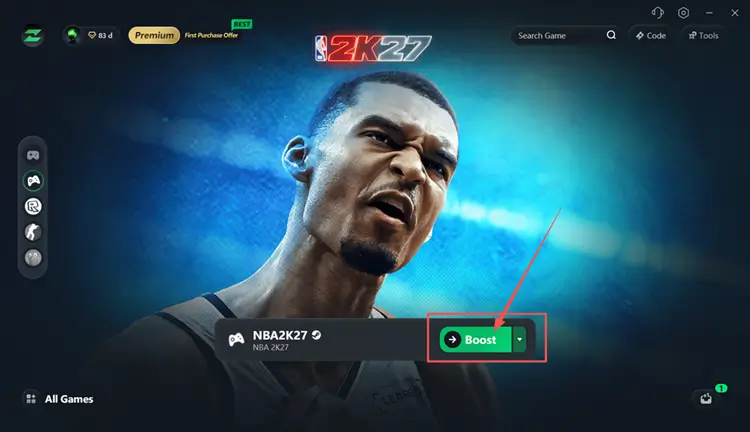
Launch LagZapper, sign in, and search for NBA 2K27 in the supported games list.
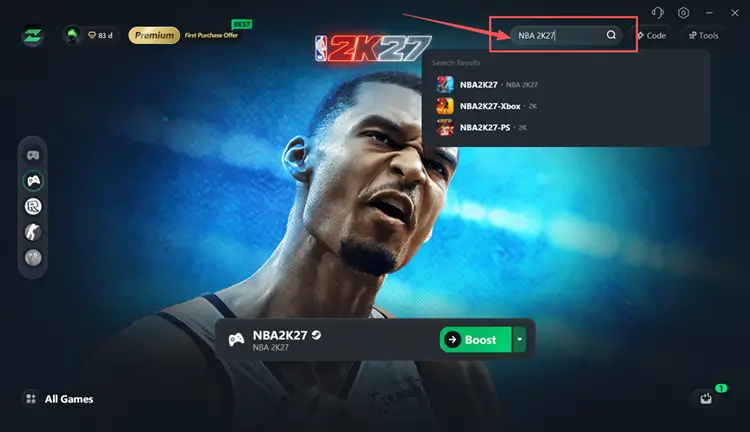
Step 3. Select a Node and Boost
Choose a suitable server or node, click Boost, then launch NBA 2K27 through Steam.
#2. How to Boost NBA 2K27 with LagZapper on PS5 or Xbox
Console players can also prepare an optimized route through LagZapper. Keep LagZapper running on your PC and follow the setup instructions for your console.
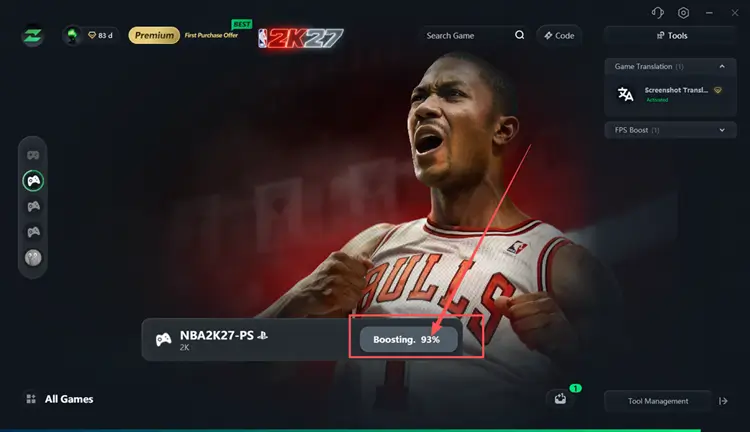
Step 1. Search for NBA2K27-Xbox or NBA2K27-PS
Search for NBA2K27-Xbox or NBA2K27-PS, then select the version that matches your console.
Step 2. Select a Node and Boost
Choose a suitable server or recommended node, then click Boost to prepare the optimized route.
Step 3. Complete the Console Network Setup
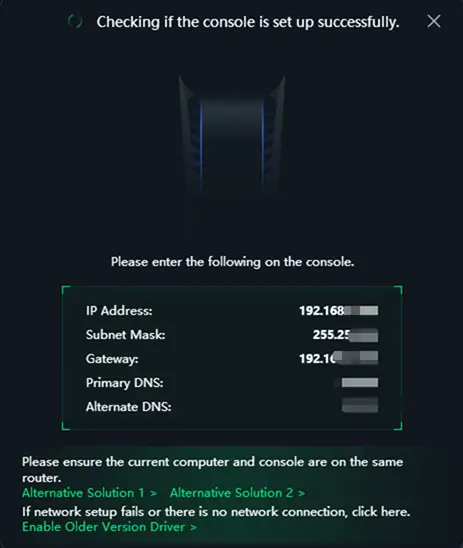
Click Network Settings in LagZapper and follow the on-screen instructions to complete the required network setup on your PS5 or Xbox.
The Bottom Line
NBA 2K27 Early Access not working can result from server issues, outdated game data, account verification, network problems, cache, or damaged Steam files. Start with the server status and the fix that best matches your symptom, then continue through the remaining checks if needed. For unstable online connections, download LagZapper to optimize NBA 2K27 routing and improve connection stability.
FAQs About NBA 2K27 Early Access Not Working
Q1. Why Is NBA 2K27 Early Access Not Working?
Server issues, outdated data, account verification, network problems, or platform errors may prevent Early Access from working.
Q2. Why Can’t NBA 2K27 Connect to Servers?
NBA 2K27 may fail to connect because of server outages, local network problems, DNS, or unstable routing.
Q3. Are NBA 2K27 Servers Down During Early Access?
Check the official NBA 2K27 server status before changing local network or game settings.
Q4. How Do I Fix an NBA 2K27 Connection Error?
Restart your router, test another network, change DNS, clear cache, and check NBA 2K27 server status.