
Overwatch Servers Down? Check Status and Try 6 Useful Fixes
Are Overwatch servers down? You may be unable to log in, see an Overwatch server connection failed message, fail to enter a match, or lose connection midway through a game. However, Overwatch disconnecting does not always indicate a Blizzard-wide outage, since client updates, regional service issues, or an unstable local connection can cause similar symptoms.
This guide will show you how to check Overwatch server status, distinguish a Blizzard outage from a local connection problem, and fix connection failures when the servers are online.
Why Are Overwatch Servers Not Working?
Overwatch connection problems can result from server maintenance, heavy login traffic, client version mismatches, or an unstable local network. Check the table below to identify the likely cause.
| Symptom | Possible Causes | What to Check First |
|---|---|---|
| Stuck on “Connecting” or in a login queue | Maintenance, authentication service disruption, or heavy login traffic | Current outage reports and maintenance notices |
| “Game Server Connection Failed... Retrying” | Server disruption, pending game update, or local connection failure | Outage reports and pending Overwatch updates |
| Match found but fails to load | Incomplete game files, client version mismatch, or an unstable connection route | Game updates, file integrity, and connection stability |
| Disconnected during a match | Packet loss, Wi-Fi interference, ISP routing, or server interruption | Local network stability and current outage reports |
| LC-208 on console | Console network issue, Battle.net account-link problem, or service disruption | Console network test, account link, and outage reports |
Before Fixes: Are Overwatch Servers Down Right Now?
Before troubleshooting, check Downdetector’s Overwatch page for increases in outage, login, or server connection reports. You can also check other social media channels for similar reports from players in your region or on your platform. If the same issue is widely reported, Overwatch may be experiencing a broader disruption, but the fixes below can still rule out local connection problems.
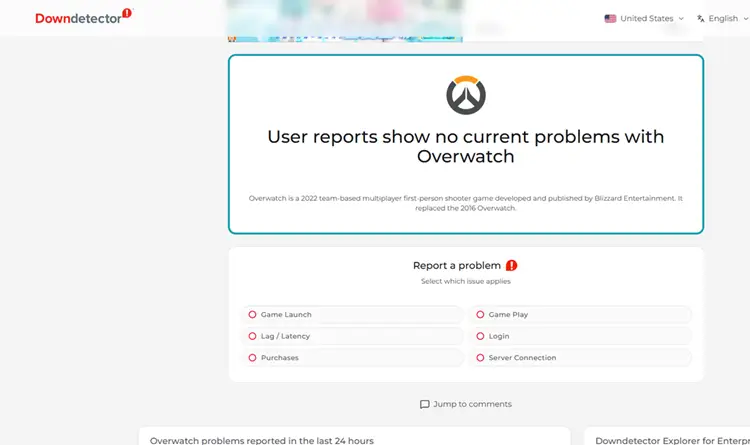
How to Fix Overwatch Server Connection Issues - 6 Useful Fixes
After checking the server status, try these six fixes in order, moving from quick restarts to game-file, home-network, and Windows configuration checks.
Fix 1. Fully Restart Overwatch and Your Launcher or Console
Stalled launcher processes can keep Overwatch from reconnecting. On PC, fully close the game and exit Battle.net or Steam. End related processes still running in Task Manager, or restart the PC to clear them.
On a console, perform a full restart instead of leaving Overwatch suspended or using sleep mode. Once the device starts again, launch the game from its official platform and test the connection.
Fix 2. Update Overwatch and Repair Files
An outdated Overwatch client may fail to authenticate or enter matchmaking after a patch, while incomplete files can prevent maps from loading correctly. Install every pending update first, and use a repair tool only if the connection problem continues. Follow the steps below to update Overwatch and repair its files on PC.
👉 Update and Repair Overwatch on Battle.net
Step 1. Select Overwatch and install any pending update.
Step 2. If the error remains, open the menu beside Play and select Scan and Repair.
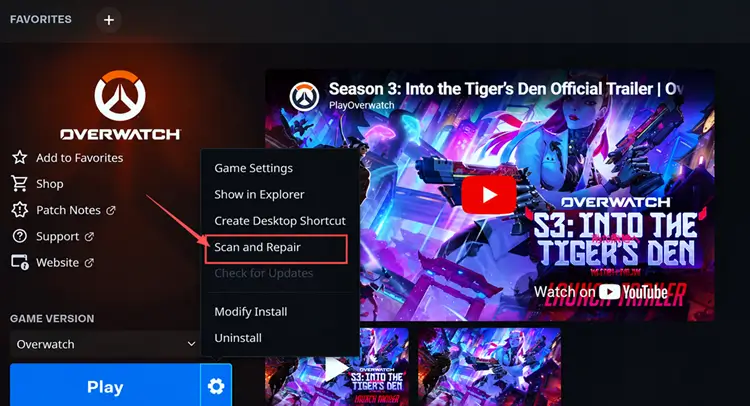
👉 Update and Verify Overwatch Files on Steam
Step 1. Install any pending Overwatch update from Steam Downloads.
Step 2. If the error remains, open Properties > Installed Files and select Verify integrity of game files.
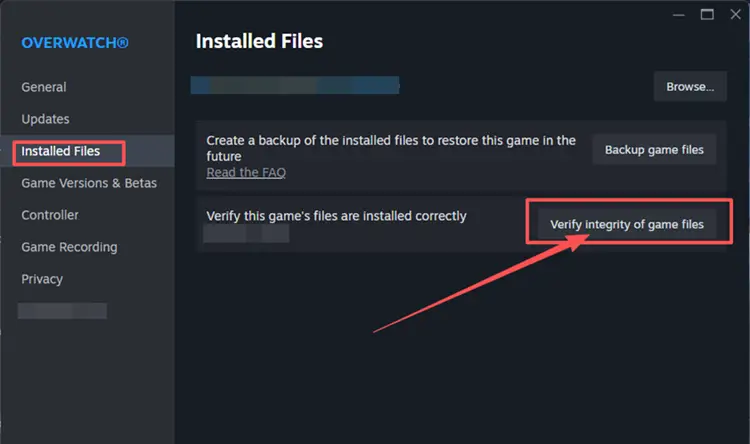
Fix 3. Reset the Router and Stabilize Your Connection
Local network congestion, Wi-Fi interference, or background bandwidth use can cause Overwatch to disconnect even when ordinary websites still load. Unplug your modem and router for about 60 seconds, reconnect the modem first, then reconnect the router once the modem is online.
If possible, connect your device directly to the router with an Ethernet cable to reduce Wi-Fi instability. Pause game downloads, cloud syncing, video streaming, and other bandwidth-heavy activity before testing Overwatch. This reduces wireless fluctuations and local traffic competing with the game.
Fix 4. Reset the Windows Network Stack
If Overwatch still cannot connect, damaged Winsock or TCP/IP settings, an invalid IP configuration, or stale DNS data may be interfering. Follow the steps below to reset the Windows network stack.
Step 1. Search for Command Prompt and select Run as administrator.
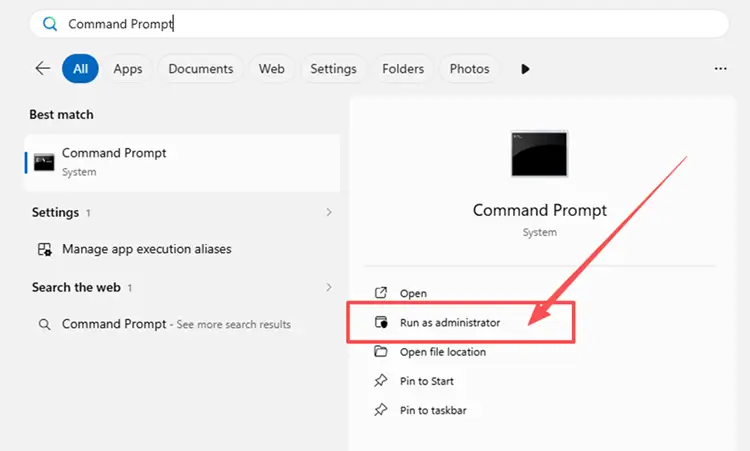
Step 2. Run these commands in order, pressing Enter after each:
- netsh winsock reset
- netsh int ip reset
- ipconfig /release
- ipconfig /renew
- ipconfig /flushdns
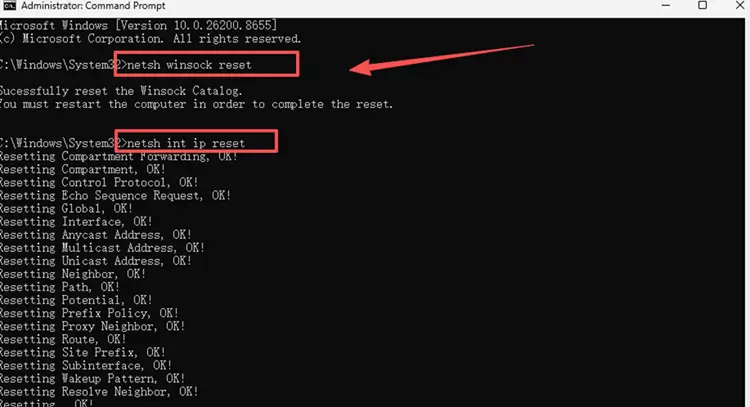
Step 3. Restart the PC, reopen your launcher, and test Overwatch again.
Fix 5. Update Your Network Adapter Driver
Outdated network adapter drivers can contribute to Overwatch disconnects and unstable connections. Use Device Manager to check your active Wi-Fi or Ethernet adapter for an available update. Follow the steps below.
Step 1. Open Device Manager through the Windows search bar.
Step 2. Expand Network adapters, right-click your active Wi-Fi or Ethernet adapter, and select Update driver.
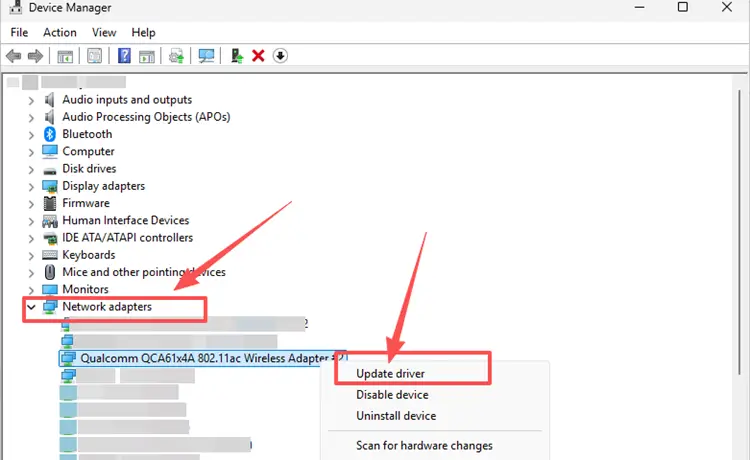
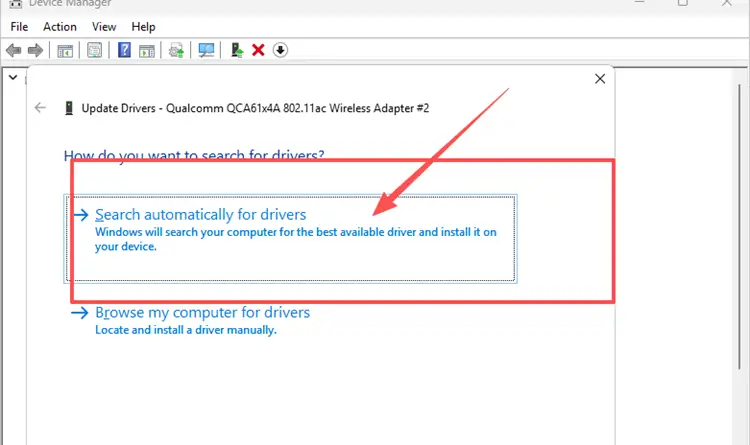
Step 3. Select Search automatically for drivers and install any available update. Restart your PC before testing Overwatch again.
Fix 6. Allow Overwatch Through Windows Firewall
Windows Firewall may block Overwatch or its launcher while other online apps still work. Add both to the allowed apps list instead of disabling the firewall. Follow the steps below.
Step 1. Open Windows Security > Firewall & network protection > Allow an app through firewall.
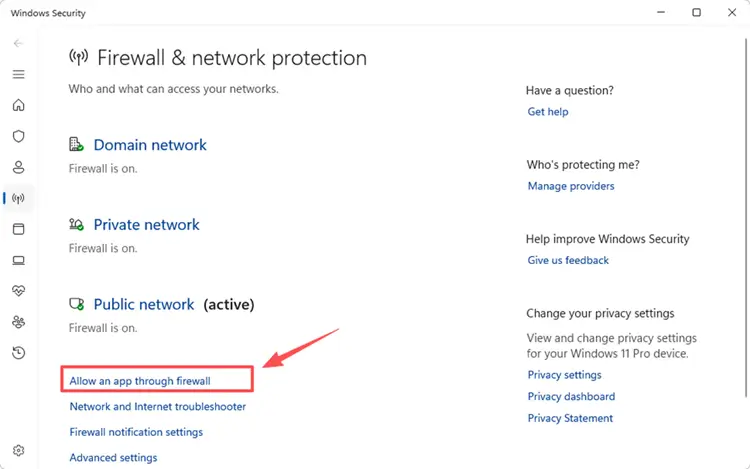
Step 2. Click Change settings. If either program is missing, select Allow another app and browse to its executable.
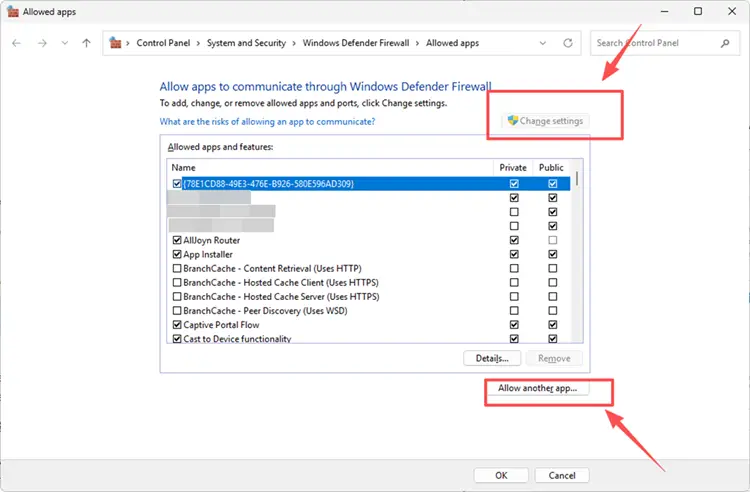
Step 3. Enable the active network type for both programs, click OK, then restart the launcher and test Overwatch.
[Bonus] Improve Your Overwatch Connection with LagZapper
Overwatch depends on a stable connection for login, matchmaking, and fast-paced team fights. Even when Blizzard services are online, inefficient ISP routing may cause high ping, packet loss, or unexpected disconnects. If the remaining problem points to an unstable network path, download LagZapper to reduce game lag and help lower ping by optimizing the connection route.
Why Use LagZapper for Overwatch Connection Issues?
- Smart Route Optimization: Finds a stable route to help lower ping, packet loss, jitter, and routing problems.
- Connection Stability: Helps reduce game lag and limit sudden latency changes during login, matchmaking, and team fights.
- One-Click Boost: Optimizes the connection without manual router, DNS, or Windows changes.
- 3,000+ Game Support: Works with Overwatch and thousands of other online games.
How to Improve Overwatch Connection with LagZapper
Follow the three steps below to optimize the Overwatch connection before starting your next match.
Step 1. Download and Install LagZapper
Download LagZapper for Windows and follow the on-screen instructions to complete the installation.
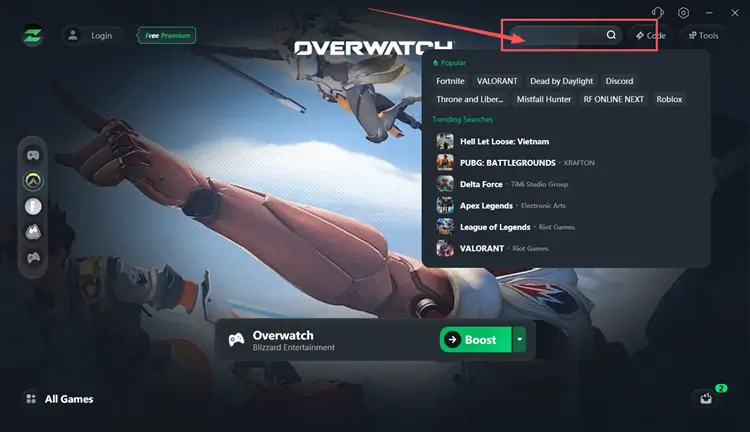
Step 2. Search for Overwatch
Open LagZapper, sign in to your account, then use the search bar or supported games list to find Overwatch.
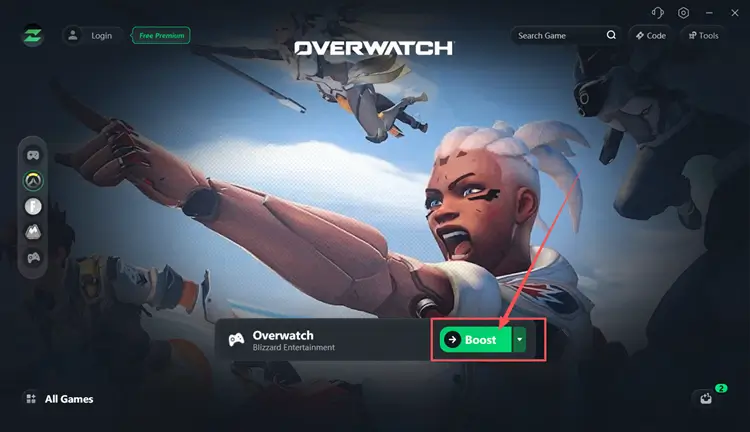
Step 3. Select a Server and Click Boost
Select a suitable server or recommended node, then click Boost before launching Overwatch.
The Bottom Line
Overwatch server problems may result from Blizzard outages, maintenance, stalled launcher processes, outdated files, local network instability, firewall restrictions, or inefficient ISP routing. Check the server status first, then work through the local fixes in order when Blizzard services are online. If the game reconnects but high ping, packet loss, or routing instability remains, download LagZapper to optimize the Overwatch connection route.
FAQs About Overwatch Servers Down
Q1. Why are Overwatch servers down?
Maintenance, authentication failures, unexpected outages, or heavy login traffic can temporarily interrupt Overwatch services.
Q2. Why does Overwatch say “Game Server Connection Failed… Retrying”?
It may indicate a Blizzard service issue, outdated game files, or a disrupted local connection.
Q3. How do I fix Overwatch server connection failed?
Check server status, restart the game and network, update Overwatch, then repair files if needed.
Q4. Can outdated Overwatch files cause connection errors?
Yes. A version mismatch or incomplete patch may interrupt authentication, matchmaking, or map loading.
Q5. Why is Overwatch not connecting when servers are online?
Check launcher processes, game updates, firewall permissions, DNS data, router stability, and your ISP route.