
Palworld Connection Timed Out? Fix Failed to Connect & Server Errors
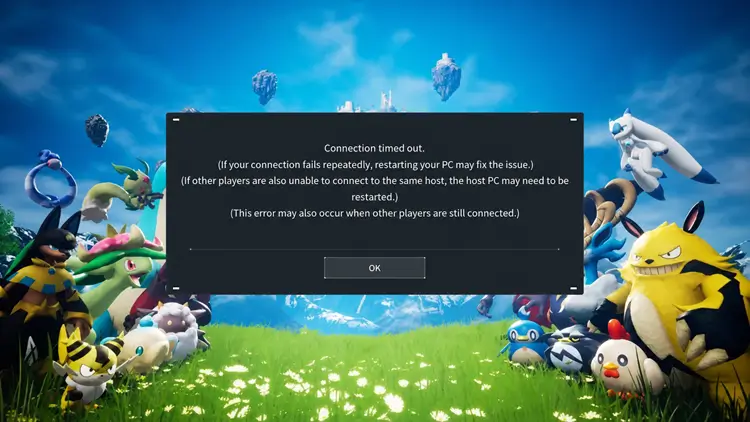
Trying to join a Palworld multiplayer world but seeing a “Connection Timed Out,” message? The Palworld connection timed out error can occur when joining a friend’s world, official server, community server, or dedicated server. No matter where the error appears, this post will explain why the Palworld connection timed out error happens and show you how to fix Palworld failed to connect issues with six practical fixes.
Why Does Palworld Say Connection Timed Out?
The Palworld connection timed out error means the game could not establish or maintain a connection with the multiplayer host before the request expired. Some of the most common causes include:
- Palworld servers are temporarily unavailable or under maintenance
- The host’s multiplayer world has stopped responding
- Your game version does not match the server version
- The dedicated server was not restarted after an update
- Windows Firewall or security software is blocking Palworld
- Your connection has high ping, packet loss, or unstable routing
How to Fix Palworld Connection Timed Out
The best fix depends on whether the issue is caused by Palworld’s servers, the host, a version mismatch, or your network connection. Try the fixes below in order and reconnect after each one.
Fix 1. Check the Palworld Server Status
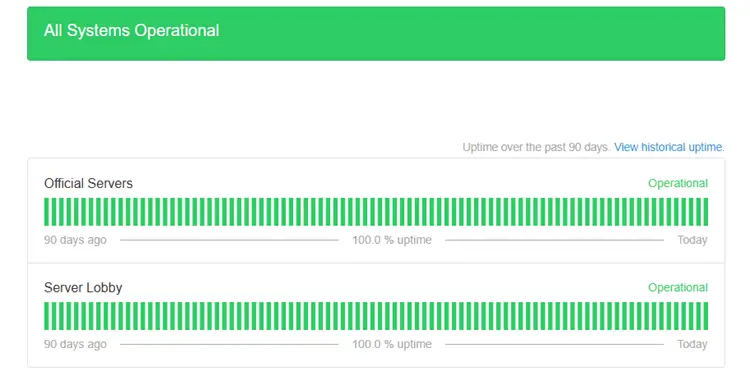
Are Palworld servers down? Temporary outages or scheduled maintenance can cause Palworld unable to connect to server errors. Before changing your network or game settings, visit the official Palworld server status page to check the status of the official servers and server lobby. If an outage, degraded performance, or scheduled maintenance is reported, wait for the service to return to normal before trying again.
Fix 2. Restart Palworld and the Host Server
If Palworld repeatedly fails to connect, restart both the game and the device running it. Completely close Palworld instead of leaving it suspended in the background, then restart Steam, the Xbox app, your PC, or your console before trying to join again.
When several players cannot connect to the same multiplayer world, the error may be on the host side. Ask the host to:
- Close the multiplayer session
- Exit Palworld completely
- Restart the host PC or console
- Reopen the multiplayer world
- Send players a new invite code
Note: Dedicated server owners should restart the server process to clear frozen sessions and apply recent updates or configuration changes.
Fix 3. Update Palworld and the Dedicated Server
A version mismatch can cause Palworld connection timed out, failed to connect, or server visibility errors after an update. Make sure both the game and host server are running compatible versions. Here is how to update Palworld on Steam:
Step 1. Open Steam and select Library.
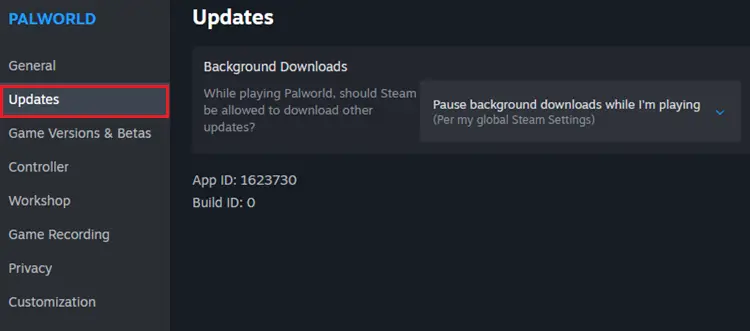
Step 2. Right-click Palworld and choose Properties.
Step 3. Open Updates and install the latest version.
Besides, dedicated server owners should also update and restart the server. If the issue continues, temporarily disable outdated mods or plugins.
Fix 4. Check the Server IP Address and Port
An incorrect IP address or port can cause Palworld failed to connect or Palworld dedicated server connection failed errors. Before joining, confirm that the server is online and ask the host for the correct public IP address and port.
- Use this format: PUBLIC-IP:8211
- For example: 123.45.67.89:8211
To join the server:
Step 1. Open Palworld and select Join Multiplayer Game.
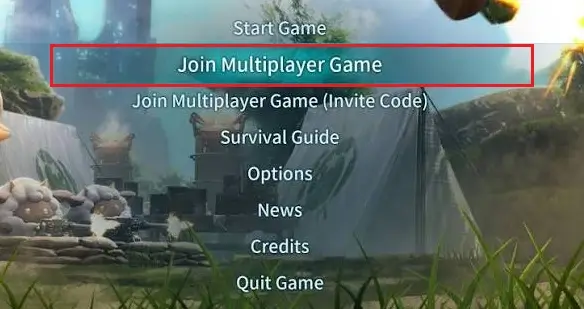
Step 2. Enter the server IP address and port in the connection field.
Step 3. Click Connect and enter the password if required.
Make sure there are no spaces, the port matches the server settings, and the host’s public IP has not changed.
Fix 5. Open UDP Port 8211 and Check the Firewall
Palworld dedicated servers use UDP port 8211 by default. If this port is closed or blocked by the firewall, players may see Palworld connection timed out or dedicated server connection failed errors. To forward the port:
Step 1. Open Command Prompt, enter ipconfig, and find the server PC’s IPv4 Address.
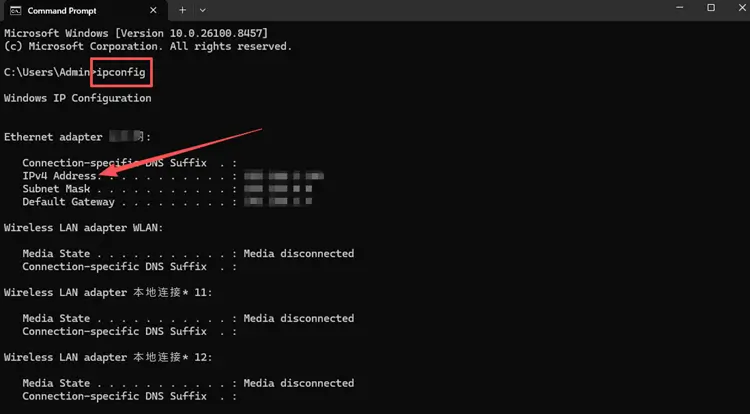
Step 2. Open a browser, enter your router’s address, such as 192.168.0.1, and sign in to the administration page.
Step 3. Find Port Forwarding, NAT, Virtual Server, or Port Mapping, then forward UDP port 8211 to the server PC’s local IP address.
Step 4. Save or apply the settings, then restart the router if required.
Also, allow Palworld and PalServer.exe through Windows Defender Firewall. Do not disable the firewall permanently; create specific exceptions instead.
Fix 6. Verify Game Files and Disable Outdated Mods
Corrupted game files or incompatible mods may prevent Palworld from connecting to a multiplayer server. First, verify the game files on Steam:
Step 1. Open Steam Library, right-click Palworld, and select Properties.
Step 2. Open Installed Files and click Verify integrity of game files.
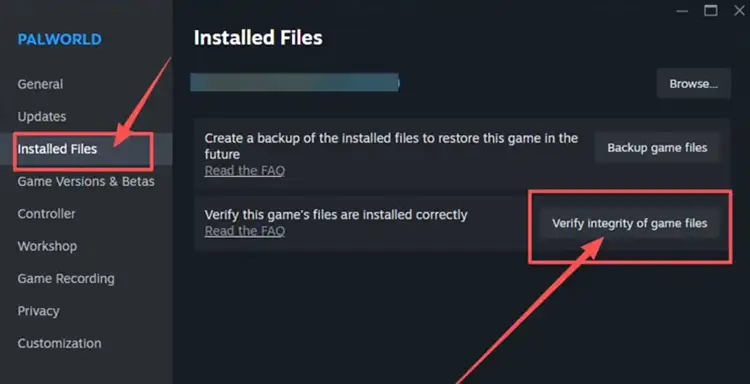
Step 3. Restart Palworld after the scan finishes.
If the issue continues, disable outdated mods and plugins, and make sure the host and players use compatible versions.
[Bonus] How to Stabilize Your Palworld Connection with LagZapper
Palworld connection timeouts can occur when the route between your PC and the game server is unstable. Long-distance connections, ISP congestion, packet loss, and inefficient routing may delay connection requests or interrupt multiplayer sessions. LagZapper is a Windows PC game booster that optimizes the connection route to supported game servers, helping improve connection stability for Palworld.
Highlights of LagZapper for Palworld
- Reduce Lag: Optimize unstable routes to reduce lag, rubberbanding, delays, and sudden spikes in Palworld.
- Lower Ping: Improve long-distance routing to lower ping for faster movement, combat, and Pal commands.
- Reduce Packet Loss: Stabilize data transfer to reduce packet loss, freezing, teleporting, and disconnects.
- Stabilize Multiplayer Connections: Maintain a steadier connection when joining friends, official servers, or dedicated Palworld worlds.
- Avoid Congestion: Bypass overloaded routes between your ISP and Palworld servers during peak hours or cross-region play.
How to Boost Palworld with LagZapper
Follow the steps below to optimize your Palworld connection with LagZapper before joining a multiplayer world or dedicated server.
Step 1. Download and Install LagZapper
Download LagZapper for Windows and follow the on-screen instructions to complete the installation.
Step 2. Open LagZapper and Sign In
Launch LagZapper, then sign in to your account.
Step 3. Search for Palworld
Enter Palworld in the search bar and select it from the supported games list.

Step 4. Select a Server and Click Boost
Choose the target server or recommended route, click Boost, and then launch Palworld.

The Bottom Line
The Palworld connection timed out error may come from the game server, host settings, outdated files, firewall restrictions, or an unstable network. Check the server status, restart Palworld, update the game and dedicated server, verify the IP and port, and disable incompatible mods. If the server is online but your connection still suffers from high ping or packet loss, download LagZapper to optimize the route and stabilize Palworld multiplayer sessions.
FAQs About Palworld Connection Timed Out
Q1: Why does Palworld keep saying connection timed out?
It usually happens because of server outages, version mismatches, firewall restrictions, incorrect ports, or an unstable internet connection.
Q2: How do I fix Palworld failed to connect?
Restart Palworld and your router, update the game, verify files, check server status, and allow Palworld through the firewall.
Q3: Why can’t I join my friend’s Palworld world?
The host may be offline, using a different game version, experiencing network restrictions, or sharing an expired multiplayer invite code.
Q4: Can a version mismatch cause Palworld connection timed out?
Yes. Your game, the host’s game, and the dedicated server must run the same Palworld version.
Q5: Why is my Palworld dedicated server not showing up?
The server may be offline, outdated, incorrectly configured, blocked by a firewall, or using the wrong IP address or port.
Q6: Can high ping or packet loss cause Palworld connection timeouts?
Yes. High latency or packet loss can delay server responses and cause connection timeouts, failed loading, or multiplayer disconnects.