
Palworld Stuck on Loading Screen After 1.0? Fix Palworld Infinite Loading
Palworld 1.0 officially launched on July 10, 2026, bringing many players back to its open-world survival experience. However, the Palworld stuck on loading screen issue can prevent the game from reaching the main menu, opening a world, or joining a multiplayer server, sometimes leaving players on a black or endless loading screen.
This guide will explain why the Palworld infinite loading screen occurs and provide practical fixes for both local and online loading problems.
Why Is Palworld Stuck on Loading Screen?
Understanding when and where Palworld stops loading can help you narrow down the problem and choose the most relevant fix more efficiently.
Temporary Server or Server Lobby Problems
Palworld server outages, maintenance, or lobby disruptions can interrupt authentication and world data retrieval, leaving players stuck before an online session finishes loading.
Corrupted or Missing Game Files
Missing or damaged game files can prevent Palworld from reading essential assets correctly, causing black screens, stalled startup, or endless world loading.
Outdated or Incompatible Mods
Mods built for older Palworld versions may conflict with 1.0 files or systems, preventing the game or saved worlds from loading properly.
Unstable Network, DNS, or Server Routing
Packet loss, DNS errors, or inefficient ISP routing can disrupt communication with Palworld servers, especially when joining multiplayer worlds or dedicated servers.
Firewall or Antivirus Restrictions
Firewall or antivirus rules may restrict Palworld, Steam, or related online services, preventing the game from completing multiplayer authentication or server loading.
How to Fix Palworld Stuck on Loading Screen – 7 Fixes
The fixes below will help you troubleshoot Palworld multiplayer stuck on loading in order, starting with simple checks before moving to deeper PC and network solutions.
Fix 1. Check Palworld Server Status and Known Issues
Before changing local settings, check the official Palworld Status page to see whether Official Servers or the Server Lobby is experiencing maintenance, degraded performance, or an outage. If either service is affected, the loading problem is likely outside your PC, so wait for recovery instead of applying unnecessary fixes.
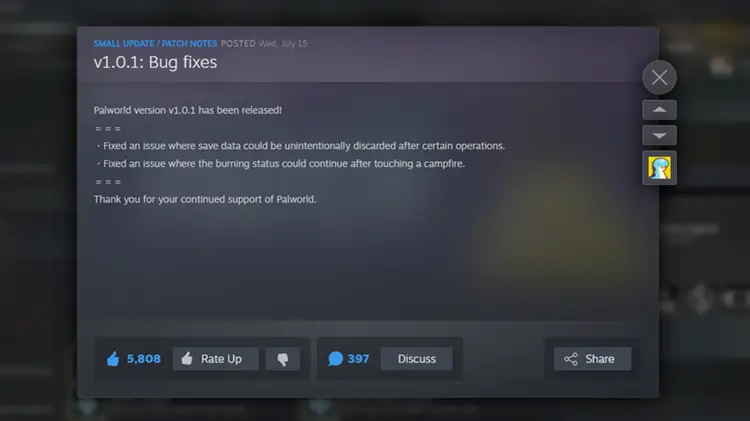
Also review the latest Palworld announcements and patch notes for known bugs or hotfixes related to loading, login, or multiplayer access. If other players report the same issue after an update, avoid deleting saves or reinstalling the game until Pocketpair provides further guidance.
Fix 2. Restart Palworld and Your Gaming Platform
Temporary processes or a stalled platform session can keep Palworld stuck on the loading screen. Fully close Palworld, exit Steam or the Xbox app, and restart your PC or console before launching the game again. Steam also recommends restarting both the client and computer as an early troubleshooting step.
Fix 3. Remove Outdated Palworld Mods
Mods created for an older Palworld version may conflict with 1.0 files, causing black screens, crashes, or endless loading. Pocketpair recommends removing outdated mods from the installation folder and notes that uninstalling Palworld through Steam will not delete them automatically. Back up your saves before changing anything.
👉 Back Up Palworld Saved Data
Manual mod cleanup changes files inside the Palworld installation directory. Creating a backup can protect your worlds and character progress if an incorrect file is removed or the game fails to load after cleanup.
Step 1. Fully close Palworld and Steam to prevent the save files from changing while they are being copied.
Step 2. Press Windows + R, paste %LOCALAPPDATA%\Pal\Saved, and press Enter to open the Palworld save folder.
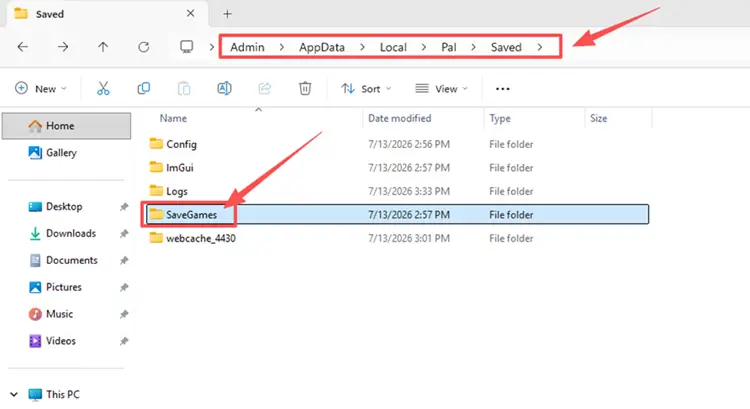
Step 3. Copy the entire SaveGames folder to another drive or folder.
👉 Delete Outdated Palworld Mod Files
After completing the backup, remove files that you recognize as third-party mods or mod loaders.
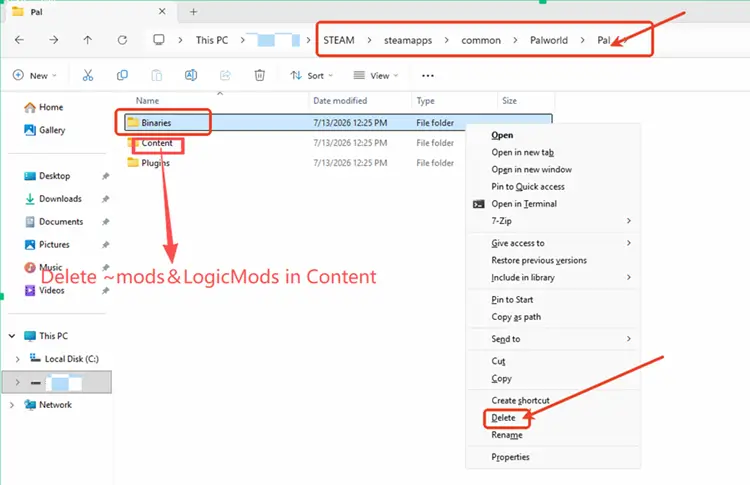
Step 1. Open Steam Library > Palworld > Manage > Browse Local Files > Pal, then remove the outdated mod files from the installation folder:
- Pal\Content\Paks\~mods
- Pal\Content\Paks\LogicMods
- Pal\Binaries
Step 2. In Steam, right-click Palworld and select Properties.
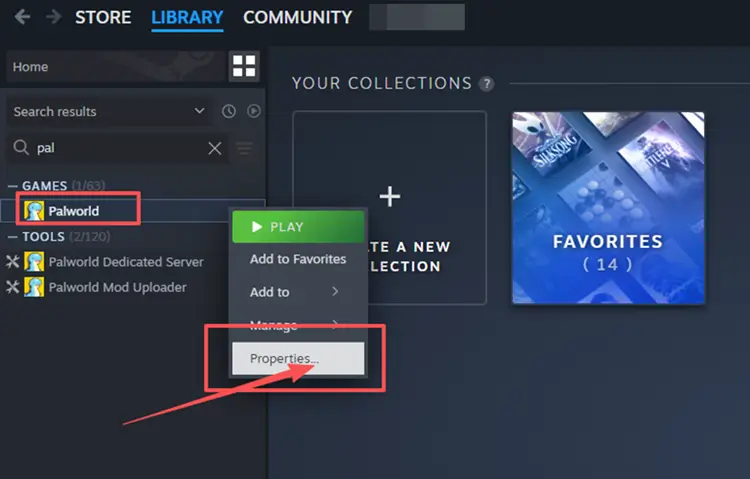
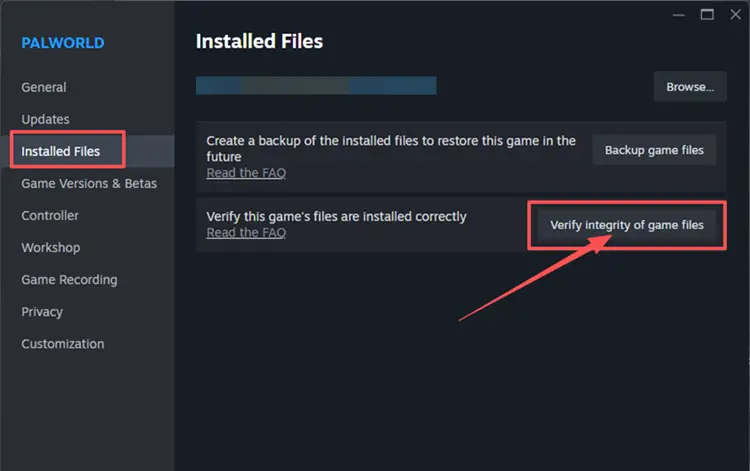
Step 3. Open Installed Files, select Verify integrity of game files, and wait for Steam to restore the deleted original files.
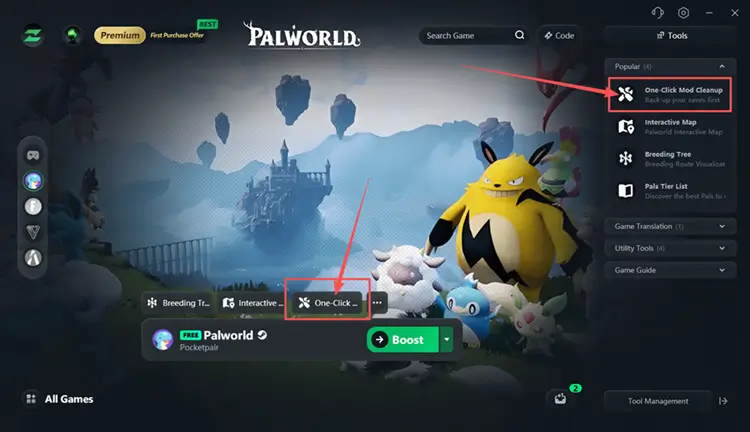
For a faster option, LagZapper includes a One-Click Mod Cleanup tool that scans the Palworld installation folder for detected outdated mods and leftover loaders. It helps players remove these files quickly without manually checking several folders.
Fix 4. Launch Palworld with DirectX 11
A Palworld stuck on black loading screen issue may occur when the game fails to initialize its graphics correctly. Since Palworld supports DirectX 11 on Windows, forcing DX11 may bypass certain graphics conflicts after a game update or driver change.
Step 1. Right-click Palworld in your Steam Library and select Properties.
Step 2. Under General, find Launch Options and enter -dx11.
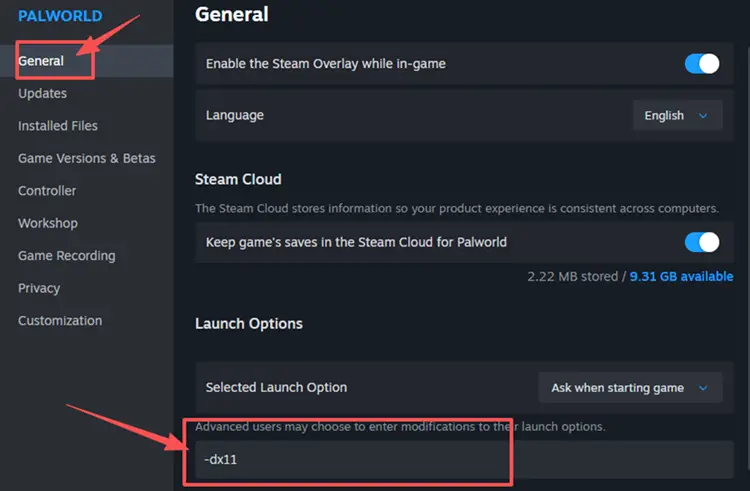
Step 3. Close the window and launch Palworld, removing -dx11 later if the loading problem continues.
Fix 5. Update Your Graphics Driver
An outdated graphics driver may prevent Palworld from rendering correctly, causing a black screen or stalled loading process. Installing the latest compatible driver can improve game stability and resolve conflicts introduced by game or Windows updates. NVIDIA recommends Game Ready Drivers for current games, patches, and downloadable content.
Step 1. Visit the official NVIDIA Drivers page and select your graphics card model, operating system, and preferred Game Ready Driver.
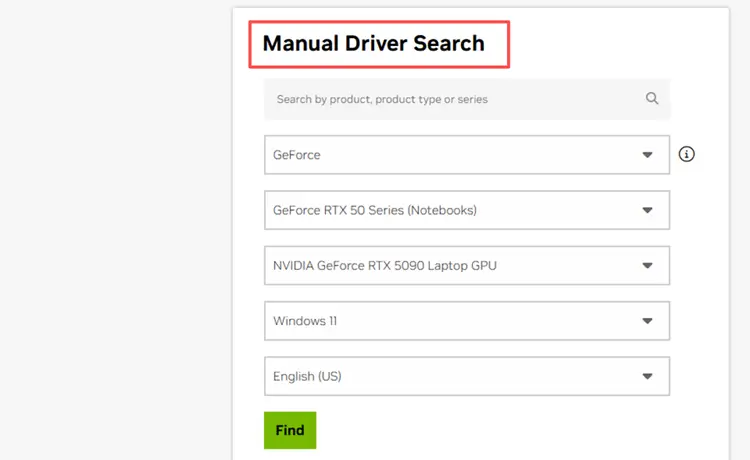
Step 2. Download the latest Game Ready Driver and run the installer.
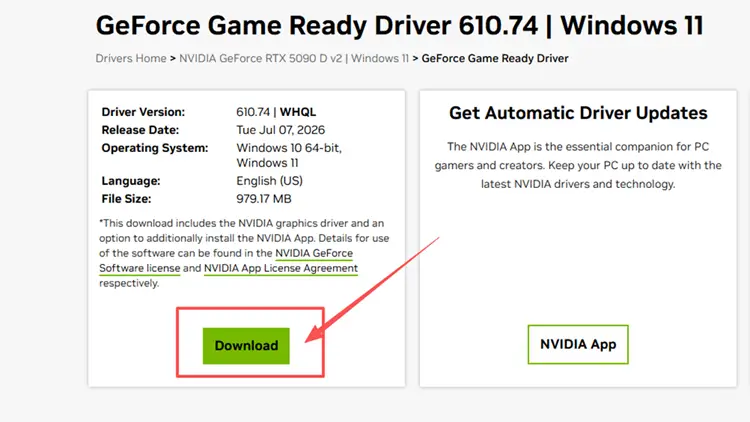
Step 3. Complete the installation, restart your PC, and launch Palworld again.
Tip: NVIDIA users can also update to the latest Game Ready Driver directly through the NVIDIA app. Intel and AMD users can follow similar steps using their manufacturer’s official driver tools or websites.
Fix 6. Allow Palworld Through Firewall and Antivirus
Windows Firewall or antivirus software may restrict Palworld’s connection to Steam and multiplayer services, leaving the game stuck when joining a server or loading an online world. Instead of disabling security protection, add Palworld to the allowed app list so required network traffic can pass normally.
Step 1. Open Windows Security, select Firewall & network protection, and click Allow an app through firewall.
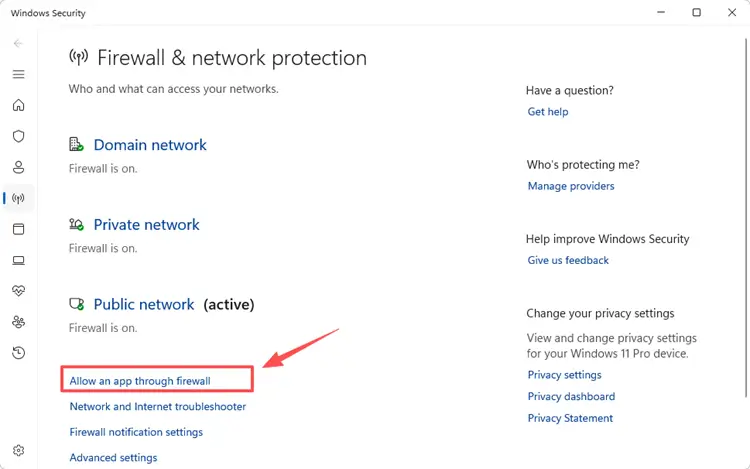
Step 2. Click Change settings and Allow another app, then browse to the Palworld installation folder and the game executable file to add it.
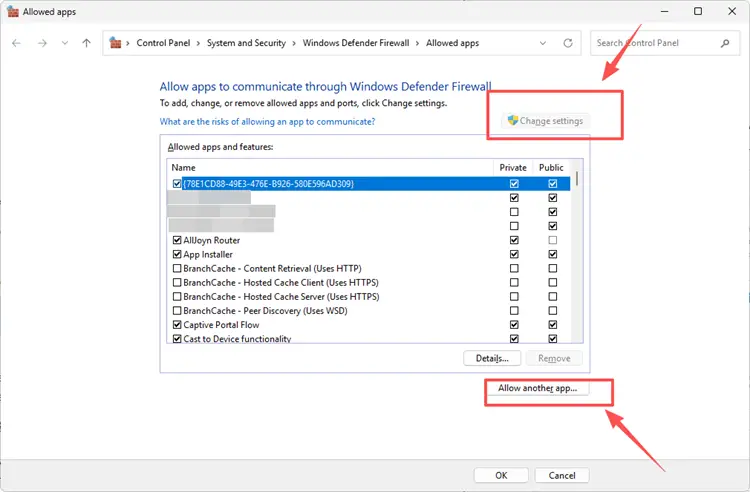
Step 3. Allow Palworld on your active network type, click OK, and relaunch the game to test the loading screen.
Fix 7. Refresh Your Network and DNS Connection
Palworld stuck on loading screen when joining server sessions may be caused by an unstable network connection, corrupted DNS cache, packet loss, or interrupted communication with multiplayer services. Restarting your network equipment and resetting Windows network settings can clear temporary connection errors.
Step 1. Turn off your router and modem for 60 seconds, then reconnect them and wait for the internet connection to return.
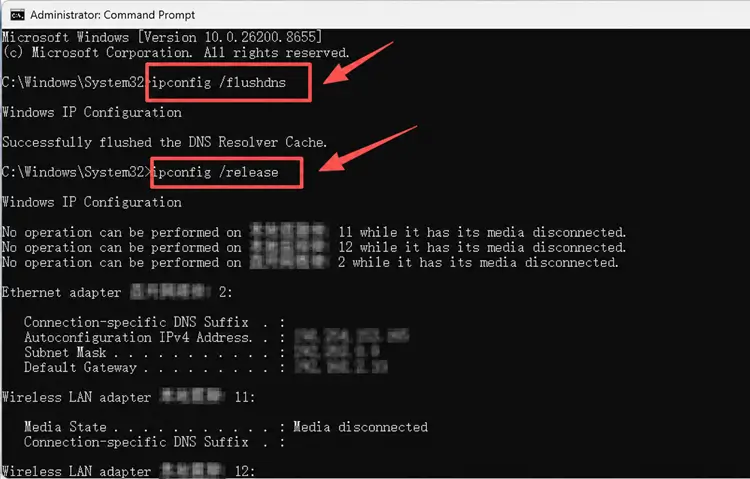
Step 2. Search for Command Prompt in Windows and select Run as administrator.
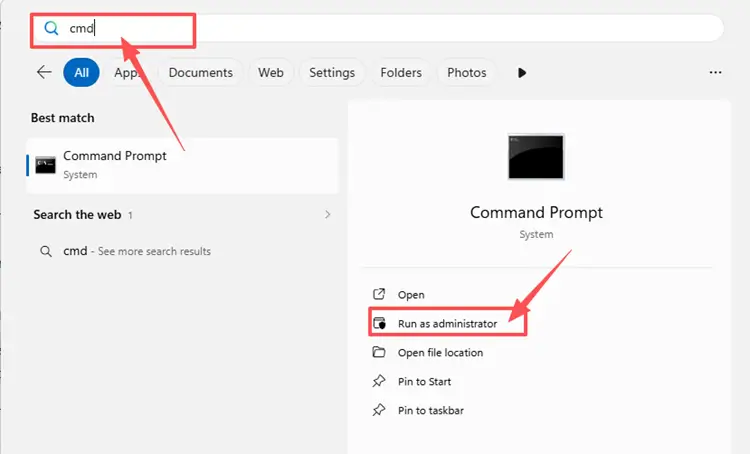
Step 3. Enter the following commands one by one, and press Enter after each command, then restart your PC.
- ipconfig /flushdns
- ipconfig /release
- ipconfig /renew
- netsh int ip reset
- netsh winsock reset
[Bonus] How to Improve Palworld Connection with LagZapper
Palworld multiplayer depends on a stable connection when joining co-op worlds, community servers, or dedicated servers. If Palworld loads normally offline but remains stuck while connecting online, packet loss or unstable routing may interrupt data exchange with the server. LagZapper can optimize this connection route and improve connection stability.
Why Use LagZapper for Palworld Connection Issues?
- Smart Route Optimization: Automatically finds a faster and more stable route for Palworld, helping reduce high ping, packet loss, jitter, and unstable connections.
- Reduce Lag and Improve Stability: Lower ping spikes, reduce lag, and improve connection stability when joining or playing in Palworld multiplayer worlds.
- One-Click Boost: Optimize your Palworld connection in seconds without manually changing complicated router or Windows network settings.
- Support for 3,000+ Games: Use LagZapper to improve connection stability across more than 3,000 online games, including Palworld, Fortnite, and VALORANT.
[Step-by-Step Guide] How to Boost Palworld with LagZapper
Step 1. Download and Install LagZapper
Download LagZapper for Windows and follow the on-screen instructions to complete the installation.
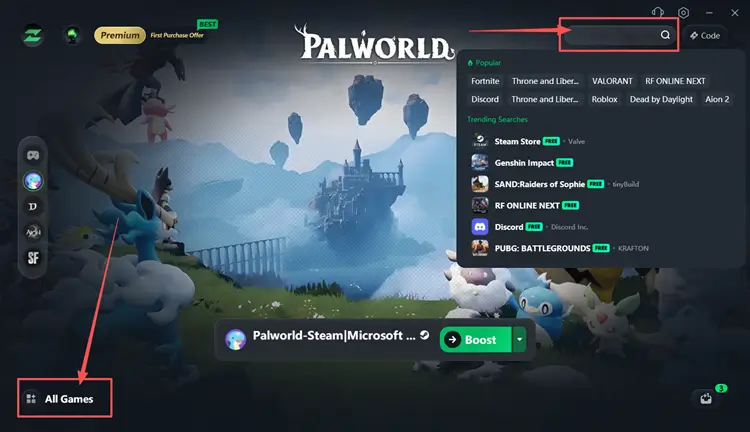
Step 2. Open LagZapper and Search for Palworld
Launch LagZapper, then use the search bar or browse the supported games list to find Palworld.
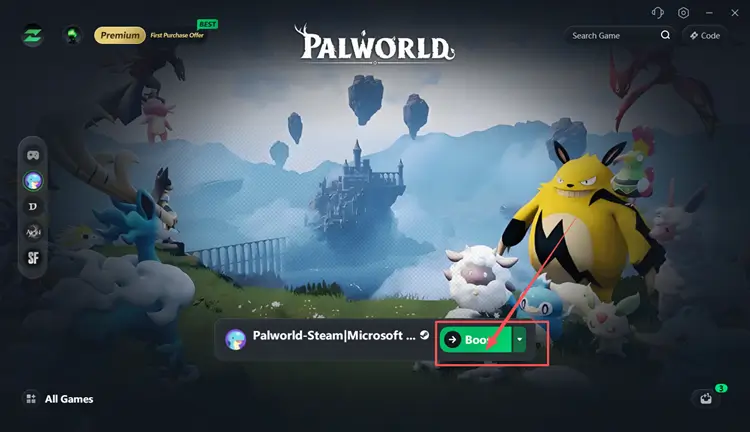
Step 3. Boost and Play Palworld
Select your preferred server or node if needed, then click Boost to optimize your connection before launching the game.
The Bottom Line
Palworld stuck on loading screen issues may come from server disruptions, outdated mods, damaged files, graphics conflicts, firewall restrictions, or network errors. Check the server status first, back up your saves, and complete the relevant local fixes. For players seeking a smoother Palworld gameplay experience, download LagZapper to improve routing and reduce packet loss or unstable connections.
FAQ About Palworld Stuck on Loading Screen
Q1. Why is Palworld multiplayer stuck on loading screen?
Server problems, packet loss, blocked connections, or unstable routing may interrupt loading when joining a multiplayer world.
Q2. How do I fix Palworld infinite loading screen?
Restart Palworld, check server status, remove incompatible mods, verify game files, update drivers, and refresh your network connection.
Q3. Can outdated mods cause Palworld infinite loading?
Yes. Mods built for older versions may conflict with Palworld 1.0 and prevent the game or world from loading.
Q4. Will fixing Palworld loading issues delete my save?
Removing mod files normally does not delete saves, but always back up the SaveGames folder before changing game files.