
PEAK Multiplayer Mod: How to Play With More Than 4 Players
PEAK is a co-op climbing game built for groups of up to four players, but that limit can leave a fifth friend outside the lobby. The PEAK multiplayer mod, PEAK Unlimited, raises the player cap and lets larger groups climb together. Version 4.0.1 supports The Final Ascent update, allowing players to host PEAK with more than four players.
This guide will explain how to install PEAK Unlimited, expand your lobby, and fix common problems.
Can You Play PEAK With More Than 4 Players?
The original game supports four players, with no option for a larger lobby. Playing PEAK with five or more people requires the third-party PEAK Unlimited mod.
What Is PEAK Unlimited?
PEAK Unlimited is a host-side mod that raises the lobby cap for larger groups. Only the host needs it to raise the player limit; other players can join without the mod. Client installation is optional and improves the interface, ensuring the end screen and every Scout’s graph display correctly. The host can adjust the limit through F2 or PeakUnlimited.cfg.
PEAK vs PEAK Unlimited Player Limits
The table below shows how the original game and PEAK Unlimited handle larger groups.
| Feature | Original PEAK | PEAK Unlimited |
|---|---|---|
| Maximum players | 4 total | 20 by default; adjustable |
| Five-player lobby | Not supported | Supported |
| Who needs the mod? | Not applicable | Host required; other players optional |
| High player counts | Not supported | May become unstable |
Does PEAK Unlimited Work After The Final Ascent Update?
PEAK Unlimited 4.0.1 is marked The Final Ascent Ready and compatible with the latest PEAK update. Install or update to the current release instead of reusing an older DLL. After any future PEAK patch, check the Thunderstore page or GitHub changelog before troubleshooting a new launch or lobby problem.
How to Download and Install the PEAK Multiplayer Mod
The easiest way to install PEAK Unlimited is through r2modman, which also installs the required BepInEx dependency. Follow the steps below to set up and launch the mod.
Step 1. Download r2modman and Select PEAK
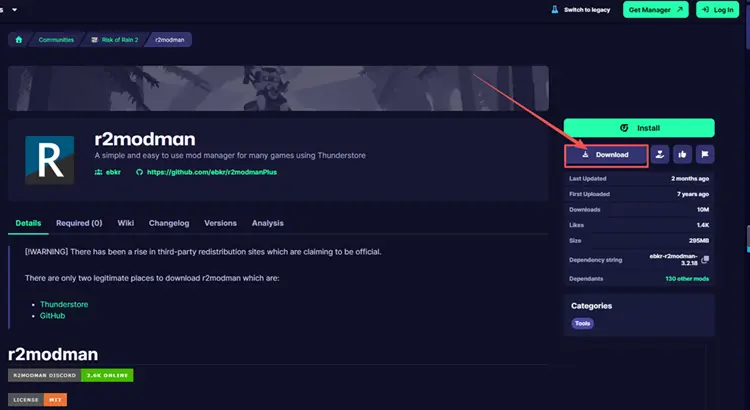
#1. Download r2modman from Thunderstore and install it.
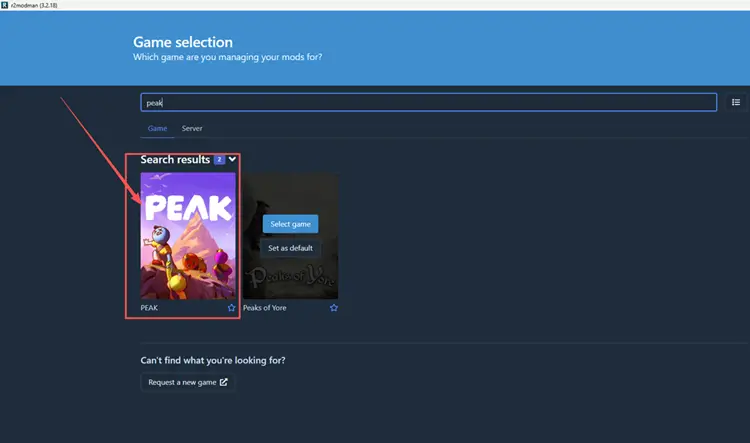
#2. Open r2modman, search for PEAK, select the game, and choose Steam.
Step 2. Create a Profile and Install PEAK Unlimited
#1. Click Create new, enter a profile name, and select Create.
#2. Select the new profile, open Online, and search for PEAK Unlimited.
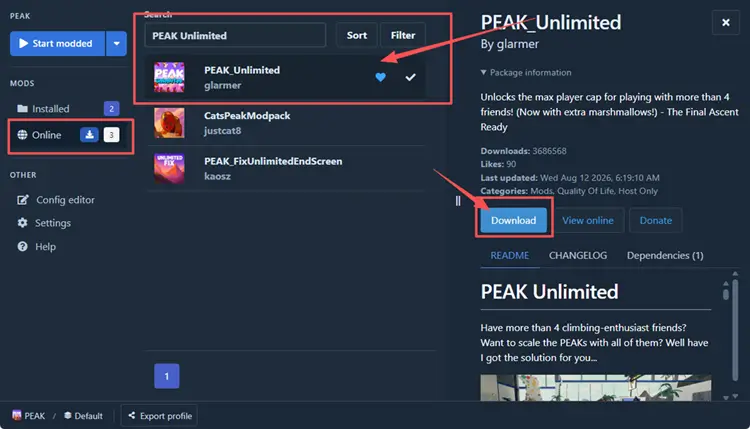
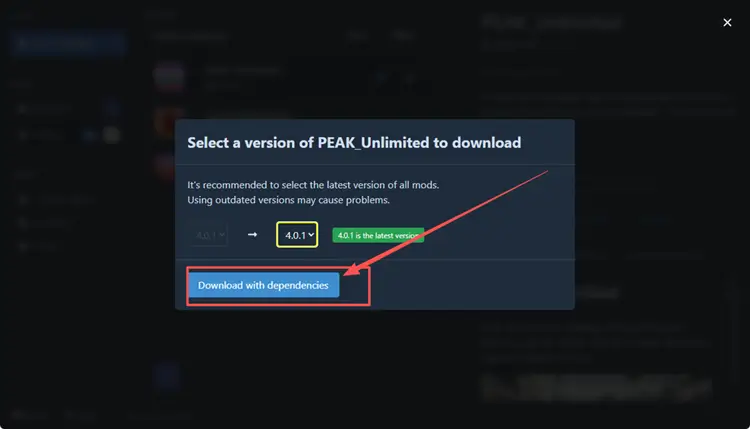
#3. Select the mod by glarmer, click Download, and choose Download mod + dependencies.
Step 3. Launch PEAK in Modded Mode
#1. Open Installed and confirm PEAK Unlimited and BepInExPack PEAK are enabled.
#2. Click Start modded to launch PEAK with the installed mods.
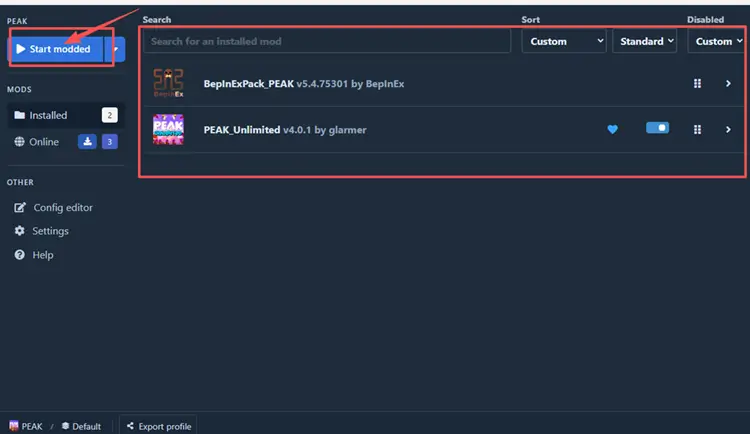
#3. Press F2 after PEAK opens. The installation is complete if the PEAK Unlimited menu appears.
How to Set the PEAK Player Limit and Host a Larger Lobby
After installing PEAK Unlimited, the host should set the lobby size before starting a run. The steps below cover the player limit, hosting, and Steam invites.
Change the Max Players in PEAK Unlimited
#1. Stay on the PEAK main menu and press F2 to open the PEAK Unlimited settings.
#2. Find Max Players and enter your group size.
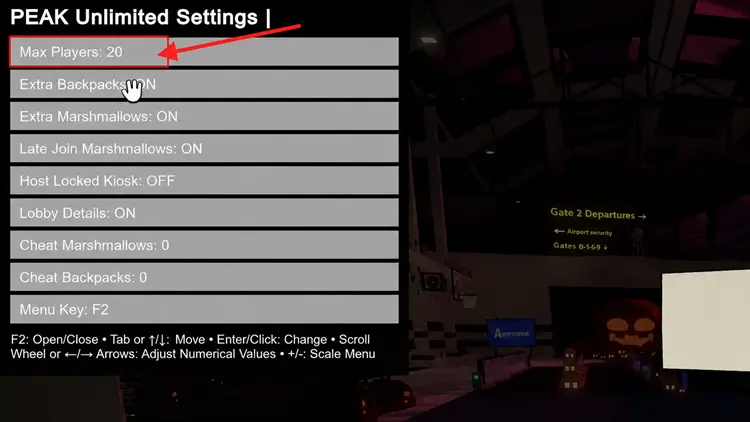
#3. Close the menu. The new limit applies without restarting, but Max Players becomes unavailable after you start a game.
Host the Lobby and Invite Friends Through Steam
#1. Select Host Game from the main menu to create an online lobby and enter the Airport.
#2. At the Airport, interact with the Invite Kiosk to open your Steam friends list, then send an invite to each player.

#3. Wait until every player appears in the Airport and confirm the group size before using the Gate Kiosk to start the run.
PEAK Multiplayer Mod Not Working? Try These Fixes
If PEAK Unlimited does not load, keeps the four-player cap, or makes larger lobbies unstable, use the targeted fixes below to identify and resolve the problem.
PEAK Unlimited Does Not Load
If F2 does not open the mod menu, open r2modman’s Installed tab and update and enable PEAK Unlimited and BepInExPack PEAK. Launch with Start modded. If the menu still does not appear, create a clean profile and install PEAK Unlimited with its dependencies.
The Lobby Is Still Limited to Four Players
Only the host needs PEAK Unlimited, but the player limit must be configured from the main menu before starting a game. Ask the host to press F2 and set Max Players above four. If the lobby was created before the change, return to the main menu and confirm the host selected the correct r2modman profile. Create a new lobby, then resend the Steam invitations.
PEAK Crashes, Desyncs, or Loses Voice Chat
Large lobbies require more resources and may become unstable. Set Max Players to your group size, close demanding programs, and disable other gameplay mods. Above eight players, clients should install the same PEAK Unlimited version for audio-slider and nametag fixes. If crashes, desync, or voice chat problems continue, restart PEAK and Steam, recreate the lobby, and test with fewer players.
[Bonus] Improve PEAK Multiplayer Connection with LagZapper
Larger PEAK lobbies depend on stable connections for synchronized movement, item interactions, and voice chat. LagZapper can optimize the network route used by PEAK, helping reduce high ping and packet loss caused by inefficient routing.
Why Use LagZapper for PEAK?
- Smart Route Optimization: Finds stable routes to reduce high ping, packet loss, and jitter.
- Connection Stability: Helps reduce game lag, lower ping, and limit sudden latency changes.
- One-Click Boost: Optimizes the connection without manual router, DNS, or Windows changes.
- 3,000+ Game Support: Works with PEAK and thousands of other online games.
How to Use LagZapper for PEAK
Follow these three steps to optimize your connection before launching PEAK.
Step 1. Download and Install LagZapper
To begin, download LagZapper for Windows and follow the on-screen instructions to complete the installation on your PC.
Step 2. Sign In and Search for PEAK
Launch LagZapper, sign in to your account, then use the search bar to find PEAK.
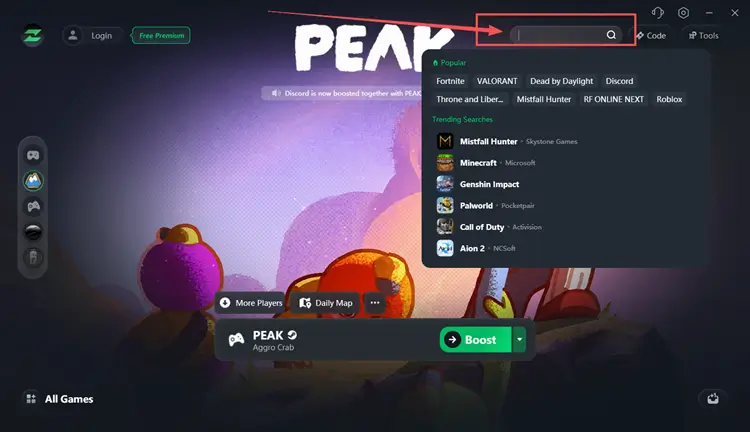
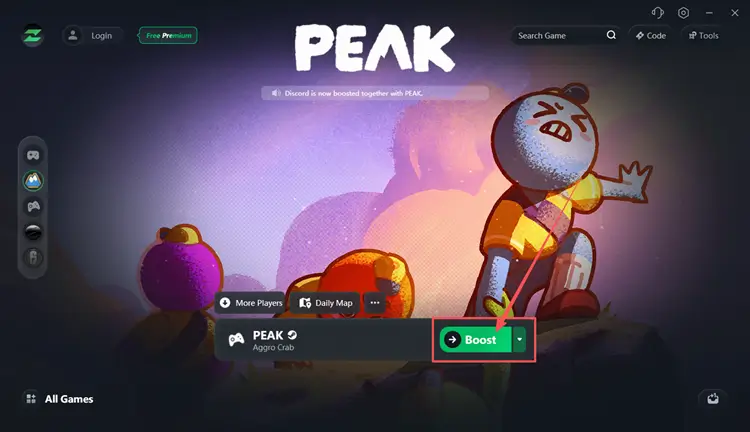
Step 3. Select a Server or Node and Boost
Select a PEAK server or recommended node, then click Boost before launching the game.
The Bottom Line
PEAK supports four players by default, while PEAK Unlimited allows a five-player or larger lobby. Install it with r2modman, set Max Players before hosting, and invite friends through Steam. If the mod fails to load, update it, confirm BepInEx is enabled, and launch PEAK through Start modded.
If high ping, packet loss, or unstable routing affects your lobby, download LagZapper to optimize the game route and improve connection stability.
FAQs About PEAK Multiplayer Mods
Q1. What Is the PEAK Multiplayer Mod?
PEAK Unlimited is a host-side mod that raises PEAK’s original four-player lobby limit.
Q2. How Many People Can Play PEAK Without Mods?
The original game supports up to four players in a standard online lobby.
Q3. How Can You Play PEAK With More Than 4 Players?
Install PEAK Unlimited, set Max Players above four, then host and invite friends through Steam.
Q4. Which PEAK 5 Player Mod Should You Use?
PEAK Unlimited supports five-player lobbies; set Max Players to five before hosting.
Q5. How Does the PEAK More Players Mod Work?
The host installs PEAK Unlimited and chooses an adjustable lobby limit through the F2 menu.
Q6. Does Everyone Need PEAK Unlimited Installed?
No. Only the host raises the limit; clients may install it for interface and audio-related fixes.