
Phantom Blade Zero Not Launching? 6 Fixes for PC & Steam
Phantom Blade Zero not launching on Steam? Since its PC release on October 28, 2026, some players have reported the game closing immediately after clicking Play, crashing after the startup logo, or failing to open. Others have encountered Denuvo activation errors or Windows error 0xC0000005.
Common causes include corrupted Steam files, incomplete updates, incompatible GPU drivers, and background software conflicts. Whether Phantom Blade Zero won't launch or crashes on startup, this guide covers six practical fixes to get the game running on Windows PC.
Why Is Phantom Blade Zero Not Launching?
Several issues may prevent Phantom Blade Zero from launching on Steam:
- Incomplete Game Updates: Missing patches or unfinished installations may interrupt startup.
- Corrupted Steam Files: Damaged or missing game files can prevent the game from opening.
- GPU Driver Issues: NVIDIA driver 621.01 has reported stability problems, while S-GAME currently recommends 617.42.
- Denuvo Activation Errors: DRM activation or verification failures may prevent the game from launching.
- Background App Conflicts: Steam Overlay, Discord, recording tools, or virtualization software may interfere with startup.
- Windows Error 0xC0000005: Access violation errors can cause the game to close immediately.
Some Steam players have reported crashes involving PBZ.exe and error 0xC0000005. The exact cause varies by system.
How to Fix Phantom Blade Zero Not Launching on PC
Try these six fixes to resolve Phantom Blade Zero not launching on Steam, crashing on startup, or closing immediately after clicking Play.
Fix 1. Install the Latest Phantom Blade Zero Update
Incomplete updates may prevent Phantom Blade Zero from launching. S-GAME released an approximately 5GB day-one patch with bug fixes and ray tracing performance improvements.
Step 1. Open Steam > Library and select Phantom Blade Zero.
Step 2. Open Downloads and install any pending updates.
Step 3. Restart Steam and relaunch the game.
Tip: Players who preloaded Phantom Blade Zero should ensure the day-one patch is fully installed. Check the official Steam announcements for the latest patches.
Fix 2. Verify Phantom Blade Zero Game Files on Steam
Missing or corrupted game files may cause Phantom Blade Zero not opening on Steam, especially after updates or preload unpacking. Steam's verification tool can repair damaged files.
Step 1. Open Steam > Library, right-click Phantom Blade Zero, and select Properties.
Step 2. Go to Installed Files > Verify integrity of game files.
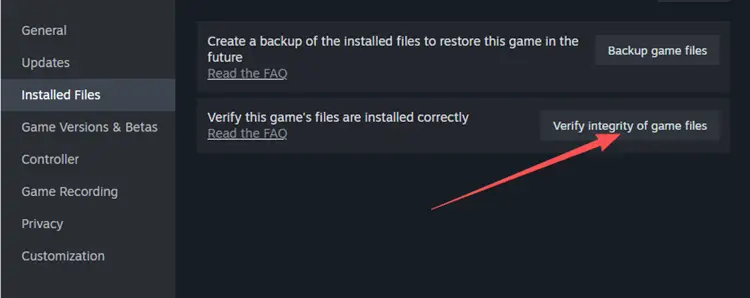
Step 3. Wait for verification to finish, then restart Steam and relaunch the game.
Tip: Phantom Blade Zero requires an SSD and occupies approximately 145GB. S-GAME recommends at least 300GB of free space during preloading and unpacking.
Fix 3. Check Your NVIDIA Driver (617.42 Recommended)
Incompatible GPU drivers may cause Phantom Blade Zero crashing on startup or other stability issues. S-GAME reported performance instability with NVIDIA driver 621.01 and recommended version 617.42 as of October 30, 2026.
To check or update your graphics driver, you can use LagZapper's built-in tools to access official NVIDIA and AMD driver downloads.
Step 1. Download LagZapper for free, install it, and open Tools > Popular.
Step 2. Select NVIDIA Driver or AMD Driver to access official driver downloads; Intel users can visit the Intel Download Center.
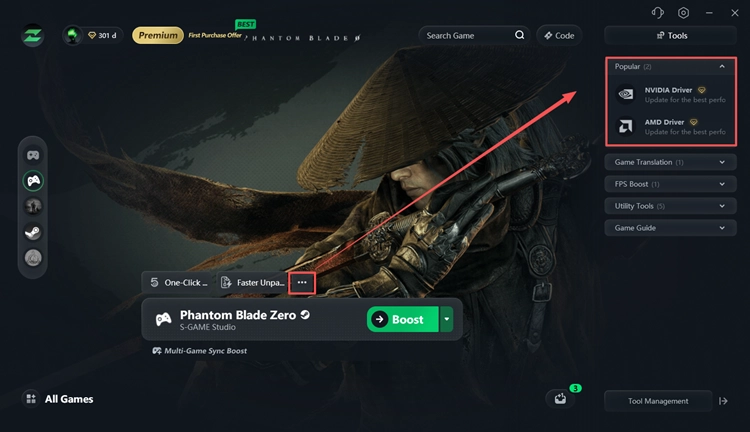
Step 3. Install a compatible driver, restart your PC, and relaunch Phantom Blade Zero.
Note: NVIDIA users with driver 621.01 issues can try a clean installation of 617.42, as S-GAME recommended on October 28. AMD users should check for compatible updates. Always review the latest official guidance.
Fix 4. Troubleshoot Phantom Blade Zero Denuvo Activation Errors
Phantom Blade Zero uses Denuvo DRM. Activation or verification failures may prevent the game from launching on Steam.
Step 1. Close Phantom Blade Zero and Steam, then restart Steam with an active internet connection.
Step 2. Launch Phantom Blade Zero from your Steam Library and check for any activation or verification message.
Step 3. Follow the official on-screen instructions and try launching the game again.
Tip: Persistent Phantom Blade Zero Denuvo errors may require assistance from Steam Support or the game's official support team. Include the exact error message when contacting support.
Fix 5. Disable Conflicting Background Apps and Overlays
Steam Overlay, Discord Overlay, recording applications, and other background tools may interfere with Phantom Blade Zero startup.
Step 1. Open Steam > Library, right-click Phantom Blade Zero, and select Properties > General. Disable Enable the Steam Overlay while in-game.
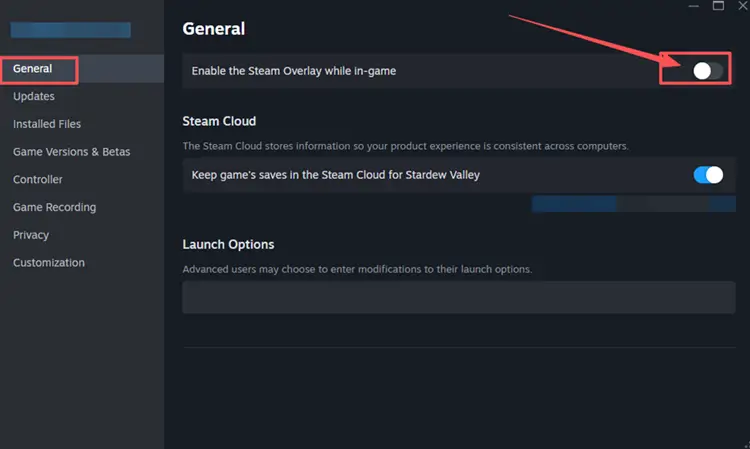
Step 2. Turn off Discord Game Overlay and unnecessary NVIDIA or AMD recording overlays.
Step 3. Press Ctrl + Shift + Esc, close unnecessary background applications in Task Manager, and relaunch the game.
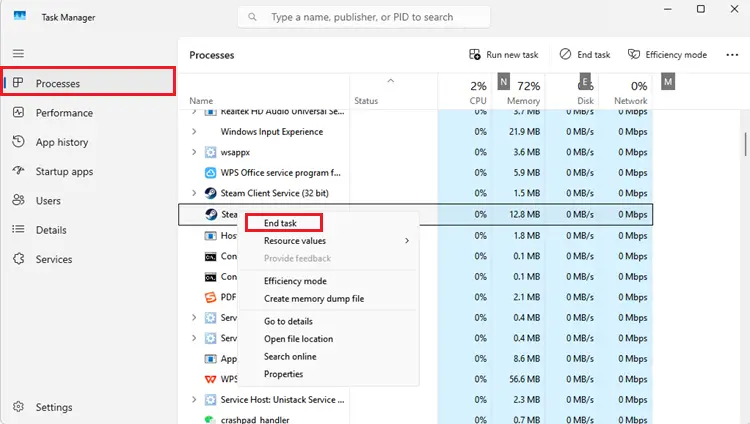
Tip: Some players report startup conflicts with Docker, WSL, or virtualization tools. Close these apps before retrying, but avoid disabling Windows security features.
Fix 6. Check Windows Crash Logs for Error 0xC0000005
Some players have reported Phantom Blade Zero crashing on startup with Windows error 0xC0000005. This access violation error may be caused by software conflicts or system issues. Follow these steps to check the crash details in Windows Event Viewer:
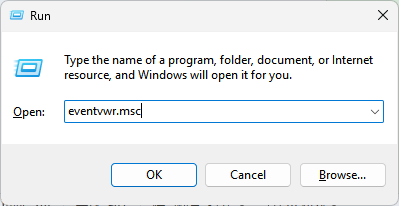
Step 1. Press Windows + R, type eventvwr.msc, and press Enter.
Step 2. Go to Windows Logs > Application and locate recent Application Error entries related to PBZ.exe.
Step 3. Check the exception code, faulting module, and event time. Save these details for further troubleshooting or official support.
[Bonus] Optimize Your Phantom Blade Zero Connection With LagZapper
After fixing Phantom Blade Zero not launching on PC, you can use LagZapper to optimize network connectivity for supported game services. LagZapper helps reduce high ping, packet loss, and network-related lag through optimized routing.
Why Use LagZapper for Phantom Blade Zero?
- Lower Ping: Optimize Phantom Blade Zero routes to lower ping and reduce latency.
- Reduce Packet Loss: Improve network stability to reduce packet loss and interruptions.
- Reduce Lag: Optimize game connections to reduce lag and minimize delays.
- One-Click Boosting: Select a recommended node to boost Phantom Blade Zero with one click.
How to Boost Phantom Blade Zero With LagZapper
Once Phantom Blade Zero is running properly, follow these three steps to optimize your network connection with LagZapper.
Step 1. Download and Install LagZapper
Download LagZapper for Windows and follow the on-screen instructions to complete the installation.
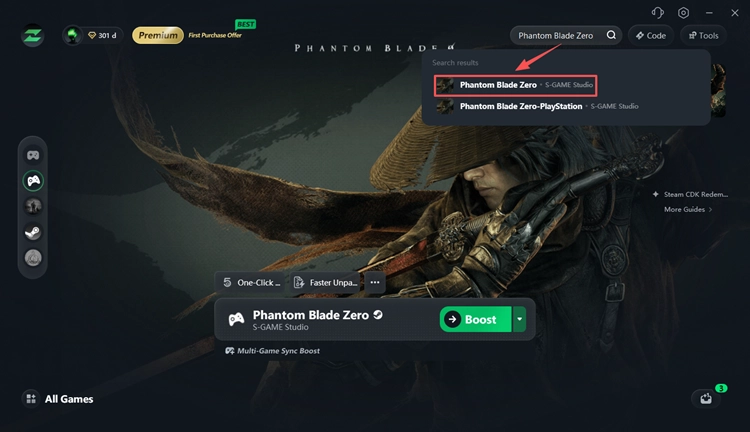
Step 2. Open LagZapper and Select Phantom Blade Zero
Launch LagZapper, sign in, and search for Phantom Blade Zero in the supported game list.
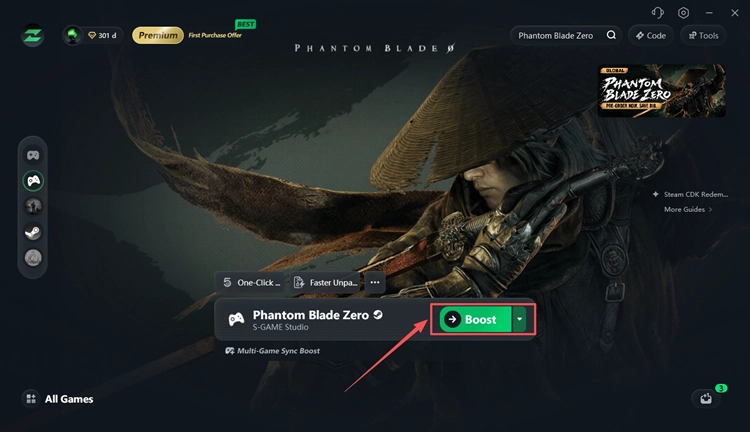
Step 3. Boost and Play Phantom Blade Zero
Select a recommended server or node, click Boost, and launch Phantom Blade Zero with an optimized connection.
The Bottom Line
Phantom Blade Zero not launching on Steam may be caused by corrupted game files, outdated drivers, Denuvo errors, or Windows conflicts. Start by updating the game, verifying Steam files, and checking your GPU driver. For persistent 0xC0000005 errors, review Windows crash logs.
Download LagZapper to access official GPU driver downloads and optimize supported game connections. Note that network acceleration cannot directly fix local startup crashes.
FAQs About Phantom Blade Zero Not Launching
- Q1. Why is Phantom Blade Zero not launching on Steam?
Common causes include corrupted Steam files, incomplete updates, incompatible GPU drivers, and Denuvo activation errors.
Q2. How do I fix Phantom Blade Zero not opening after clicking Play?
Update the game, verify Steam files, check your GPU driver, and disable conflicting overlays.
Q3. Why does Phantom Blade Zero crash on startup?
Startup crashes may result from driver issues, damaged game files, background software conflicts, or Windows errors.
Q4. How do I fix Phantom Blade Zero Denuvo errors?
Restart Steam, check your internet connection, and complete any official activation prompts. Contact support for persistent errors.
Q5. What does Phantom Blade Zero error 0xC0000005 mean?
Error 0xC0000005 indicates a memory access violation. Check Windows Event Viewer for crash details and possible causes.
Q6. Which NVIDIA driver is recommended for Phantom Blade Zero?
As of October 30, 2026, S-GAME recommends NVIDIA driver 617.42 due to reported stability issues with version 621.01.