
PUBG Servers Down? Check Server Status & Fix Connection Issues
Are PUBG servers down, or is PUBG: BATTLEGROUNDS suddenly failing to connect? Server maintenance, regional service problems, Steam outages, or local network issues can cause login errors, connection timeouts, matchmaking failures, high ping, and disconnects.
PUBG Update 42.3 scheduled maintenance for August 12 from 00:00 to 08:30 UTC on PC and August 20 from 01:00 to 09:00 UTC on consoles. Those maintenance windows have now passed. When PUBG still cannot connect, check the current server status first, then troubleshoot your Steam and network connection.
Is PUBG Down Right Now? Check PUBG Server Status
Before changing network settings, check whether PUBG servers are down or undergoing maintenance. To check whether PUBG servers are down today, compare the latest official maintenance notice with current player reports. Use these sources:
- PUBG Support: Check current service alerts and known connection issues.
- PUBG official news: Review maintenance schedules, patch notes, and emergency notices.
- PUBG Support social channels: Look for outage, maintenance, and recovery updates.
- Steam Community: Compare recent player reports to identify possible regional or widespread problems.
PUBG’s own connectivity guide recommends checking the current server status before troubleshooting your PC or network. When an official outage or maintenance window is active, local fixes will not restore the service.
Why Are PUBG Servers Down?
PUBG may be unavailable for server-side, platform, or local network reasons:
- Scheduled maintenance: Major updates can temporarily take PUBG servers offline while patches are deployed.
- Server or regional outages: Backend failures, authentication issues, overload, or regional problems may affect all players or only specific areas such as SEA or Europe.
- Steam service problems: On PC, Steam login or platform outages can prevent PUBG from launching or connecting normally.
- ISP, routing, or DNS issues: PUBG may be online while unstable routing, outdated DNS, or router problems cause high ping, packet loss, timeouts, or disconnects.
- Firewall or security software: Windows Firewall, antivirus tools, or other security settings can block PUBG network traffic.
How to Fix PUBG Server Connection Issues
When the PUBG server status is normal but PUBG still cannot connect, try the fixes below.
Fix 1. Restart PUBG, Steam, and Your Router
Temporary Steam sessions or stale network connections can block PUBG from reaching its servers. PUBG Support recommends restarting your PC and router and fully closing Steam before relaunching.
Step 1. Exit PUBG and close all PUBG and Steam processes in Task Manager.
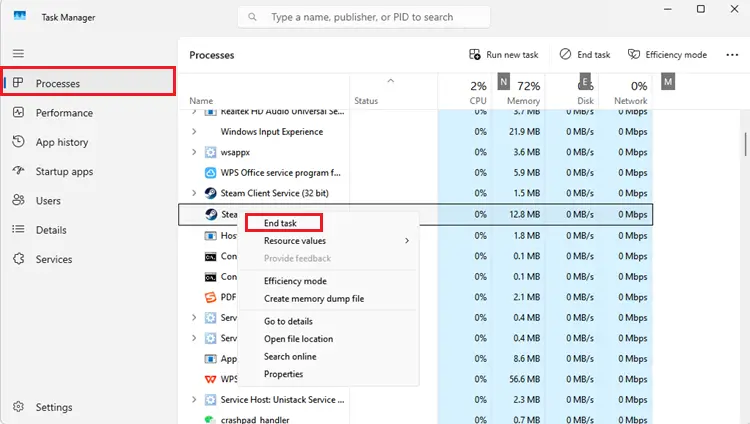
Step 2. Restart your PC, then power off your router for about 30 seconds.
Step 3. Turn the router back on, launch Steam and PUBG, and test the lobby and matchmaking.
Fix 2. Test Your Internet and ISP Connection
PUBG needs a stable connection for login, matchmaking, and gameplay. High speed alone does not prevent packet loss, ping spikes, or brief connection drops. Try the following:
- Use Ethernet instead of Wi-Fi to reduce interference.
- Check whether your ISP is reporting an outage.
- Restart your modem or router.
- Test PUBG on another network, such as a mobile hotspot.
- Pause downloads, cloud backups, streams, and other bandwidth-heavy apps.
When PUBG works normally on another connection, the issue is more likely related to your ISP, router, or network route rather than the PUBG servers.
Fix 3. Check Whether the Problem Is Your Network Route
PUBG servers can be online while the route between your ISP and the game server is unstable. This usually affects connection quality rather than causing a complete global outage.
Common symptoms include:
- High or unstable ping
- Packet loss
- Rubberbanding
- Intermittent disconnects
- Login or matchmaking timeouts
Test PUBG using another connection, such as mobile tethering. PUBG Support also recommends using an alternate connection when diagnosing connectivity problems. When PUBG works on another network but fails on your normal connection, your ISP or routing path is more likely involved.
Fix 4. Flush DNS and Refresh Your IP
Outdated DNS or IP information can prevent your PC from connecting to PUBG services correctly. PUBG recommends refreshing the network configuration and flushing DNS.
Step 1. Press Windows + S, search for Command Prompt, and select Run as administrator.
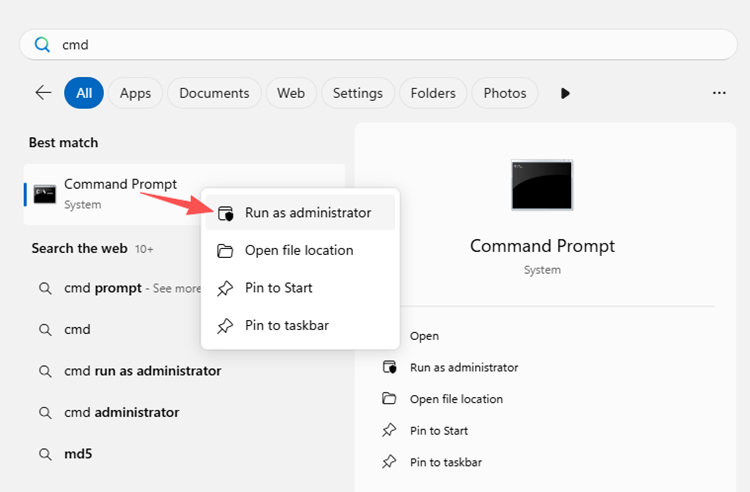
Step 2. Run these commands one by one:
- ipconfig /release
- ipconfig /renew
- ipconfig /flushdns
Step 3. Restart your router, launch PUBG, and test the connection again.
Fix 5. Verify PUBG Game Files on Steam
Corrupted or missing PUBG files can sometimes prevent the game from launching or connecting normally. PUBG Support recommends verifying the game files before moving to more disruptive troubleshooting.
Step 1. Open Steam > Library.
Step 2. Right-click PUBG: BATTLEGROUNDS > Properties > Installed Files.
Step 3. Select Verify integrity of game files.
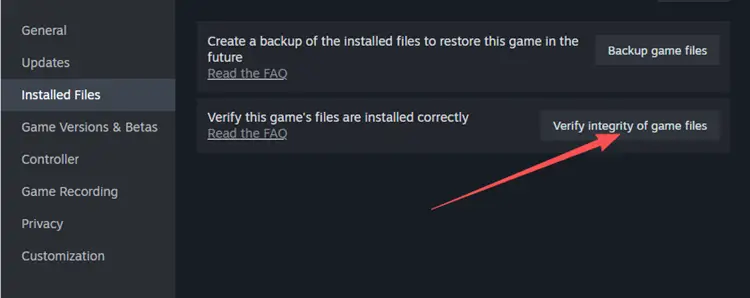
Wait for Steam to complete the scan, then relaunch PUBG and test the connection.
Fix 6. Allow PUBG Through Windows Firewall
Windows Firewall or security software can interfere with PUBG connections when app permissions are missing or incorrect. Instead of disabling the firewall, allow PUBG and Steam through it.
Step 1. Open Windows Security > Firewall & network protection > Allow an app through firewall.
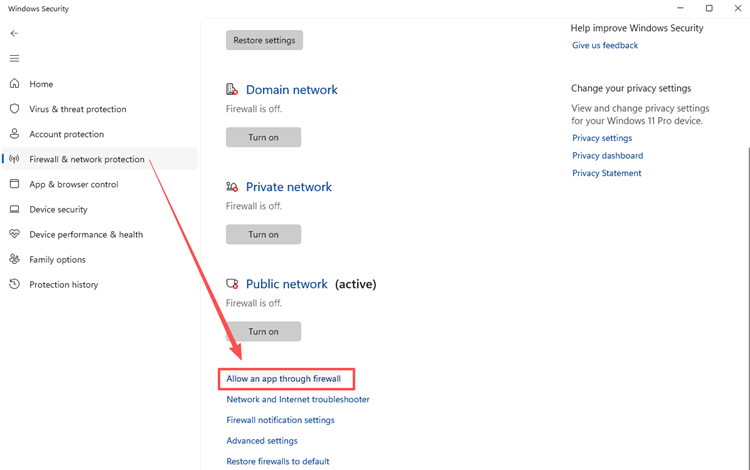
Step 2. Select Change settings, then allow Steam and PUBG: BATTLEGROUNDS on the appropriate Private and Public networks.
Step 3. Save the changes, restart PUBG, and test the connection again.
Tip: Avoid leaving Windows Firewall disabled. Allowing the game through the firewall is the safer option.
[Bonus] Reduce PUBG Lag, High Ping, and Packet Loss with LagZapper
During a confirmed PUBG outage or scheduled maintenance, wait for the servers to return online. When PUBG is running normally but you still experience high ping, packet loss, lag spikes, or unstable connections, LagZapper optimizes the network route between your Windows PC and the selected PUBG server, which can help with routing-related high ping, packet loss, lag spikes, and unstable cross-region connections.
Highlights of LagZapper for PUBG
- One-Click Boost PUBG: Optimize your PUBG connection without manually changing complicated Windows or router settings.
- Reduce PUBG Lag: Smart route optimization helps reduce lag by avoiding congested or unstable network paths that may cause delayed actions, rubberbanding, or sudden ping spikes.
- Lower PUBG Ping: LagZapper selects a more efficient route between your PC and the game server to lower ping and reduce latency during matches.
- Reduce Routing-Related Packet Loss: A more stable network path can help reduce packet loss caused by congested or unreliable routing, improving movement and connection consistency.
- Improve Cross-Region Connections: Global routing nodes can provide a more stable path when connecting to PUBG servers outside your local region.
How to Use LagZapper for PUBG
When PUBG servers are online but your connection remains unstable, follow these three steps to optimize the route before joining a match.
Step 1. Download and Install LagZapper
Download LagZapper for Windows and follow the on-screen instructions to complete the installation.
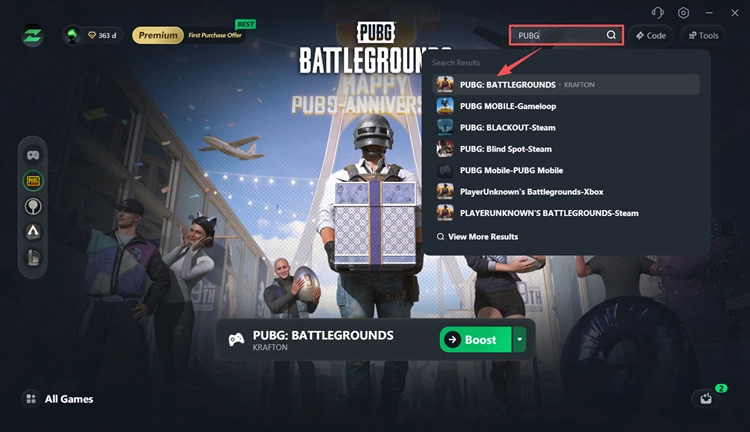
Step 2. Open LagZapper and Search for PUBG
Launch LagZapper, sign in, and use the search bar or supported games list to find PUBG: BATTLEGROUNDS.
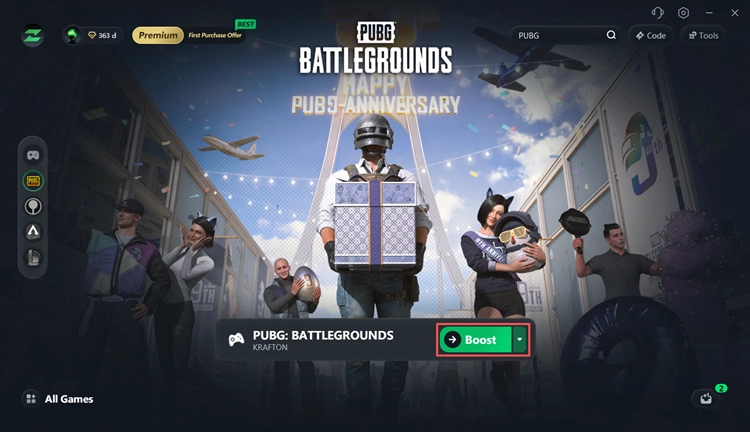
Step 3. Select a Server and Boost PUBG
Choose your preferred server or node, then click Boost before launching PUBG.
LagZapper supports thousands of online games and optimizes the connection route to help lower ping, reduce lag and packet loss, and improve connection stability during online matches.
The Bottom Line
When PUBG servers are down, check the official PUBG server status and maintenance notices before troubleshooting your PC. When the servers are online, restart Steam and your router, test another connection, flush DNS, and verify PUBG files. For routing-related high ping, packet loss, lag spikes, or unstable cross-region connections, download LagZapper to optimize the route between your Windows PC and the PUBG server.
FAQs About PUBG Servers Down
Q1. Are PUBG servers down right now?
Check PUBG Support and official maintenance notices first. Regional issues can occur without a confirmed global outage.
Q2. How can I check PUBG server status?
Check PUBG Support, official news, and support social channels, then compare recent Steam Community reports.
Q3. Why can't I connect to PUBG when the servers are online?
Possible causes include ISP issues, unstable routing, DNS problems, firewall settings, or Steam service errors.
Q4. How long are PUBG servers usually down for maintenance?
It varies by update. Major PUBG maintenance windows often last several hours.
Q5. Does changing DNS fix PUBG server connection issues?
It can help with local DNS or connection problems, but it cannot fix an official PUBG server outage.