
RIFTSTORM Multiplayer Not Working? 7 Fixes for Co-op & Connection Issues
RIFTSTORM is an always-online PvE looter-shooter that lets squads of up to three players fight through missions and extract with new weapons and resources. However, you may find RIFTSTORM multiplayer not working when Steam invites fail, teammates are unable to join a lobby, players experience multiplayer desync, or the game becomes unresponsive while rejoining a session after a disconnect.
This guide will explain the likely causes of these co-op problems and provide practical fixes for restoring lobby access and connection stability.
Why Is RIFTSTORM Multiplayer Not Working?
RIFTSTORM multiplayer problems can have both game-side and local causes. Understanding where the issue begins can help you choose the right fix later. Check the table below to identify what may be affecting your co-op session.
| Possible Cause | Effect on RIFTSTORM Multiplayer |
|---|---|
| Early Access Server or Launch-Build Instability | Early Access bugs or service instability can disrupt lobbies and co-op sessions. |
| Steam Invite-Flow or Lobby Problems | Lobby errors can prevent teammates from joining through Steam invites or Lobby Codes. |
| Known Multiplayer Desync and Rejoin Bugs | Known bugs can cause movement desync or freeze RIFTSTORM when players rejoin. |
| Incorrect Windows System Time | Incorrect Windows time can cause problems when accessing RIFTSTORM. |
| High Ping, Packet Loss, or Unstable Routing | High ping, packet loss, or poor routing can disrupt co-op data exchange. |
| Firewall or Stale Steam Session | Firewall restrictions or stale Steam sessions can block the game’s connection to online services. |
How to Fix RIFTSTORM Multiplayer Not Working - 7 Useful Fixes
The fixes below address common RIFTSTORM multiplayer issues. Try them in order, or start with the fix that best matches your specific symptom.
Fix 1. Check RIFTSTORM Known Issues and Steam Updates
Because RIFTSTORM is in Early Access, some multiplayer failures may be game-side. Review the pinned Known Issues thread and recent Steam discussions for your symptom or a workaround, then check official social media to see whether others are affected. If the issue is widespread or acknowledged, wait for a hotfix instead of reinstalling the game.
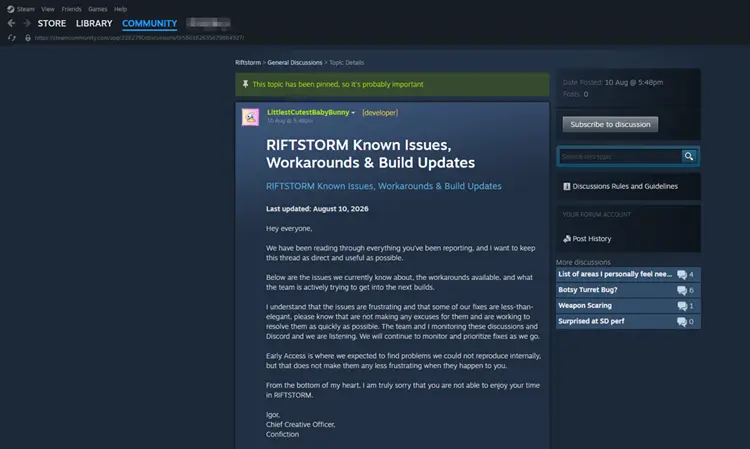
Different RIFTSTORM builds can prevent party members from joining a lobby or cause connection errors. Restart Steam and install any pending RIFTSTORM update on every PC, then confirm all players are using the same game build before inviting them again.
Fix 2. Sync Windows Date and Time
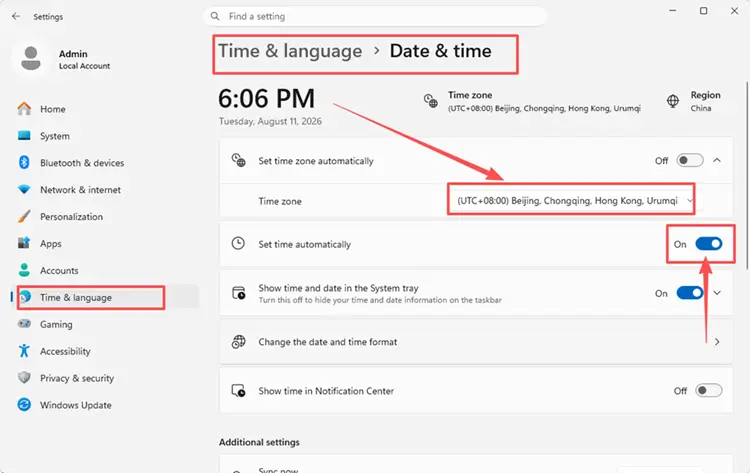
RIFTSTORM’s developers identify an incorrectly synchronized Windows clock as a cause of access problems. Correcting the Windows clock can resolve synchronization-related access errors. Follow the steps below.
Step 1. Open Windows Settings > Time & language > Date & time.
Step 2. Enable Set time automatically, then select the correct Time zone.
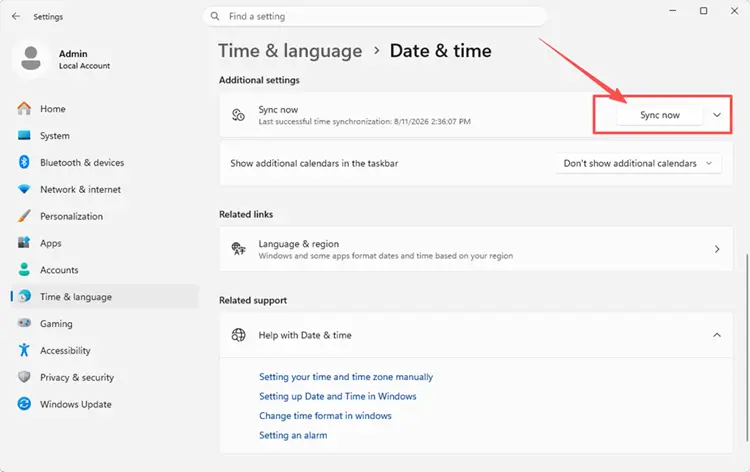
Step 3. Under Additional settings, click Sync now, then restart RIFTSTORM.
Fix 3. Restart RIFTSTORM When Rejoining Stops Responding
RIFTSTORM currently has a known issue that can leave the game in a Not Responding state while rejoining a session. The official workaround is to restart RIFTSTORM and try the session again. Follow the steps below.
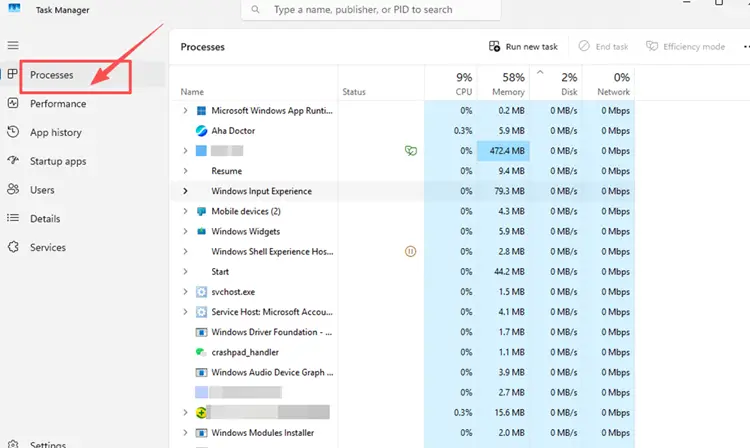
Step 1. Close RIFTSTORM. If it remains frozen, press Ctrl+Shift+Esc to open Task Manager, select RIFTSTORM, and click End task.
Step 2. Relaunch RIFTSTORM through Steam and wait until HQ loads.
Step 3. Attempt to rejoin the same session through the available invite or multiplayer option.
Fix 4. Recreate the Lobby and Switch Invite Methods
RIFTSTORM supports Lobby and Code invites, while Steam invite-flow fixes are among the developers’ planned updates. Recreating the party refreshes the lobby and provides another join method if the original invite fails. Follow the steps below.
Step 1. Ask everyone to leave the current party, then have the host create a new lobby.
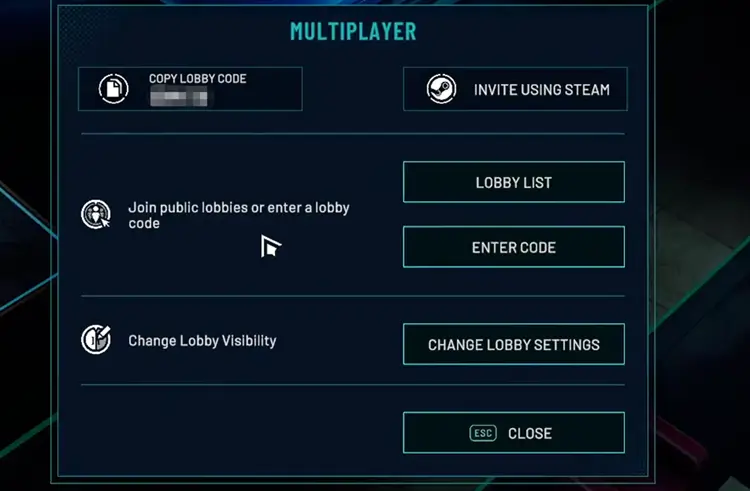
Step 2. Send a new Steam invite. If it fails, copy the newly generated Lobby Code.
Step 3. Have teammates enter the code through the multiplayer join option and confirm the party forms.
Fix 5. Extract, Regroup, and Retry After Movement Desync
RIFTSTORM’s official workaround for movement desynchronization is to extract, regroup, and retry the mission. Extract when possible instead of abandoning the run, because abandonment counts as failure and can apply Weapon Scarring. Follow the steps below.
Step 1. Extract from the current mission when possible.
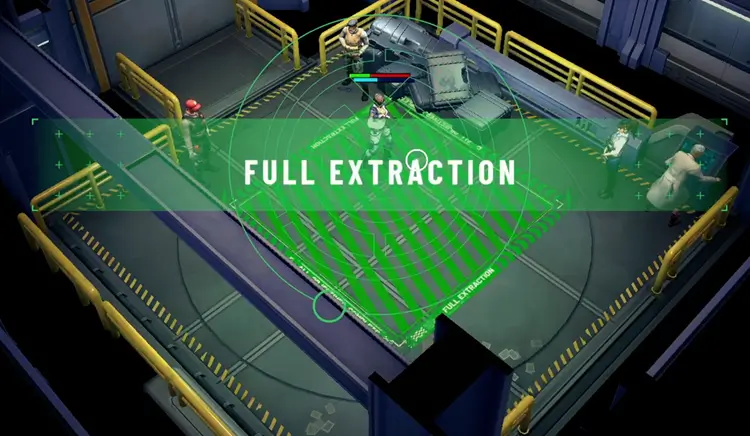
Step 2. Return to HQ and leave the current party.
Step 3. Create a new party, reinvite the same teammates, and retry the mission.
Fix 6. Stabilize and Test Your Connection
Pause Steam downloads, cloud sync, video streams, and other bandwidth-heavy apps. Use Ethernet instead of Wi-Fi when possible, and restart the router if instability continues. These changes cannot fix code-level desync, but they can reduce packet loss and disconnects.
Briefly connect through a mobile hotspot or another Wi-Fi network, then create a new lobby. If multiplayer works there, the original router, wireless signal, ISP route, or local network is more likely responsible than the game files.
Fix 7. Allow RIFTSTORM and Steam Through Windows Firewall
Windows Firewall can block RIFTSTORM or Steam while other online apps still work. Add both programs to the allowed apps list instead of disabling the firewall. Follow the steps below.
Step 1. Open Windows Security > Firewall & network protection > Allow an app through firewall.
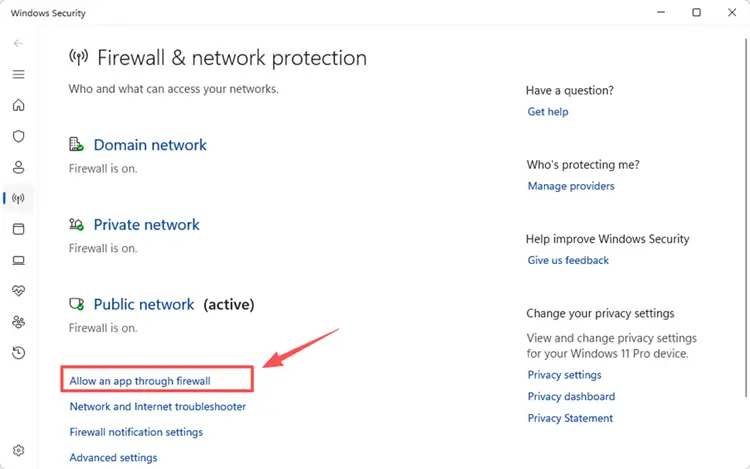
Step 2. Click Change settings. If RIFTSTORM or Steam is missing, select Allow another app and browse to its executable.
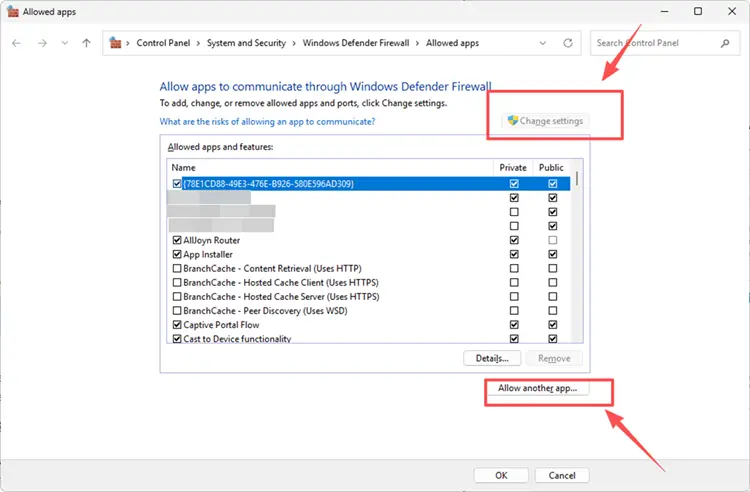
Step 3. Enable the active network type, click OK, then recreate the lobby.
[Bonus] Improve RIFTSTORM Multiplayer Connection with LagZapper
RIFTSTORM is always online, so unstable routing can cause high ping, packet loss, delayed lobby entry, or disconnects during co-op missions. LagZapper can optimize the route to the selected server, helping reduce game lag and lower ping when the problem comes from routing rather than an Early Access bug or Steam invite failure.
Why Use LagZapper for RIFTSTORM?
- Smart Route Optimization: Finds a stable route to help lower ping, packet loss, jitter, and routing problems.
- Connection Stability: Helps reduce game lag and limit sudden latency changes during lobby entry, combat, and extraction.
- One-Click Boost: Optimizes the connection without manual router, DNS, or Windows changes.
- 3,000+ Game Support: Works with RIFTSTORM and thousands of other online games.
How to Use LagZapper for RIFTSTORM
Follow these three steps to optimize the connection before creating or joining a RIFTSTORM lobby.
Step 1. Download and Install LagZapper
Download LagZapper for Windows and follow the on-screen instructions to complete the installation on your PC.
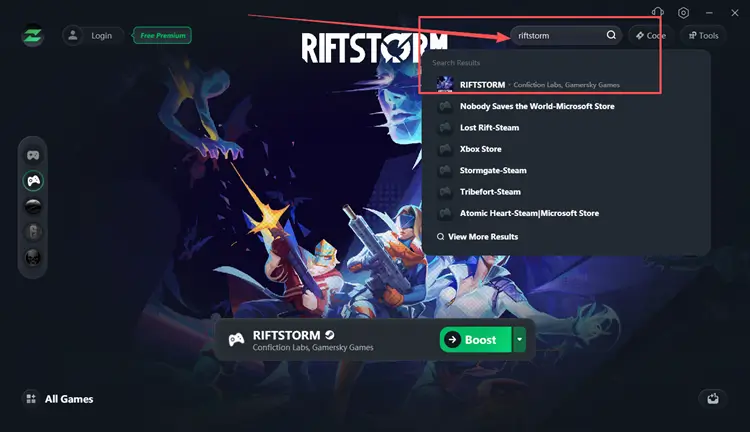
Step 2. Sign In and Search for RIFTSTORM
Launch LagZapper, sign in to your account, then use the search bar or supported games list to find RIFTSTORM.
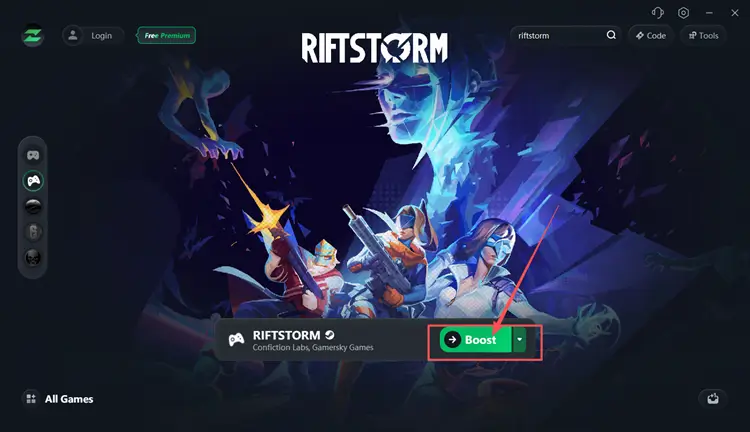
Step 3. Select a Server or Node and Boost
Select a suitable server or recommended node, then click Boost before launching RIFTSTORM.
The Bottom Line
RIFTSTORM multiplayer not working can result from Early Access bugs, Steam invite or lobby failures, mismatched builds, stale sessions, movement desync, incorrect Windows time, unstable routing, or firewall blocks. Check official updates first, then work through the seven fixes above in order, recreating the party or regrouping after desync when needed.
If multiplayer access returns but high ping, packet loss, or inefficient routing still disrupts lobby entry or co-op missions, download LagZapper to optimize the connection route.
FAQs About RIFTSTORM Multiplayer Not Working
Q1. Why Is RIFTSTORM Multiplayer Not Working?
Early Access bugs, outdated builds, stale Steam sessions, incorrect system time, or unstable connections may interfere.
Q2. How Do I Fix RIFTSTORM Co Op Not Working?
Restart RIFTSTORM and Steam, update every player’s build, recreate the party, and check firewall access.
Q3. What Should I Do When the RIFTSTORM Steam Invite Is Not Working?
Create a fresh lobby, resend the Steam invite, then share the newly generated Lobby Code instead.
Q4. What Should I Check If RIFTSTORM Is Unable to Join a Lobby?
Match builds, restart Steam, recreate the party, and enter the host’s newly generated Lobby Code.
Q5. Why Is My RIFTSTORM Lobby Code Not Working?
The code may be expired, mistyped, linked to an old lobby, or affected by instability.
Q6. What Causes a RIFTSTORM Connection Error?
Server instability, high ping, packet loss, firewall rules, or inefficient routing may interrupt online access.