
STALKER 2 Crashing After Update 2.0? 7 Fixes for Startup & In-Game Crashes
STALKER 2 crashing after Update 2.0 can show up as a startup crash, a loading crash when opening a save, random in-game crashes, or a fatal error. In some cases, STALKER 2 keeps crashing immediately after launch; in others, the game runs for several minutes before suddenly closing. This guide will explain why STALKER 2 crashes after Update 2.0 and provide seven practical fixes for startup, loading, and in-game crashes.
Why Does STALKER 2 Keep Crashing After Update 2.0?
Crashes after Update 2.0 can happen at different stages, and their timing or error message may help identify the cause. Check the table below to see what may be causing your STALKER 2 crash based on when it happens or the error shown.
| Crash symptom | Possible causes |
|---|---|
| Crash before the main menu | Outdated or incompatible mods, mod-loader conflicts, corrupted game files, or shader cache issues |
| Crash while loading a save | Incompatible mods, corrupted game files, a save-specific issue, or an update-related regression |
| Random crash after several minutes | GPU driver issues, Frame Generation, high GPU load, overlays, or unstable hardware tuning |
| LowLevelFatalError | Corrupted game files, incompatible mods, graphics or driver conflicts, or an engine-side issue |
| EXCEPTION_ACCESS_VIOLATION | Mod conflicts, corrupted game files, unstable hardware tuning, driver conflicts, or an engine-side fault |
How to Fix STALKER 2 Crashing After Update 2.0 - 7 Useful Fixes
Try the fixes below in order, starting with quick checks and common causes before moving on to more advanced troubleshooting.
Fix 1. Check for the Latest STALKER 2 Hotfix
Before changing mods or graphics settings, make sure the game is fully updated. GSC began releasing follow-up patches shortly after Update 2.0, so newer builds may address crashes introduced or exposed by the overhaul. Install the newest available version, restart the launcher, and test the game again.
Fix 2. Remove Incompatible STALKER 2 Mods
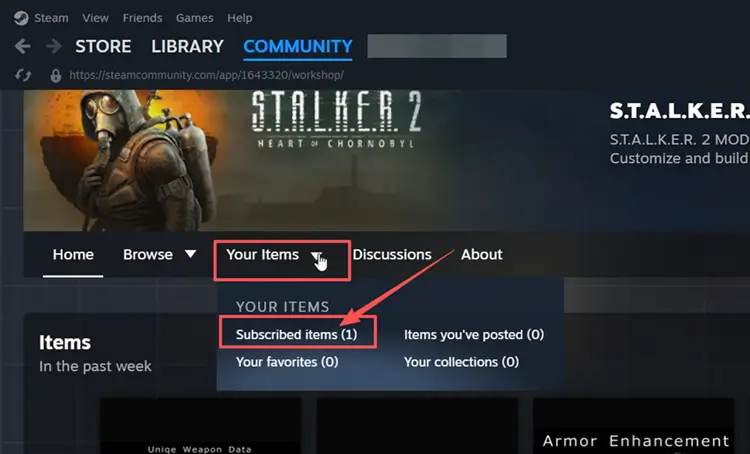
Update 2.0 is a major technical overhaul, and outdated mods may cause instability after the update. GSC recommends removing mods until compatible versions are available. Follow the steps below to test STALKER 2 without third-party modifications.
Step 1. Unsubscribe from all STALKER 2 mods in Steam Workshop or the in-game mod.io Mod Browser.
Step 2. If you used mod.io, press Windows + R, open %localappdata%\mod.io, and delete the 5761 folder. Then open C:\Users\Public\mod.io and delete its 5761 folder.
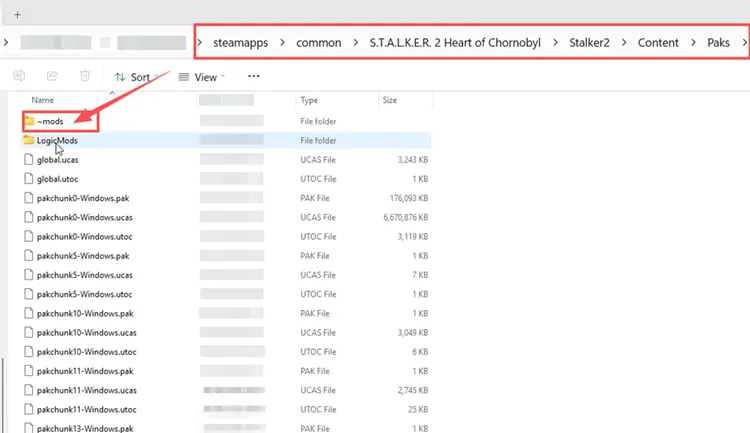
Step 3. If you installed mods manually, open the STALKER 2 installation folder and delete Stalker2\Content\Paks\~mods.
Fix 3. Verify or Repair STALKER 2 Game Files
A large update can leave missing or corrupted files that cause startup crashes, loading failures, or fatal errors. Verifying the game installation checks the current files and replaces damaged data without reinstalling the entire game. Follow the steps below to repair STALKER 2 files.
For Steam
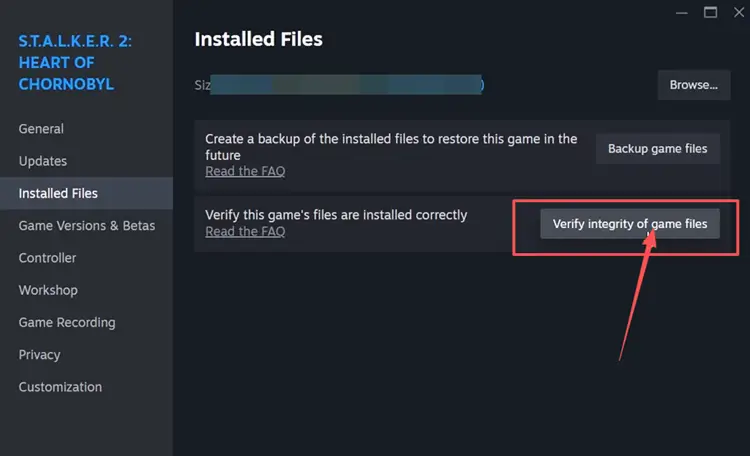
Step 1. Open Steam Library, right-click STALKER 2, and select Properties > Installed Files.
Step 2. Click Verify integrity of game files and wait for the process to finish.
For GOG, Epic Games, or Xbox App
GOG: Manage Installation > Verify / Repair
Epic Games: Manage > Verify
Xbox App: Manage > Files > Verify and Repair
Fix 4. Clear the Shader Cache After Update 2.0
After a major engine update, outdated shader cache data may contribute to startup crashes or problems during shader compilation. Clearing the DirectX Shader Cache allows Windows and STALKER 2 to regenerate temporary shader data on the next launch.
Step 1. Press Windows + R, enter cleanmgr, and open Disk Cleanup.
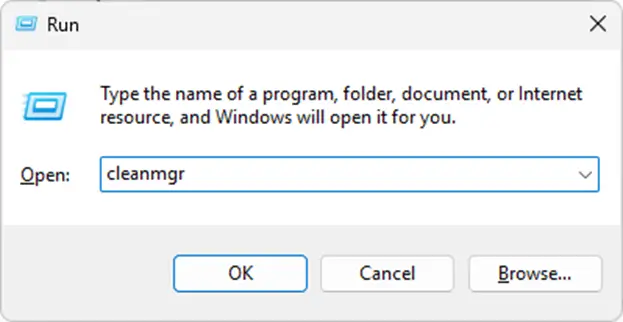
Step 2. Select your system drive, check DirectX Shader Cache, click OK, and confirm Delete Files.
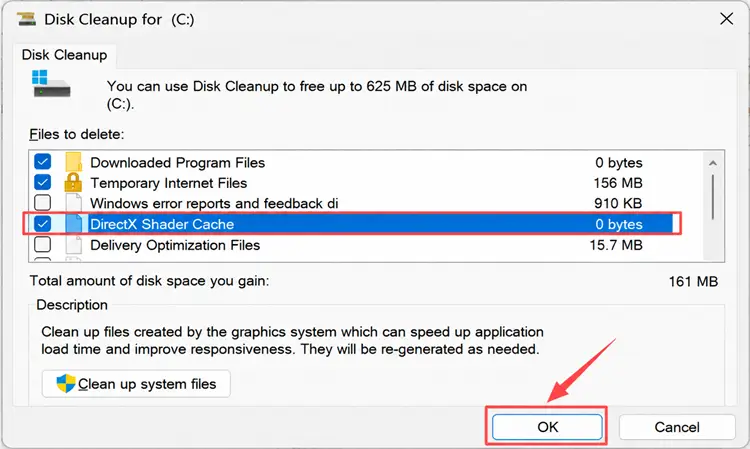
Step 3. Restart your PC and launch STALKER 2 again to rebuild shader data.
Fix 5. Disable Frame Generation and Reduce GPU Load
High GPU load or unstable graphics features can cause STALKER 2 to crash during gameplay, especially after major updates. Temporarily disabling Frame Generation and lowering demanding settings can help determine whether the issue is related to graphics stability. Follow the steps below to reduce GPU load.
Step 1. Open the STALKER 2 main menu, go to Options > Graphics, and turn off Frame Generation.
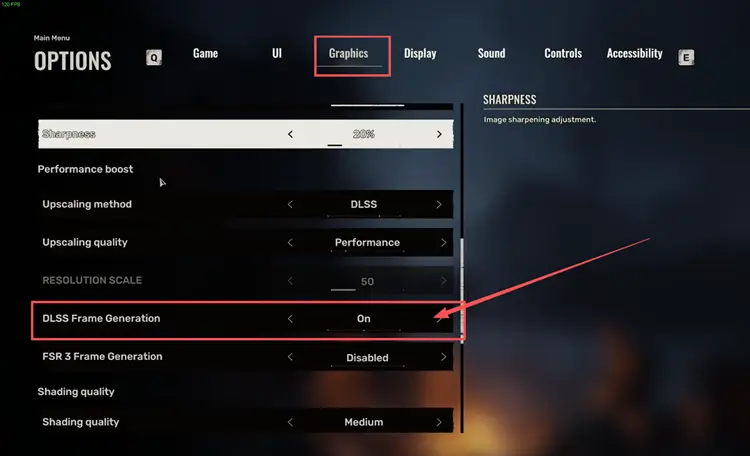
Step 2. Lower GPU-heavy settings such as Hair Quality, Global Illumination, or the overall graphics preset.
Step 3. Restart STALKER 2 and test the same save or area again.
Fix 6. Disable Overlays and Reset Hardware Tuning
Overlays and performance-monitoring tools can sometimes interfere with STALKER 2 and contribute to unexpected crashes. Temporarily disable Steam Overlay, NVIDIA Overlay, and any performance-monitoring tools to check whether they are causing conflicts.
If you use GPU overclocking, undervolting, or other hardware tuning profiles, restore the default settings and test STALKER 2 again. Unstable tuning can affect game stability, especially during demanding scenes.
Fix 7. Update Your Graphics Driver
Outdated or unstable graphics drivers can cause STALKER 2 crashes, freezes, or rendering issues after major updates. Updating your GPU driver can improve compatibility with the latest game build and graphics features. Follow the steps below to install the latest available driver.
Step 1. Open NVIDIA app on your PC.
Step 2. Open the Drivers tab, check for updates, then download and install the latest available Game Ready Driver.
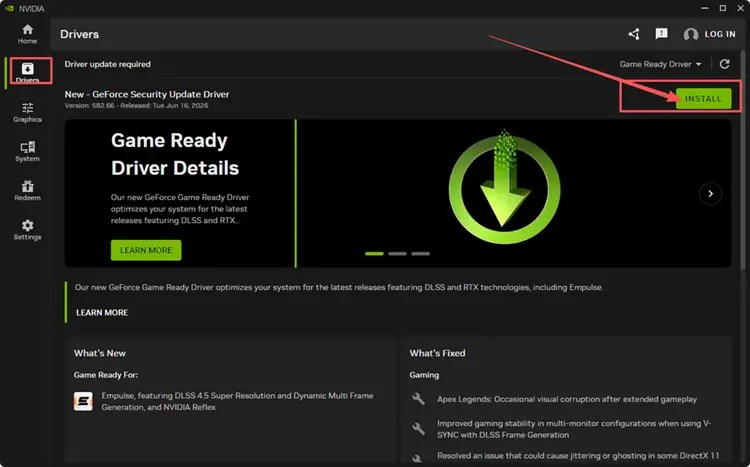
Step 3. Restart your PC and try launching STALKER 2 again.
Tip: AMD and Intel users can update through AMD Software: Adrenalin Edition or Intel Driver & Support Assistant.
[Bonus] How to Reduce STALKER 2 Lag with LagZapper
STALKER 2 currently focuses on single-player gameplay, but GSC has confirmed that multiplayer will arrive in a future free update. Once online play becomes available, server distance, unstable routing, high ping, and packet loss may affect multiplayer connection quality. LagZapper can help optimize the route between your PC and supported game servers.
Why Use LagZapper for STALKER 2?
- Smart Route Optimization: Finds a faster and more stable route for STALKER 2, helping reduce high ping, packet loss, jitter, and unstable connections.
- Reduce Lag & Improve Stability: Helps lower ping, reduce game lag, minimize lag spikes, and make exploration and combat feel more responsive.
- One-Click Boost: Optimizes the STALKER 2 connection with one click without manually changing complicated network or router settings.
- Support for 3,000+ Games: Supports STALKER 2 and thousands of other supported online games.
How to Boost STALKER 2 with LagZapper
Follow the steps below to optimize the STALKER 2 connection before launching the game.
Step 1. Download and Install LagZapper
Download LagZapper for Windows and follow the on-screen instructions to complete the installation.
Step 2. Open LagZapper and Search for STALKER 2
Launch LagZapper, then use the search bar or browse the supported games list to find STALKER 2.
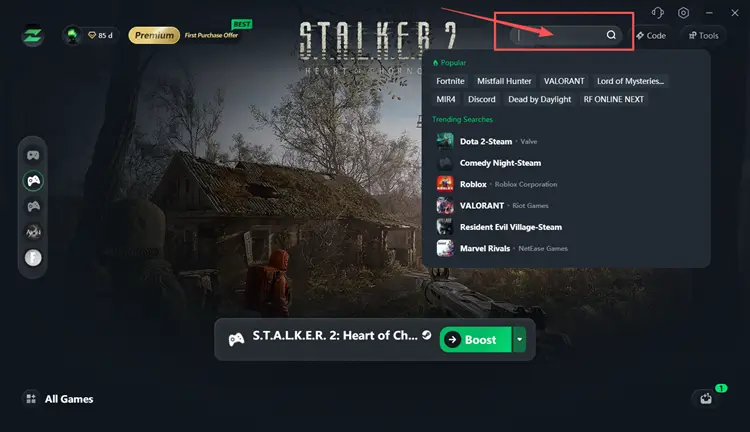
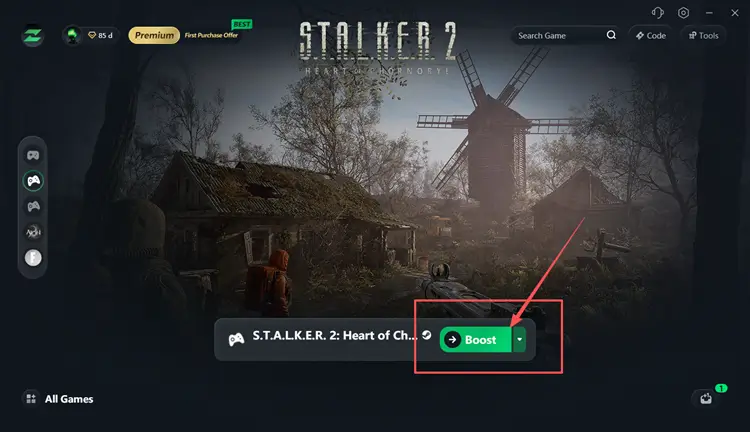
Step 3. Select a STALKER 2 Server and Click Boost
Once STALKER 2 multiplayer is released, select a recommended server node and click Boost before entering online play.
The Bottom Line
STALKER 2 crashing after Update 2.0 can be caused by outdated mods, corrupted files, shader cache issues, graphics conflicts, or driver problems. Start with the latest patch and compatibility checks before moving to graphics troubleshooting. With multiplayer planned for a future update, PC players can also download LagZapper to optimize supported online games and prepare for future STALKER 2 multiplayer.
FAQs About STALKER 2 Crashing After Update
Q1. Why Is STALKER 2 Crashing After Update 2.0?
Update 2.0 crashes may come from mod conflicts, corrupted files, cache issues, graphics settings, or drivers.
Q2. How Do I Fix STALKER 2 Crashing on Startup?
Remove incompatible mods, verify files, clear cache, and update drivers to fix startup crashes.
Q3. Why Does STALKER 2 Keep Crashing While Loading Saves?
Save-related crashes may come from incompatible mods, corrupted game files, or an update-related regression.
Q4. How Do I Fix STALKER 2 Fatal Error?
Verify game files, disable graphics features, remove mods, and update your GPU driver.
Q5. Can Mods Cause STALKER 2 Crashes After Update 2.0?
Yes, outdated mods or mod loaders may conflict with the updated game version.