
Steam Error E502 L3: How to Fix “Something Went Wrong”
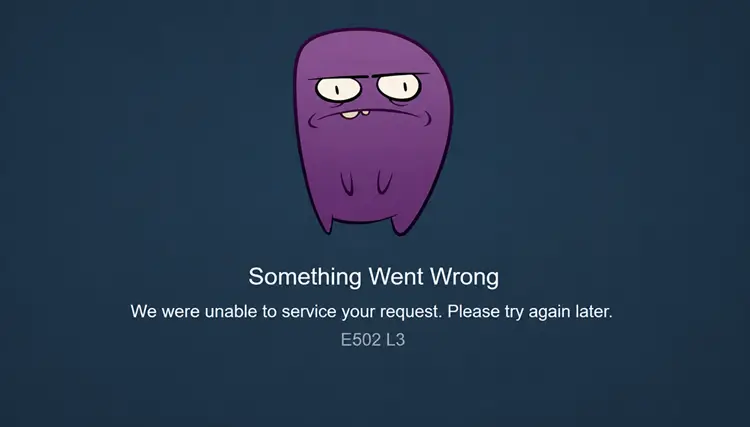
Steam Error E502 L3 can appear when Steam fails to complete a Store-related request, often showing the message “Something Went Wrong.” You may see it while opening the Steam Store, loading your cart, signing in to your account, or trying to purchase a game. Don't worry. This guide will explain what the error means, why it may happen, and walk you through seven practical fixes to restore Steam access.
What Is Steam Error E502 L3?
Steam Error E502 L3 is a Store-related error that can affect shopping, cart, login, or purchase requests. The E502 part generally points to a gateway-type service failure, while Valve has not publicly explained what L3 specifically means.
Why Does Steam Error E502 L3 Happen?
Steam Error E502 L3 can happen for several reasons, from Steam-side service issues to local connection problems. Check the table below for common symptoms, likely causes, and the first fix to try.
| Symptom | Likely Cause | First Fix to Try |
|---|---|---|
| Steam Store, cart, or purchase pages fail on multiple devices | Steam Store or backend service issue | Check Steam server status |
| E502 L3 appears during a major sale or release | Maintenance or heavy Store traffic | Wait and try again later |
| Steam Web Store works, but the client fails | Stale Steam session or Web Browser Data | Fully restart Steam |
| Steam works on another network | Regional network or ISP routing issue | Restart the router and test another network |
| Steam fails only on one Windows PC while other devices on the same network work | Local DNS or network configuration issue | Flush DNS and renew the connection |
| Steam stops connecting after a firewall or security setting change | Firewall or security software interference | Allow Steam through Windows Firewall |
How to Fix Steam Error E502 L3 - 7 Useful Fixes
If one symptom in the table matches your issue, start with its suggested first fix. Otherwise, work through the seven fixes below in order.
Fix 1. Check Steam Server Status and Wait Before Retrying
Steam Error E502 L3 can appear when the Steam Store or related services are temporarily unavailable, especially during maintenance or heavy traffic. Check Steam server status and recent outage reports first. If many users are affected, wait for the service to recover before changing local settings or repeatedly retrying.
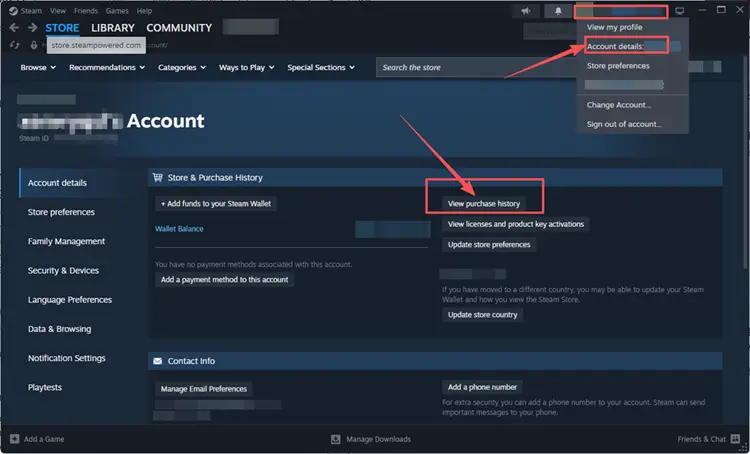
If the error appears during checkout, avoid submitting the payment again immediately. Open your account name > Account Details > View purchase history to confirm whether the transaction was completed, failed, or is still pending before trying again. If it is completed or pending, do not submit another payment. Retry only after the purchase is marked failed, or open the purchase entry for help from Steam Support.
Fix 2. Fully Exit and Restart Steam
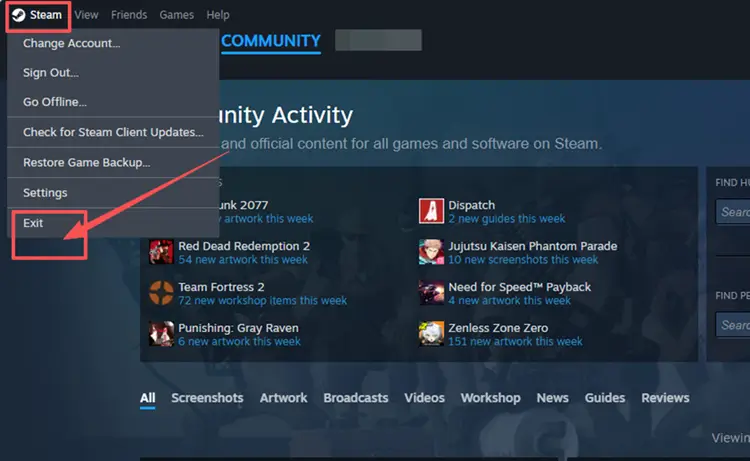
A stuck Steam process or temporary client session can prevent Store requests from loading correctly. Select Steam > Exit to close the client completely, wait a few seconds, and reopen it. If Steam is still running in the system tray or Task Manager, close the remaining process before launching it again.
Fix 3. Try the Steam Web Store or Another Device
Open the Steam Web Store in your browser or test the same Store page on another device. If the browser or another device works while the desktop client still shows E502 L3, the problem is more likely limited to the Steam client or its web data. If every device fails on the same connection while Steam status reports look normal, continue with the network fixes below.
Fix 4. Delete Steam Web Browser Data
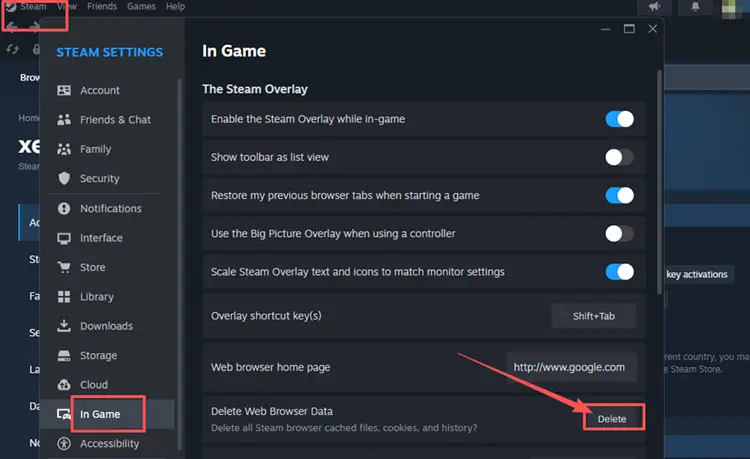
Steam stores browser data for Store and other web-based pages inside the client. If this data becomes stale or corrupted, deleting it can refresh Store requests. Follow the steps below:
Step 1. Open Steam > Settings > In Game.
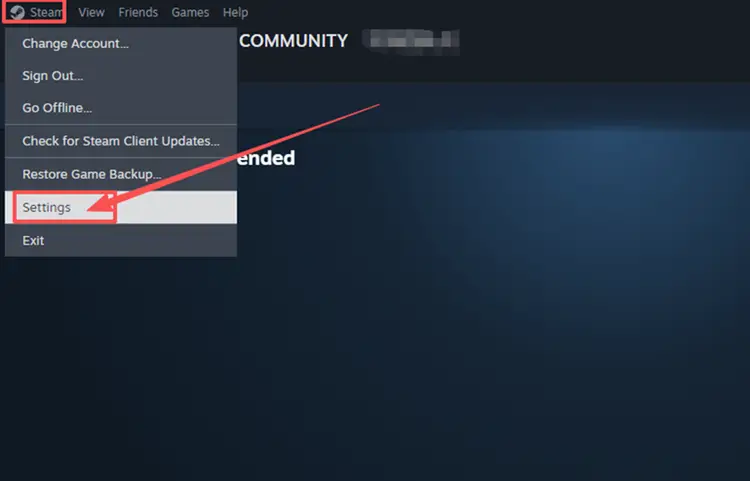
Step 2. Find Delete Web Browser Data, click Delete, then fully restart Steam.
Fix 5. Restart the Router and Test Another Network
If Steam works on another network but not your home connection, restart the router to clear a temporary network issue. Unplug it for about 30 seconds, reconnect it, and wait for the network to return. Then retry Steam. You can also test a mobile hotspot to determine whether the problem is limited to your current connection.
Fix 6. Flush DNS and Renew the Network Connection
If Steam Error E502 L3 still appears after the earlier checks, stale DNS records or temporary Windows network settings may be affecting the connection. Flushing DNS and renewing the network configuration can refresh this local connection data. Follow the steps below:
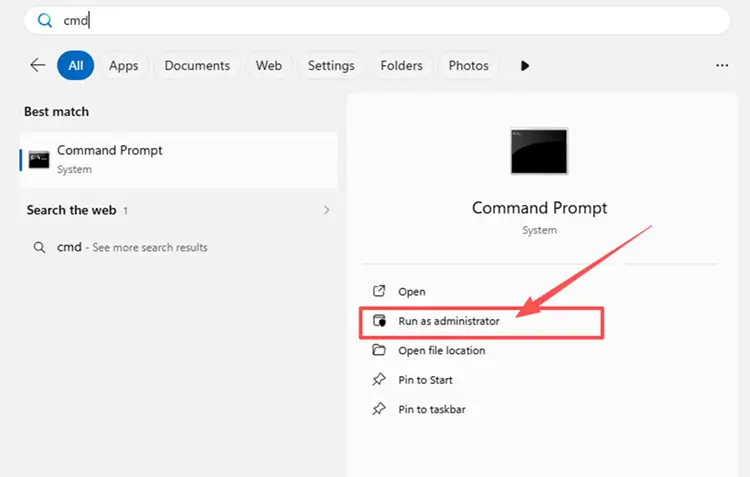
Step 1. Search for cmd, right-click Command Prompt, and select Run as administrator.
Step 2. Run ipconfig /flushdns, ipconfig /release, and ipconfig /renew one at a time.
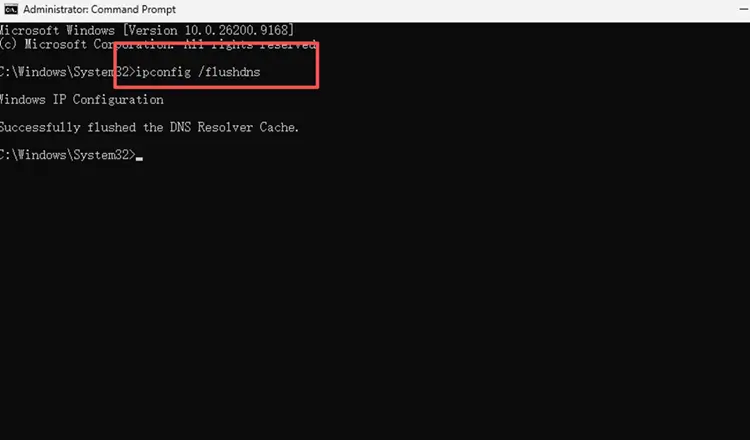
Step 3. Wait for the connection to return, then reopen Steam and test the Store again.
Fix 7. Allow Steam Through Windows Firewall
Windows Firewall may block Steam from connecting properly after a client update or firewall rule change. Add Steam to the allowed apps list instead of disabling firewall protection. Follow the steps below to check its Windows Firewall permissions.
Step 1. Open Windows Security, select Firewall & network protection, and click Allow an app through firewall.
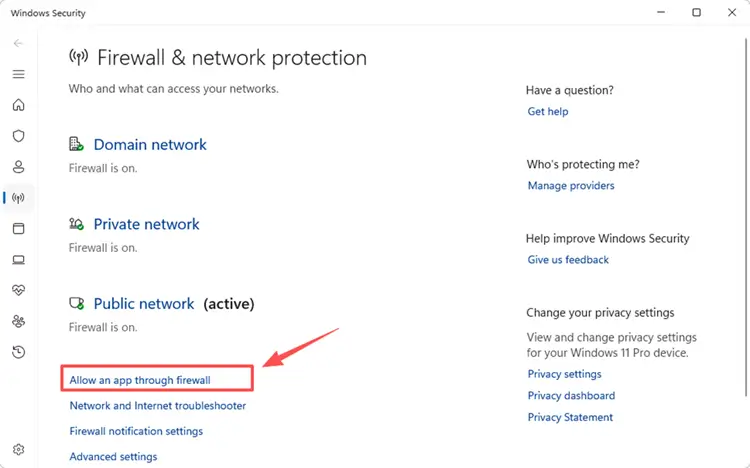
Step 2. Click Change settings and allow Steam, or select Allow another app to add steam.exe.
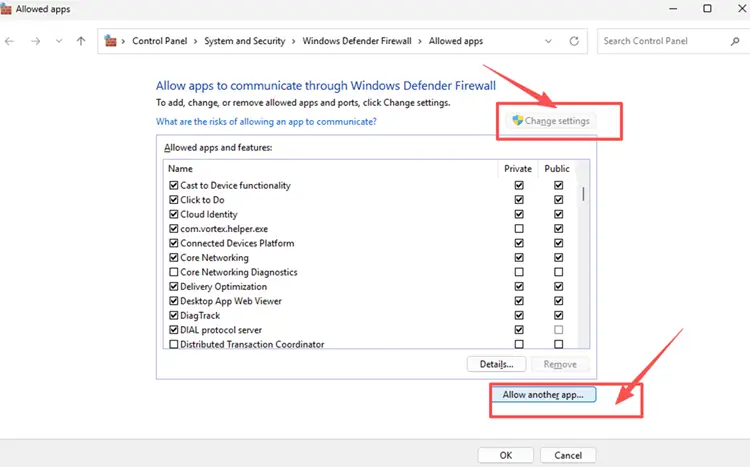
Step 3. Allow Steam on your active network profile, click OK, and relaunch Steam.
[Bonus] Improve Connection Stability for Games on Steam with LagZapper
Many online games on Steam rely on a stable connection for matchmaking, co-op, PvP, and real-time gameplay. If high ping, packet loss, lag spikes, or unstable routing affects your gaming experience, LagZapper can optimize the connection route, reduce game lag, and improve connection stability.
Why Use LagZapper for Steam Games?
LagZapper can help improve the connection for supported Steam games:
- Smart Route Optimization: Finds stable routes to help reduce high ping, packet loss, jitter, and routing instability.
- Connection Stability: Helps reduce game lag, lower ping, and limit sudden latency changes while playing online.
- One-Click Boost: Optimizes the game connection without manually changing complicated router, DNS, or Windows settings.
- 3,000+ Game Support: Works across more than 3,000 supported online games.
How to Boost a Steam Game with LagZapper
Follow these three steps to optimize the connection for a supported Steam game before you start playing.
Step 1. Download and Install LagZapper
Download LagZapper for Windows and follow the on-screen instructions to complete the installation on your PC.
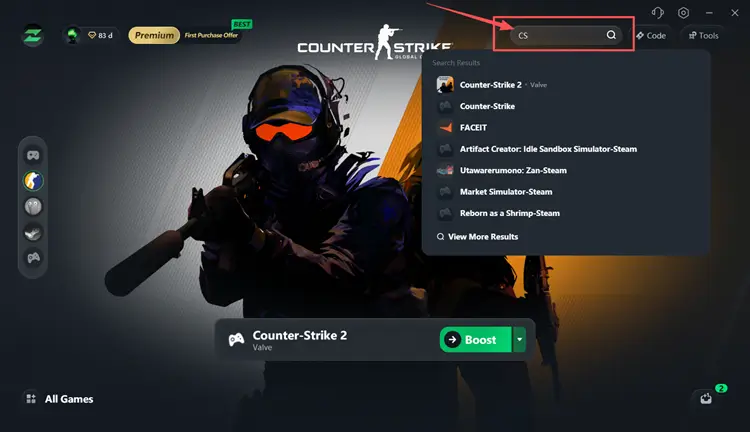
Step 2. Open LagZapper and Search for Your Steam Game
Launch LagZapper, then use the search bar or browse the supported games list to find the Steam game you want to play.
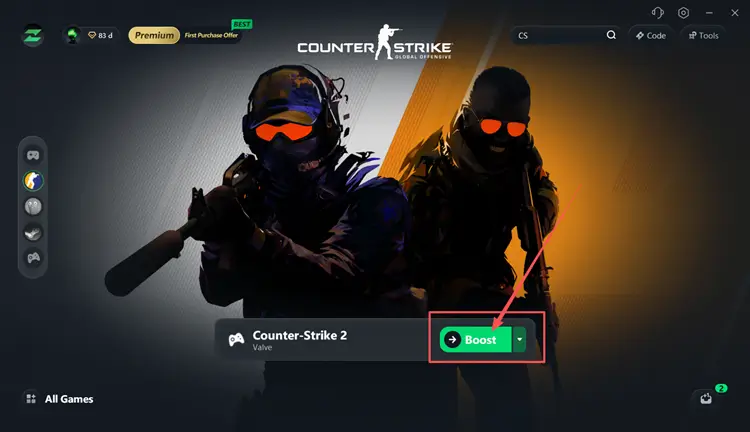
Step 3. Select a Server and Boost
Select a suitable server or node, click Boost, and then launch the Steam game to start playing with the optimized connection route.
The Bottom Line
Steam Error E502 L3 may result from Steam service disruptions, heavy Store traffic, stale client data, or local network problems. Start by checking Steam status, then restart the client and work through the remaining Store, network, DNS, and firewall fixes if the error continues. Once Steam access returns, if high ping, packet loss, or unstable routing affects supported games, download LagZapper to optimize the game connection route and improve stability.
FAQs About Steam Error E502 L3
Q1. What Does Steam Error E502 L3 Mean?
It usually means Steam cannot complete a Store request because of a temporary service or connection problem.
Q2. What Is the Best Steam E502 L3 Fix?
Check Steam service status first, then restart Steam and troubleshoot client or network issues if needed.
Q3. Is Steam Error Code E502 L3 Usually a Server-Side Problem?
Often yes, especially during widespread outages, although client or local network problems may also contribute.
Q4. Why Is the Steam Store Not Working with E502 L3?
Store outages, maintenance, heavy traffic, stale client data, or network issues may cause the error.
Q5. Can Steam E502 L3 Affect a Purchase?
Yes. It can interrupt checkout, so check your purchase history before submitting the payment again.
Q6. How Long Does Steam Error E502 L3 Last?
There is no fixed duration; recovery depends on the cause and the affected Steam services.