
TFT Crashing After Update? Fix TFT Set 18 Crashes
TFT crashing after update became a widespread complaint after Teamfight Tactics Set 18: Enchanted Wilds launched on August 26, 2026, bringing TFT's move from Riot's Hextech engine to Unreal Engine.
Players have reported TFT freezing after update, black screens, startup crashes, long loading screens, FPS drops, and matches failing to load. Riot had warned that the Unreal transition could introduce additional bugs and has already released fixes targeting memory leaks, loading problems, mobile crashes, and client stability. When TFT keeps crashing, try the 5 fixes below in order.
Why Is TFT Crashing After the Update?
The recent TFT crashing issues are closely tied to Set 18’s move from Riot’s Hextech engine to Unreal Engine on August 26. Riot had already warned that the transition could introduce more bugs.
Post-launch fixes have targeted:
- Memory leaks
- Loading problems
- Mobile crashes
- “Update available” errors
- VFX and particle memory buildup
- Client stability and performance
Players have also reported PC freezes, FPS drops, black screens, and TFT crashing when loading a game. In many cases, TFT Set 18 crashing appears to be related to Unreal Engine bugs or optimization issues rather than the player’s PC or network.
How to Fix TFT Crashing After Update - 5 Fixes
Start with the official status and recent patches before changing local settings. This helps rule out server-side problems or known Set 18 bugs.
Fix 1. Check TFT Server Status and Recent Updates
Riot released several fixes after Set 18 launched, including a client update for Android, iOS, and Windows.
Step 1. Open the Riot Games Service Status page and select your region.
Step 2. Open League of Legends and check for maintenance, login, patching, or client issues that may affect TFT.
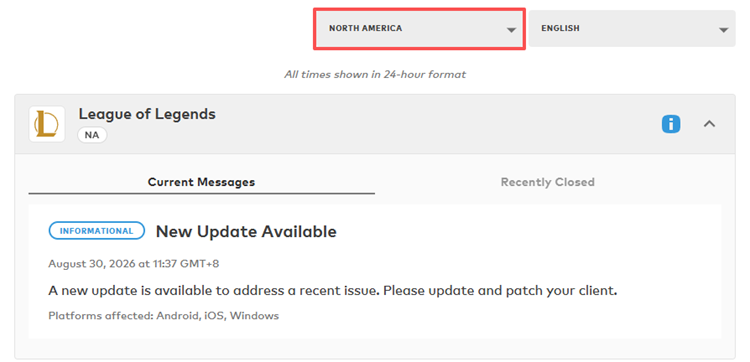
Tip: TFT is not listed separately on Riot’s status page, so check League of Legends notices for related issues.
Step 3. Check Riot’s latest notices, then continue with the fixes below when no active service issue is reported.
Fix 2. Fully Update TFT and Close Background Apps
Riot has released several post-launch fixes for Set 18, including memory leak and VFX-related fixes. Keeping TFT updated and reducing background memory usage may improve stability.
👉 On PC
Step 1. Close TFT and Riot Client, then open Task Manager. End remaining Riot or League processes and close unnecessary browsers, overlays, recording tools, and other memory-heavy apps.
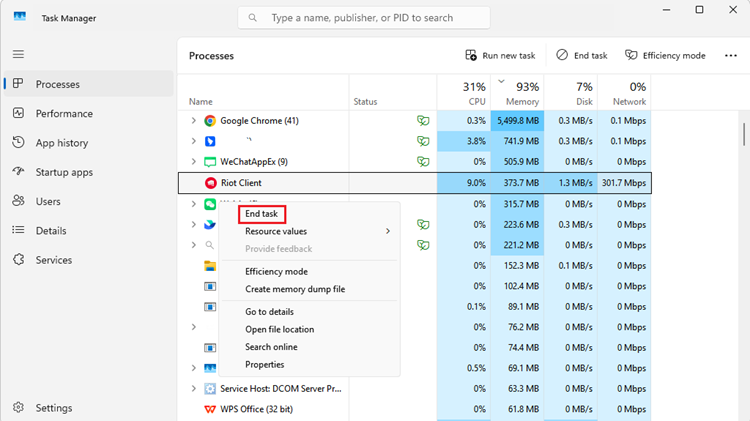
Step 2. Reopen Riot Client and install any available League of Legends or TFT updates.
Step 3. Restart your PC, launch TFT, and test another match.
Note: Avoid ending Windows or Riot processes you do not recognize.
👉 On Android or iOS
- Open Google Play or the App Store and check for updates.
- Install the latest available TFT update.
- Restart your device, reopen TFT, and test another match.
Riot also released a mobile client update on August 29 to address a recent issue.
Fix 3. Lower TFT Graphics Settings
For TFT freezing after update, FPS drops, or stuttering, lowering graphics settings may reduce system load after the Unreal Engine transition.
Step 1. Launch TFT and open Settings > Video.
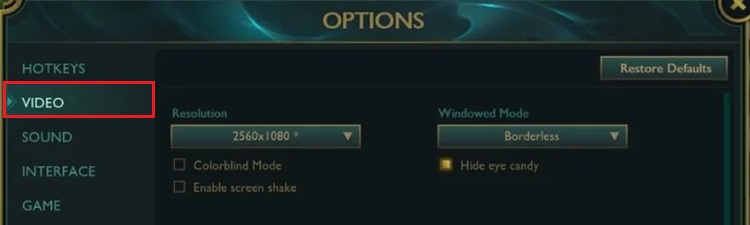
Step 2. Lower graphics quality and disable unnecessary visual effects.
Step 3. Apply the changes, restart TFT, and test another match.
Note: Lower settings cannot fix an Unreal Engine bug or memory leak, but they may reduce crashes while Riot continues optimizing Set 18.
Fix 4. Update Your Graphics Driver and Windows
TFT’s move to Unreal Engine may expose issues with outdated or unstable graphics drivers.
Step 1. Update your GPU driver through the official NVIDIA, AMD, or Intel software.
Step 2. Open Settings > Windows Update > Check for updates and install available Windows updates.
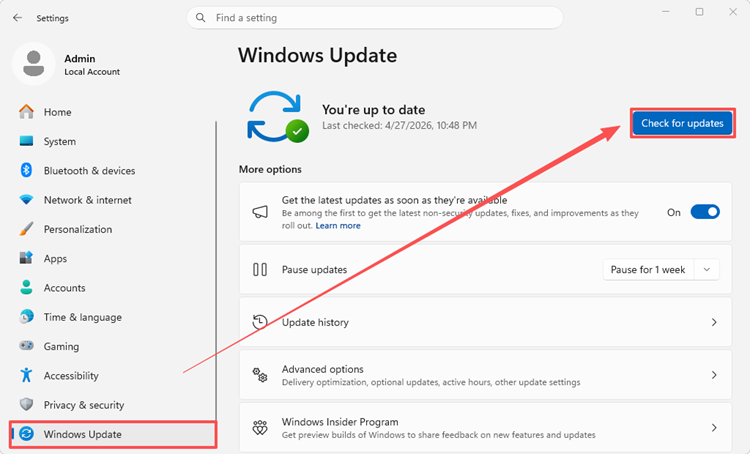
Step 3. Restart your PC, launch TFT, and test another match.
For crashes that started after a recent GPU driver update, try a clean installation or roll back to the previous stable driver.
Fix 5. Check Antivirus and Firewall Permissions
Security software may block Riot Client or TFT after an update.
Step 1. Open Windows Security > Virus & threat protection and make sure Riot Client, League Client, League of Legends, and Riot Vanguard are not blocked.
Step 2. Open Windows Defender Firewall > Allow an app through firewall and allow Riot Client and League/TFT.
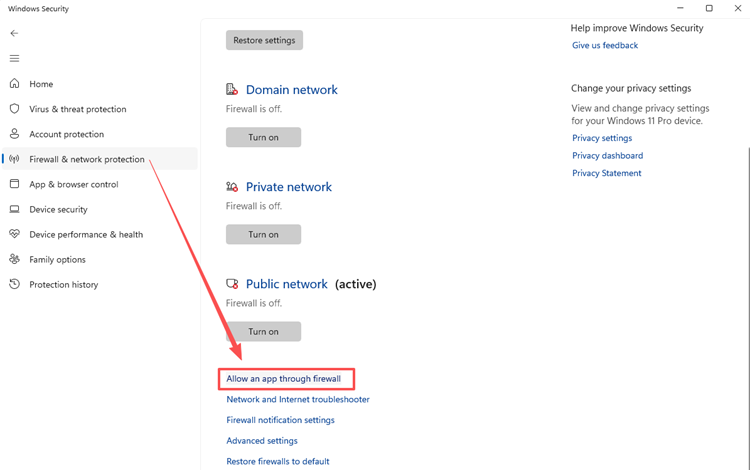
Step 3. Restart Riot Client, launch TFT, and test another match.
Tip: Add Riot apps to exceptions instead of permanently disabling your antivirus or firewall.
[Bonus] Reduce TFT Connection Issues With LagZapper
LagZapper is useful when TFT launches normally but you still experience high ping, packet loss, reconnecting, unstable routing, or trouble reaching Riot game servers. It optimizes the network route between your Windows PC and the game server to help improve connection stability during TFT matches. Since TFT runs through the League of Legends client on PC, you can use LagZapper’s League of Legends boost option before launching TFT.
Key Features of LagZapper for TFT
- Lower TFT Ping: Use smarter routing to help lower ping and reduce latency during matches.
- Reduce TFT Lag: Avoid congested network paths to help reduce lag and delayed actions.
- Reduce TFT Packet Loss: Improve route stability to help reduce packet loss during online play.
- Optimize TFT Cross-Region Connections: Choose a better node for more stable long-distance matches.
How to Use LagZapper for TFT
Follow these three steps before launching TFT:
Step 1. Download and Open LagZapper
Download LagZapper for Windows, complete the installation, then open the app and sign in.
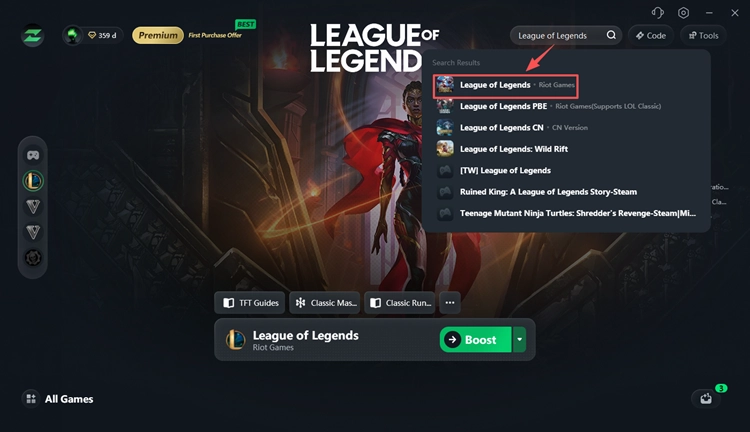
Step 2. Search for League of Legends
Search for League of Legends in LagZapper and select it. (TFT uses the League of Legends client on PC, so this boost option also works for TFT.)
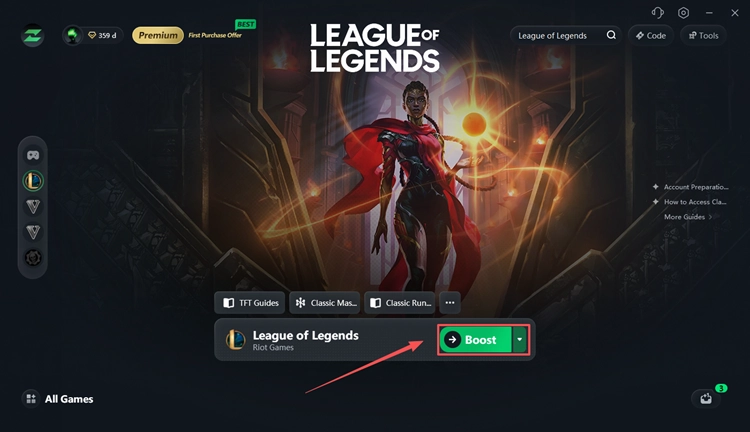
Step 3. Click Boost and Launch TFT
Click Boost to start route optimization. Then open the League of Legends client, enter Teamfight Tactics, and start a match.
The Bottom Line
When TFT is crashing after the update, Set 18’s Unreal Engine transition and related stability issues may be responsible. Keep TFT updated, restart your system, reduce background load, and update your graphics driver first. When the game launches normally but you experience high ping, packet loss, reconnecting, or unstable routing, use LagZapper’s League of Legends Boost to optimize the connection before entering TFT.
FAQs About TFT Crashing After Update
Q1. Why does TFT crash or freeze when loading a game?
Set 18 bugs, memory issues, graphics problems, or unstable connections may cause loading crashes or freezes.
Q2. How do I fix a black screen after launching TFT?
Update TFT and your GPU driver, restart Riot Client, and lower graphics settings.
Q3. Is TFT Set 18 crashing because of Unreal Engine?
Possibly. Riot confirmed that the Unreal transition could introduce additional bugs.
Q4. Can outdated graphics drivers cause TFT to crash?
Yes. Outdated or unstable GPU drivers may cause crashes, freezes, or graphics issues.
Q5. Why is TFT freezing or dropping FPS after the update?
Memory leaks, VFX issues, background apps, and higher system load may contribute.
Q6. Should I reinstall TFT when it keeps crashing?
Try updates, restarts, graphics changes, and driver fixes before reinstalling TFT.