
The Blood of Dawnwalker Crashing? 6 Fixes for PC
The Blood of Dawnwalker crashing on PC has become an early launch-day issue for some players, with reports of black screens, crashes before the main menu, Unreal Engine Crash Reporter errors, and freezes during the opening cutscene.
Although the day-one update includes performance improvements, several PC issues may still cause instability. These include FSR Frame Generation problems at non-16:9 resolutions, outdated GPU drivers, corrupted game files, monitoring software conflicts, and demanding graphics settings. Try the six fixes below when The Blood of Dawnwalker keeps crashing or fails to launch properly.
Why Does The Blood of Dawnwalker Keep Crashing?
There is no single confirmed cause behind The Blood of Dawnwalker crashing. So far, issues fall into two categories:
Confirmed or documented issue:
- FSR Frame Generation may cause crashes at non-16:9 aspect ratios, particularly on ultrawide displays.
Reported or suspected causes:
- MSI Afterburner or RivaTuner Statistics Server conflicts
- Corrupted or incomplete game files
- GPU driver compatibility issues
- High memory or GPU usage
- Unreal Engine instability
- Other launch-day bugs
Players have also reported black screens, crashes during cutscenes, crashes after clicking Play, and the game closing after reaching the settings menu. These symptoms are widely reported, but they do not confirm that every crash has the same underlying cause.
How to Fix The Blood of Dawnwalker Crashing on PC
Start with the simplest fixes before changing Windows, GPU, or advanced graphics settings. After each fix, relaunch the game to see whether the crash is resolved.
Fix 1. Update The Blood of Dawnwalker
Before changing system settings, make sure you are running the latest version of the game. Launch updates and hotfixes may include performance improvements and crash fixes.
Step 1. Open Steam > Library and select The Blood of Dawnwalker.
Step 2. Check for and install any available game update.
Step 3. Restart Steam, then launch the game again.
Players who preloaded the game should also confirm that Steam completed the final launch update.
Fix 2. Disable FSR Frame Generation on Ultrawide Displays
Ultrawide users should try this fix first, as FSR Frame Generation may cause The Blood of Dawnwalker crashing issues at non-16:9 resolutions.
Step 1. Open the game's graphics settings and disable FSR Frame Generation.
Step 2. Restart the game to apply the change.
Step 3. Launch the game again and check whether the crashes stop.
You can also temporarily switch to a standard 16:9 resolution. On supported NVIDIA GPUs, try DLSS instead of FSR Frame Generation.
Fix 3. Close MSI Afterburner, RivaTuner, and Monitoring Tools
An Unreal Engine crash may be related to monitoring or overlay software. Independent testing reported crashes while MSI Afterburner and RivaTuner Statistics Server were running.
Before launching the game, close:
- MSI Afterburner
- RivaTuner Statistics Server
- FPS overlays
- GPU overclocking tools
- Hardware monitoring software
Then restart The Blood of Dawnwalker and test again.
Fix 4. Verify The Blood of Dawnwalker Game Files
Damaged or incomplete installation files can cause startup crashes, black screens, or crashes while loading a new area or cutscene.
Step 1. Open Steam > Library, then right-click The Blood of Dawnwalker > Properties.
Step 2. Select Installed Files > Verify integrity of game files, then wait for Steam to complete the scan.
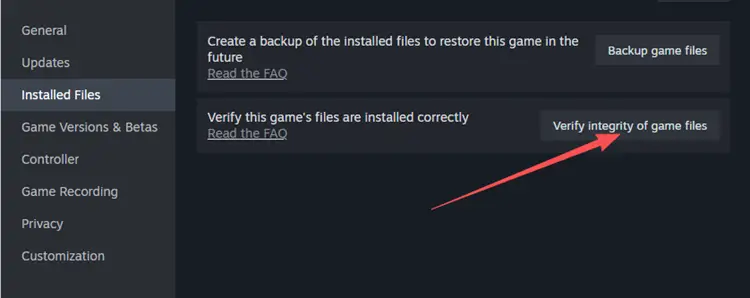
Wait for Steam to complete the scan and replace any damaged or missing files. Then restart the game and test again.
Fix 5. Update Your Graphics Driver
Outdated or unstable GPU drivers can contribute to crashes, black screens, and shader-loading issues in The Blood of Dawnwalker.
Update your driver through:
- NVIDIA App for GeForce GPUs
- AMD Software: Adrenalin Edition for Radeon GPUs
- Intel Graphics Software for Intel Arc GPUs
Restart Windows after the update, then launch the game again with unnecessary overlays and monitoring tools closed.
Fix 6. Close Background Apps and Check Your PC Requirements
The Blood of Dawnwalker can place heavy load on your CPU, GPU, memory, and storage. Bandai Namco lists the following minimum PC requirements:
- CPU: Intel Core i5-11400F / AMD Ryzen 7 2700X
- RAM: 16 GB
- GPU: NVIDIA GTX 1060 / Radeon RX 580
- VRAM: 6 GB
- Storage: 60 GB free space on an SSD
- OS: Windows 10
- API: DirectX 12
Step 1. Press Ctrl + Shift + Esc to open Task Manager and close unnecessary background apps.
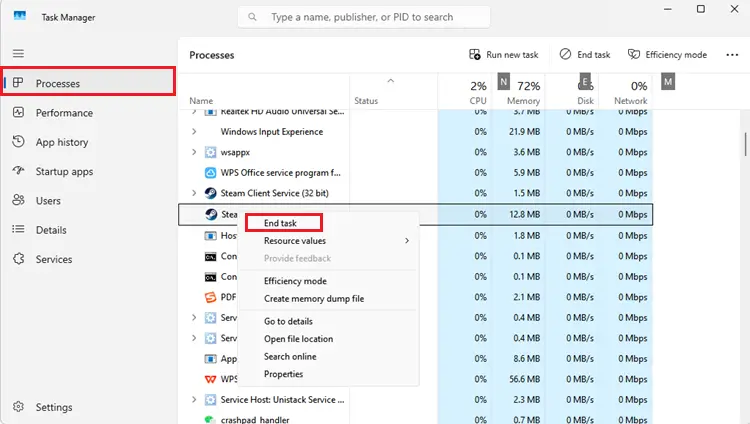
Step 2. Confirm the game is installed on an SSD and your PC meets the minimum requirements.
[Bonus] Reduce The Blood of Dawnwalker Lag With LagZapper
After fixing The Blood of Dawnwalker crashing issue, you may also use LagZapper for other online games affected by high ping, packet loss, lag spikes, or unstable routing. LagZapper is a game booster that helps optimize network routes for supported online games, including VALORANT, Fortnite, Apex Legends, Counter-Strike 2, Marvel Rivals, and more.
How to Use LagZapper for The Blood of Dawnwalker
Follow these three steps to optimize your connection before launching The Blood of Dawnwalker.
Step 1. Download, Install, and Sign In
Download LagZapper for Windows, complete the installation, then open the app and sign in.
Step 2. Search for The Blood of Dawnwalker
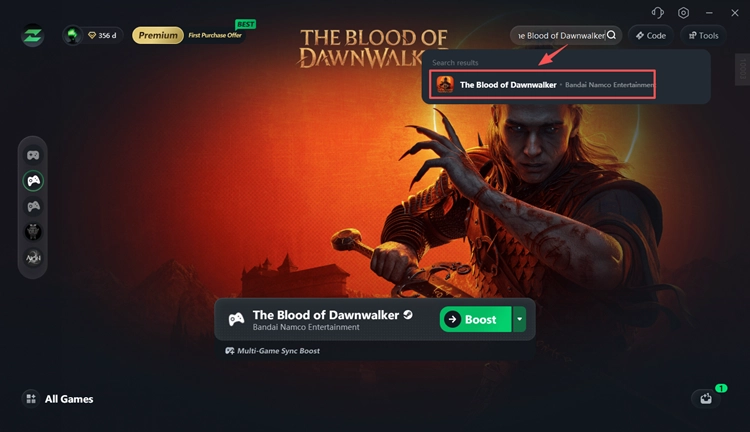
Search for The Blood of Dawnwalker in LagZapper and select the game from the supported games list.
Step 3. Select a Node and Boost
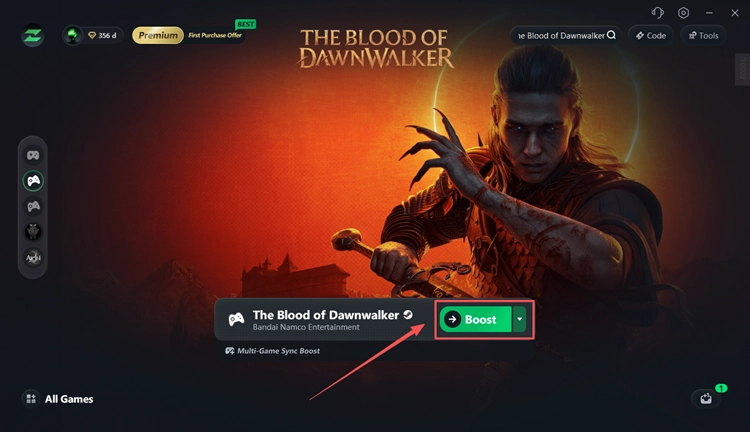
Choose a recommended server or node, click Boost, then launch The Blood of Dawnwalker with the optimized connection.
The Bottom Line
When The Blood of Dawnwalker keeps crashing on PC, start by updating the game, disabling FSR Frame Generation when relevant, closing MSI Afterburner or RivaTuner, verifying game files, and updating your GPU driver. You should also close unnecessary background apps and confirm that your PC meets the minimum requirements.
Some launch-day crashes may still require additional game updates, so keep The Blood of Dawnwalker and your graphics driver up to date. For other online games, LagZapper can help reduce lag, lower ping, and improve connection stability.
The Blood of Dawnwalker Crashing FAQ
Q1. Why does The Blood of Dawnwalker keep crashing?
Possible causes include FSR Frame Generation, monitoring software conflicts, corrupted files, outdated GPU drivers, and launch-day bugs.
Q2. How do I fix The Blood of Dawnwalker crashing on startup?
Update the game, disable FSR Frame Generation, close monitoring tools, verify game files, and update your GPU driver.
Q3. Can FSR Frame Generation crash The Blood of Dawnwalker?
Yes. Launch documentation warns that FSR Frame Generation may cause crashes at non-16:9 aspect ratios.
Q4. Why am I getting an Unreal Engine crash in The Blood of Dawnwalker?
Independent testing suggests MSI Afterburner and RivaTuner may contribute to some Unreal Engine crashes. Try closing them before relaunching the game.
Q5. Why does The Blood of Dawnwalker show a black screen and crash?
Try updating your GPU driver, verifying game files, disabling Frame Generation, and closing overlays or monitoring software.