
Torchlight Infinite Error 1027: Fix Login & Connection Issues
Torchlight Infinite Error 1027 is a connection issue reported by PC players who cannot log in or establish a stable Torchlight Infinite server connection. Recent reports are especially noticeable in Russia, where some players say the game worked normally before suddenly becoming unavailable.
In some cases, mobile access still works while the PC version shows a Torchlight Infinite connection error or login error. This suggests the issue may involve server access or network routing rather than damaged game files. Below are the latest fixes to try when Torchlight Infinite is not working or appears affected by servers down issues.
What Is Torchlight Infinite Error 1027?
Torchlight Infinite Error 1027 appears when the game fails to connect to its servers, usually showing “Network connection failed” during login.
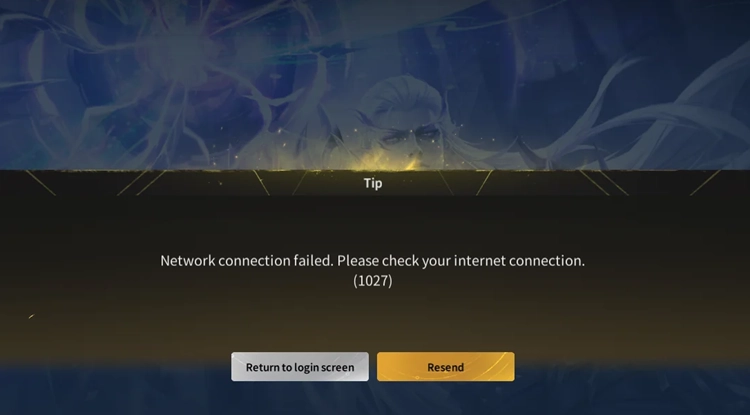
Recent Steam discussions include Russian players reporting Torchlight Infinite login errors and failed server connections, while some mobile users can still enter the game.
XD has not published an official definition for Error 1027, so it is best treated as a Torchlight Infinite connection error related to login, server access, or network routing rather than a confirmed game-file issue.
Why Is Torchlight Infinite Not Working in Russia?
Recent reports are concentrated mainly among Russian PC players, with several Steam discussions describing Torchlight Infinite not working or failing to connect normally. Players have reported:
- Torchlight Infinite Error 1027
- Torchlight Infinite server connection failures
- PC login problems while mobile still works
- The game working normally before suddenly losing access
Steam Community also shows Russian-language discussions about login and update-loading problems affecting local players. Another October 19 report mentions failed PC logins, high ping, unstable latency, and disconnections.
Try LagZapper for Torchlight Infinite Error 1027 [Quick Fix]
Some Torchlight Infinite Error 1027 reports point to unstable or regional network routing, especially when mobile access works but the PC client still shows a Torchlight Infinite connection error. LagZapper can optimize the network route between your PC and the game server to improve connection stability.
Why Choose LagZapper for Torchlight Infinite?
- Lower Ping: Optimize routes to Torchlight Infinite servers to lower ping and keep latency more stable during login and gameplay.
- Reduce Lag: Improve connection stability to reduce lag, delayed actions, and sudden lag spikes in online sessions.
- Reduce Packet Loss: Stabilize the network path to reduce packet loss, disconnects, rubberbanding, and failed server connections.
- Improve Route Stability: Avoid congested or unstable routes that may contribute to Torchlight Infinite connection and login errors.
How to Download and Use LagZapper
Getting started only takes a few steps:
Step 1. Download, Install, and Sign In
Download LagZapper for Windows, complete the installation, then open the app and sign in.
Step 2. Search for Torchlight: Infinite
Search for Torchlight: Infinite, select the game, and choose an available server or route.
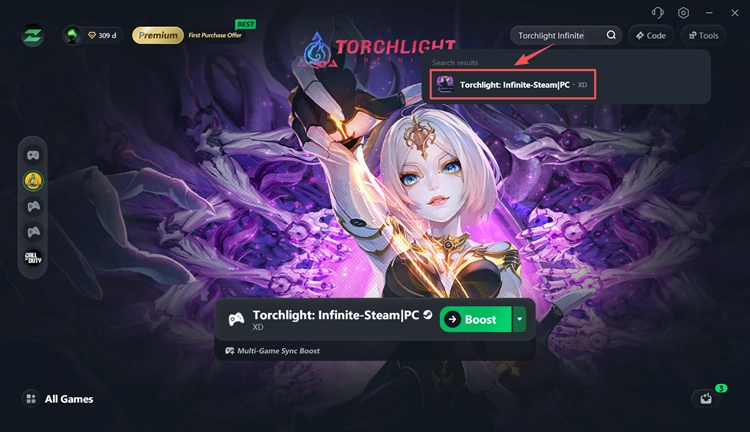
Step 3. Boost and Launch Torchlight: Infinite
Click Boost to optimize the connection route, then launch Torchlight: Infinite and try logging in again.
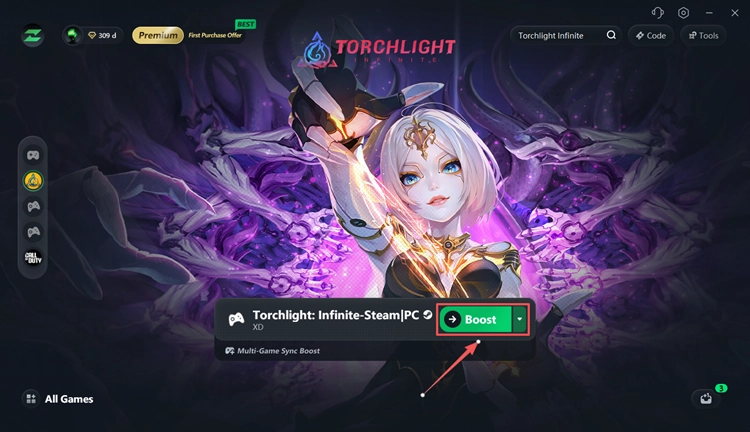
How to Fix Torchlight Infinite Error 1027
Try the fixes below in order. Reinstalling Torchlight Infinite should not be your first step.
Fix 1. Check Torchlight Infinite Server Status
First, check whether Torchlight Infinite servers are down or other players are reporting the same issue.
Check:
- Torchlight: Infinite Official Site
- Steam Community
- Steam Announcements
- Official Discord
When many players report Torchlight Infinite Error 1027, login failures, or server connection problems at the same time, the cause is more likely on the server side or along a shared network route.
Fix 2. Restart Torchlight Infinite and Steam
A temporary Steam session or connection error can prevent Torchlight Infinite from reconnecting properly.
Step 1. Close Torchlight: Infinite and exit Steam completely.
Step 2. Open Task Manager and end any remaining Torchlight Infinite or Steam processes.
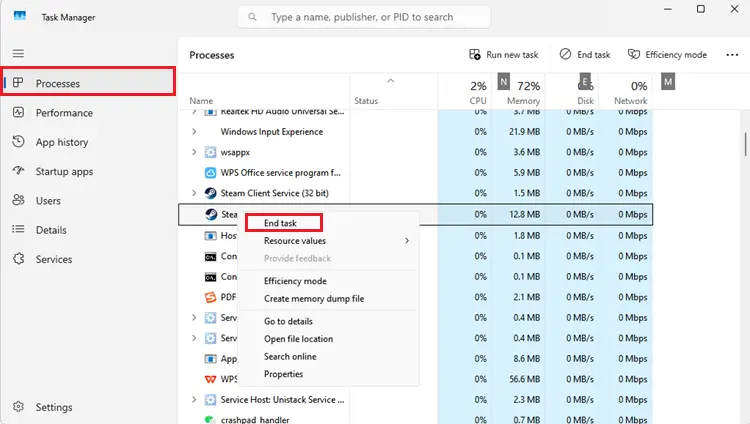
Step 3. Restart Steam, then launch Torchlight: Infinite again.
This refreshes the Steam session and forces the game to create a new server connection.
Fix 3. Restart Your Router and Stop Background Traffic
Network congestion can worsen Torchlight Infinite connection errors. Restarting your router refreshes the connection and may also change the route between your ISP and the game server.
Pause bandwidth-heavy apps such as:
- Game downloads
- Steam updates
- Cloud sync
- Video streaming
- Large file transfers
- Background launchers
Wait a few minutes after restarting the router, reconnect your PC, then launch Torchlight: Infinite again.
Fix 4. Try a Different Network Route
This is especially relevant to recent Russia-related reports. When Torchlight Infinite works on mobile but fails on PC, or one connection works while another does not, the issue is more likely related to network routing than damaged game files.
The connection may fail somewhere along this path: Your PC → ISP → regional network → Torchlight Infinite server
Switching to a different network route may bypass an unstable or unreachable path. Reinstalling the game is unlikely to help when Torchlight Infinite Error 1027 is caused by routing or regional connectivity.
Fix 5. Reset Windows Network Settings
Corrupted DNS cache or Windows network settings can interfere with the Torchlight Infinite server connection.
Step 1. Search for Command Prompt, then select Run as administrator.
Step 2. Run these commands one at a time:
- ipconfig /flushdns
- netsh winsock reset
- netsh int ip reset
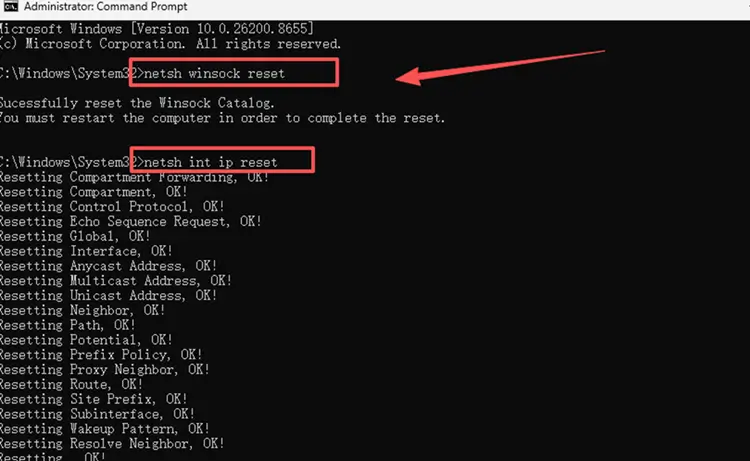
Step 3. Restart your PC, reopen Steam, then launch Torchlight: Infinite and test Error 1027 again.
Fix 6. Verify Torchlight Infinite Game Files
Error 1027 appears more connection-related, but verifying the installation can rule out corrupted or missing game files.
Step 1. Open Steam > Library.
Step 2. Right-click Torchlight: Infinite and select Properties.
Step 3. Go to Installed Files > Verify integrity of game files.
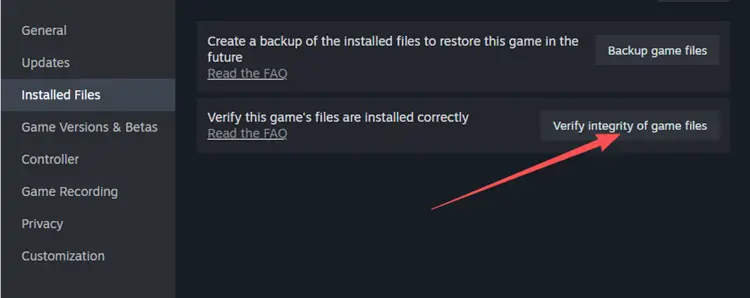
Wait for Steam to complete the scan, then restart Torchlight: Infinite and test the connection again.
The Bottom Line
Torchlight Infinite Error 1027 is mainly tied to login and server connection problems, with recent reports especially common among Russian PC players. Since XD has not confirmed the exact cause, start with server checks, restart Steam and your router, try another route, and reset Windows networking.
When the game works on another device or connection, routing is a likely factor. Download LagZapper to optimize the connection route and improve stability when launching Torchlight: Infinite.
FAQs About Torchlight Infinite Error 1027
Q1. Why am I getting Torchlight Infinite Error 1027?
Torchlight Infinite Error 1027 is commonly linked to login or server connection failures. Regional routing or connectivity problems may also contribute, although XD has not confirmed the exact cause.
Q2. Is Torchlight Infinite Error 1027 affecting Russia?
Yes. Recent Steam discussions show multiple Russian PC players reporting Error 1027, login failures, and other connection problems.
Q3. Why does Torchlight Infinite work on mobile but not PC?
Mobile and PC may use different network routes. A working mobile connection can point to PC networking, ISP routing, or regional connectivity problems.
Q4. Is Torchlight Infinite down?
Not necessarily. Some players may experience Torchlight Infinite servers down or connection issues while others can still log in normally.
Q5. How do I fix Torchlight Infinite connection errors?
Check server status, restart Steam and your router, stop background traffic, try another network route, reset Windows networking, and verify game files.
Q6. Should I reinstall Torchlight Infinite to fix Error 1027?
Not first. Since Error 1027 currently looks connection-related, try server and network fixes before reinstalling the game.