
Valheim Mods Not Working After 1.0? 8 Fixes for BepInEx and r2modman
Valheim is Iron Gate’s Norse survival game, and the 1.0 release introduced the Deep North alongside major full-release changes. Since the update, some players have found valheim mods not working after 1.0, with mods not loading, BepInEx errors, r2modman launching without expected mods, startup crashes, or modded servers failing because client and server setups no longer match.
This guide will explain why Valheim mods break after the 1.0 update and provide eight practical fixes for BepInEx, r2modman, and modded servers.
Why Are Valheim Mods Not Working After the 1.0 Update?
Valheim mod issues after 1.0 can appear in several different ways, so identifying your symptom first can make troubleshooting easier. Check the table below to match your symptom with a possible cause and the first fix to try.
| Symptom | Possible Cause | First Fix to Try |
|---|---|---|
| One or several mods stopped working after 1.0 | Mod is not compatible with Valheim 1.0 | Check mod compatibility |
| Valheim launches but installed mods do not load | Wrong launch method or game directory | Start Modded and check the directory |
| BepInEx errors or missing dependency messages appear | Outdated BepInEx, Jötunn, or dependencies | Update BepInEx and dependencies |
| Valheim crashes or behaves incorrectly after the update | Damaged or modified game files | Verify game files |
| You cannot join a modded server | Client and server versions do not match | Sync client and server |
| Problems remain in one mod profile | Broken mod or profile configuration | Check logs and rebuild the profile |
Before Trying Fixes: Back Up Your Valheim Saves and Mod Profile
Before changing mods, dependencies, or profiles, back up your Valheim saves and current mod setup so you can restore them if troubleshooting causes problems.
Step 1. Fully close Valheim and stop your dedicated server, if applicable, before backing up any save or mod files.
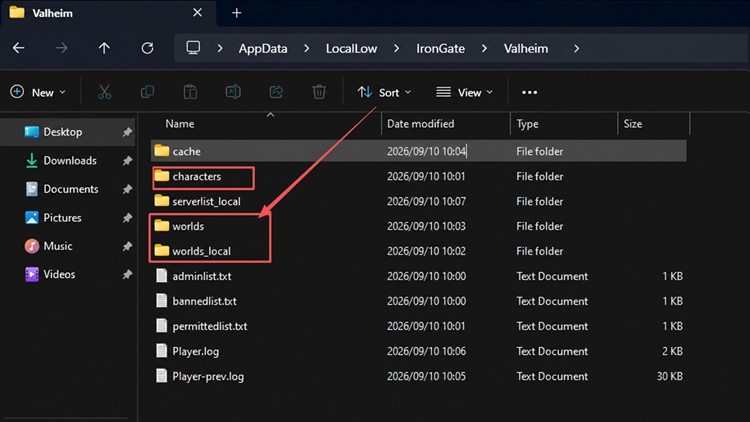
Step 2. Open the Valheim save location, then copy your Worlds and Characters data to a separate backup folder.
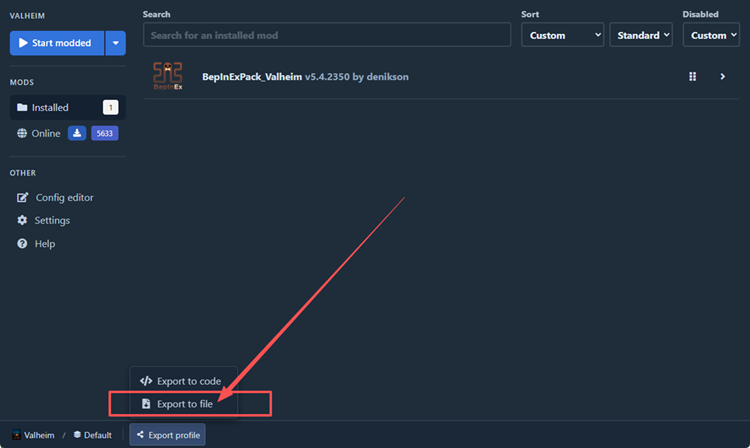
Step 3. Click Export profile at the bottom of r2modman, select Export to file, and save the .r2z backup somewhere safe.
How to Fix Valheim Mods Not Working After 1.0
Start with the First Fix to Try that matches your symptom in the table above. If it does not help, continue through the eight fixes below in order.
Fix 1. Check Whether Each Mod Supports Valheim 1.0
Compatibility can vary across Valheim 1.0 mods, especially for mods originally built for older game versions. Check each mod’s Thunderstore page, latest version, changelog, and compatibility notes. If a mod has not been updated for 1.0, disable it temporarily and wait for a compatible release.
Fix 2. Launch Valheim with Start Modded and Check the Game Directory
If you have Valheim mods not loading even though the game launches normally, first make sure you are using Start modded. If the mods still do not load, check whether r2modman points to the same Valheim installation folder as Steam. Follow the steps below to check both.
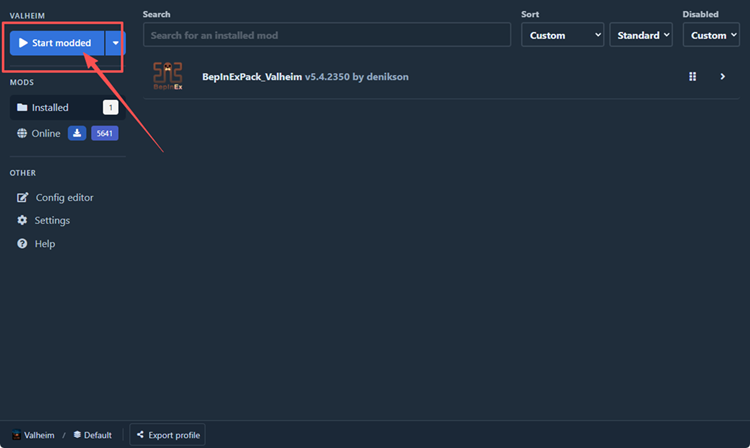
Step 1. Open r2modman, select your Valheim profile, and click Start modded. If your mods load, no further changes are needed.
Step 2. Open Steam Library, right-click Valheim, and select Manage > Browse local files to check the installation path.
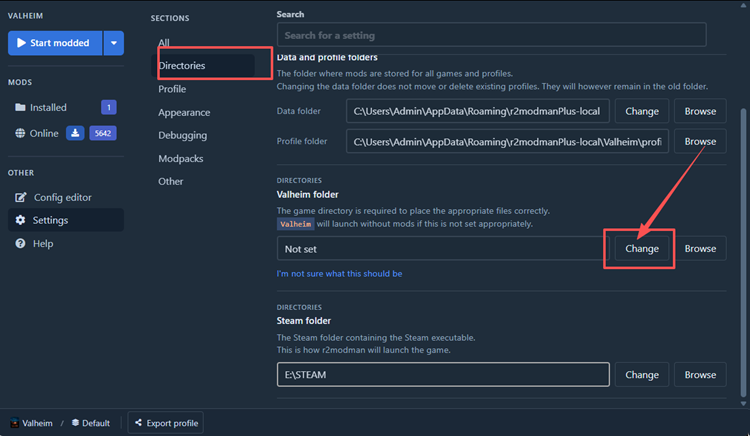
Step 3. In r2modman, open Settings > Directories, find Valheim folder, and click Change to select the same Steam folder.
Fix 3. Update BepInExPack for Valheim
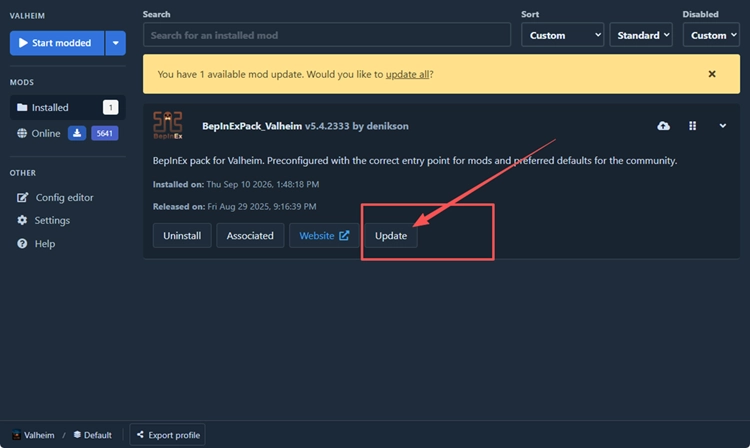
An outdated BepInExPack can prevent Valheim mods from loading correctly after the 1.0 update. The current Valheim-specific pack includes newer BepInEx builds and Unity 6 compatibility changes, so update it before troubleshooting individual mods. Follow the steps below.
Step 1. Open r2modman, select your Valheim profile, go to Installed, and open BepInExPack_Valheim.
Step 2. Click Update, confirm Download with dependencies, then launch Valheim again with Start modded.
Fix 4. Update Jötunn and Other Required Dependencies
Many Valheim mods rely on Jötunn or other shared libraries, so outdated dependencies can cause missing-dependency errors or stop mods from loading after 1.0. Update Jötunn and every required dependency listed for the affected mod in r2modman or Thunderstore. If a required dependency lacks 1.0 support, disable the dependent mod temporarily.
Fix 5. Verify the Integrity of Valheim Game Files
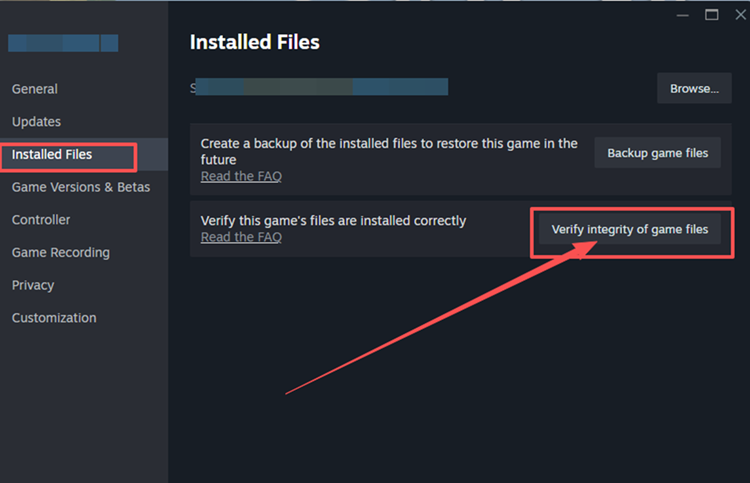
Missing or modified Valheim game files can interfere with BepInEx and mod loading after a major update. Steam can check the installation and restore files that no longer match, but verification will not make an outdated mod compatible with 1.0. Follow the steps below to verify the game files.
Step 1. Open Steam Library, right-click Valheim, and select Properties > Installed Files.
Step 2. Click Verify integrity of game files and wait for Steam to finish the scan, then launch Valheim again with Start modded.
Fix 6. Sync Game Builds and Required Mods Between the Client and Server
If Valheim shows an incompatible version error or refuses a modded server connection, make sure the client and server are running the same Valheim build first. Then compare the installed mods and versions on both sides, especially mods that require server-side support or enforce version checks.
Do not assume every mod must exist on both systems. Some are client-only, while others require matching versions or specific server installation. Update the mismatched mods, restart both the game and server, and try connecting again.
Fix 7. Use LogOutput.log and Batch Testing to Find the Broken Mod
If Valheim still fails after updating BepInEx and dependencies, one incompatible mod may be causing the problem. BepInEx records plugin loading and errors in LogOutput.log, while batch testing helps narrow down the culprit when the log is unclear. Follow the steps below.
Step 1. Launch Valheim once with Start modded, then open Settings > Directories, click Browse next to Profile folder, and open BepInEx > LogOutput.log.
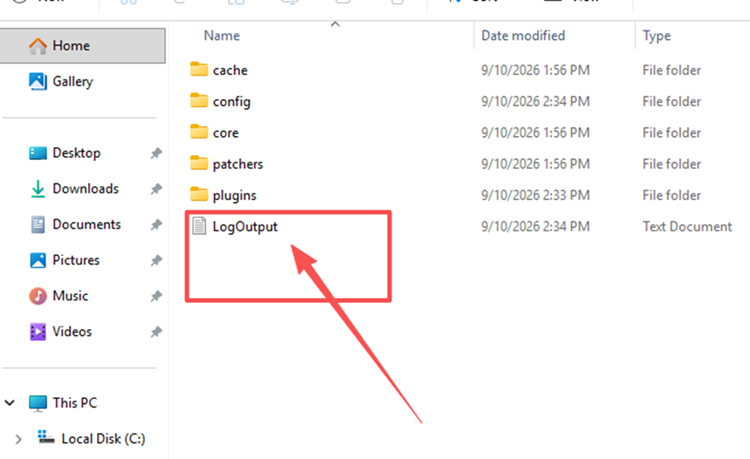
Step 2. Search for Could not load, missing dependencies, incompatible version, Exception, or the name of a mod shown near the error.
Step 3. Disable mods in halves while keeping required dependencies enabled, launch with Start modded, and repeat with smaller batches until the faulty mod is identified.
Fix 8. Repair or Rebuild the r2modman or Thunderstore Profile
If one r2modman or Thunderstore profile still fails after updating mods and dependencies, outdated configs or a damaged mod setup may be involved. A clean profile lets you test Valheim 1.0 without changing your backed-up profile. Follow the steps below to rebuild the setup.
Step 1. Open the profile selection screen, click Create new, and create a clean Valheim profile.
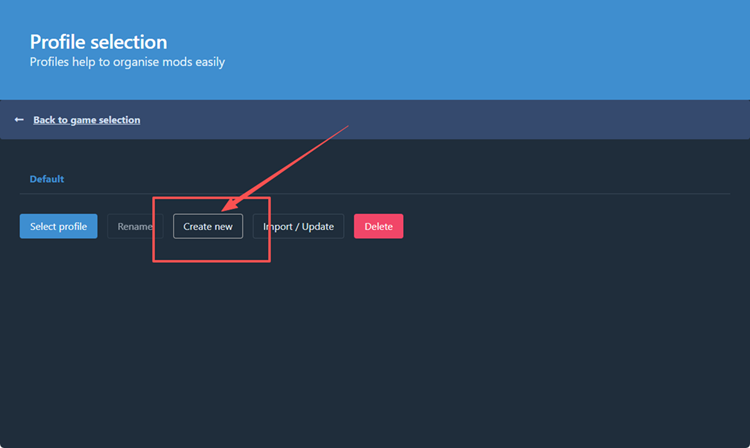
Step 2. Install the latest BepInExPack_Valheim, required dependencies, and only the mod you want to test.
Step 3. Click Start modded. If it works, add your remaining mods back in small batches and test again.
[Bonus] Reduce Valheim Multiplayer Lag With LagZapper
Once your mods load correctly, multiplayer may still suffer from high ping, packet loss, lag spikes, or unstable routing. In this case, LagZapper can optimize the connection route between your PC and the game server to improve network stability.
Why Use LagZapper for Valheim Multiplayer?
- Smart Route Optimization: Finds a faster and more stable route to help reduce high ping, packet loss, jitter, and routing instability.
- Reduce Lag & Improve Stability: Helps lower ping, reduce game lag, minimize lag spikes, and improve responsiveness during multiplayer sessions.
- One-Click Boost: Optimizes the connection without manually changing complicated network, DNS, or router settings.
- Support for 3,000+ Games: Supports more than 3,000 online games across multiplayer, survival, FPS, MMORPG, and other genres
How to Boost Valheim With LagZapper
Follow the three steps below to optimize your Valheim connection before joining or hosting a multiplayer session.
Step 1. Download and Install LagZapper
Download LagZapper for Windows and follow the on-screen instructions to complete the installation.
Step 2. Open LagZapper and Search for Valheim
Launch LagZapper, then use the search bar to search for Valheim in the supported games list.
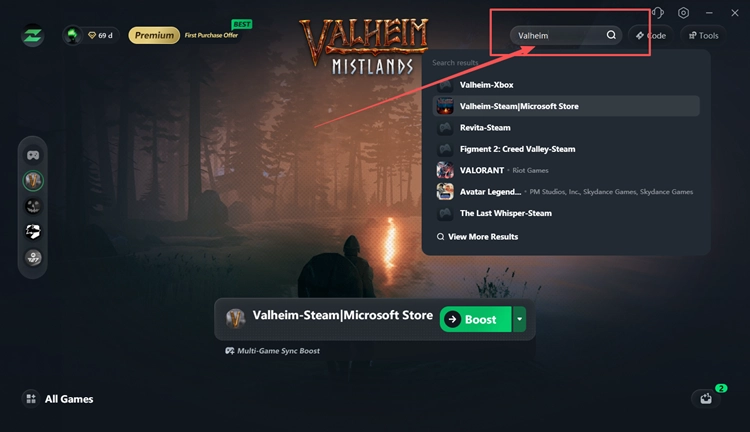
Step 3. Select a Recommended Server or Node and Click Boost
Select a recommended server or node, then click Boost to optimize the connection before launching Valheim multiplayer.
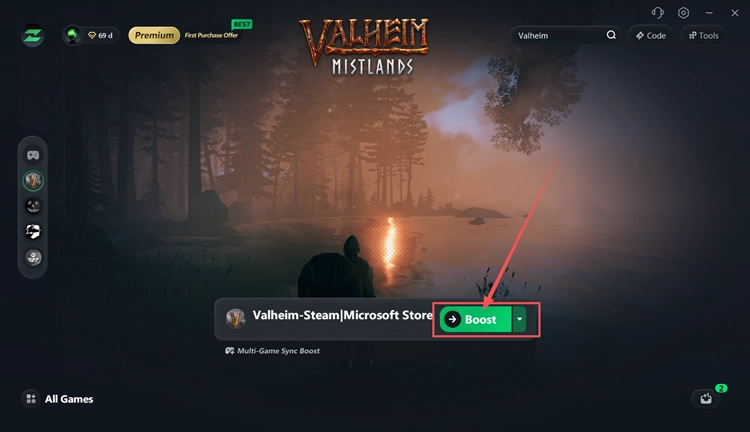
The Bottom Line
Valheim mods not working after 1.0 may result from outdated mods, BepInEx or dependency issues, incorrect r2modman settings, damaged files, or client-server mismatches. Check mod compatibility first, then try the fixes above in order. If multiplayer still has high ping, packet loss, lag spikes, or unstable routing, download LagZapper to optimize the network route and improve connection stability.
FAQs About Valheim Mods Not Working After 1.0
Q1. Why Are Valheim Mods Not Working After 1.0?
Many older mods need 1.0 updates, while outdated dependencies, loaders, or profiles can also cause failures.
Q2. How Do I Fix Valheim Mods Not Working After Update?
Check mod compatibility first, then update BepInEx, dependencies, verify files, and test your mod profile.
Q3. Why Are Valheim r2modman Mods Not Loading?
Use Start modded and make sure r2modman points to the same Valheim folder as Steam.
Q4. Does BepInEx Work With Valheim 1.0?
Yes. Use the latest Valheim-specific BepInExPack and update any mods still incompatible with 1.0.
Q5. Can Old Valheim Mods Still Work After 1.0?
Some may still work, but compatibility is not guaranteed until each mod is updated or tested.
Q6. Why Can’t I Join a Modded Valheim Server After 1.0?
Client and server builds, required mods, or enforced mod versions may no longer match.