
Valorant High Ping After Patch 13.00? How to Fix High Ping, Lag, and Connection Issues
VALORANT Patch 13.00 introduced major gameplay, competitive, map, mode, weapon, and client updates, including Sentinel buffs, the new Summit map in Competitive rotation, and the Retake limited-time mode. However, if you are experiencing VALORANT high ping after Patch 13.00, you are not alone - many players have reported sudden lag spikes, packet loss, or unstable connections due to server traffic, routing changes, and local network glitches.
This guide will break down the most common reasons behind these connection issues and show you the most effective fixes to restore smooth and stable gameplay.
Why Does VALORANT Have High Ping After Patch 13.00?
After Patch 13.00, VALORANT high ping issues may occur due to server-side issues, network routing, or local connection instability. Below are the most common causes behind ping spikes, lag, and connection problems.
Server Load After a Major Update
Increased player traffic after updates can overload servers and temporarily raise latency.
Poor Routing Between Your ISP and VALORANT Servers
Inefficient ISP routing paths can increase travel time between your device and game servers.
Incorrect or Auto-Assigned Game Server Region
The game may connect you to a distant server, increasing latency significantly.
Firewall, Antivirus, or Vanguard Network Interference
Security software may block or delay VALORANT network traffic unintentionally.
Background Applications Consuming Bandwidth After Update
Downloads, updates, or streaming apps can reduce available network bandwidth during gameplay.
How to Fix VALORANT High Ping After Patch 13.00
If VALORANT high ping after Patch 13.00 is affecting your matches, start with simple checks before changing advanced network settings. The following fixes can help reduce ping spikes, lag, and connection issues by narrowing down whether the problem comes from Riot servers, your local network, or your Windows settings.
Fix 1. Check Riot Server Status
Before changing your network settings, check whether Riot Games servers are experiencing outages, maintenance, or regional connection problems. If the issue is server-side, your ping may stay high no matter how stable your home internet is.
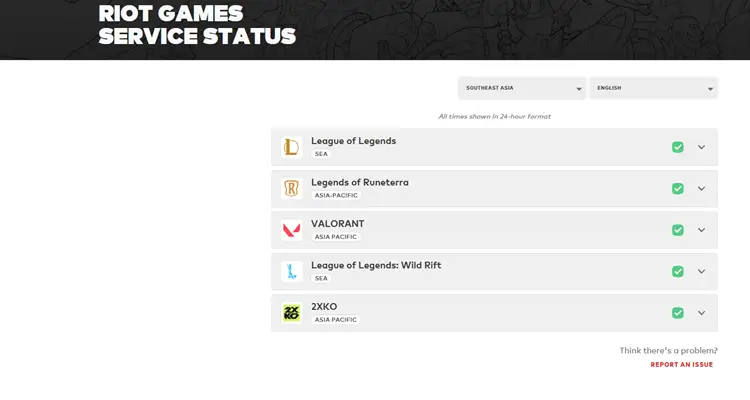
Visit the Riot Games Service Status page and select the correct region for VALORANT. You can also check official support channels or community reports to see whether other players are experiencing similar ping spikes after Patch 13.00.
Fix 2. Restart Your Router, Modem, and PC
Restarting your router, modem, and PC is one of the quickest ways to clear temporary network errors. A fresh restart can renew your connection, free up router memory, and remove minor network problems that may cause VALORANT high ping or lag spikes.
Turn off your router and modem, wait about 60 seconds, then plug them back in. After the connection is fully restored, restart your PC, launch VALORANT again, and check whether your ping becomes more stable.
Fix 3. Switch to a Wired Ethernet Connection
Wi-Fi is convenient, but it is more vulnerable to interference, weak signals, and packet loss. For a competitive shooter like VALORANT, even small wireless delays can cause ping spikes, delayed shots, or unstable movement during matches.
If possible, connect your PC directly to the router with an Ethernet cable. A wired connection usually provides lower latency, better stability, and fewer packet loss issues than Wi-Fi, especially during peak hours or after a major update.
Fix 4. Close Background Apps and Downloads
Background apps can quietly consume bandwidth and increase latency while you are playing VALORANT. Common examples include Windows Update, Steam downloads, cloud sync tools, video streams, browsers, and other game launchers running in the background. Close unnecessary programs before launching VALORANT, especially apps downloading updates or syncing files. This helps give VALORANT more stable bandwidth and can reduce ping spikes during matches.
Step 1. Press Ctrl+Shift+Esc to Open Task Manager and check which applications are using the most network bandwidth.
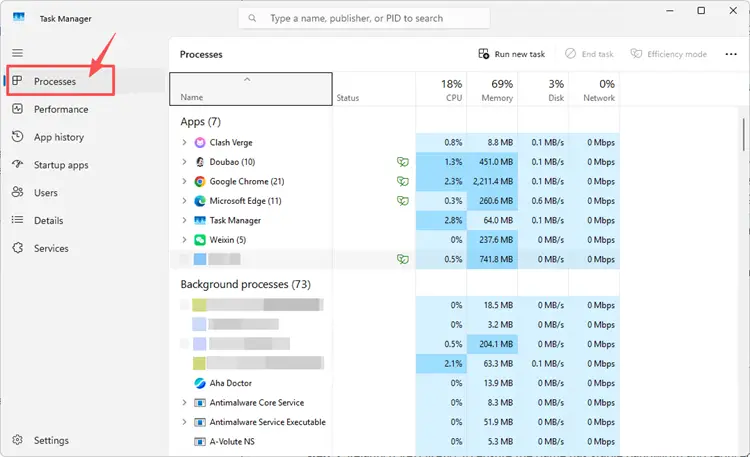
Step 2. Under the Processes tab, close unnecessary programs such as browsers, launchers, or apps downloading updates or syncing files.
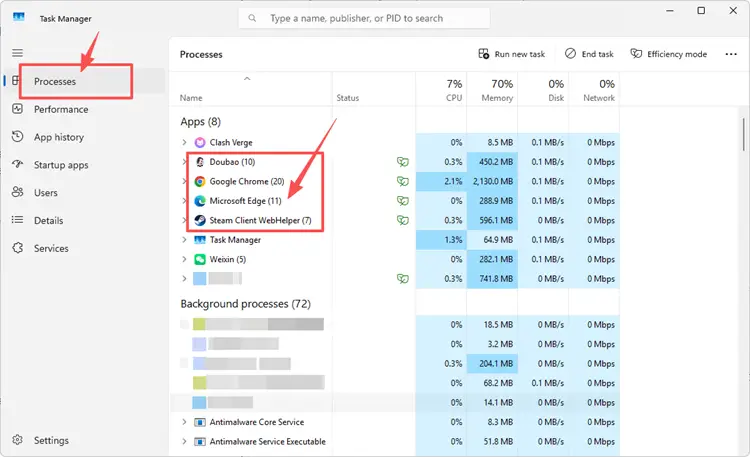
Step 3. Relaunch VALORANT to ensure the game has stable bandwidth and reduced ping spikes during matches.
Fix 5. Change DNS to Improve Name Resolution
If VALORANT still has high ping, your default DNS server may be slow or unstable. Changing DNS can sometimes improve how your system resolves routes to game servers, especially when your ISP’s DNS is causing delays.
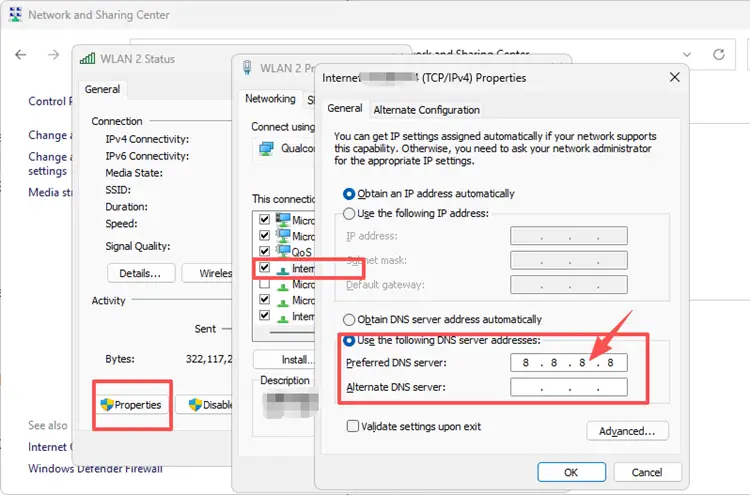
You can try reliable public DNS options such as Google DNS or Cloudflare DNS. After changing DNS, restart your network connection and test VALORANT again. If ping becomes more stable, your previous DNS may have contributed to the connection issue. Follow the steps below to change your DNS:
Step 1. Open Control Panel, navigate to Network & Internet, and click on your current Wi-Fi or Ethernet connection.
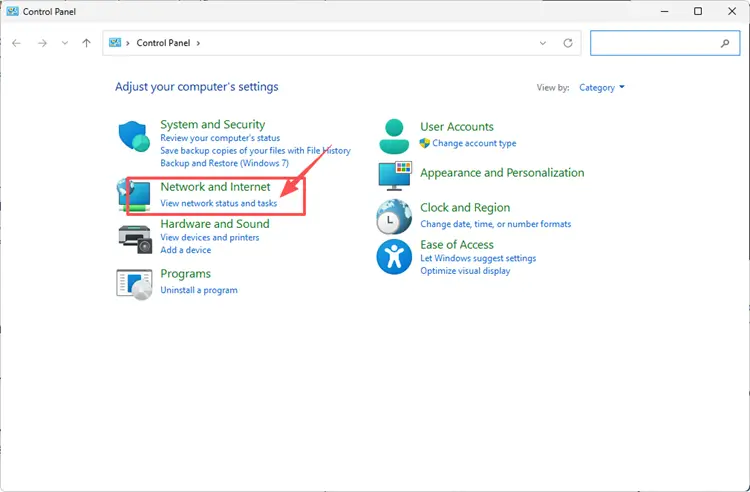
Step 2. Enter a public DNS address such as Google DNS (8.8.8.8 / 8.8.4.4) or Cloudflare DNS (1.1.1.1 / 1.0.0.1), then save the settings and reconnect to your network.
Fix 6. Allow VALORANT and Riot Vanguard Through Firewall
Firewall, antivirus software, or strict security settings may interfere with VALORANT and Riot Vanguard network traffic. In some cases, these tools may treat updated game files as new apps and restrict their connection.
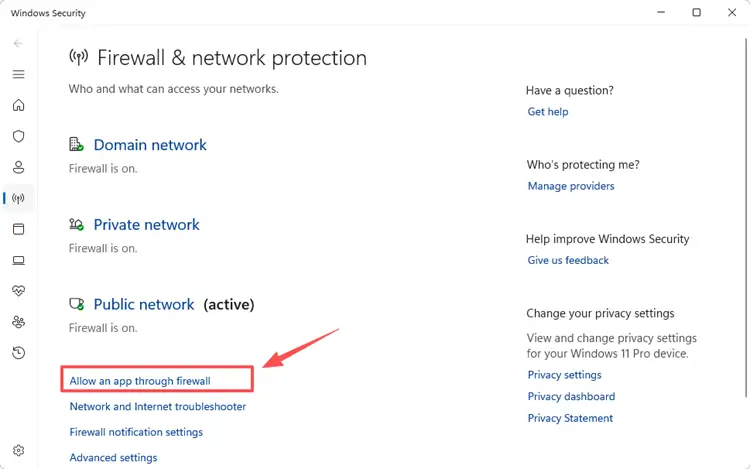
Open Windows Defender Firewall and allow VALORANT, Riot Client, and Riot Vanguard through both private and public networks. If you use third-party antivirus software, check its firewall or protection settings and make sure VALORANT is not being blocked.
Step 1. Open Windows Security, navigate to Firewall & network protection, and select Allow an app through firewall.
Step 2. Click Change settings, then select Allow another app, browse to the game installation directory, and choose the game executable file to add it.
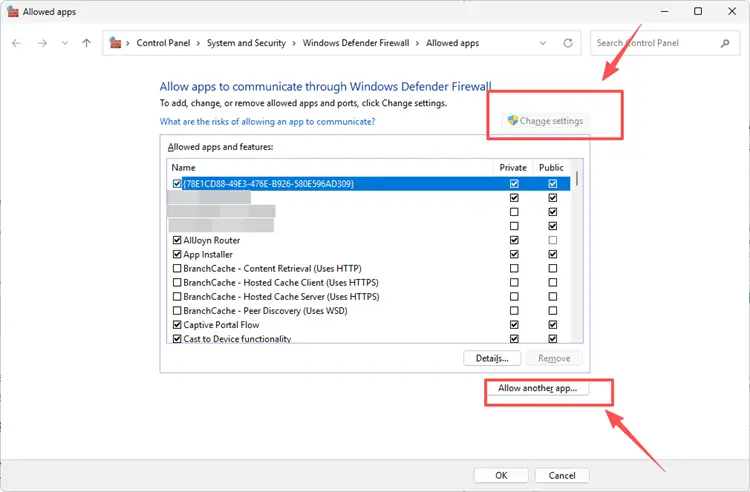
Step 3. Make sure the game is allowed on your active network, then click OK and relaunch the game.
Fix 7. Update Network Adapter Drivers
Outdated network adapter drivers can cause unstable routing, higher latency, and frequent ping spikes in VALORANT. Updating your drivers may improve compatibility with Riot servers and enhance overall connection stability during matches.
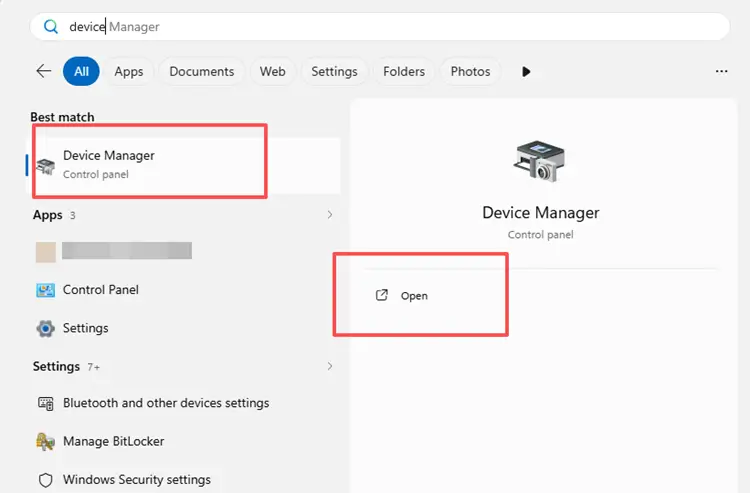
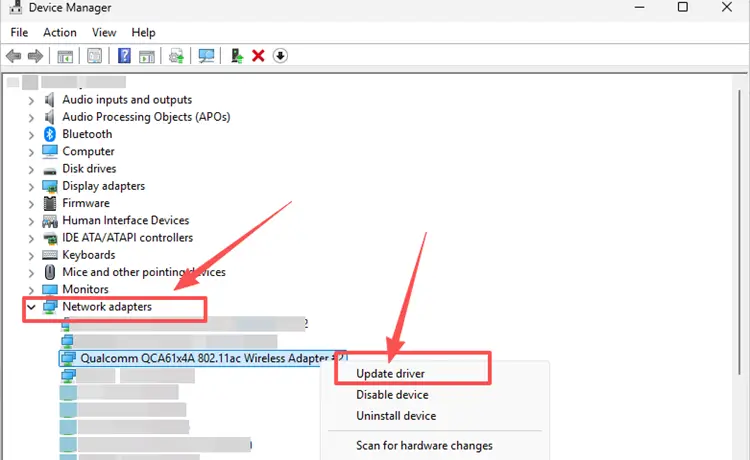
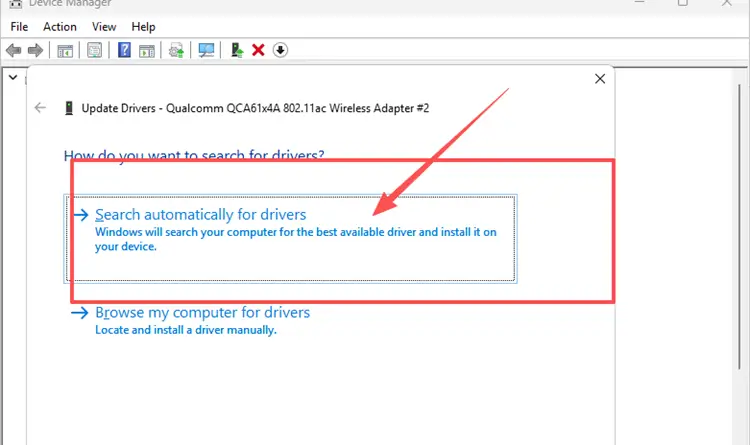
To update, open Device Manager and locate your network adapter, then check for driver updates or download the latest version directly from your hardware manufacturer’s official website. Install the update, restart your PC, and relaunch VALORANT to verify improved connection performance.
Step 1. Go to the search bar and open Device Manager.
Step 2. Expand Network adapters, right-click your adapter and select Update driver.
Step 3. Click Search automatically for drivers.
Fix 8. Adjust Network Buffering for Stable Gameplay
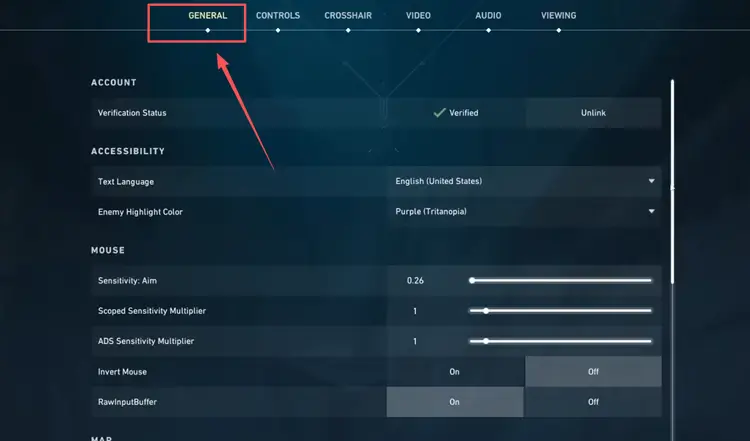
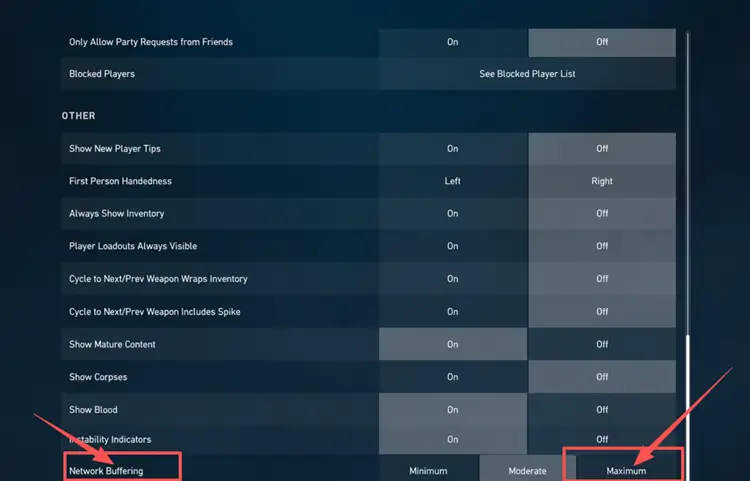
Network Buffering in VALORANT controls how game data is temporarily stored before being processed by the server. It helps reduce the impact of packet loss and unstable connections by smoothing data flow. If you experience high ping spikes or jitter after Patch 13.00, switching to Moderate or Maximum can improve stability. However, this comes at the cost of slightly higher input delay, so Minimum may be the best for stable, low-latency connections.
Step 1. Open VALORANT Settings and navigate to the General tab where Network Buffering is located.
Step 2. Set Network Buffering to Moderate or Maximum for improved stability.
[Bonus] How to Optimize Your Valorant Gameplay with LagZapper
Even after applying all the fixes above, some VALORANT players may still experience high ping, packet loss, or unstable connection after Patch 13.00. In this case, the issue is often related to ISP routing, server congestion, or inconsistent network paths between your device and Riot servers. LagZapper can help optimize your connection route and improve overall network stability for a smoother gameplay experience.
As a powerful PC game booster, LagZapper helps optimize routing to VALORANT servers, reduce game lag, lower ping spikes, minimize packet loss, and stabilize network performance during matches. Whether you're climbing ranked, holding tight angles, or engaging in fast-paced duels, LagZapper ensures a more consistent and responsive connection, helping you maintain peak performance in every round.
[Step-by-Step Guide] How to Boost VALORANT with LagZapper
Step 1. Download and Install LagZapper
Download LagZapper for Windows, then follow the on-screen instructions to complete the installation process and set up the application on your PC.
Step 2. Open LagZapper and Search for VALORANT
Launch LagZapper, then use the search bar or game list to locate VALORANT.
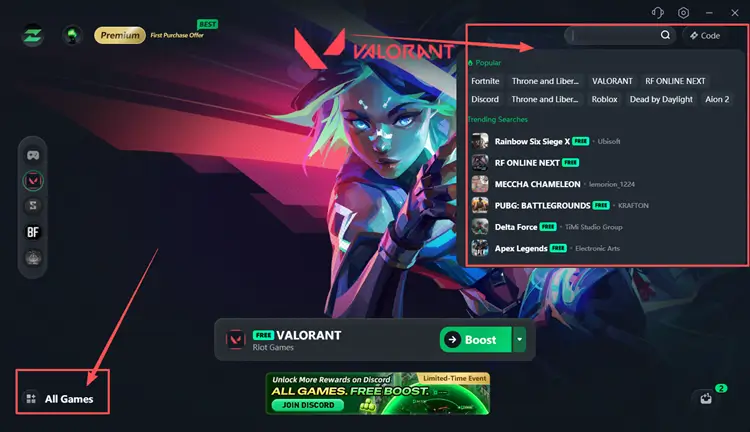
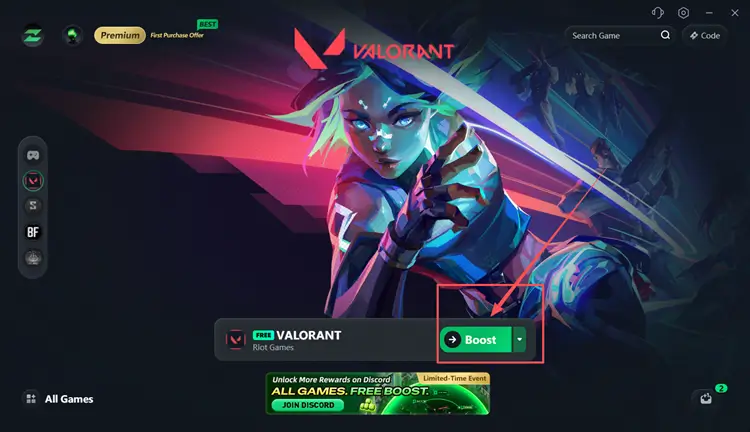
Step 3. Boost and Launch VALORANT
Select the best available server node or optimized route, click Boost to apply network optimization, and then launch VALORANT for improved connection stability.
Tip: LagZapper supports 3,000+ online games, including Destiny 2, VALORANT, and Path of Exile 2.
The Bottom Line
VALORANT high ping after Patch 13.00 is usually caused by a mix of server load, ISP routing issues, packet loss, or local network instability rather than a single problem. Most players can significantly improve connection stability by applying basic fixes such as restarting their network and switching to Ethernet.
For players who still struggle with inconsistent ping spikes, downloading LagZapper can help optimize routing paths and improve overall network performance for smoother VALORANT matches.
FAQ About VALORANT High Ping After Patch 13.00
Q1. Why is VALORANT experiencing high ping after Patch 13.00?
High ping is usually caused by server load, ISP routing issues, Wi-Fi instability, or background network usage after updates.
Q2. How to fix VALORANT high ping quickly?
Restart router, use Ethernet, close background apps, and select the closest server for best results.
Q3. Does changing DNS reduce VALORANT ping?
DNS rarely reduces ping directly; it may slightly improve connection stability or routing efficiency in some cases.
Q4. Why does Wi-Fi cause higher ping in VALORANT?
Wi-Fi suffers from interference, signal drops, and packet loss, leading to unstable latency compared to wired connections.