
VAMPIR High Ping? 6 Fixes for Lag and Ping Spikes on PC
VAMPIR high ping can disrupt PvP battles with delayed skills, rubberbanding, and attacks that take too long to register. You may also experience sudden ping spikes during World Boss fights or while grinding mobs, making movement and combat feel unpredictable. These problems can appear even when your internet speed seems fast and your PC runs the game smoothly.
This guide will explain the common causes of VAMPIR lag and show six practical PC fixes to reduce latency, packet loss, and connection instability.
Why Is My Ping So High in VAMPIR?
VAMPIR high ping can appear in different ways, making the source difficult to identify. Check the table below to match common symptoms with possible causes and fixes.
| Symptom | Possible Cause | First Fix to Try |
|---|---|---|
| Delayed skills or widespread lag | Server congestion or maintenance | Check official notices |
| Consistently high ping | Inefficient ISP routing | Try LagZapper route optimization |
| Ping spikes during downloads | Background network traffic | Pause downloads and uploads |
| Rubberbanding on Wi-Fi | Wireless interference or packet loss | Use Ethernet |
| Sudden lag across multiple games | Temporary router or network issue | Restart router and game client |
| Unstable connection on one PC | Network driver or Windows configuration issue | Update driver or reset network stack |
[Quick Way] Lower VAMPIR Ping and Reduce Lag with LagZapper
If your local network is stable but VAMPIR still has high ping, LagZapper can optimize server routes to help lower ping and reduce game lag.
Why Use LagZapper for VAMPIR?
LagZapper can help Vampir players:
- Smart Route Optimization: Finds a faster and more stable route to VAMPIR servers, helping reduce high ping, packet loss, jitter, and unstable connections.
- Reduce Lag & Improve Stability: Helps lower ping, reduce game lag, minimize ping spikes, and improve connection stability during PvP battles, World Boss fights, and field hunting.
- One-Click Boost: Optimizes the VAMPIR connection with one click without manually changing complicated network or router settings.
- Support for 3,000+ Games: Use LagZapper for VAMPIR and thousands of other popular online games.
How to Boost VAMPIR with LagZapper
Follow these three steps to optimize your connection before playing VAMPIR.
Step 1. Download and Install LagZapper
Download LagZapper for Windows and follow the on-screen instructions to complete the installation.
Step 2. Search for VAMPIR
Open LagZapper, sign in, search for VAMPIR, and select the game.
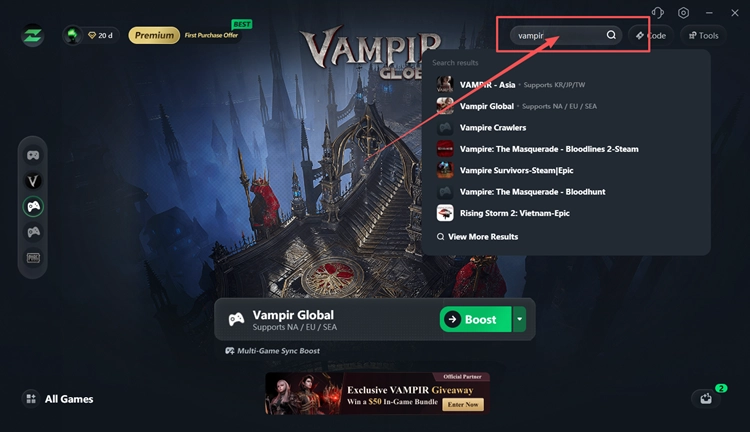
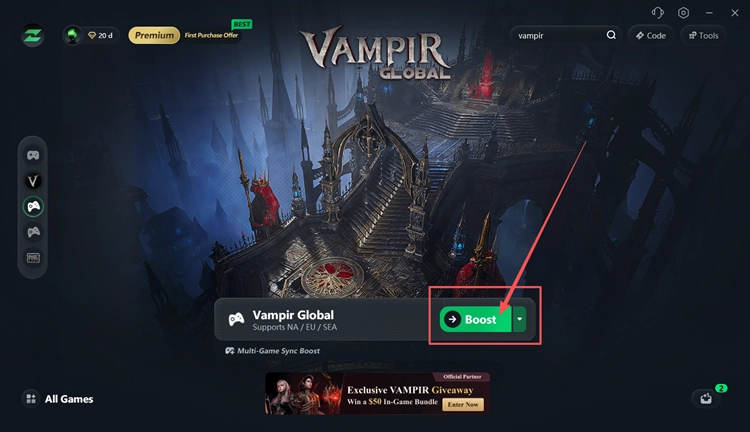
Step 3. Boost and Play VAMPIR
Select a suitable VAMPIR server or node, then click Boost. Once boosting is active, launch VAMPIR and start playing.
Tip: Want to learn more about the official partnership between LagZapper and VAMPIR? Check out the LagZapper × VAMPIR collaboration for details on free boosting and exclusive in-game rewards.
How to Fix VAMPIR High Ping and Lag - 6 Fixes
Alongside LagZapper's route optimization, these six practical PC and network checks can help maintain a stable VAMPIR connection, reduce lag, and improve overall gameplay stability.
Fix 1. Check Official Server Notices
Before changing your network settings, check the official VAMPIR announcements for maintenance, server congestion, or regional service issues. These problems can cause delayed skills, unstable latency, or disconnections. If an issue is confirmed, follow official updates before trying local fixes.
Fix 2. Pause Background Downloads and Uploads
Background downloads, game updates, cloud syncing, and large uploads can compete with VAMPIR for bandwidth, causing high ping, packet loss, or sudden ping spikes. Closing unnecessary network-heavy apps can help keep your connection stable during combat. Follow the steps below to reduce background network traffic.
Step 1. Press Ctrl + Shift + Esc to open Task Manager.
Step 2. In the Processes tab, click the Network column to identify apps using the most bandwidth.
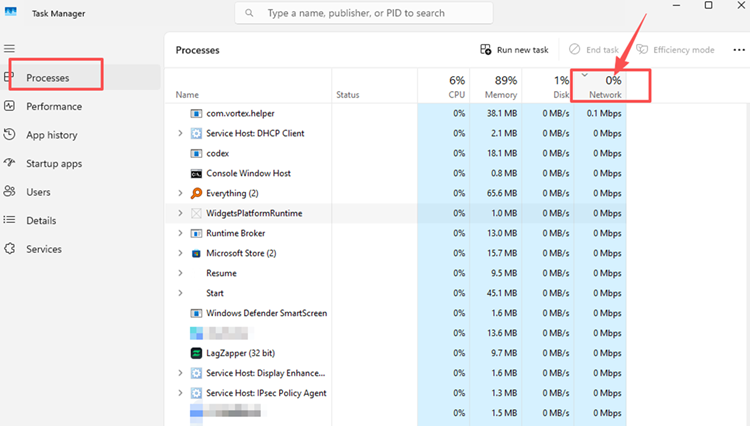
Step 3. Close non-essential apps and pause active downloads, uploads, or cloud syncing before playing VAMPIR.
Fix 3. Use Ethernet or Improve Your Wi-Fi Connection
Weak Wi-Fi signals, walls, and wireless interference can cause packet loss, jitter, and sudden ping spikes in VAMPIR. For a more stable connection, connect your PC directly to the router with an Ethernet cable whenever possible.
If Ethernet is unavailable, move closer to the router and reduce nearby wireless interference. Try 5 GHz Wi-Fi when the signal is strong, or test 2.4 GHz if you're farther away. Then check whether VAMPIR latency and connection stability improve.
Fix 4. Restart Your Router and Game Client
Temporary router glitches or disrupted game sessions can cause VAMPIR lag, ping spikes, or unexpected disconnects. Restarting your router and game client can help clear temporary connection issues. Exit VAMPIR and restart your router. Wait until your internet connection is restored, then relaunch VAMPIR and check whether the connection is more stable.
Fix 5. Update Your Network Adapter Driver
Outdated or corrupted network adapter drivers can cause unstable connections, packet loss, and random disconnects in VAMPIR. If your connection remains unstable after basic network checks, updating your Wi-Fi or Ethernet driver may help improve network stability. Follow the steps below.
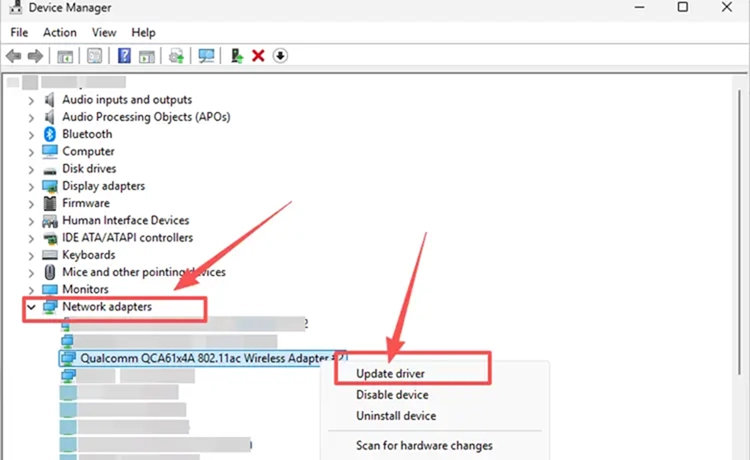
Step 1. Open Device Manager through the Windows search bar.
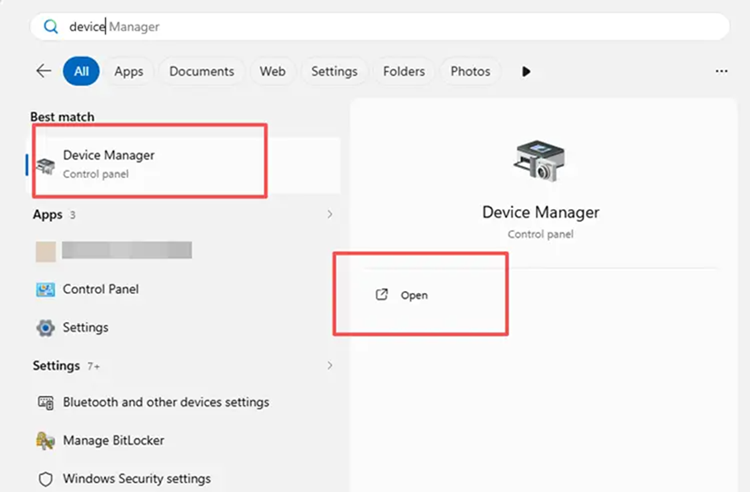
Step 2. Expand Network adapters, right-click your active Wi-Fi or Ethernet adapter, and select Update driver.
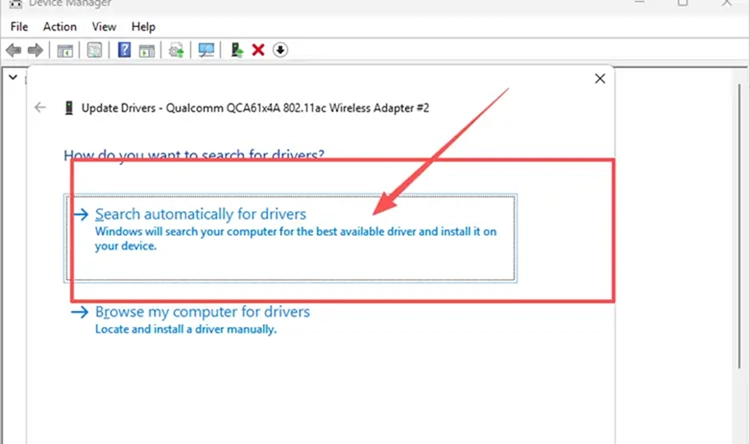
Step 3. Select Search automatically for drivers and install any available update. Restart your PC before testing VAMPIR again.
Fix 6. Reset the Windows Network Stack
Corrupted Winsock or TCP/IP settings can cause connection instability, packet loss, or unexpected disconnects in VAMPIR. Resetting the Windows network stack can help resolve local network configuration issues. Save any custom network settings before proceeding, then follow the steps below.
Step 1. Type cmd in Windows Search, right-click Command Prompt, and select Run as administrator.
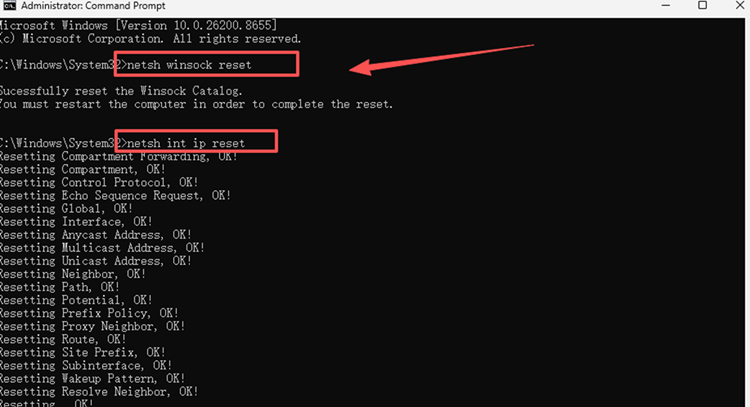
Step 2. Run the following commands in order, pressing Enter after each:
- netsh winsock reset
- netsh int ip reset
- ipconfig /release
- ipconfig /renew
- ipconfig /flushdns
Step 3. Restart your PC, reconnect to the internet, and launch VAMPIR to test the connection.
The Bottom Line
VAMPIR high ping can result from server issues, network congestion, unstable Wi-Fi, poor routing, or local network problems. Start by checking official notices, pausing background downloads, restarting your router, and using Ethernet. If network routing remains unstable, download LagZapper to optimize your VAMPIR connection route, lower ping, reduce game lag, and improve stability during PvP battles and World Boss fights.
FAQs About VAMPIR High Ping
Q1. What causes VAMPIR high ping?
Common causes include server congestion, poor ISP routing, unstable Wi-Fi, background downloads, and local network issues.
Q2. How to lower ping in VAMPIR on PC?
Pause background downloads, restart your router, and optimize network routing to help reduce latency.
Q3. Why do VAMPIR ping spikes happen during PvP or World Boss fights?
Sudden network congestion, unstable Wi-Fi, or server load can cause temporary latency jumps during combat.
Q4. Can VAMPIR packet loss cause rubberbanding?
Yes. Lost data packets can delay position updates, causing movement corrections, rubberbanding, or unstable gameplay.
Q5. How is VAMPIR latency different from FPS drops?
Latency delays server responses, while FPS drops affect visual smoothness even with a stable network connection.
Q6. Can resetting Windows network settings work as a VAMPIR high ping fix?
It may resolve local network configuration issues but cannot reduce latency caused by server distance.