
VAMPIR Region Lock: IP Restricted Error & 6 PC Fixes
Is VAMPIR region locked? Following its global launch on October 28, 2026 (UTC), some players have encountered region restrictions, missing servers, and the "ACCESS FROM THIS IP IS RESTRICTED" error when logging in. VAMPIR Global operates separate North America (NA), Europe (EU), and Southeast Asia (SEA) server regions, with access determined by the player's connection location.
Netmarble also published an official IP access restriction notice on October 28. This guide explains how VAMPIR region lock works, why your IP may be restricted, and six practical PC fixes for login and connection issues.
Is VAMPIR Region Locked?
Yes. VAMPIR Global uses region-based server restrictions. According to Netmarble's October 15 Official Launch Server Notice, players can only create characters and access servers within their assigned service region.
| VAMPIR Global Server Regions and Locations | ||
|---|---|---|
| Region | Worlds | Launch Servers |
| NA | SCARLET, RUST | SCARLET1 (US), SCARLET2, RUST1 (SA), RUST2 |
| EU | ARIA, PRELUDE | ARIA1 (RU), ARIA2, PRELUDE1 (MENA), PRELUDE2 |
| SEA | ONYX, OPAL | ONYX1 (TH), ONYX2 (ID), OPAL1 (PH), OPAL2 (AU) |
Note: This table shows the originally announced launch servers. Additional worlds may become available after launch. Country labels indicate recommended language communities, not separate service regions.
Here's how VAMPIR region lock works:
- Automatic Region Detection: VAMPIR determines your service region based on your login location.
- No Manual Region Switching: Players cannot manually change between NA, EU, and SEA through standard game settings.
- Region-Restricted Servers: Only servers available in your assigned region appear on the server selection screen.
- Server Selection: Players can choose an available server within their assigned region.
Netmarble also plans to introduce a server-shuffling system for certain cross-server activities. However, this does not mean players can freely change their VAMPIR server region.
Why Does VAMPIR Say "ACCESS FROM THIS IP IS RESTRICTED"?
The VAMPIR "ACCESS FROM THIS IP IS RESTRICTED" error appears when the game's access system rejects a connection from a restricted or abnormal IP address. Netmarble published a Notice Regarding IP Access Restrictions on October 28, 2026.
Common reasons for VAMPIR IP restricted and login errors include:
- Restricted IP Address: The game's access system may reject certain IP addresses or ranges.
- Connection Verification Issues: An unstable connection may interfere with login verification.
- Shared or Changing Networks: Public Wi-Fi, mobile hotspots, and shared networks may use changing or shared IP addresses.
- Region Restrictions: Your connection location or account service region may not meet the requirements for the selected VAMPIR server.
- Outdated PC Client: An older game version may cause separate login or connection issues.
How to Fix VAMPIR Region Lock and IP Restricted Errors on PC
Try these six fixes for VAMPIR IP restricted errors, login failures, and connection issues on PC. These methods cannot bypass official region restrictions.
Fix 1. Check Your VAMPIR Server Region
VAMPIR automatically assigns your service region based on your connection location. Players cannot manually switch between NA, EU, and SEA.
Step 1. Launch VAMPIR and sign in to your account.
Step 2. Open the server selection screen and check the available servers in your assigned region.
Step 3. Select an available server within that region and try logging in again.
For example, SCARLET and RUST belong to NA, ARIA and PRELUDE belong to EU, and ONYX and OPAL belong to SEA. Russian-speaking players can look for ARIA1 (RU) within the EU service region.
Note: Servers from other regions are normally hidden under the official VAMPIR region lock system. Selecting another server in your assigned region does not remove an IP restriction.
Fix 2. Restart VAMPIR and Update the Game Client
An outdated VAMPIR client may cause login failures or connection issues. Netmarble also released a PC update addressing connection problems in certain countries.
Step 1. Close VAMPIR completely and open the Netmarble Launcher.
Step 2. Check for available VAMPIR updates and install the latest version.
Step 3. Restart the launcher, launch VAMPIR, and try logging in again.
Note: Check Netmarble's official issue notices for PC connection updates and ongoing server problems.
Fix 3. Restart Your Router and Use a Stable Network
An unstable network may cause VAMPIR login failures, disconnects, and connection verification issues.
Step 1. Close VAMPIR and the Netmarble Launcher.
Step 2. Restart your router and modem, then connect your PC using an Ethernet cable for better stability.
Step 3. Relaunch VAMPIR and check whether the connection issue is resolved.
Note: Switching from public Wi-Fi or a mobile hotspot to a stable home network may help resolve connectivity problems. Restarting your router does not guarantee a different public IP address or remove an official IP restriction.
Fix 4. Reset Your Windows Network Settings
Corrupted network settings or DNS cache issues may cause VAMPIR connection errors. Resetting your network settings can help restore connectivity.
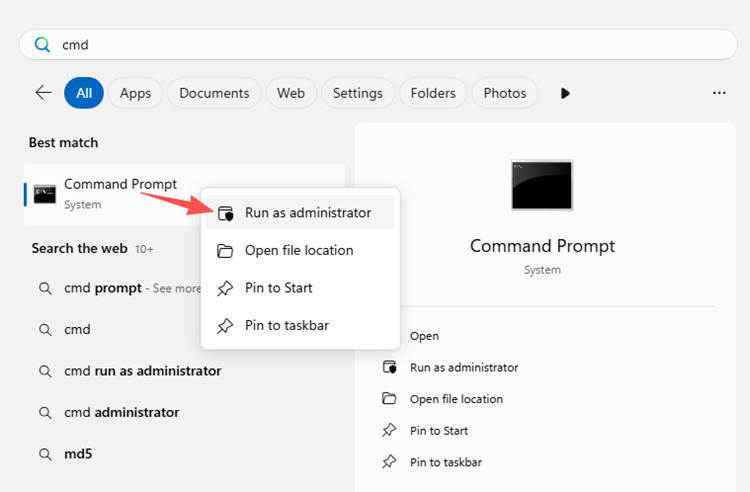
Step 1. Close VAMPIR, search for Command Prompt in Windows, and select Run as administrator.
Step 2. Run the following commands one at a time:
Step 3. Restart your PC, launch VAMPIR, and test the connection.
Note: These commands reset local DNS cache and Winsock settings. They do not change your assigned VAMPIR server region or remove server-side IP restrictions.
Fix 5. Check Windows Firewall and Background Applications
Firewall restrictions and background applications may interfere with VAMPIR connections.
Step 1. Open Windows Security > Firewall & network protection > Allow an app through firewall.
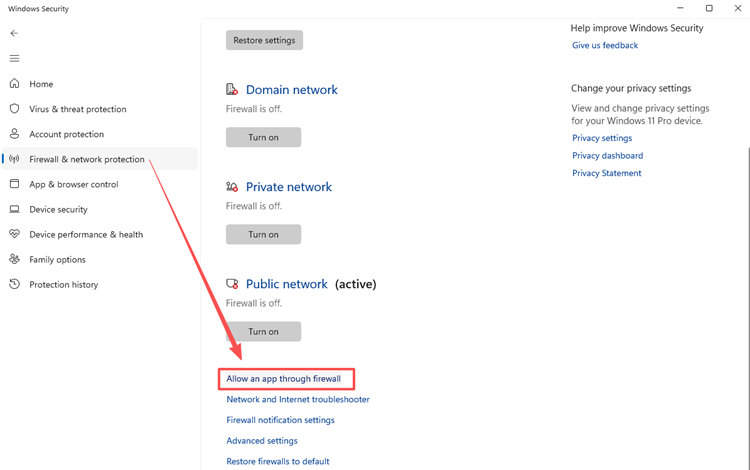
Step 2. Make sure VAMPIR and the Netmarble Launcher are allowed on your trusted network profile.
Step 3. Open Task Manager, close unnecessary background applications, pause active downloads, and restart VAMPIR.
Note: Firewall troubleshooting is intended for ordinary connection failures, not official IP blocks. Keep Windows Firewall and antivirus protection enabled, and only allow trusted applications from official sources.
Fix 6. Contact Netmarble Support for IP Restrictions
Persistent VAMPIR IP restricted errors may require assistance from Netmarble Support.
Step 1. Visit the official VAMPIR website and open the customer support section.
Step 2. Submit a support request describing the "ACCESS FROM THIS IP IS RESTRICTED" error, your country, ISP, and launcher version.
Step 3. Attach an error screenshot, list the troubleshooting steps you've tried, and submit your request.
Note: Share sensitive account or connection information only through official Netmarble support channels.
[Bonus] Reduce VAMPIR High Ping and Lag With LagZapper
After resolving VAMPIR login and region access issues, you may still experience high ping, packet loss, or network lag during gameplay. LagZapper is a PC game network optimization tool designed to improve connection stability through optimized routing for supported games.
Why Use LagZapper for VAMPIR?
- Reduce VAMPIR High Ping: Optimize network routes to lower ping and improve gameplay responsiveness.
- Minimize VAMPIR Packet Loss: Improve connection stability to reduce packet loss and prevent network interruptions.
- Fix VAMPIR Network Lag: Optimize game connectivity to reduce lag and minimize sudden delays during gameplay.
How to Boost VAMPIR With LagZapper
Follow these three steps to optimize your VAMPIR connection with LagZapper.
Step 1. Download and Install LagZapper
Download LagZapper for Windows and follow the on-screen instructions to complete the installation.
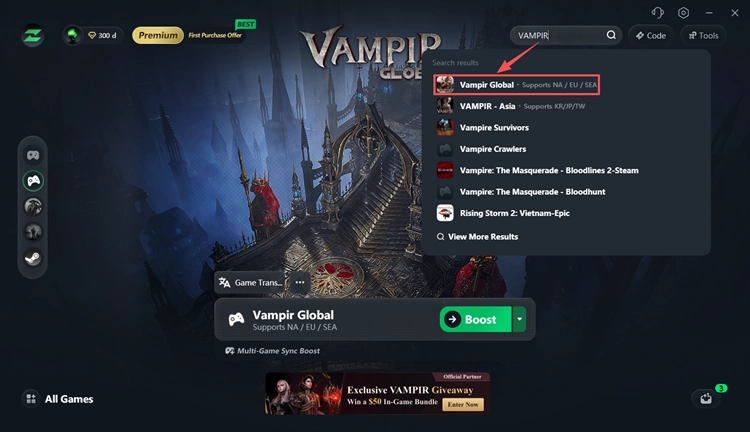
Step 2. Open LagZapper and Select VAMPIR
Launch LagZapper, sign in to your account, and search for VAMPIR in the supported games list.
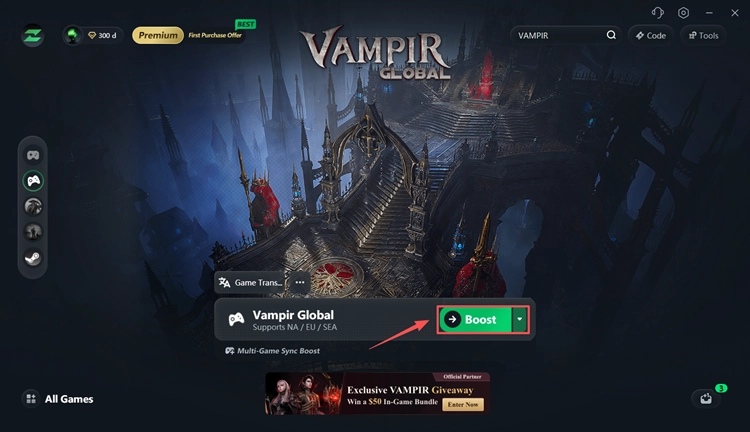
Step 3. Boost VAMPIR and Play
Select an available optimization node, click Boost, and launch VAMPIR with an optimized network connection.
The Bottom Line
VAMPIR region lock limits players to their assigned NA, EU, or SEA service region, with no manual region switching available. The "ACCESS FROM THIS IP IS RESTRICTED" error indicates an IP access problem that may require official support.
Start by checking your region, updating VAMPIR, and testing your network. Use the six fixes above to troubleshoot PC connection issues. Once you can access the game normally, download LagZapper to help reduce high ping, packet loss, and network lag.
FAQs About VAMPIR Region Lock
Q1. Is VAMPIR region locked?
Yes. VAMPIR Global restricts players to their assigned NA, EU, or SEA service region. Manual region switching is not supported.
Q2. How do I fix VAMPIR "ACCESS FROM THIS IP IS RESTRICTED"?
Update VAMPIR, check your assigned region, and test a stable home network. Contact Netmarble Support for persistent IP restrictions.
Q3. Can I change my VAMPIR server region?
You can select available servers within your assigned region, but changing between NA, EU, and SEA is not officially supported.
Q4. Is there a VAMPIR Russian server?
VAMPIR lists ARIA1 (RU) as a recommended server for Russian-speaking players within the EU region. It is not a separate Russian service region.
Q5. Why can't I see other VAMPIR server regions?
VAMPIR only displays servers available in your assigned service region. Servers in other regions remain hidden.
Q6. Does VAMPIR IP restricted mean my account is banned?
Not necessarily. An IP access restriction may block a connection without indicating an account ban. Contact Netmarble Support for confirmation.