
WARDOGS Queue Not Moving? Fix Login Queue, Resets & Access Denied
At launch, the WARDOGS queue reached more than 100,000 players, leaving many players waiting before they could reach the main menu or join a server. When the WARDOGS queue is stuck, its position may stop moving, reset near the front, or end with Access Denied and authentication errors before sending players back into an even longer queue for another attempt.
This guide will explain why WARDOGS queues become stuck, distinguish the login queue from individual server queues, and provide seven practical fixes for common client, connection, and server browser issues.
Why Is the WARDOGS Queue Stuck or Not Moving?
WARDOGS queue problems can occur before the main menu or when joining a server. Check the table below to identify your symptom and the best first action.
| Symptom | Most Likely Cause | Best First Action |
|---|---|---|
| Login queue reaches 100K+ or moves slowly | Heavy login traffic or limited server capacity | Stay in the queue if the position is moving |
| Queue position stops changing | Login or queue service interruption | Check official updates and recent player reports |
| Access Denied appears at the front | Authentication or Steam session failure | Check whether other players have the same error |
| Players are sent back to a longer queue | Login authentication did not complete | Wait for the service to stabilize before retrying |
| Server Queue Is Full after reaching the menu | Full server or outdated Server Browser data | Refresh the list and choose a less-crowded server |
| Only one player remains stuck while others connect | Client, Steam, network, or firewall problem | Continue with the relevant local fixes below |
How to Fix WARDOGS Queue Issues
Use the fixes below in order. If your queue position is still moving, stay in line unless WARDOGS or Steam requires an update.
Fix 1. Update WARDOGS and Restart Steam After a Queue Error
An incomplete update or stale Steam session can prevent WARDOGS from completing login after a queue error. Restart only after the queue fails or Steam displays a pending update; leaving a queue that is still moving may cost your position. If either condition applies, follow the steps below to refresh the client safely.
Step 1. Close WARDOGS, right-click the Steam icon in the Windows system tray, and select Exit.
Step 2. Reopen Steam, check Downloads, and install every pending WARDOGS update.
Step 3. Wait for downloading or unpacking to finish, launch the current WARDOGS client, and rejoin the queue.
Fix 2. Launch the Correct WARDOGS Client and Steam Account
Players who joined an earlier beta may still have WARDOGS Playtest in their Steam Library. Launching that expired client or using a Steam account that does not own the Early Access version can cause access and authentication failures even after waiting in the queue.
Open Steam Library and launch the current WARDOGS release, confirm that the active account owns the game, and make sure Steam is in Online Mode. If ownership does not appear correctly, fully exit Steam, sign back into the correct account, and check the Library again.
Fix 3. Select One Region and Refresh the WARDOGS Server Browser
This method applies only after you pass the login queue and reach the Server Browser. During the Closed Beta, BULKHEAD advised players to select a single region when choosing multiple regions caused the server list to appear empty. It cannot fix the global login queue shown before the main menu.
Open the Server Browser, select one region, review the available server filters, and refresh the list. Wait for the browser to finish updating before choosing a server, and avoid clicking several servers rapidly while new player counts are still loading.
Fix 4. Join a Less-Crowded WARDOGS Server
If a selected server or its waiting queue is full, refresh the Server Browser and choose one with more available slots. Player counts may update with a short delay, so a server showing 80/100 or 90/100 can fill before your request arrives. This method affects individual server queues only and cannot shorten the initial WARDOGS login queue.
Fix 5. Test WARDOGS on Another Stable Connection
If WARDOGS is online and other players can connect, the failure may involve your Wi-Fi, router, ISP, or network route. Testing another connection helps separate a local problem from a widespread queue outage, but it cannot bypass the official queue. If only your connection appears affected, follow the steps below.
Step 1. Close downloads, cloud syncing, streaming, and other bandwidth-heavy apps, then use Ethernet if available.
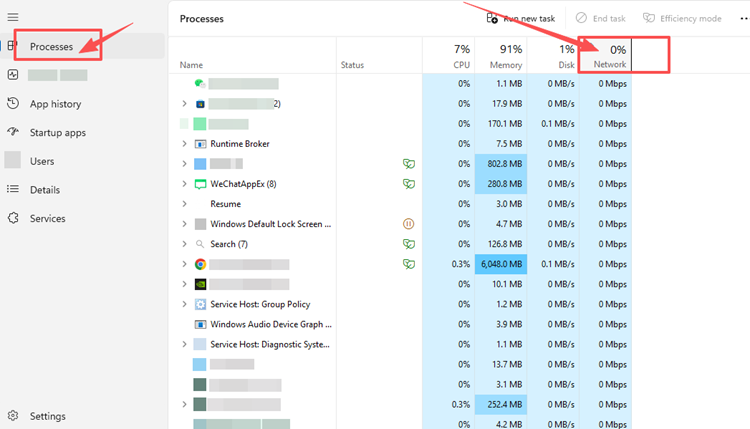
Step 2. Restart your router and modem, then wait until the connection fully recovers.
Step 3. Test WARDOGS through a mobile hotspot or another stable network.
Fix 6. Verify the Integrity of WARDOGS Game Files
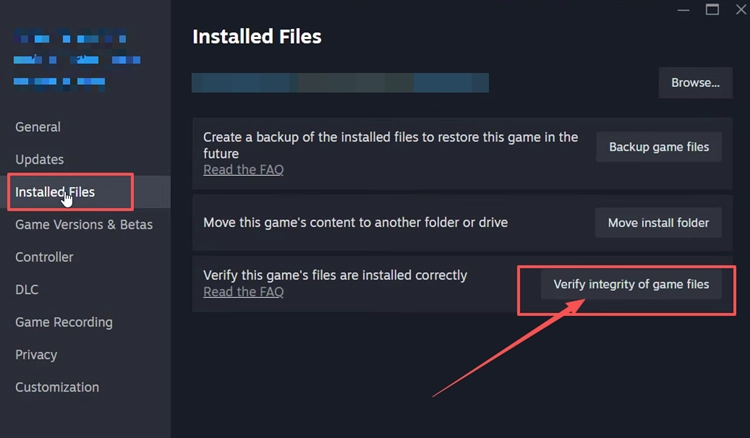
An interrupted update or damaged installation may prevent the client from loading the components required for online authentication. File verification can restore missing or corrupted data, but it cannot repair overloaded WARDOGS servers. If the problem started after an update or affects only your installation, follow the steps below.
Step 1. Open Steam Library, right-click WARDOGS, and select Properties > Installed Files.
Step 2. Click Verify integrity of game files, wait for Steam to finish, and relaunch WARDOGS.
Fix 7. Allow WARDOGS and Steam Through Windows Firewall
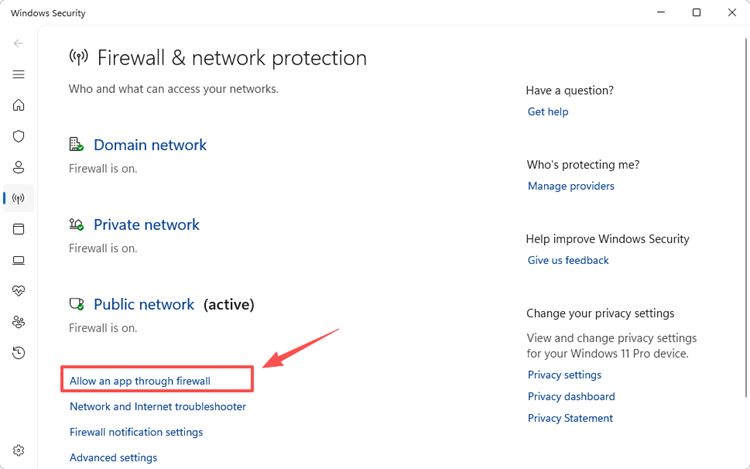
Firewall or antivirus rules can prevent WARDOGS or Steam from reaching authentication and update services. Add both apps as firewall exceptions instead of disabling security protection. Follow the steps below for Windows Firewall:
Step 1. Open Windows Security, select Firewall & network protection, and click Allow an app through firewall.
Step 2. Select Change settings and find WARDOGS and Steam in the allowed apps list. If either app is missing, click Allow another app and add its executable file.
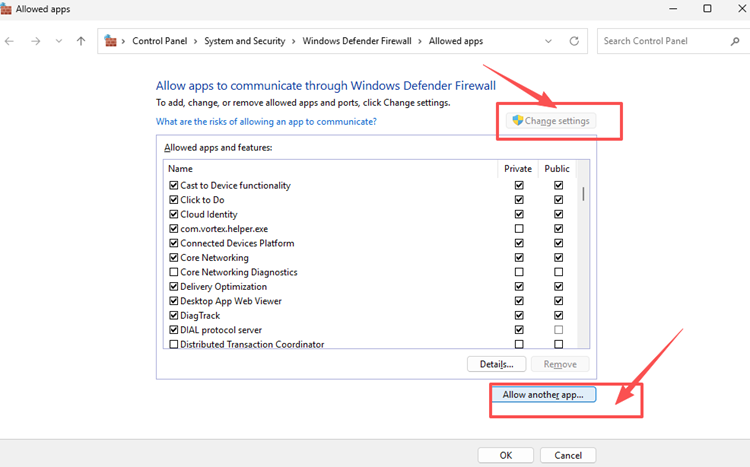
Step 3. Allow both apps on your active network profile, click OK, and restart Steam before launching WARDOGS again.
[Bonus] Improve WARDOGS Connection Stability with LagZapper
WARDOGS relies on a stable connection from login through its large-scale online battles. LagZapper can optimize the route between your PC and the game server, helping reduce high ping, packet loss, latency spikes, and unstable routing.
Why Use LagZapper for WARDOGS?
- Smart Route Optimization: Finds stable routes to reduce high ping, packet loss, jitter, and routing instability.
- Connection Stability: Helps reduce game lag, lower ping, and limit sudden latency spikes during WARDOGS matches.
- One-Click Boost: Optimizes the WARDOGS connection without requiring manual changes to your router, DNS, or Windows network settings.
- 3,000+ Game Support: Works with WARDOGS and thousands of other supported online games.
How to Boost WARDOGS with LagZapper
Follow these three steps to optimize your WARDOGS connection before joining an online match.
Step 1. Download and Install LagZapper
Download LagZapper for Windows and follow the on-screen instructions to complete the installation on your PC.
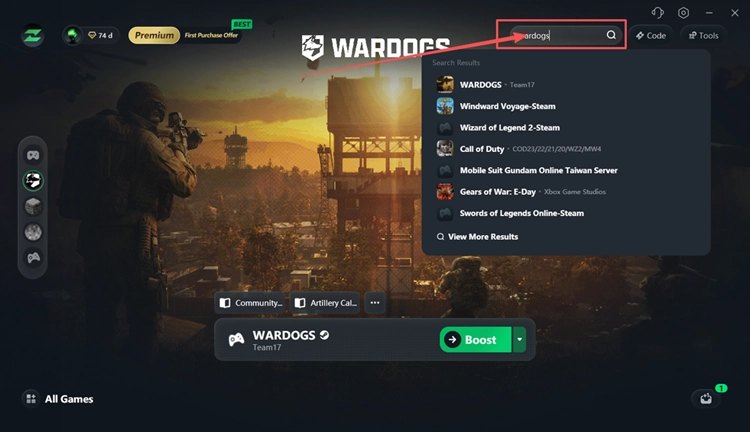
Step 2. Open LagZapper and Search for WARDOGS
Launch LagZapper and enter WARDOGS in the search bar to find the game.
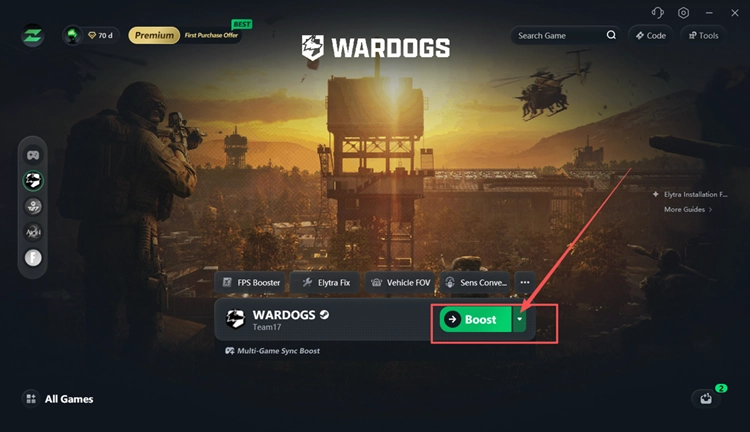
Step 3. Select a Recommended Node and Click Boost
Select a recommended WARDOGS server or node, then click Boost before launching the game.
The Bottom Line
When the WARDOGS queue is still moving, remain in line unless Steam requires an update. For queue resets or Access Denied, check whether other players are affected before changing local settings. If the issue is limited to your PC, update the client, confirm your Steam account, test another network, verify the game files, and check Windows Firewall. Once WARDOGS is available, download LagZapper to optimize unstable routing, reduce game lag, lower ping, and limit packet loss during online matches.
FAQs About the WARDOGS Queue
Q1. Why Is the WARDOGS Queue So Long?
Heavy launch traffic can exceed login capacity, creating long waits before authentication begins.
Q2. What Should I Do If the WARDOGS Queue Is Not Moving?
Check official updates and player reports; widespread queue stalls usually require server-side recovery.
Q3. Why Does WARDOGS Show Access Denied After the Queue?
The login service may fail authentication under heavy traffic and restart the player’s session.
Q4. What Is the Difference Between WARDOGS Login and Server Queues?
The login queue appears before the menu; server queues appear after selecting a match.
Q5. Should I Restart WARDOGS While Stuck in Queue?
No. Stay in line unless Steam or WARDOGS requires an update.