
Windows 11 Update Crashing Games? Fix KB5121003
Are games crashing after Windows update KB5121003? Microsoft has confirmed reports of some PC and Steam games freezing, closing unexpectedly, showing EXCEPTION_ACCESS_VIOLATION, or restarting Windows 11. The issue affects certain Windows 11 24H2 and 25H2 systems and may involve RGB-related inpoutx64 drivers.
Recent Apex Legends reports also point to possible Windows 11 25H2 compatibility problems, including full-system freezes after the August updates. However, Apex is not on Microsoft’s confirmed affected-game list. This guide covers confirmed symptoms, affected games, Microsoft’s workaround, Apex freeze reports, and practical fixes for KB5121003 games crashing.
Is KB5121003 Crashing Games on Windows 11?
Yes. Microsoft has received reports of certain games becoming unresponsive after installing KB5121003 and later cumulative Windows updates. The company is still investigating the exact cause, so the update itself has not been confirmed as the only source of the crashes.
The known issue currently affects:
- Windows 11 version 24H2
- Windows 11 version 25H2
- OS builds 26100.9168 and 26200.9168
- KB5121003 and later updates containing the same changes
Microsoft’s investigation links the crashes to RGB-related hardware or software components using drivers such as inpoutx64. Common symptoms include:
- Game freezes or stops responding
- Game closes unexpectedly
- EXCEPTION_ACCESS_VIOLATION appears
- Windows restarts unexpectedly
Server outages may affect login or matchmaking, but they typically do not cause access-violation errors or restart Windows.
Which Games Are Affected by KB5121003?
Microsoft currently identifies three games in reports associated with the Windows 11 KB5121003 issue:
| Game | Reported Symptoms | Current Evidence |
|---|---|---|
| ARC Raiders | Freezing, crash to desktop, unexpected PC restart | Identified by Microsoft |
| MARVEL Tōkon: Fighting Souls | Game becomes unresponsive or closes | Identified by Microsoft |
| THE FINALS | Freezing, crashes, EXCEPTION_ACCESS_VIOLATION | Microsoft + developer troubleshooting |
Microsoft has not confirmed that KB5121003 is crashing every Windows 11 or Steam game. Embark Studios also linked crashes in THE FINALS to inpoutx64.sys and published a temporary workaround.
Apex Legends Freezes Reported on Windows 11 25H2
Recent EA Forums reports link Apex Legends hard freezes more closely to Windows 11 25H2 and Easy Anti-Cheat. Microsoft is also investigating August 2026 Windows updates that can cause some games to crash, stop responding, or restart PCs.
Note: Apex Legends has not been officially linked to the KB5121003 inpoutx64 issue, so it remains a separate Windows 11 compatibility signal.
How to Fix Games Crashing After Windows Update KB5121003
Start with the Windows-specific checks below rather than immediately reinstalling the game or changing several unrelated PC settings.
Fix 1. Confirm Your Crash Matches the KB5121003 Issue
This known issue has a specific combination of Windows version, update history and symptoms. Confirming all three helps avoid modifying the registry for an unrelated crash.
Step 1. Open Settings > Windows Update > Update history.
Step 2. Check for Security Update for Microsoft Windows (KB5121003).
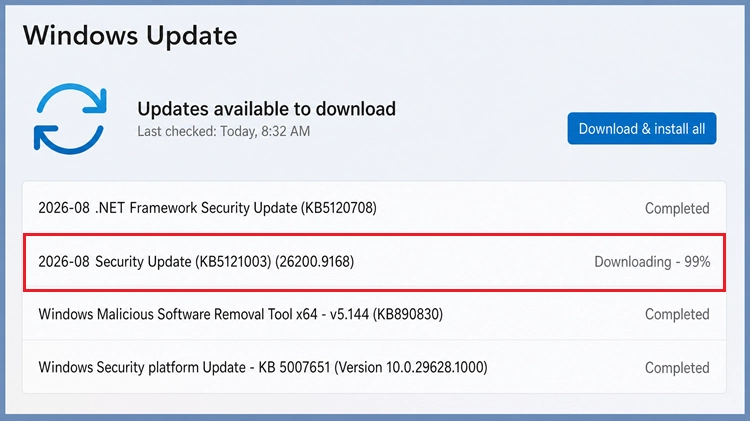
Step 3. Press Windows + R, type winver, and confirm Windows 11 24H2 or 25H2.
Step 4. Compare your crash with these symptoms:
- Game freezes or stops responding
- Game closes unexpectedly
- EXCEPTION_ACCESS_VIOLATION
- PC restarts unexpectedly
KB5121003 is more likely involved when the game worked normally before August 11 and crashes started after the update. GPU-specific errors or earlier crashes may point to another cause.
Fix 2. Disable inpoutx64 With Microsoft’s Official Workaround
Microsoft’s temporary workaround disables the inpoutx64 driver through the Windows Registry.
Note: Back up the Registry first. Continue only when the inpoutx64 key exists.
Step 1. Open Registry Editor by searching for regedit.
Step 2. Navigate to: HKEY_LOCAL_MACHINE\SYSTEM\CurrentControlSet\Services\inpoutx64
Step 3. Back up the key, then double-click Start and change Value data to 4.
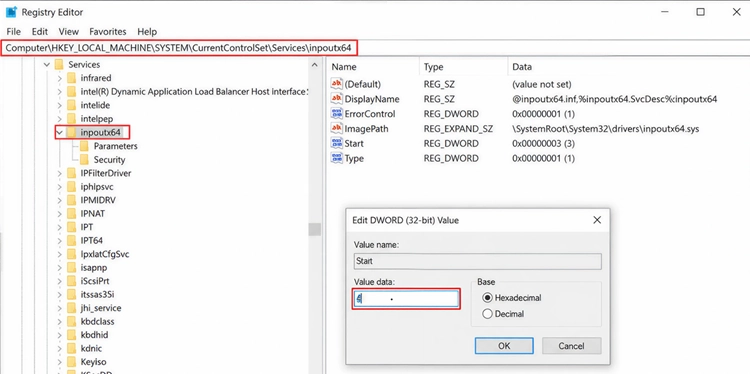
Step 4. Click OK, restart Windows, and test the affected game again.
Disabling inpoutx64 may affect RGB lighting or related control software. Restore the previous value to re-enable the driver.
Fix 3. Check for a New Windows or Game Update
The Registry change is only a temporary workaround. Microsoft is still investigating the KB5121003 game crash issue, while developers such as Embark continue working on longer-term fixes.
Step 1. Open Settings > Windows Update and install any newer update that addresses game crashes.
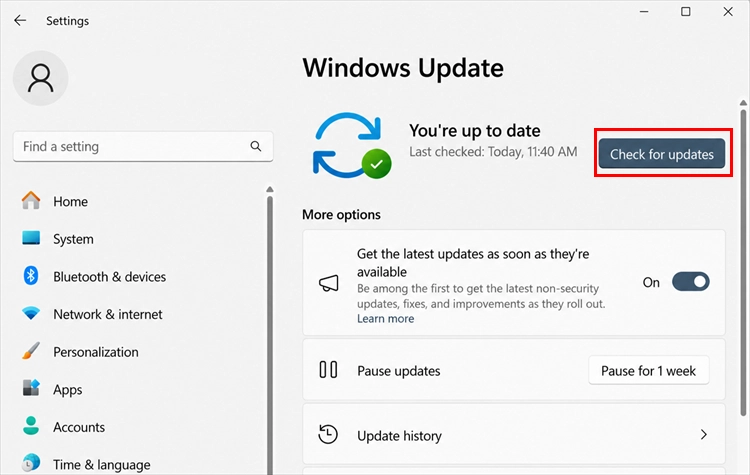
Step 2. Check the affected game’s official patch notes, especially for ARC Raiders and THE FINALS.
Step 3. Restart Windows and test the same area or multiplayer scenario that previously crashed.
Fix 4. Update the RGB or Hardware Control Software
The affected driver may have been installed by software controlling RGB peripherals, motherboard lighting, fans or other internal components. Updating that software may replace an outdated component.
Step 1. Open Settings > Apps > Installed apps, then use the search box to find your RGB, motherboard, cooling, or lighting control software.
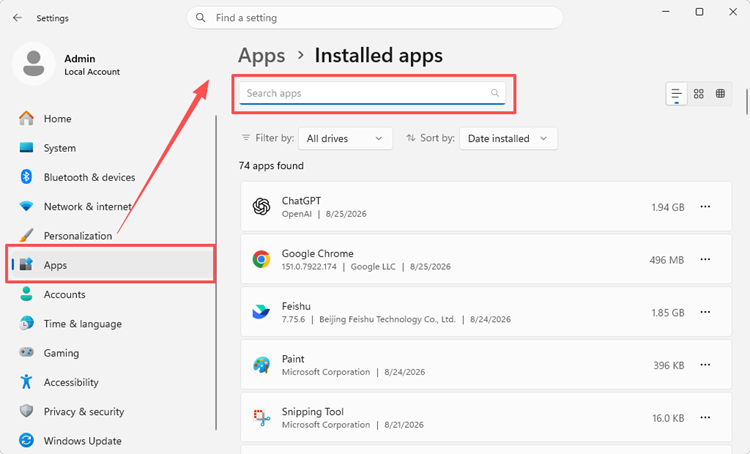
Step 2. Go to the hardware manufacturer’s official website and download the latest compatible version of the software.
Step 3. Install the update, restart Windows, and launch the game again to check whether the crashes are fixed.
Fix 5. Verify the Affected Steam Game Files
Steam verification cannot fix the inpoutx64 driver conflict, but it can repair damaged or missing game files.
Step 1. Open Steam > Library, right-click the affected game, and select Properties.
Step 2. Go to Installed Files > Verify integrity of game files.
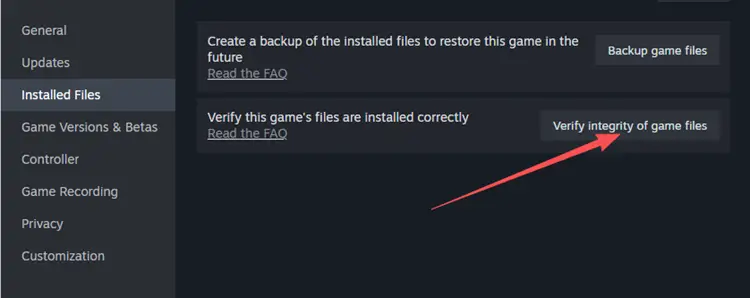
Step 3. Wait for Steam to finish, restart Steam, and test the game again.
Fix 6. Check the GPU Driver When the Symptoms Are Different
Check the GPU driver only when crashes continue after the inpoutx64 workaround or the symptoms look graphics-related, such as:
- Graphical corruption
- Black screens
- GPU driver timeout errors
- GPU-specific crash messages
- Crashes across unrelated games
Step 1. Open the NVIDIA App, AMD Software: Adrenalin Edition, or Intel Driver & Support Assistant.
Step 2. Check the current driver version and install the latest stable release. Roll back to the previous stable version when crashes started immediately after a GPU update.
Step 3. Restart Windows and test the game again.
Fix 7. Uninstall KB5121003 Only as a Last Resort
Some players report that removing KB5121003 stopped the crashes, but uninstalling a security update should remain a last resort. Try Microsoft’s inpoutx64 workaround first.
Step 1. Open Settings > Windows Update > Update history.
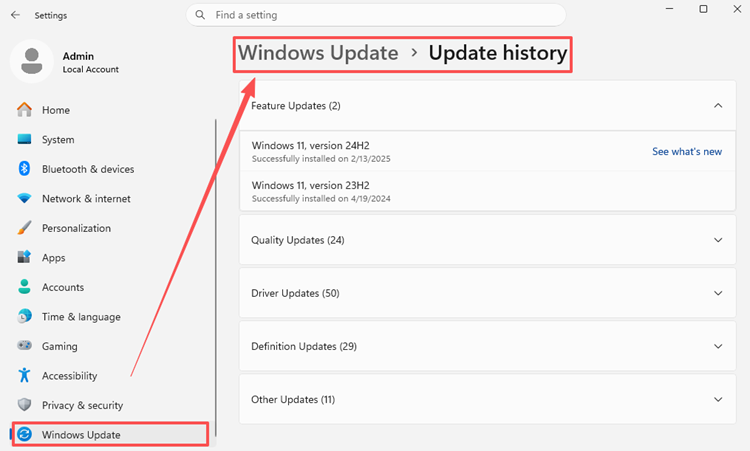
Step 2. Select Uninstall updates, find KB5121003, and click Uninstall.
Step 3. Restart Windows and test the affected game.
Removing KB5121003 also removes its security protections, and Windows may install it again later.
Can LagZapper Fix KB5121003 Game Crashes?
LagZapper is not designed to directly repair inpoutx64, RGB driver conflicts, or EXCEPTION_ACCESS_VIOLATION errors linked to KB5121003. Microsoft’s Windows workaround should be the first step for those crashes.
After the game launches normally, LagZapper may still help with separate network-related problems such as high ping, packet loss, unstable routing, or disconnects during online play. These issues can affect multiplayer stability but are different from the confirmed Windows 11 driver conflict.
How to Improve the Game Connection With LagZapper
Once the Windows crash is fixed, LagZapper can optimize the connection route between your PC and the game server to reduce lag and improve online stability.
Step 1. Download and Install LagZapper
Download LagZapper for Windows and complete the installation.
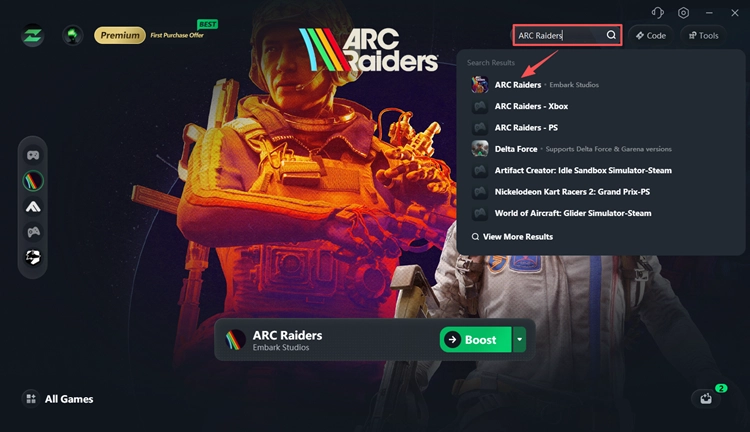
Step 2. Search for Your Game
Open LagZapper and search for ARC Raiders, THE FINALS, or another supported online game.
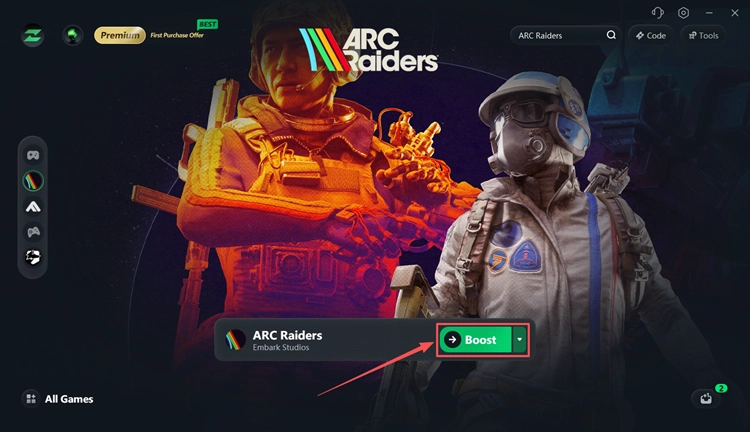
Step 3. Select a Node and Boost
Choose a suitable server node, click Boost, and launch the game normally.
LagZapper is most useful for network-related issues such as high ping, packet loss, unstable routing, or multiplayer disconnects.
The Bottom Line
The Windows 11 update crashing games issue linked to KB5121003 currently affects only certain systems and games. Microsoft’s evidence points to RGB-related inpoutx64 components, so try the official Registry workaround before removing the security update. Once the game launches normally, separate problems such as high ping, packet loss, or unstable routing may remain. Download LagZapper to optimize your game connection and improve online stability.
FAQs About Windows 11 Update Crashing Games
Q1. Why do my games keep crashing after the Windows 11 update?
KB5121003 may conflict with RGB-related inpoutx64 components, causing freezes, crashes, access violations, or PC restarts.
Q2. Which games are crashing after KB5121003?
Microsoft currently names ARC Raiders, MARVEL Tōkon: Fighting Souls, and THE FINALS.
Q3. Is KB5121003 EXCEPTION_ACCESS_VIOLATION officially confirmed?
Yes. Microsoft lists EXCEPTION_ACCESS_VIOLATION among the reported symptoms linked to the issue.
Q4. Is it safe to disable inpoutx64?
Microsoft provides this temporary workaround, but it may disable RGB lighting or related hardware-control functions.
Q5. Should I uninstall Windows 11 update KB5121003?
Only as a last resort. Try Microsoft’s inpoutx64 workaround first because uninstalling KB5121003 removes security protections.
Q6. Will verifying Steam files fix KB5121003 game crashes?
Not usually. Verification repairs game files but cannot fix the underlying inpoutx64 driver conflict.