
WoW Forever Beta Not Working? 6 Fixes for Install, Play & License Issues
The World of Warcraft: Forever Beta is now live, but not every eligible player can get into the test successfully. Some players cannot install the Beta or find the Install button greyed out. Others complete the installation but cannot click Play, while some reach the client only to see a "No Valid License" error or find the correct WoW account missing. These are common WoW Forever Beta not working issues reported so far.
This guide will explain why the WoW Forever Beta is not working and provide 6 practical fixes for installation, Play button, license, and account issues.
Why Is the WoW Forever Beta Not Working?
WoW Forever Beta problems can appear during access, installation, launch, or account verification. Check the table below to match your symptom with the most likely cause and first fix.
| Symptom | Possible Cause | First Fix to Try |
|---|---|---|
| Install or Play is greyed out | Temporary Beta or Battle.net issue | Check Beta status |
| “No Valid License” appears | Beta license is not attached | Verify Beta access |
| Beta is missing after purchase | Edition may not include Beta access | Check your edition |
| Beta does not appear after gaining access | Access is still syncing | Restart Battle.net |
| Forever Beta is missing from Game Version | Battle.net may need updating | Update Battle.net |
| Wrong WoW account appears or Beta will not launch | Wrong Battle.net account or account-selector issue | Check the account |
How to Fix WoW Forever Beta Not Working
Before trying the fixes below, check the table above to identify the most relevant solution for your issue. If you are unsure of the cause, work through the fixes in order.
Fix 1. Check WoW Forever Beta Status and Known Issues
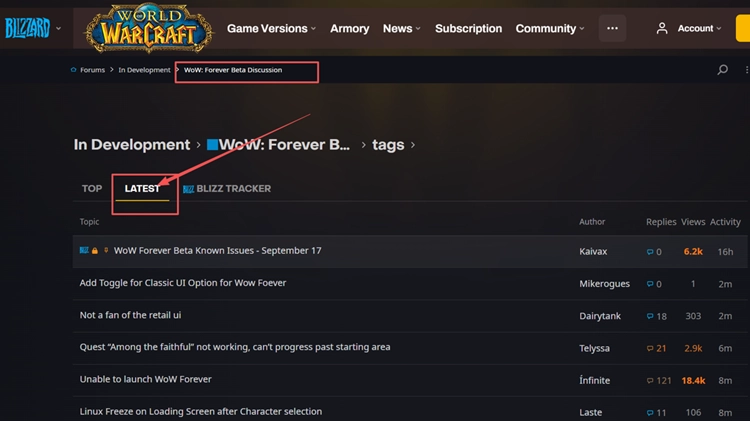
Before changing Battle.net settings, check for service notices and recent reports in the WoW Forever Beta Known Issues thread and official forum. If many eligible players are experiencing the same Install, Play, or launch problem, wait for Blizzard to address it instead of repeatedly reinstalling or deleting files.
Fix 2. Verify Your WoW Forever Beta License and Edition
If you are unsure whether a Beta-related email or launcher option reflects actual access, check whether a World of Warcraft: Forever Beta license is attached to your Battle.net account. This is especially useful after a "No Valid License" error. Follow the steps below to verify it.
Step 1. Sign in to Battle.net Account Management and open Games & Subscriptions.
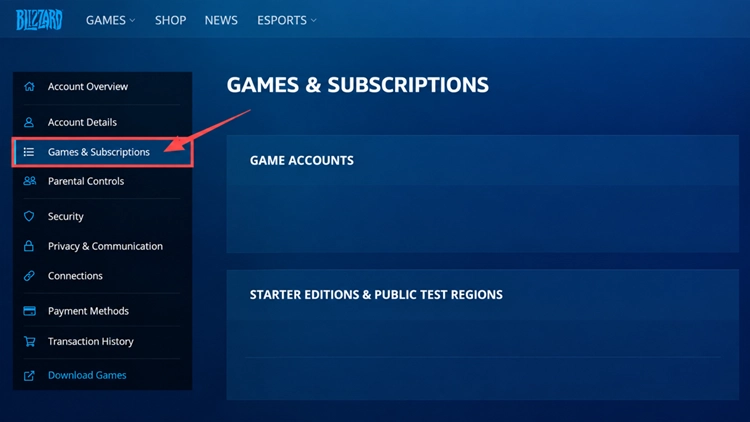
Step 2. Check Your Game Accounts for a World of Warcraft: Forever Beta license.
If the license is missing, confirm that you received a Blizzard invitation or purchased an edition that includes Beta access. The Skyborne Epic Pack, Warcraft Forever Collection, and Collector’s Edition include Beta access, while the Skyborne Heroic Pack does not. If no Beta license is attached, updating Battle.net or forcing the installation will not grant access.
Fix 3. Sign In to the Battle.net Account with Beta Access
If the Beta license exists, make sure the Battle.net desktop app is signed in to the same account. Using another Battle.net account can leave the Forever Beta unavailable even though you own access elsewhere.
Fix 4. Wait for Access to Sync and Restart Battle.net
If you just purchased an eligible WoW Forever bundle, Beta access may not appear immediately. Blizzard says access can take up to 30 minutes to sync, and a launcher restart may be required. Wait for the entitlement to update, then fully close and reopen Battle.net before checking the Beta option again.
Fix 5. Update Battle.net to Refresh the Beta Options
Battle.net may need to update itself before you check the Forever Beta options again, especially if you have not opened the desktop app recently. Fully close and reopen Battle.net, then allow any launcher update or restart prompt to finish. Once the client is updated, return to World of Warcraft and check the Game Version menu again.
Fix 6. Force the WoW Forever Beta Installation If Install Is Greyed Out
If your account already has WoW Forever Beta access but the Install button is still greyed out, a community-reported Battle.net launch parameter may open the installer on Windows. Follow the steps below to trigger the WoW Forever Beta installation.
Step 1. Fully close Battle.net. Press Windows + R, enter cmd, and press Enter.
Step 2. Enter:
"C:\Program Files (x86)\Battle.net\Battle.net.exe" --game=wow_classic_beta --install
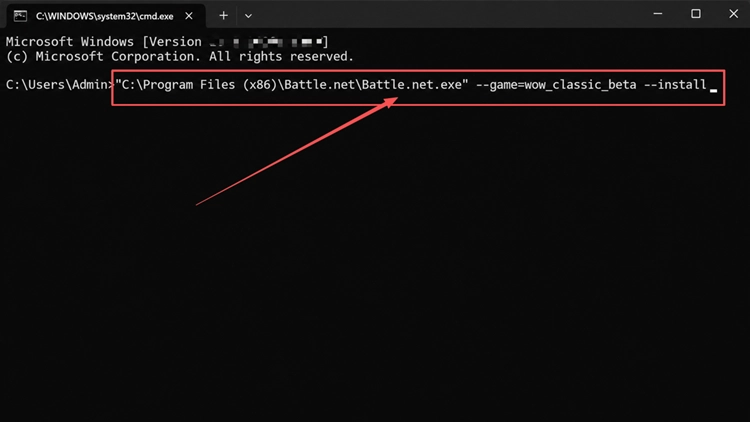
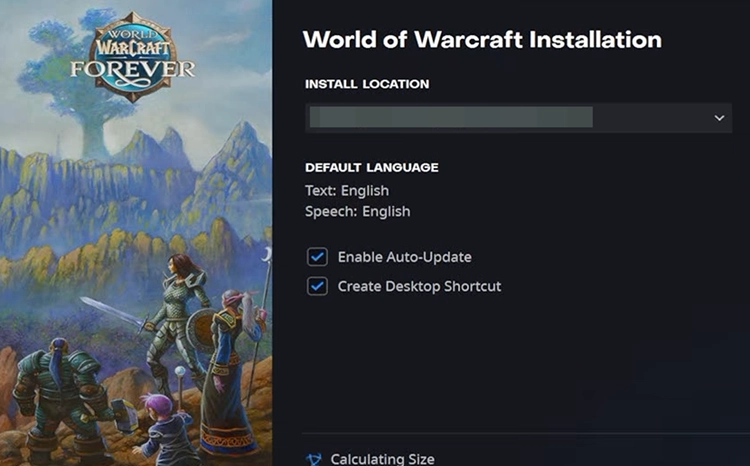
Step 3. Press Enter and let Battle.net open the Forever Beta installer.
[Bonus] Improve WoW Forever Connection Stability With LagZapper
Once WoW Forever launches normally, high ping, packet loss, or unstable routing can still affect the online experience. LagZapper can optimize the connection route between your PC and the game server to reduce game lag, lower ping, and improve connection stability.
Why Use LagZapper for WoW Forever
- Smart Route Optimization: Finds stable routes to reduce high ping, packet loss, and jitter.
- Connection Stability: Helps reduce game lag, lower ping, and limit sudden latency changes.
- One-Click Boost: Optimizes the connection without manually changing router, DNS, or Windows settings.
- 3,000+ Game Support: Supports World of Warcraft and thousands of other online games.
How to Use LagZapper for WoW Forever
Follow these three steps to optimize your WoW Forever connection before launching the game.
Step 1. Download and Install LagZapper
Download LagZapper for Windows and follow the on-screen instructions to complete the installation.
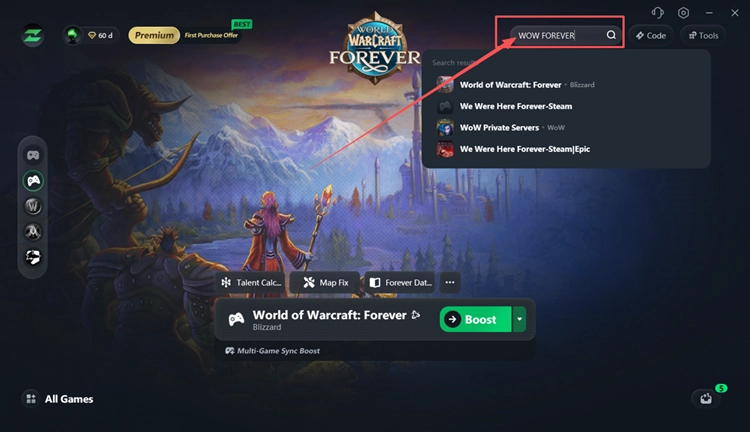
Step 2. Open LagZapper and Search for World of Warcraft
Launch LagZapper and enter World of Warcraft Forever in the search bar to find the game.
Step 3. Select a Recommended Node and Click Boost
Select a recommended World of Warcraft server or node, then click Boost before launching WoW Forever.
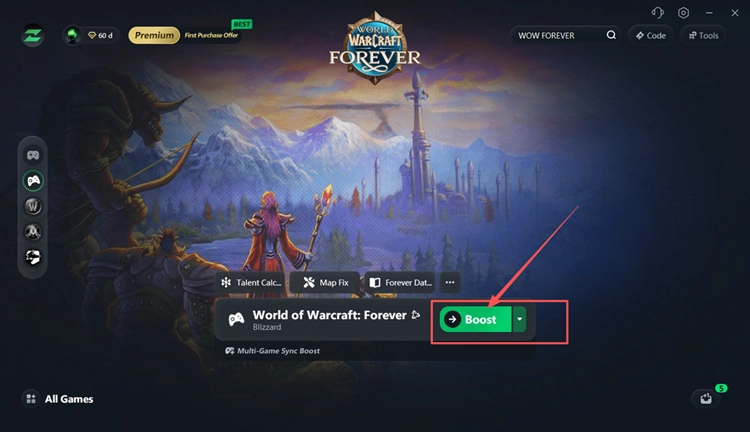
Tip: LagZapper provides quick access to WoW Forever guides and talent planning, plus a built-in tool that fixes the green-screen map issue.
The Bottom Line
When WoW Forever Beta not working, start by checking Beta status and known issues, then verify your Beta license and edition, confirm the correct Battle.net account, allow access time to sync, and update Battle.net. If Install remains greyed out after access is confirmed, try the installation workaround above. If high ping, packet loss, or unstable routing affects WoW Forever, download LagZapper to improve connection stability.
FAQs About WoW Forever Beta Not Working
Q1. Why Is WoW Forever Beta Not Working?
Beta issues, missing access, account problems, or Battle.net errors can prevent it from working.
Q2. Why Can't I Install WoW Forever Beta?
The Install button may stay unavailable because of access, Battle.net, or current Beta-side issues.
Q3. Why Is the WoW Forever Play Button Greyed Out?
Check current Beta reports and confirm Battle.net is using the account with Beta access.
Q4. What Does WoW Forever No Valid License Mean?
It means the account being used does not have a recognized Forever Beta license.
Q5. Why Is WoW Forever Beta Not Showing Up After Purchase?
Beta entitlement may take up to 30 minutes to sync before appearing in Battle.net.
Q6. Which WoW Forever Editions Include Beta Access?
Epic Pack, Forever Collection, and Collector’s Edition include Beta access; Heroic Pack does not.