
WoW Forever Green Screen? 7 Fixes for Green Maps & Black Textures
Since the WoW: Forever Beta opened on September 17, some players have reported a strange graphics problem that makes parts of Azeroth appear green. The WoW Forever green screen issue may show up as green-tinted environments, bright green shadows, neon-green map areas, or black and missing ground textures, with many current reports coming from Mac users. These symptoms can vary depending on the graphics setting or rendering feature involved.
This guide will explain why WoW Forever looks green and cover the most relevant fixes for green shadows, neon-green maps, black textures, and related Mac graphics issues.
Why Does WoW Forever Look Green?
WoW Forever’s green and black graphics glitches do not always share the same trigger. Match your symptom below with the most relevant setting or workaround first.
| Symptom | Possible Cause | First Fix to Try |
|---|---|---|
| World looks bright green | Shadow rendering | Shadow Quality: Low |
| Green tint outdoors | GPU feature conflict | Disable Optional GPU Features |
| Mac freezes entering world | Secondary Lighting | Set it to Fair |
| Black shadows or textures | SSAO rendering | Turn SSAO Off |
| Multiple graphics glitches | Graphics preset | Quality 1 or 2 |
| Issues continue after updates | Client / GPU compatibility | Update game & driver |
How to Fix WoW Forever Green Screen and Texture Issues
Start with the fix that best matches your symptom in the table above. If you are unsure what is causing the issue, try the following fixes in order.
Fix 1. Use the WoW Forever Green Screen Fix Tool - LagZapper
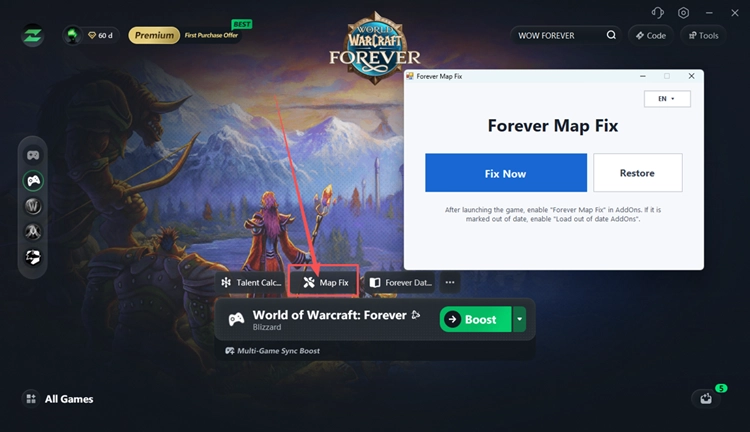
Instead of changing multiple graphics settings manually, LagZapper includes a Map Fix tool for WoW Forever that targets green-map display errors. The tool works through the game’s AddOns system, so make sure the fix is enabled after launching WoW Forever. Follow the steps below.
Step 1. Download and Open LagZapper
Download LagZapper for Windows and follow the on-screen instructions to complete the installation.
Step 2. Search for World of Warcraft: Forever
Enter World of Warcraft: Forever in the search bar and select the game from the results.
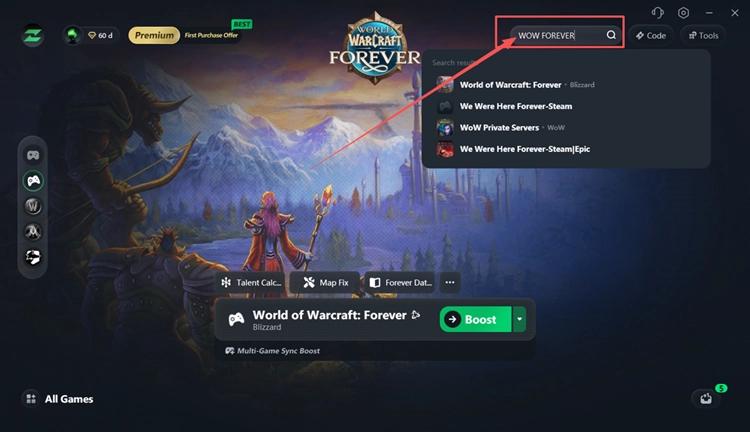
Step 3. Open the Green Screen Fix Tool
Open Tools > Map Fix and click Fix Now. After launching WoW Forever, enable Forever Map Fix in AddOns. If it is marked outdated, enable Load out of date AddOns.
Fix 2. Set Shadow Quality to Low
Shadow Quality is one of the most targeted settings to test when WoW Forever displays a bright-green environment or green shadows. Lowering it to Low reduces the shadow effects being rendered without lowering the entire graphics preset.
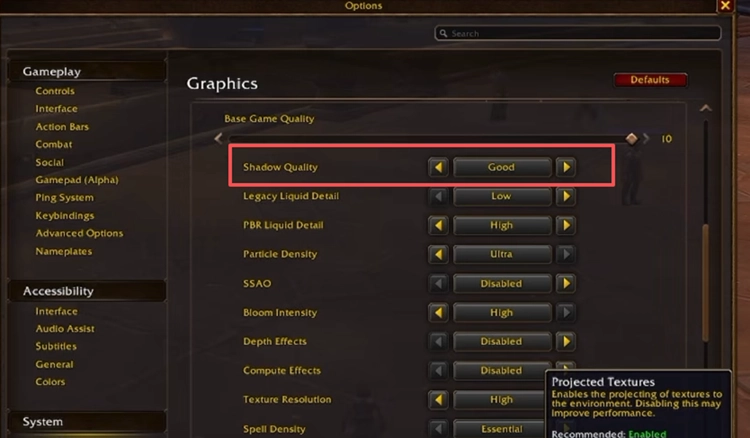
Open System > Graphics, find Shadow Quality, set it to Low, and apply the change. Re-enter the affected area and check whether the green environment or shadows return to normal.
Fix 3. Change Secondary Lighting to Fair
On affected Macs, higher Secondary Lighting settings can cause WoW Forever to freeze or crash while entering the world. Setting it to Fair reduces the problematic lighting workload and can let the game load normally. This setting mainly addresses the related Mac loading issue rather than the green tint itself.
Step 1. At the character screen, open System > Graphics.
Step 2. Find Secondary Lighting, set it to Fair, and click Apply.
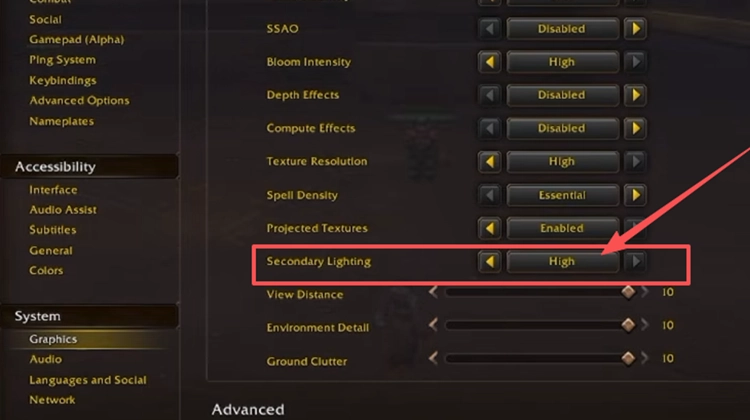
Step 3. Enter the world again and check whether the freeze or crash is resolved.
Fix 4. Disable Optional GPU Features
Optional GPU Features can affect how WoW Forever handles certain rendering functions. If the green tint remains after lowering Shadow Quality, temporarily disabling this option is a targeted way to rule out a GPU-feature conflict without reducing the entire graphics preset.
Open System > Graphics, scroll to Optional GPU Features, turn it Off, and apply the change. Re-enter the affected area and check whether the green environment returns to normal.
Fix 5. Lower Base Game Quality to 1 or 2
If the WoW Forever green screen or black textures remain after changing individual settings, temporarily lower Base Game Quality to 1 or 2. This preset reduces several graphics effects at once and may help when the Beta becomes unstable at higher quality levels.
Step 1. Open Options > Graphics, preferably from the character selection screen if the affected map prevents the game from loading normally.
Step 2. Set Base Game Quality to 1 and click Apply. If the graphics return to normal, try level 2 for better visual quality.
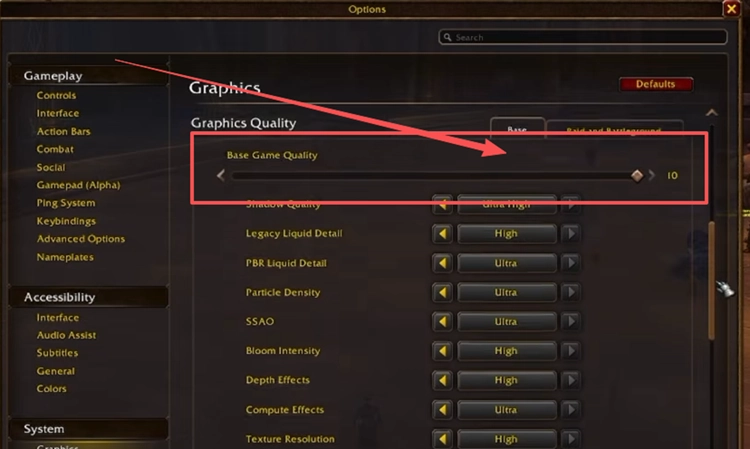
Step 3. Re-enter the affected area and check the environment and textures. Keep the lower preset temporarily if the issue returns at higher settings.
Fix 6. Turn Off SSAO for Black Textures
If WoW Forever shows black shadows, dark texture patches, or incorrectly rendered surfaces, try disabling SSAO (Screen Space Ambient Occlusion). This setting controls ambient shadowing and is linked to black texture artifacts in the current Beta.
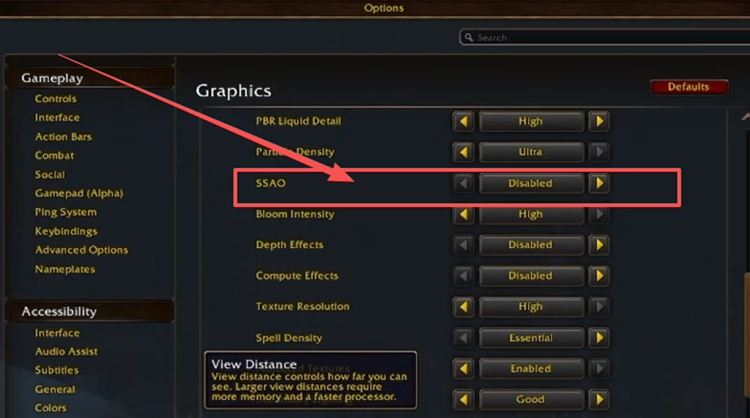
Open System > Graphics, find SSAO, set it to Disabled, and apply the change. Return to the affected area and check whether the black shadows or textures render normally.
Fix 7. Install the Latest WoW Forever Beta Update and GPU Driver
An outdated Beta build or graphics software can cause compatibility and rendering problems. Blizzard specifically recommends keeping graphics drivers up to date for the WoW Forever Beta. If the earlier graphics settings do not help, update both the game and your system before testing again.
Step 1. Open Battle.net and let any pending WoW: Forever Beta update finish installing.
Step 2. Update your graphics driver or system graphics software to the latest available version.
Step 3. Relaunch WoW Forever and revisit the affected area to check whether the green or black textures remain.
[Bonus] Improve WoW Forever Connection with LagZapper
After fixing the graphics issue, high ping, packet loss, or unstable routing can still affect WoW Forever gameplay. LagZapper optimizes the connection route between your PC and the game server to reduce game lag, lower ping, and improve connection stability.
Why Use LagZapper for WoW Forever?
- Smart Route Optimization: Finds stable routes to reduce high ping, packet loss, and jitter.
- Connection Stability: Helps reduce game lag, lower ping, and limit sudden latency changes.
- One-Click Boost: Optimizes the connection without manually changing router, DNS, or Windows settings.
- 3,000+ Game Support: Supports World of Warcraft and thousands of other online games.
The Bottom Line
A WoW Forever green screen, green map, or black texture issue can involve different graphics settings. Start with the Map Fix tool, then try Shadow Quality Low, Secondary Lighting Fair, Optional GPU Features Off, and SSAO Off based on your symptom. If high ping, packet loss, or unstable routing affects gameplay after the graphics issue is fixed, download LagZapper to improve connection stability.
FAQs About WoW Forever Green Screen
Q1. Why Is My WoW Forever Screen Green?
Graphics settings involving shadows, lighting, or GPU features can trigger the green rendering issue.
Q2. How Do I Fix a WoW Forever Green Map?
Try Shadow Quality Low, disable Optional GPU Features, or use the LagZapper Map Fix.
Q3. What Causes WoW Forever Black Textures?
SSAO and related rendering problems can produce black shadows, terrain, water, or missing textures.
Q4. Is the WoW Forever Graphics Bug Common on Mac?
Many current Beta reports involve Mac systems, including green environments, missing textures, and loading freezes.
Q5. Does Secondary Lighting Fix the WoW Forever Green Screen?
Fair mainly helps Mac loading freezes; Shadow Quality Low more directly targets the green tint.
Q6. Why Does My WoW Forever Texture Issue Remain After One Fix?
Different rendering artifacts can have different triggers, so one graphics change may not fix everything.