
Account Claim Tool Guide
Account registration, platform availability, and service access may vary by region for some games and gaming platforms. For players who do not currently have a suitable platform account, LagZapper provides an account claim tool to obtain login details for the relevant platform and try the game.
Eligible LagZapper members can currently claim one Steam account and one PURPLE account. Claims are counted separately for each platform. Check the client for your current eligibility.
Accounts provided by this tool are primarily intended for trial gameplay. Account status, login verification requirements, and usage rules on third-party platforms may change. Always refer to the applicable platform rules.
How to claim an account
The steps below use the AION 2 Global page as an example.
Step 1 Open Tools
On a game page that supports account claims, click Tools in the upper-right corner of the client.
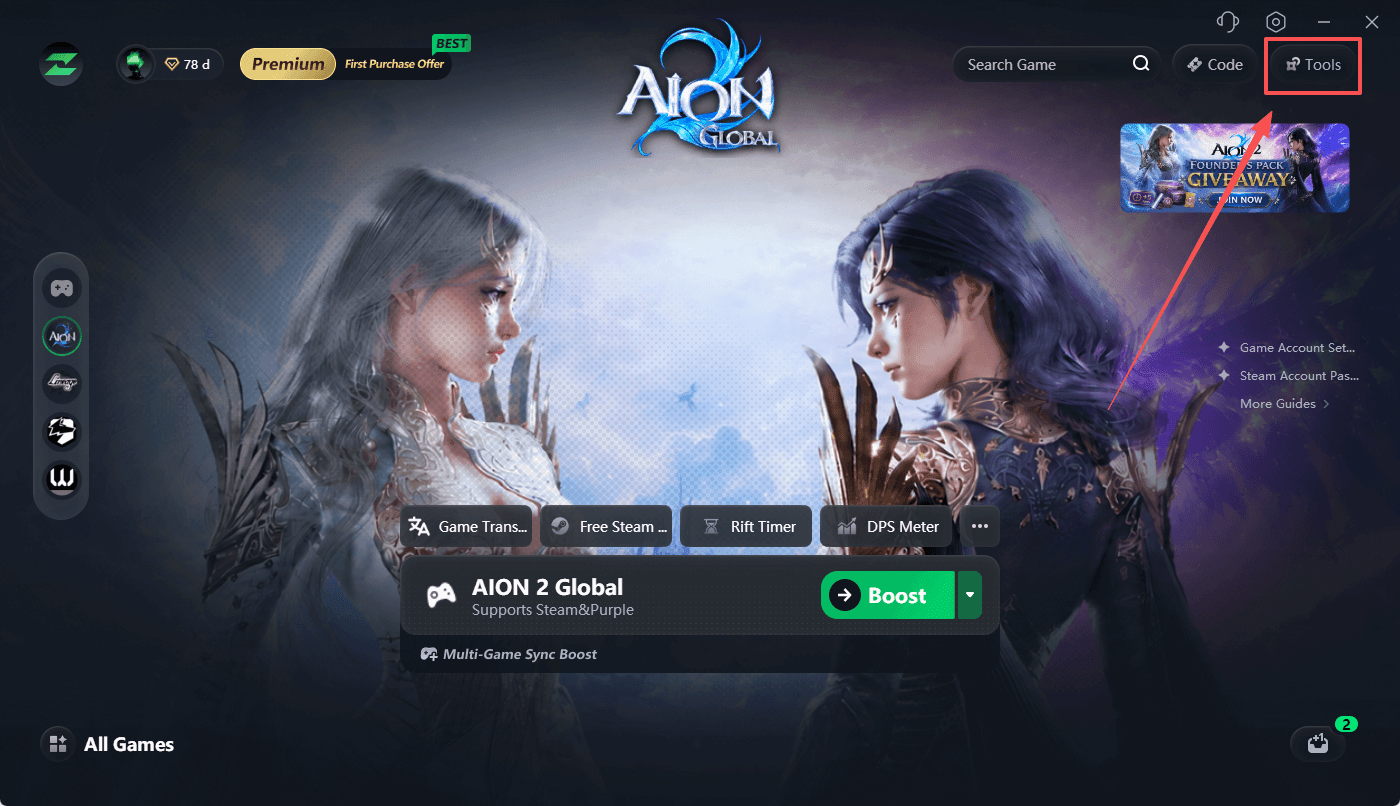
The account claim feature is available through the game tools panel. The tools shown may differ between games.
Step 2 Find Utility Tools
After you open Tools, the tools available for the current game appear on the right. Find the Utility Tools category.
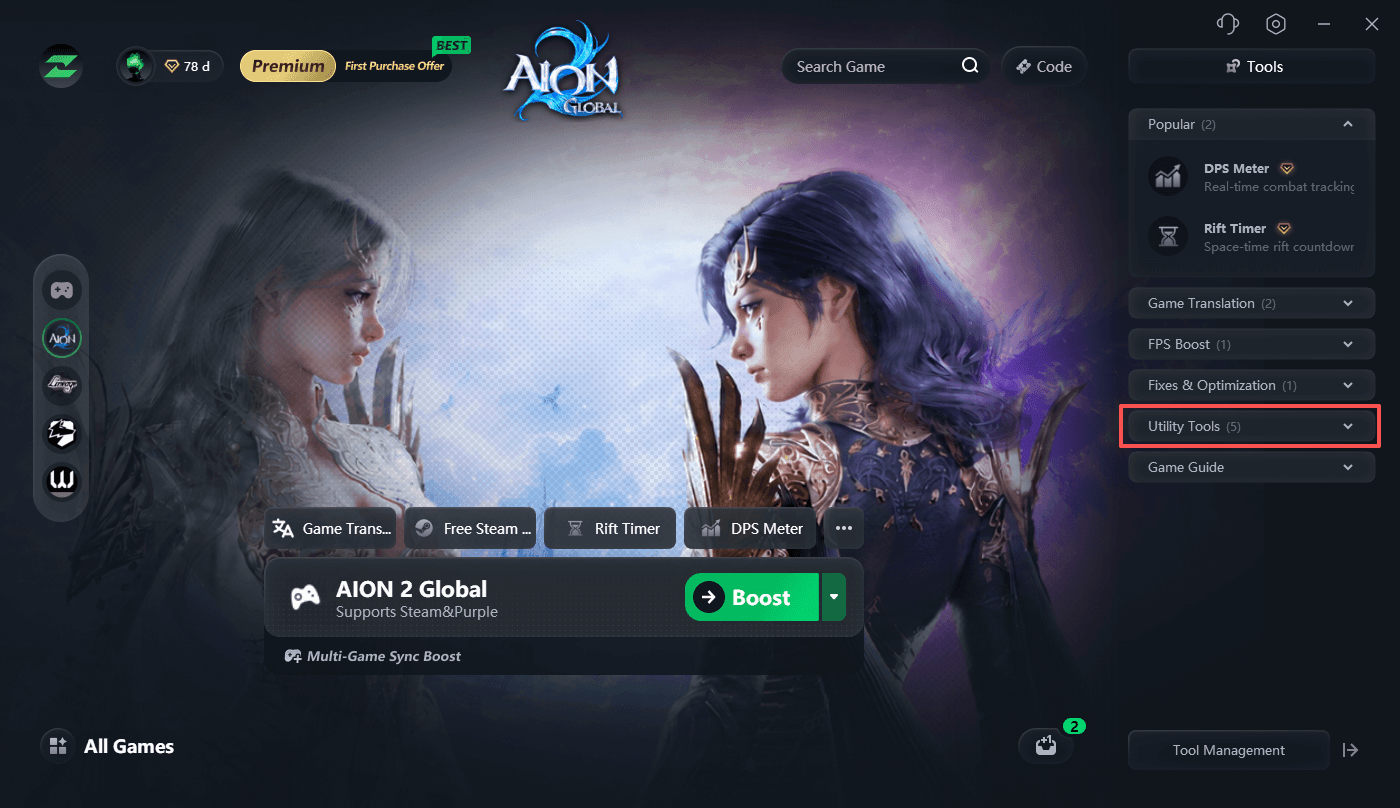
Step 3 Choose the account you need
Expand Utility Tools. If the game supports account claims, you will see options such as Free Steam Account or Free Purple Account. Click the tool you need.
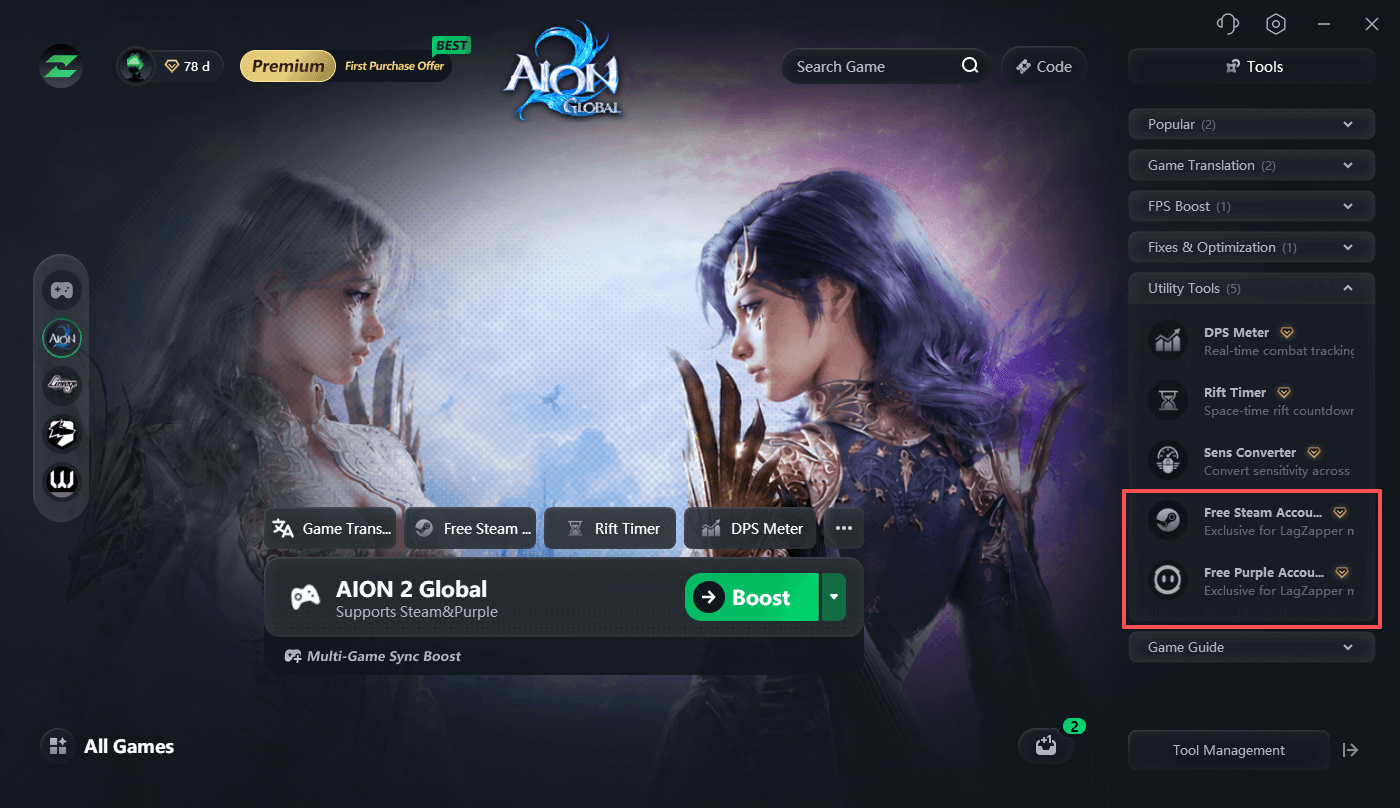
Steam and PURPLE claim eligibility is tracked separately. Claiming an account for one platform does not use your claim for the other.
Claiming a Steam account
Step 4 Click Claim
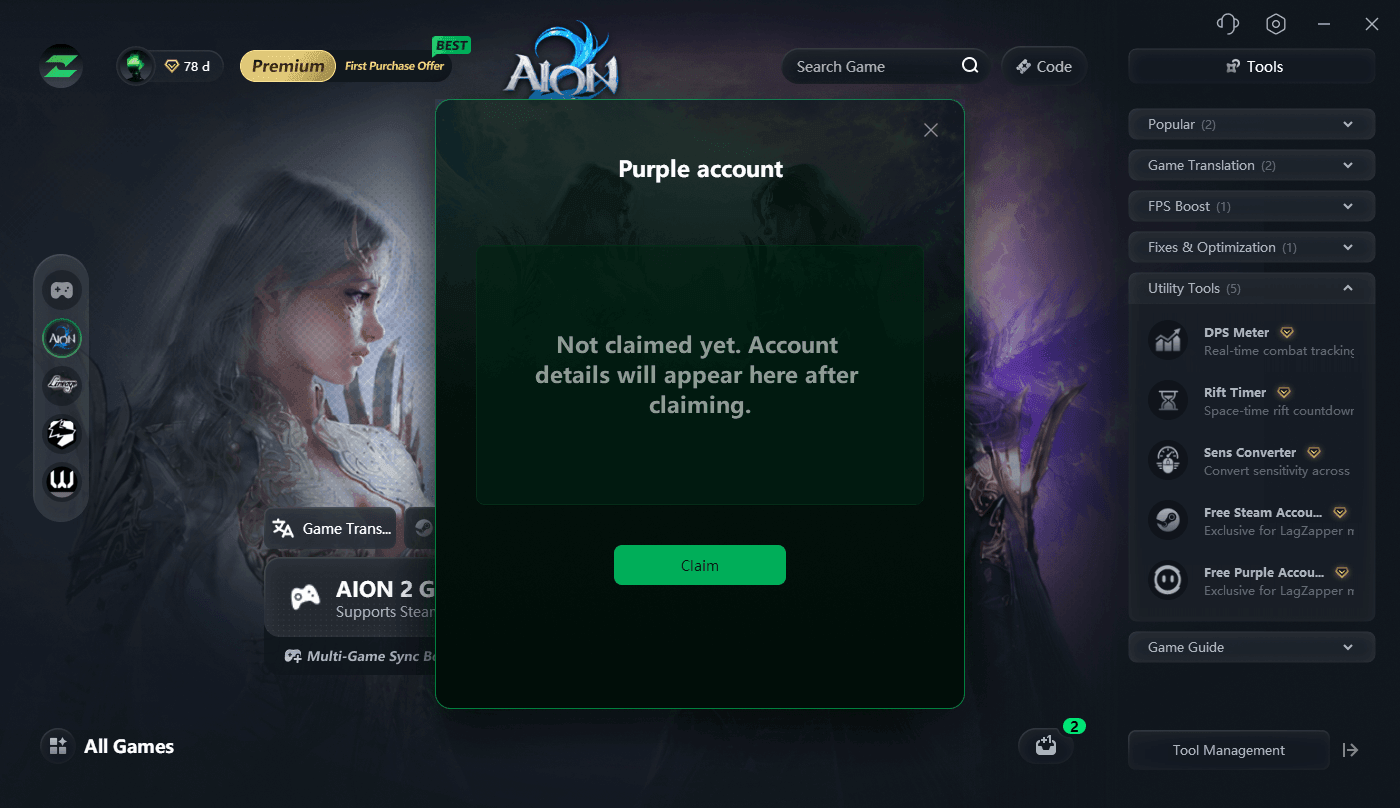
Open Steam account. If you have not claimed an account yet, the page displays:
Not claimed yet. Account details will appear here after claiming.
Click Claim at the bottom.
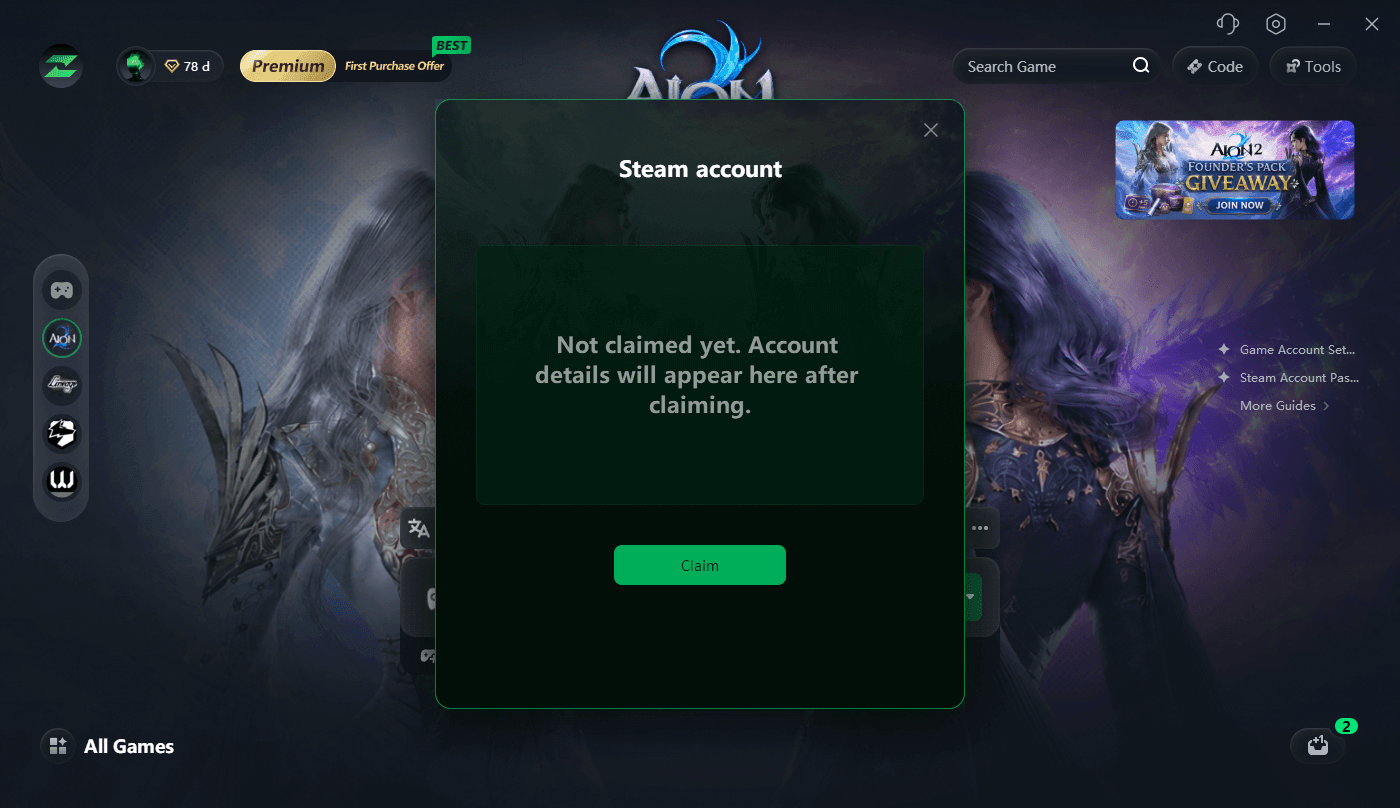
Once the claim is complete, the assigned account details appear on the same page.
Step 5 View your Steam account details
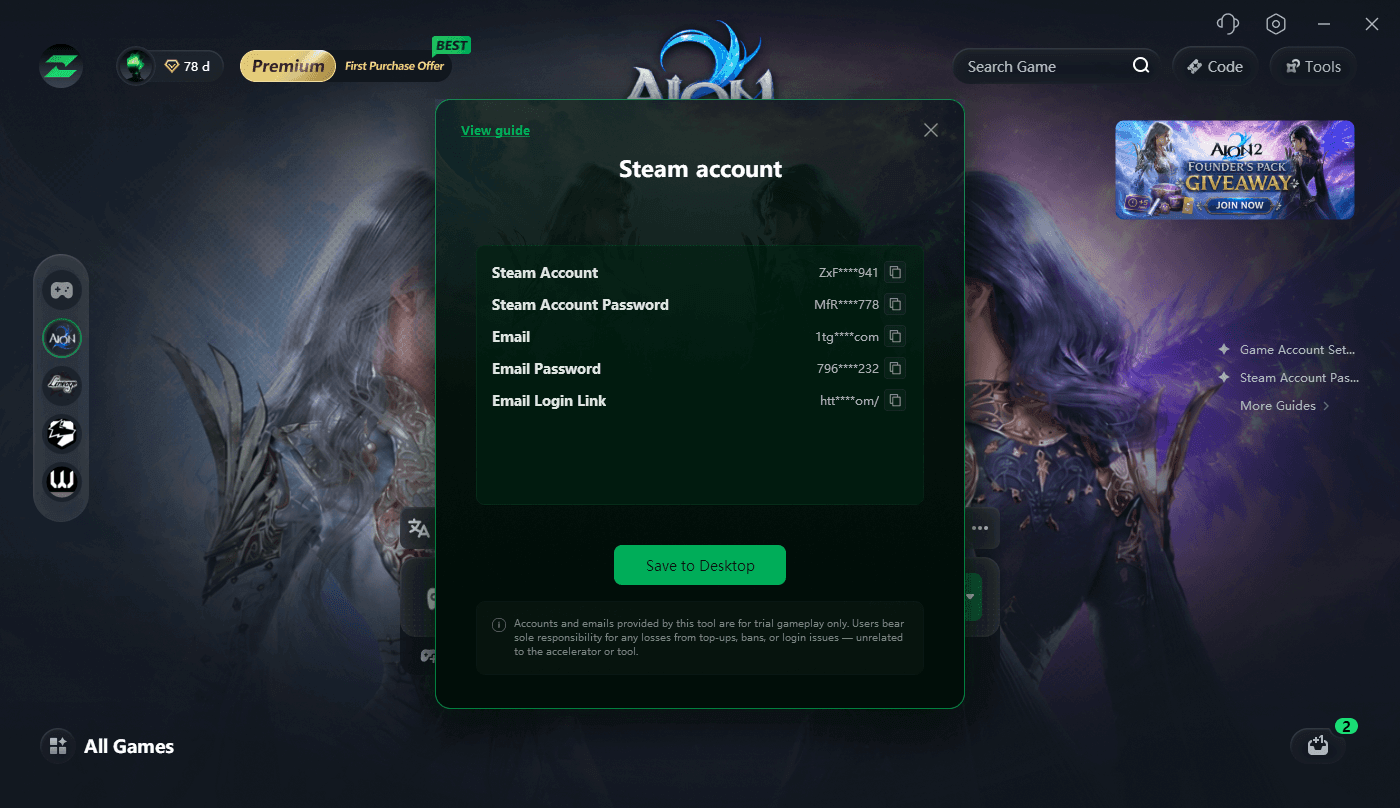
The Steam account page provides the login information: Steam Account, Steam Account Password, Email, Email Password, and Email Login Link.
Click the copy button to the right of any field to copy its contents.
Step 6 Save your account details
Click Save to Desktop at the bottom of the page to save the account information to your desktop for later reference.
Save the details promptly after claiming. Do not record only the Steam username and password.
Claiming a PURPLE account
Step 4 Click Claim
If you need a PURPLE account, open Free Purple Account under Utility Tools.
When you first open the page, it also displays a message indicating that no account has been claimed yet.
Click Claim to claim an account.
Step 5 View and save your PURPLE account details
After claiming, the page displays the account’s Email and Password.
Use the copy button on the right to copy the login details.
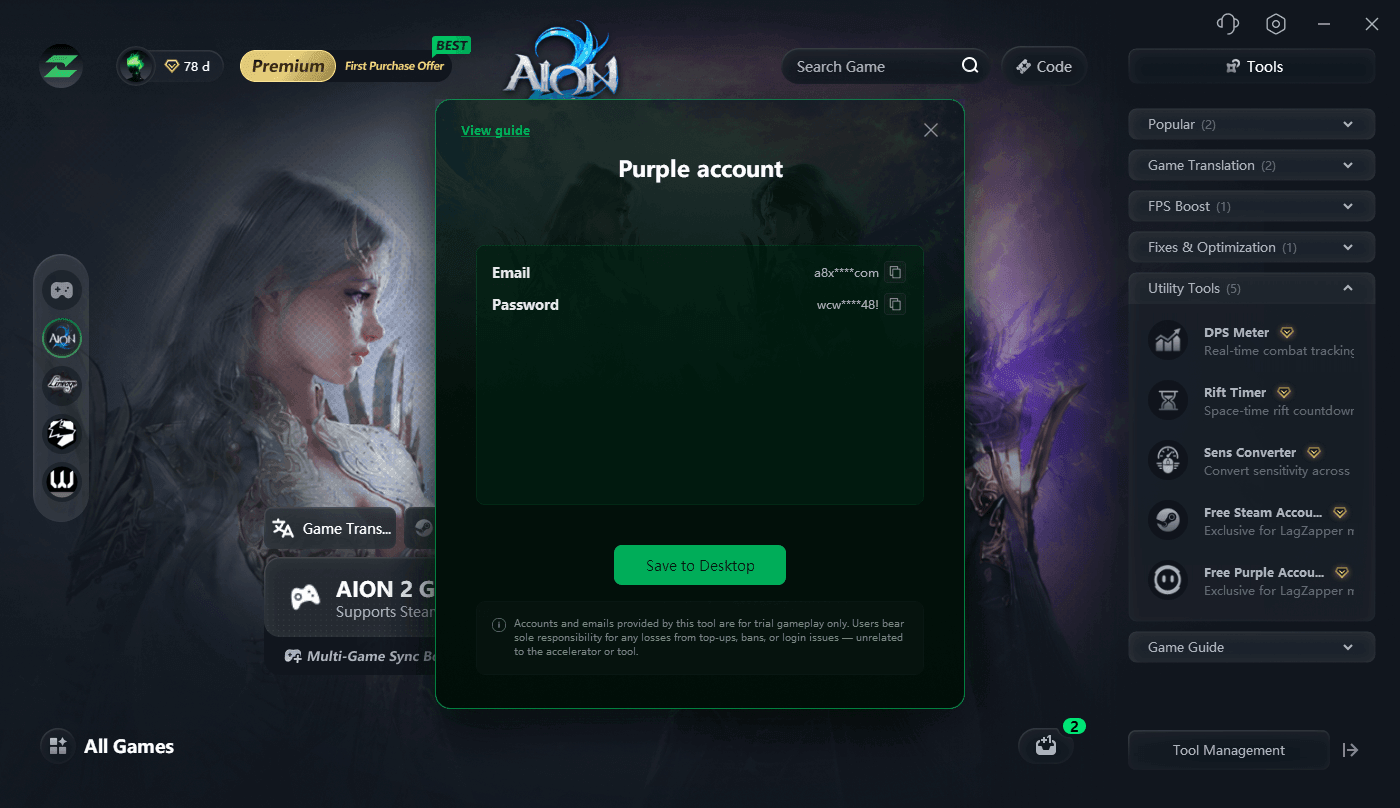
You can also click Save to Desktop to save the account information.
Using your account after claiming
For Steam, open the Steam client and sign in with the Steam Account and Steam Account Password shown on the claim page. If email verification is required, use the associated email details provided with the account.
For PURPLE, open the PURPLE client and sign in with the Email and Password you received.
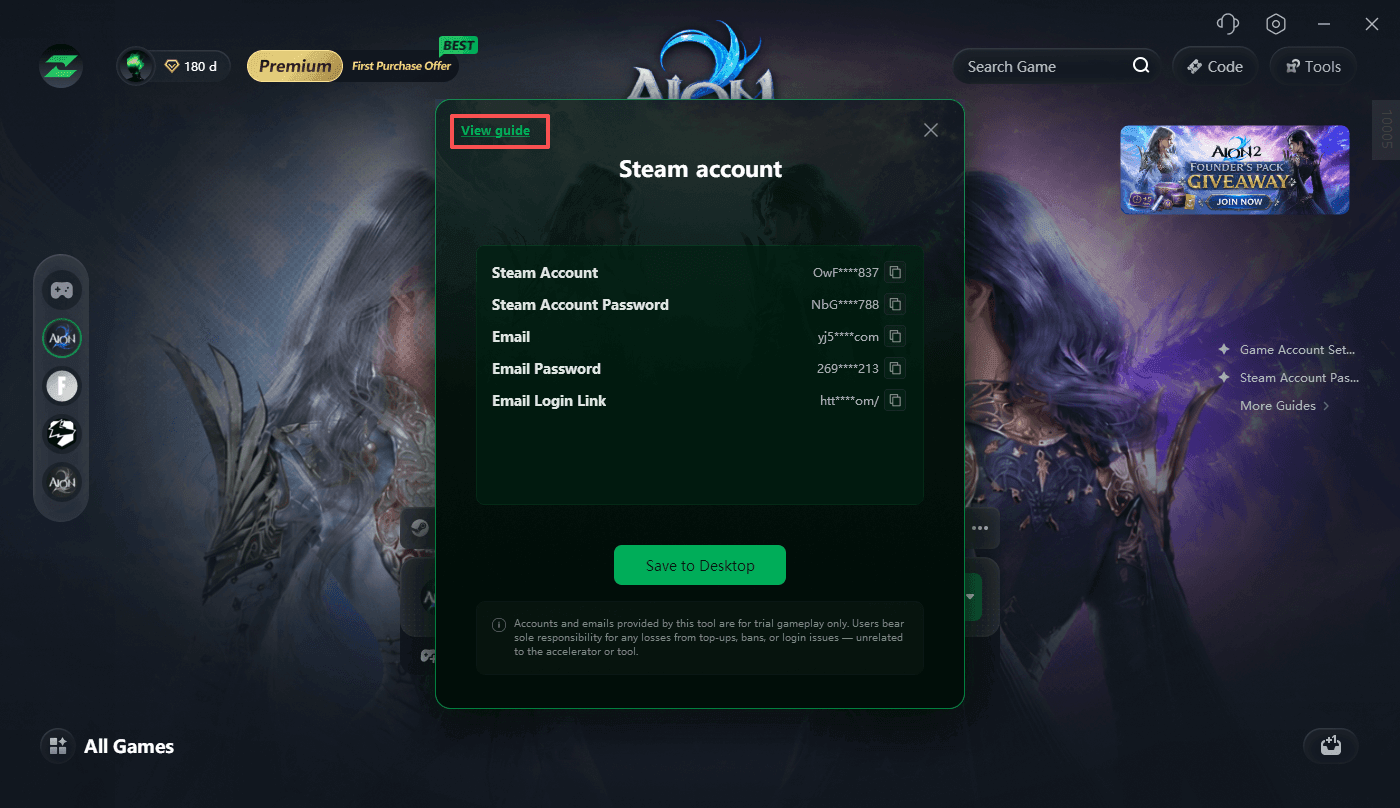
To learn how to change the email address linked to your Steam account, click View guide in the upper-left corner of the account details window.
LagZapper now officially supports AION 2! Enjoy lower latency and smoother gameplay with LagZapper!