
Game Account Setup Guide
After receiving the Steam game account provided by LagZapper, please first check whether the account includes AION 2 Standard Founder's Pack. Once confirmed, you can download and install the game.
To help keep your account secure, please make sure to change the email address linked to the Steam account after confirming that the account and game are working properly.
1. How to Use Your AION2 Game Account
Step 1: Log In to Steam
Open the Steam client and log in using the Steam account and password provided with your purchase.
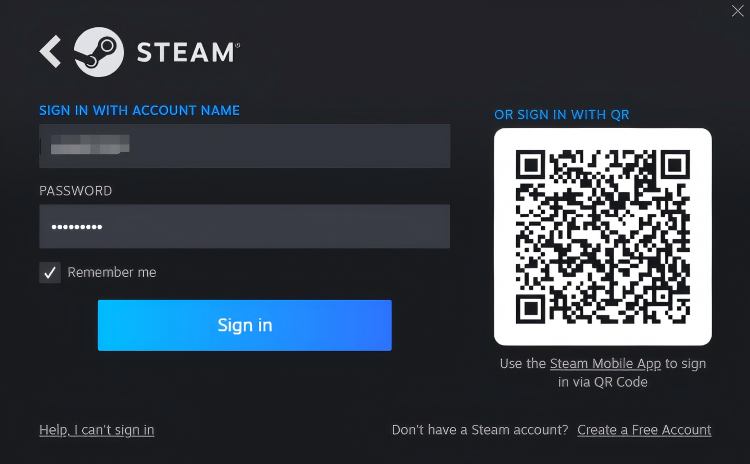
Step 2: Check for AION 2 Standard Founder's Pack
Before downloading the game, please confirm that the account includes AION 2 Standard Founder's Pack.
Follow these steps:
1. Click Account Details.
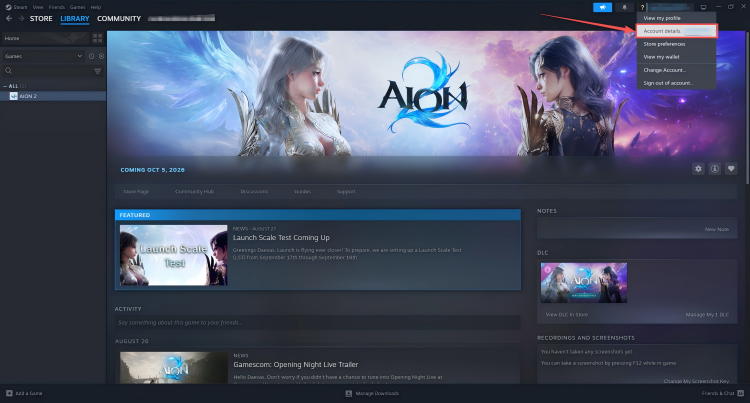
2. Click View licenses and product key activations.
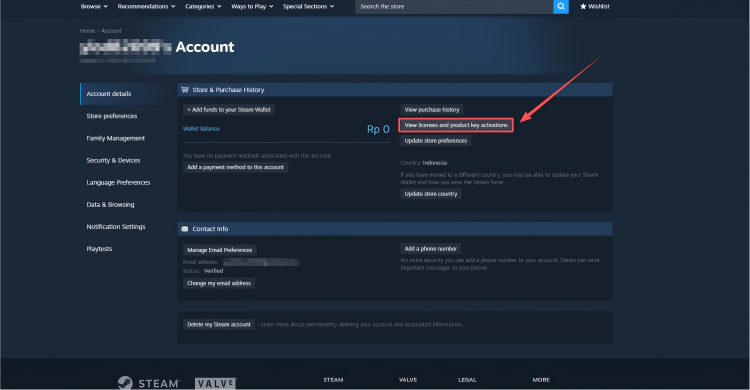
3. Check whether AION 2 Standard Founder's Pack appears in the license list.
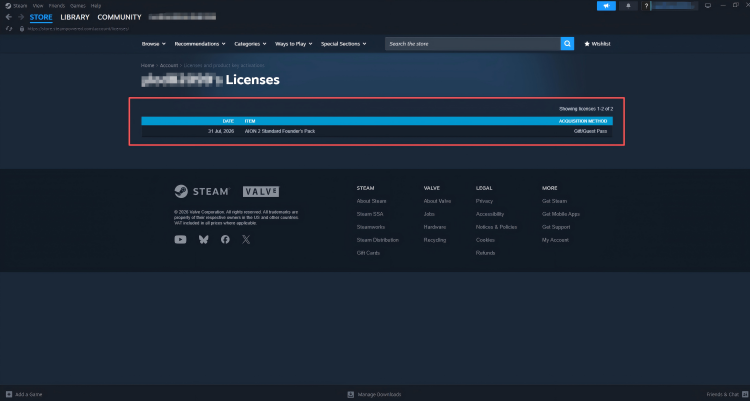
If the account does not include AION 2 Standard Founder's Pack, please contact LagZapper Support as soon as possible. We will help you resolve the issue.
Step 3: Download and Install AION2
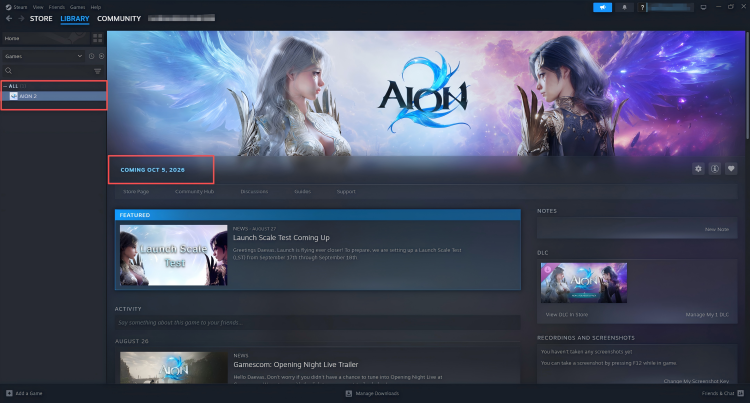
After confirming that the account includes AION 2 Standard Founder's Pack, open Library in the Steam client and locate AION2. Download and install the game. Once the installation is complete, you can launch and play AION2.
2. How to Change the Email Address Linked to Your Steam Account
After confirming that the AION2 account works properly, please change the email address currently linked to the Steam account to your own email address as soon as possible. This will help protect your account and make it easier to manage in the future.
Step 1: Log In to Your Steam Account
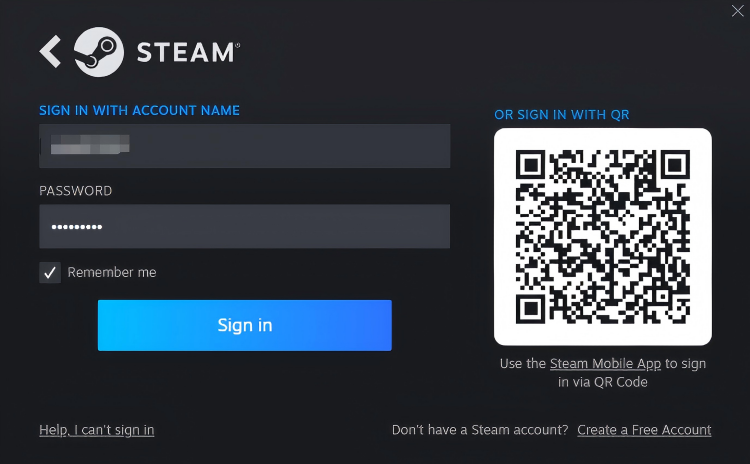
Open the Steam client or visit the Steam website, then log in using the Steam account and password provided by LagZapper.
Step 2: Open Account Settings
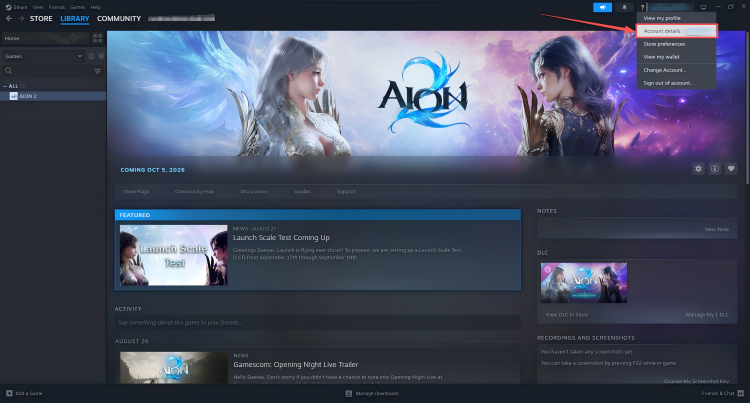
Click your username in the upper-right corner of the Steam client and select Account Details from the drop-down menu.
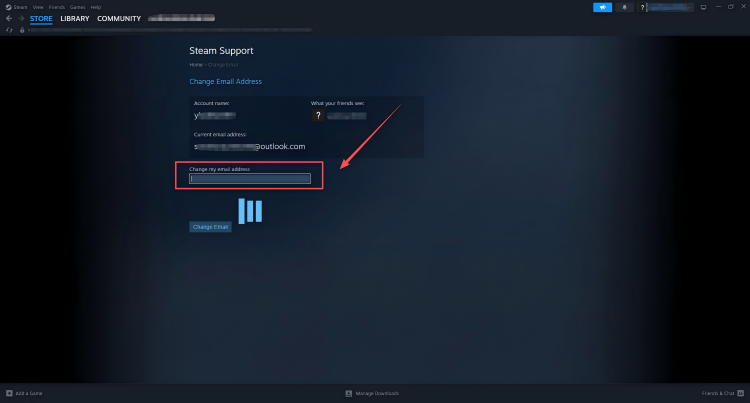
Step 3: Open the Email Change Page
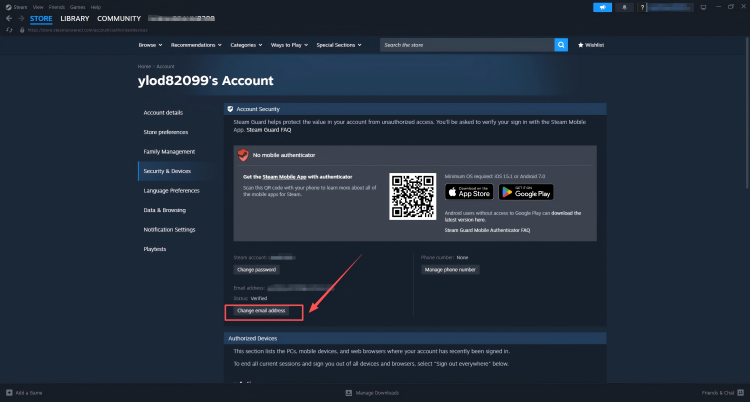
Go to the Security & Devices section and find Change email address. Click this option and follow the on-screen instructions.
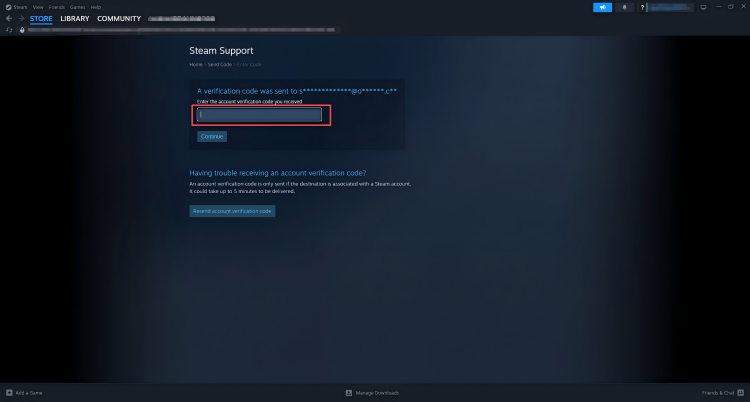
Step 4: Get the Verification Code from the Current Email Address
Please obtain the email information associated with the Steam account from your purchase order, then follow the steps below:
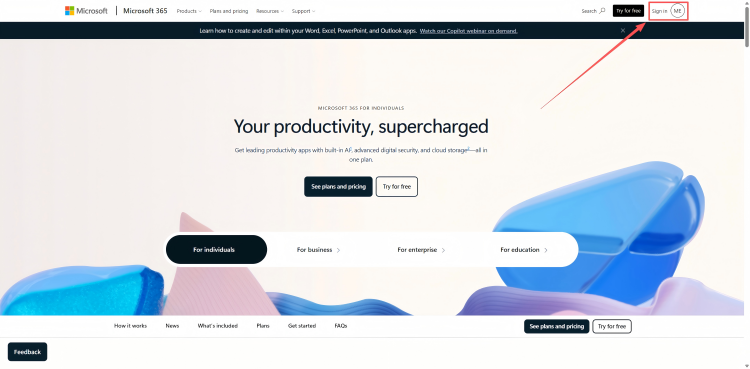
1. Log in to the primary email account using this link: https://www.microsoft.com/en-us/microsoft-365/
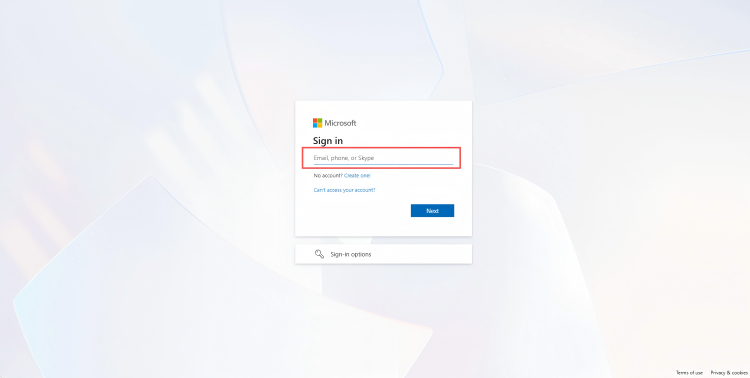
2. Enter the recovery email address provided by us.
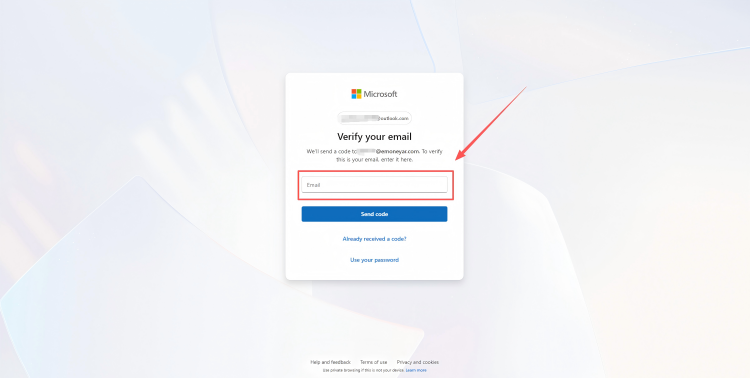
3. After entering the recovery email address, use the following link to access the recovery mailbox and receive the verification code: https://mail.hhtmm.com/
(Please use Google Chrome to access this website.)
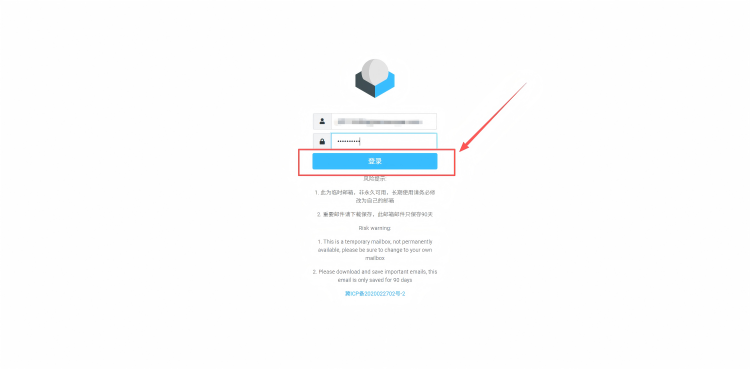
4. After finding the verification code in the recovery mailbox, return to the Outlook login page. Enter the verification code received by the recovery email to complete verification and log in to the primary email account.
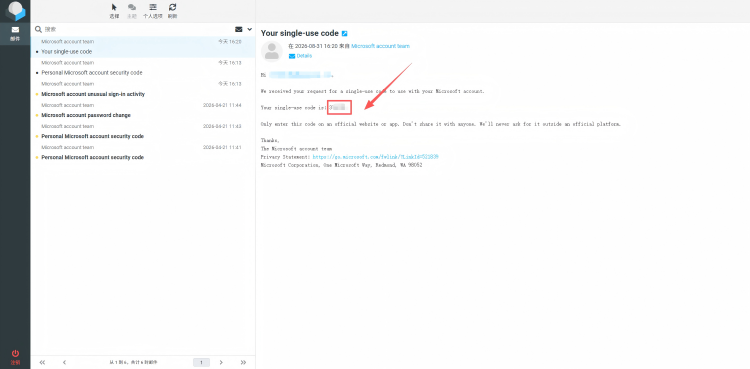
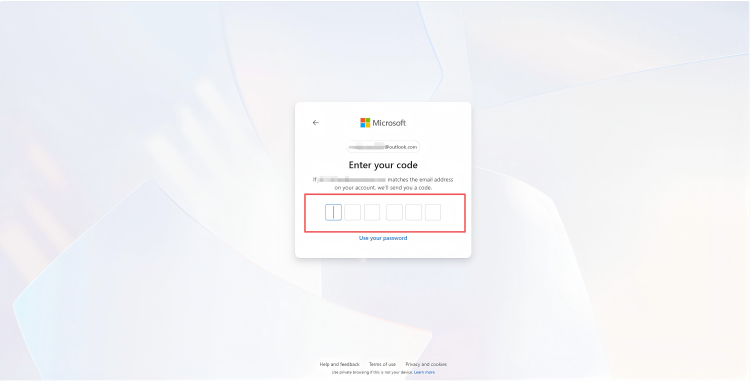
5. Find the Steam verification code received in the primary email account and enter it to complete the email change process.
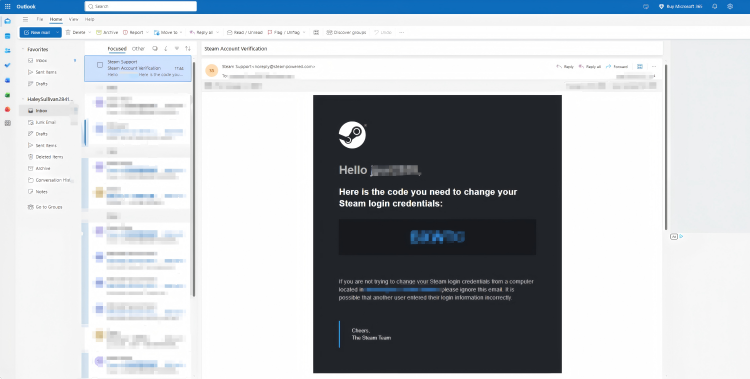
After changing the email address, please keep your Steam account, new linked email address, and related login information secure.