
Elytra Installation Failure Fix
If you encounter an Elytra anti-cheat installation failure when launching or installing WARDOGS, and the log contains all of the following errors:
InstallModule failed
Failed to open input file
Access is denied. (os error 5)
This usually means that the Elytra anti-cheat files have already been downloaded successfully, but an abnormal permission configuration in the Windows temporary directory is preventing Elytra from reading the files required for installation.
To resolve this issue, you can use Elytra ACL Fixer to automatically detect and repair the problem without manually changing Windows system permissions.
Tip: If your Windows 10/11 PC does not have Windows Desktop Runtime 8 installed, Elytra ACL Fixer may fail to launch.If this happens, simply download and install .NET 8 Desktop Runtime x64, then run the tool again.Download:
https://dotnet.microsoft.com/en-us/download/dotnet/8.0 On the Microsoft website, select:.NET Desktop Runtime → Windows → x64
Step 1 Download Elytra ACL Fixer
First, open LagZapper and go to the WARDOGS game page.
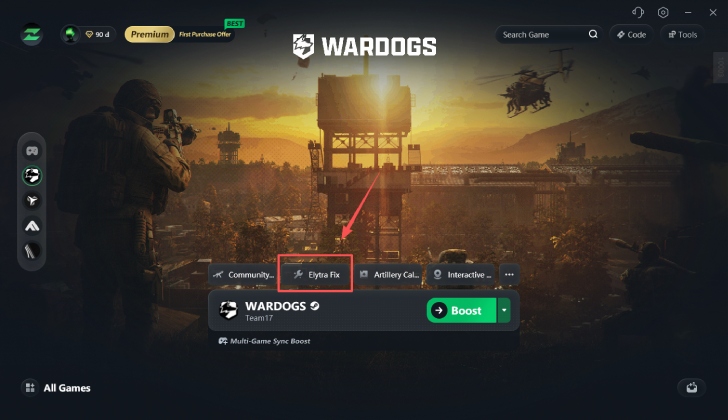
Scroll down and find the Elytra Fix tool, then click it.
Click the tool and wait for the download to complete.
Step 2 Run Elytra ACL Fixer
Once the download is complete, click it
This will launch Elytra ACL Fixer.
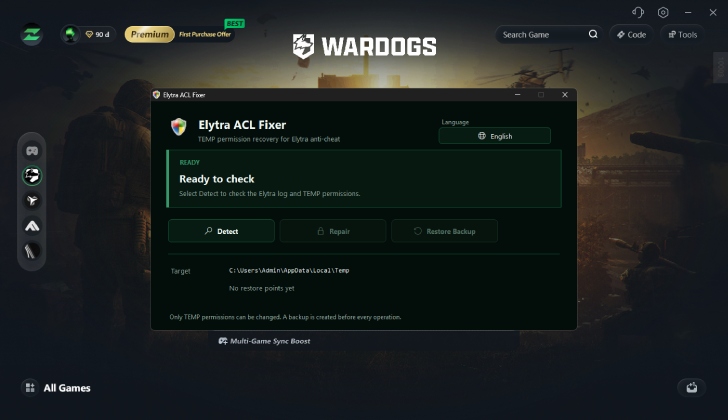
The tool provides three main functions:
Detect
Repair
Restore Backup
When you open the tool for the first time, the Repair button may be grayed out and unavailable. This is normal.
The tool must first check whether your PC actually has the corresponding TEMP directory permission issue.
Step 3 Click Detect to Check for the Issue
Click:
Detect
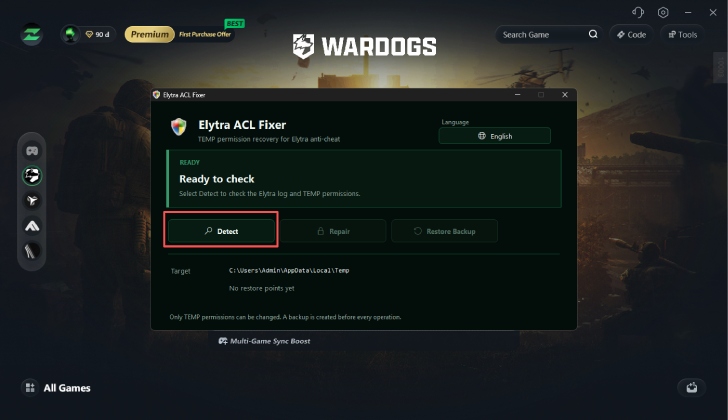
The tool will automatically check the Elytra logs and the permission status of the current Windows TEMP directory.
The detection process includes checking whether:
- The corresponding Elytra errors appear together in the log;
- Permission inheritance for the TEMP directory is working correctly;
- The SYSTEM account has the required access permissions.
The entire process is automatic. You do not need to manually modify any Windows permissions.
If the tool confirms that the Elytra installation failure is caused by abnormal TEMP directory permissions, the Repair function will become available.
Please note:
If Detect does not identify this permission issue, do not manually change the TEMP directory permissions.
Elytra installation failures can also be caused by other issues, such as network problems, VPNs, firewalls, or anti-cheat service errors.
Elytra ACL Fixer is designed only for this specific TEMP directory permission issue.
Step 4 Click Repair to Fix the Issue
After the problem has been detected, click:
Repair
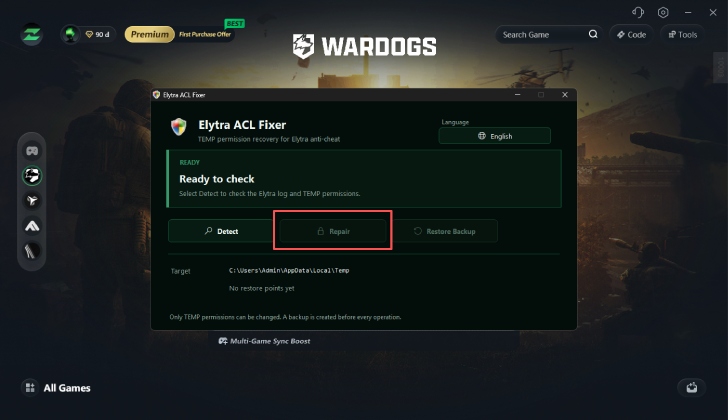
The tool will begin the repair process automatically.
Before modifying any permissions, Elytra ACL Fixer will first create a backup of the current TEMP directory permission configuration.
It will then restore normal permission inheritance for the TEMP directory and verify that the SYSTEM account has regained the required access permissions.
Wait until the tool reports that the repair has been completed.
After the repair is complete, close Elytra ACL Fixer and restart WARDOGS.
Elytra should then be able to read the required temporary files normally and continue the anti-cheat installation or startup process.
Q&A
How can I restore the original permissions after using the repair tool?
Elytra ACL Fixer automatically creates a backup before making any permission changes.
If you want to restore the TEMP directory permissions to their previous state, reopen the tool and click:
Restore Backup
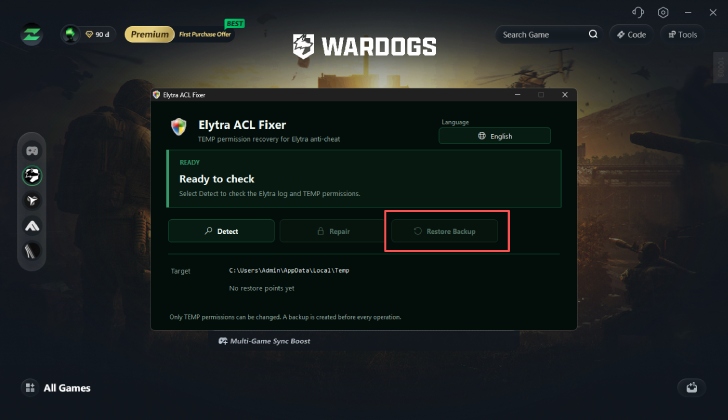
The tool will restore the TEMP directory permissions to the state they were in before the repair.
What does Elytra ACL Fixer modify?
Elytra ACL Fixer is not a general-purpose Windows system repair tool.
It is designed specifically to address:
Elytra anti-cheat installation failures caused by abnormal TEMP directory permissions.
The tool only repairs the permission inheritance and SYSTEM account access permissions of the current user's %TEMP% directory after confirming that the corresponding issue exists.
It also automatically creates a backup before every permission-related operation.
Compared with manually changing ACL permissions through Windows Security settings, this method is simpler and reduces the risk of accidentally modifying system permissions incorrectly.